
Guide
Dead Pixel vs Stuck Pixel
Wondering if your screen has a dead pixel or a stuck pixel? This guide explains the key differences, how to identify them, and the best ways to address each issue.
Updated 2026-07-05
Understanding Dead Pixels and Stuck Pixels
Modern displays, including monitors, laptops, and TVs, rely on thousands or millions of tiny pixels to create the images you see. Sometimes, a pixel may fail to display colors correctly, resulting in what is commonly called a dead pixel or a stuck pixel. Knowing the difference between these two can help you determine if your screen issue is fixable or if it requires a replacement.
Dead pixels are pixels that do not light up at all. They appear as small, unchanging black dots on your screen, regardless of what is being displayed. In contrast, stuck pixels are pixels that are permanently lit in one or more colors, such as red, green, or blue. These pixels can sometimes be fixed using software or physical methods.
The impact on your viewing experience can vary depending on the location and number of faulty pixels. A single dead or stuck pixel near the center of your screen can be distracting, while one at the edge may go unnoticed for years. Using a dedicated tool like Dead Pixel Test allows you to quickly detect and mark these issues for further action.
Manufacturers have different policies regarding pixel defects, and some may not offer replacements unless multiple dead or stuck pixels are present. Understanding the type of pixel issue you have is the first step toward a solution.
How to Identify and Address Pixel Issues
Identifying whether you have a dead pixel or a stuck pixel is crucial because the potential solutions differ. Dead pixels usually indicate a hardware failure within the pixel itself and are rarely fixable at home. Stuck pixels, on the other hand, may respond to troubleshooting methods or dedicated pixel-fixing software.
The appearance of the faulty pixel gives you clues: a dead pixel remains black at all times, while a stuck pixel is visible as a bright dot of color. To be certain, use a tool like Dead Pixel Test, which cycles through solid color backgrounds to make dead and stuck pixels stand out clearly. This approach saves time and ensures you do not miss subtle defects.
If you confirm a stuck pixel, gentle techniques such as massaging the area or running pixel-fixing applications can sometimes restore normal operation. Dead pixels generally do not respond to these methods, but documenting the location with the Dead Pixel Test tool can help when making warranty claims or deciding on repairs. Always check your display's warranty policy before attempting any fixes to avoid voiding coverage.
Step-by-step
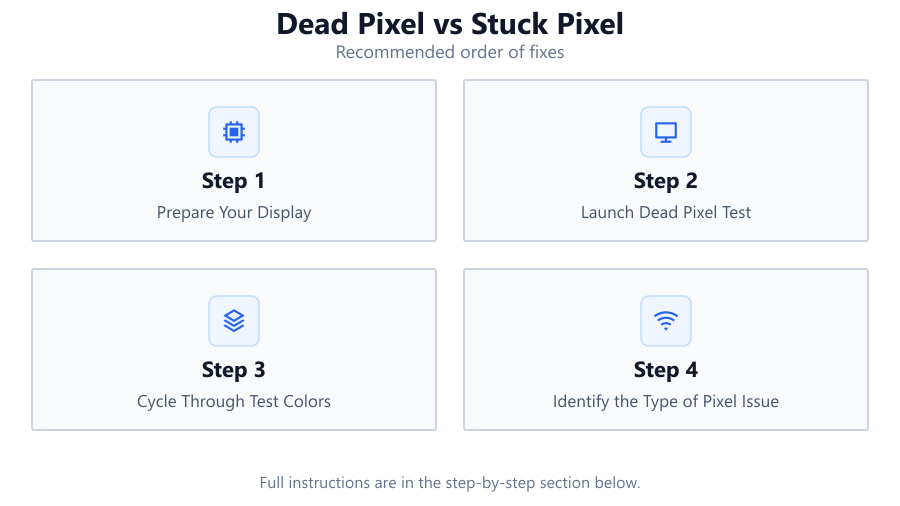
Prepare Your Display
Clean your screen with a soft, dry cloth to remove dust and smudges that could be mistaken for pixel defects. Ensure the display is powered on and set to its native resolution.
Launch Dead Pixel Test
Open the Dead Pixel Test tool and maximize it to full screen. This will allow the tool to display solid colors and help you spot any abnormal pixels.
Cycle Through Test Colors
Use the tool's controls to switch between black, white, red, green, and blue backgrounds. Carefully scan each color for pixels that do not change as expected.
Identify the Type of Pixel Issue
Note whether any problematic pixel appears black (dead pixel) or displays a constant color (stuck pixel). Mark their positions using the tool's built-in features.
Attempt Fixes or Document for Warranty
For stuck pixels, try gentle massage or a pixel-fixing software loop. For dead pixels, document them and check your device's warranty for possible replacement options.
Comparison
| Characteristic | Dead Pixel | Stuck Pixel |
|---|---|---|
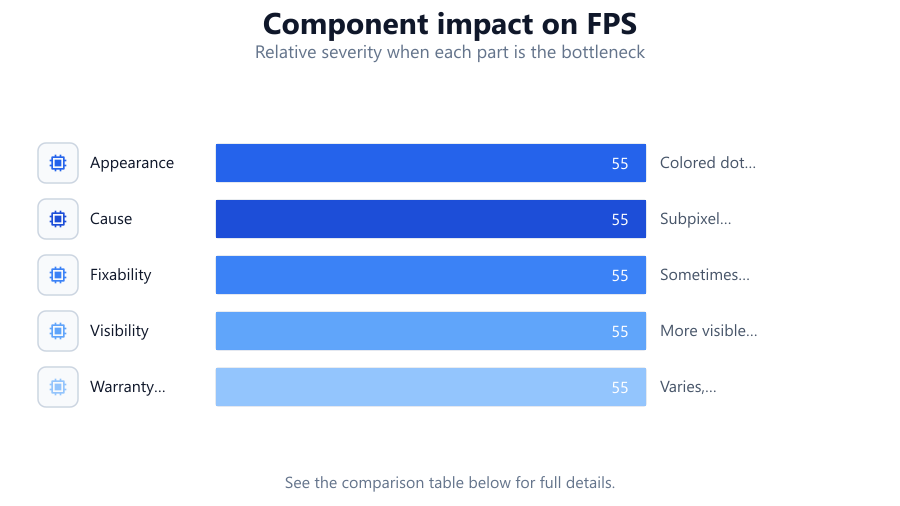
| Appearance | Always black, does not light up | Colored dot (red, green, or blue) |
| Cause | Pixel hardware failure | Subpixel stuck in on position |
| Fixability | Rarely fixable | Sometimes fixable with software or pressure |
| Visibility | Visible on all backgrounds | More visible on certain backgrounds |
| Warranty Coverage | Varies by manufacturer, often stricter | Varies, some manufacturers consider fixable |
| Impact | May be more distracting, especially if centered | Can blend in on some images, but still noticeable |
Common mistakes
Mistake
Confusing dust or dirt with pixel defects
Fix: Always clean your screen before testing for dead or stuck pixels.
Mistake
Assuming all pixel issues are fixable
Fix: Understand that dead pixels are rarely fixable, while stuck pixels sometimes respond to fixes.
Mistake
Applying excessive pressure to the screen
Fix: Only use gentle massage for stuck pixels, and never press hard to avoid causing more damage.
Mistake
Ignoring manufacturer warranty terms
Fix: Check your warranty before attempting any DIY fixes that could void coverage.
Troubleshooting
Small black dot that never changes color
Likely cause: Dead pixel
What to do: Document the location using Dead Pixel Test and check warranty options with your manufacturer.
Bright red, green, or blue dot visible on certain backgrounds
Likely cause: Stuck pixel
What to do: Try running a pixel-fixing software or gently massaging the area with a soft cloth.
Multiple pixels with issues across the display
Likely cause: Manufacturing defect or panel damage
What to do: Use Dead Pixel Test to map all affected areas, then contact the manufacturer for possible replacement.
Pixel issue appears and disappears intermittently
Likely cause: Possible loose connection or temporary stuck pixel
What to do: Ensure cables are securely plugged in, and run pixel-fixing software to see if the issue resolves.
Recommendations
- Use the Dead Pixel Test tool whenever you suspect a pixel issue for the most accurate detection.
- If a stuck pixel is found, attempt safe at-home remedies before considering repair or replacement.
- Document all pixel issues and check your display's warranty policy before attempting any fixes.
- Avoid using excessive force or sharp objects when trying to fix stuck pixels, as this can worsen the damage.
- Consider live with minor pixel issues at the screen edge if they are not distracting.
Frequently asked questions
What is the main difference between a dead pixel and a stuck pixel?
A dead pixel is always black and does not light up, while a stuck pixel stays lit in a single color such as red, green, or blue.
Can dead pixels be fixed at home?
Dead pixels are usually caused by hardware failure and are rarely fixable by end users. Replacement is often the only solution.
Are stuck pixels permanent?
Stuck pixels are sometimes temporary and can be fixed using software methods or gentle screen massage.
Does having one dead or stuck pixel qualify for a warranty replacement?
Warranty policies vary by manufacturer. Some require a minimum number of dead or stuck pixels before offering a replacement.