
FREE MEMORY TEST
Test Your Memory with Our Free RAM Speed Checker
Instantly measure your RAM's read and write speeds in MB/s to find performance bottlenecks and see how your memory stacks up.
Memory benchmark
Select test size
Larger tests reduce noise and improve accuracy. 500 MB is recommended for most systems.
How this test works
Effective MB/s = median of timed read, write & copy passes (5 samples each, outliers trimmed)The benchmark allocates typed arrays in your browser and measures sequential bandwidth. Copy uses bulk memory transfer (closest to real RAM throughput). Results are calibrated to estimate your system's RAM class — not raw JEDEC spec.
Performance guide
Exceptional (12,000+ MB/s MB/s)
High-end DDR5 or top-tier DDR4
Excellent (9,000–12,000 MB/s)
DDR5-4800+ / DDR4-3600+
Very Good (6,500–9,000 MB/s)
DDR4-3200 / DDR5 class
Good (4,500–6,500 MB/s)
Mainstream DDR4
Average (3,000–4,500 MB/s)
Budget DDR4 or laptop
Below Average (1,500–3,000 MB/s)
Shared memory or load
Low (<1,500 MB/s)
Heavy constraints
Browser tests measure effective bandwidth through JavaScript, not raw DRAM spec. Copy speed is usually the most reliable indicator.
Tip: Close extra tabs and pause downloads before testing.
What is RAM Speed and Why Should You Care?
So, you've probably heard gamers and builders talk about RAM speed, throwing around numbers like 3200MHz or 6000MT/s. What does it all mean? Think of your RAM, or Random Access Memory, as your PC's short-term memory. It's where your computer holds all the data it needs to access right now, like your open applications, game assets, and your operating system itself. It's lightning-fast compared to your SSD or hard drive. The 'speed' of your RAM determines how quickly your processor (CPU) can read data from it and write data to it. Faster RAM means the CPU spends less time waiting for information, which can translate directly to a smoother, more responsive computer.
This speed is typically measured in two ways: frequency (like 3200MHz) and data rate (like 6000MT/s, or megatransfers per second). For modern DDR (Double Data Rate) memory, the MT/s number is what you'll see on the box, and it's basically twice the frequency. A higher number is generally better. But it's not the whole story. Timings, which are a measure of latency, also play a big part. It's a balance. You want high speeds but also tight (low) timings for the best performance.
Why does this matter for you? In gaming, faster RAM can directly lead to higher average and minimum frame rates, especially in CPU-bound scenarios. When your CPU is working hard to process game logic, physics, and AI, it's constantly pulling data from RAM. If the RAM is a bottleneck, your powerful CPU and GPU can't reach their full potential, leading to stuttering and lower FPS. For content creators editing 4K video or developers compiling large codebases, the impact is even more dramatic. Faster RAM means shorter render times and a snappier workflow. Our RAM Speed Checker is designed to give you a real-world benchmark of your memory's performance, measuring the actual read and write speeds in MB/s. It's a simple way to see if you're getting the performance you paid for.
DDR3 vs. DDR4 vs. DDR5: A Generational Leap in Performance
RAM isn't a one-size-fits-all component. It has evolved through generations, and each one brings significant improvements. You've probably seen terms like DDR3, DDR4, and DDR5. These aren't interchangeable. Your motherboard is designed for one specific type, so you can't just plug a DDR5 stick into a DDR4 motherboard. They even have different physical notches to prevent that.
DDR3 is the old guard. It served us well for years, with typical speeds ranging from 1333MT/s to 2133MT/s. If you have a system built before 2014, you might still be using it. For modern gaming and applications, it's a serious bottleneck. Upgrading from a DDR3 platform is one of the biggest performance jumps you can make.
DDR4 took over around 2014 and became the standard for a long time. It started at 2133MT/s and now commonly runs at speeds of 3200MT/s to 3600MT/s, with enthusiast kits pushing even higher. DDR4 offered higher speeds, lower voltage (better efficiency), and higher capacity sticks than DDR3. For many gamers today, a good 3200MT/s or 3600MT/s CL16 DDR4 kit still provides excellent performance, especially when paired with CPUs like the AMD Ryzen 5 5600X or Intel Core i5-12400.
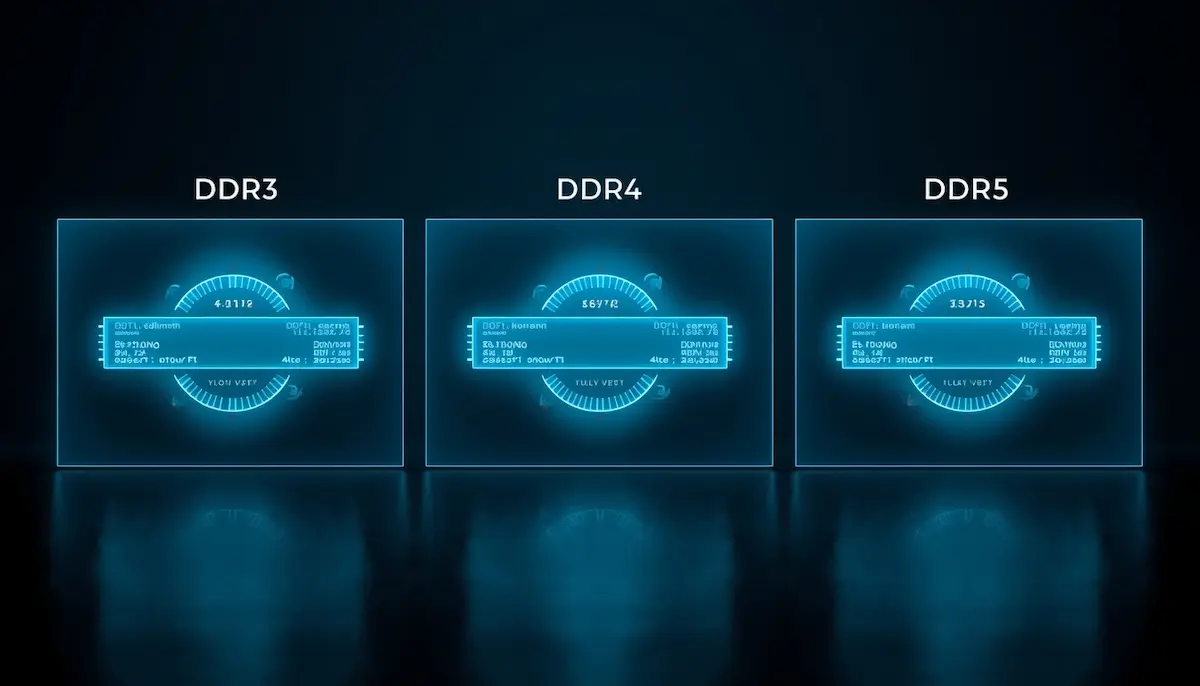
DDR5 is the current generation, launched alongside Intel's 12th Gen and AMD's Ryzen 7000 series CPUs. It represents another huge leap. DDR5 starts where DDR4 tops out, with common speeds from 4800MT/s to 7200MT/s and beyond. It's not just about raw speed. DDR5 has a different architecture with two independent 32-bit channels per stick, which improves memory access efficiency. The downside? When it first launched, DDR5 was expensive and had loose timings, making its real-world benefit over high-end DDR4 marginal in some games. But as the technology has matured, prices have dropped and speeds have increased. A 6000MT/s CL30 DDR5 kit is now the sweet spot for modern platforms like AM5, offering a noticeable performance uplift over DDR4 in many new titles and productivity tasks.
The Real-World Impact: How RAM Speed Affects Gaming FPS
Let's get down to what most of you are here for: frames per second. Does faster RAM actually make your games run better? The answer is a resounding 'yes', but the extent of the improvement depends heavily on your CPU, GPU, resolution, and the game itself.
The biggest gains are seen in CPU-bound scenarios. This is when your CPU is the limiting factor in your performance, not your GPU. This often happens at 1080p resolution with a high-end graphics card like an RTX 4070 or RX 7800 XT, or in games with complex physics and AI, like strategy games (Civilization VI) or large-scale shooters (Battlefield 2042). In these situations, your CPU is constantly processing data and feeding instructions to the GPU. Faster RAM allows the CPU to get that data quicker, reducing wait times and allowing it to process more frames per second. We've seen jumps of 10-15% or even more in average FPS in certain titles just by moving from a baseline 2400MT/s DDR4 kit to a well-tuned 3600MT/s kit.
Minimum framerates, often represented as 1% lows, see an even greater benefit. This is arguably more important than average FPS because it relates directly to how smooth the game feels. High-speed RAM can significantly reduce stuttering and big frame drops, leading to a much more consistent experience. Games like Valorant and CS2, which can run at hundreds of FPS on modern hardware, are extremely sensitive to memory latency. A jump from DDR5 4800MT/s CL40 to 6000MT/s CL30 can provide a substantial boost to 1% lows, making those crucial moments in a competitive match feel much more fluid.
On the other hand, if you're playing at 4K with all settings maxed out on a game like Cyberpunk 2077 with path tracing enabled, you'll likely be GPU-bound. Your graphics card is working at 100% capacity just to render each frame, and the CPU is often waiting on it. In this scenario, the difference between 3200MT/s and 3600MT/s RAM might be just a couple of frames per second. It's not zero, but it's much less pronounced. The key takeaway is that RAM is a foundational part of your system's performance. Neglecting it can hold back your expensive CPU and GPU, especially if you're chasing high refresh rates.
Beyond Gaming: RAM Speed in Video Editing and Multitasking
While gamers see clear benefits, the impact of RAM speed is often even more tangible in productivity and content creation workloads. If you've ever scrubbed through a 4K video timeline in Adobe Premiere Pro and felt that frustrating lag, your RAM speed and capacity could be the culprit. Video editing applications are constantly loading and manipulating huge files in memory. Higher memory bandwidth, like that provided by fast DDR5, allows the software to preview, render, and export projects much faster. The difference between a base-spec DDR5 kit and a high-performance 6400MT/s kit can shave minutes off your export times, which adds up to hours saved over the course of a project.
Software compilation is another area where memory performance is critical. Developers working on large codebases can see significant reductions in build times with faster RAM. Every moment the CPU waits for data from memory is a moment wasted. For professionals, time is money, and investing in high-speed RAM has a direct return on investment through increased productivity.
What about everyday multitasking? Even if you're not a content creator, you've probably had that experience of having 30 Chrome tabs open, along with Spotify, Discord, and a few Office documents. This is where both RAM capacity and speed come into play. Capacity (how many gigabytes you have) determines how many applications you can have open before your system starts bogging down and using the much slower page file on your SSD. Speed, however, determines how snappily you can switch between those applications. With faster RAM, your system feels more responsive as you jump from a spreadsheet to a web browser to your email client. Everything just feels a little bit smoother. So even for general use, while you might not notice a 10% FPS gain, you'll feel the quality-of-life improvement of a well-balanced system with fast memory.
How to Check Your RAM Speed in Windows (The Easy Ways)
So you want to know what speed your RAM is actually running at. It's a great first step to diagnosing performance issues. Luckily, Windows gives you a few ways to check, and there are some excellent third-party tools as well.
The simplest method is using the Windows Task Manager. Just press Ctrl+Shift+Esc to open it, go to the 'Performance' tab, and click on 'Memory'. On the right side, you'll see a bunch of information, including a line item for 'Speed'. This will show you the current operating speed of your RAM in MHz. For example, it might say 3200MHz. It's quick, easy, and built right into the OS.
For a more detailed look, a fantastic free tool we always recommend is CPU-Z. After you install and run it, navigate to the 'Memory' tab. Here, you'll see the 'DRAM Frequency'. Now, here's a key point: this number will be half of your RAM's advertised speed. Remember DDR stands for Double Data Rate. So if you see 1800MHz here, it means your RAM is running at 3600MT/s (1800 x 2), which is great. CPU-Z also shows you your active timings and whether you're running in single or dual channel mode, which is incredibly useful information.
Finally, the most definitive place to check your RAM settings is in your system's BIOS/UEFI. When you first boot your computer, press the designated key (usually Del, F2, or F12) to enter the BIOS. Here you can see exactly which profile is loaded (like XMP or EXPO) and confirm the target frequency and timings. This is also where you'll go to enable these profiles if they're turned off.
While these methods tell you what your RAM is *configured* to run at, they don't tell you its actual real-world performance. That's where our browser-based RAM Speed Checker comes in handy. It performs a live test, allocating memory and measuring the read/write bandwidth in MB/s, giving you a tangible performance number without needing to install any software.
Unlocking Your RAM's True Potential: What are XMP and EXPO?
Here is one of the most common mistakes we see people make when building or upgrading a PC. You buy a fancy kit of 3600MT/s DDR4 or 6000MT/s DDR5 RAM, you install it, and you assume you're getting that speed. Most of the time, you're not. By default, your motherboard will run your new RAM at a much slower, standard JEDEC speed, like 2133MHz for DDR4 or 4800MT/s for DDR5. This is done for maximum compatibility and stability. To get the speed you paid for, you need to enable a special profile in your BIOS.
For Intel platforms, this profile is called XMP, which stands for Extreme Memory Profile. For AMD's new AM5 platform, it's called EXPO, for Extended Profiles for Overclocking. They both do the same thing. They are pre-configured, factory-tested overclocking settings stored on the RAM sticks themselves. When you enable XMP or EXPO in your BIOS, you're telling your motherboard to load these settings, which include the advertised frequency, timings, and voltage. It's a one-click overclock that is safe and guaranteed by the RAM manufacturer to work.
How do you enable it? First, reboot your computer and enter the BIOS (usually by pressing the Delete or F2 key during startup). The interface will look different depending on your motherboard manufacturer (ASUS, Gigabyte, MSI, etc.), but you're looking for a setting that says 'XMP', 'EXPO', or 'DOCP' (on older ASUS AMD boards). It's often on the main 'EZ Mode' screen or in the 'Advanced' or 'OC Tweaker' sections. You'll typically have a dropdown menu to select Profile 1. Just select it, save your changes, and exit the BIOS. Your computer will restart, and your RAM will now be running at its full speed. You can then verify this using Task Manager or CPU-Z as we discussed earlier.
Forgetting to enable XMP or EXPO is like buying a sports car and leaving it in first gear. You are leaving a significant amount of performance on the table, often 10-20% or more in CPU-limited games and applications. It's the single most important thing you can do after installing new memory.
The Single vs. Dual Channel Showdown: Don't Make This Mistake
Alongside forgetting to enable XMP, running RAM in single-channel mode is the other cardinal sin of PC building. It's an easy mistake to make, but it cripples your memory performance, effectively cutting its bandwidth in half. Let's break down what this means.
Modern CPUs have memory controllers with multiple channels, usually two (dual-channel) on mainstream platforms. Think of these channels as highways for data between your CPU and RAM. If you install only one stick of RAM, all data has to travel down one highway. This is single-channel mode. If you install two sticks of RAM in the correct slots, your CPU can access both of them simultaneously, using two highways. This is dual-channel mode, and it doubles your theoretical memory bandwidth.
What are the 'correct' slots? Most motherboards have four RAM slots. To enable dual-channel, you don't just put two sticks next to each other. You need to consult your motherboard manual, but the standard configuration is to use the second and fourth slots from the CPU (often labeled A2 and B2). This ensures that each stick is in a different channel. If you put them in slots one and two (A1 and A2), they'll often run in single-channel mode because they're on the same channel.
The performance difference is not subtle. In many games and applications, moving from single-channel to dual-channel can boost performance by 20-30% or more. The effect is particularly massive for systems using integrated graphics (like AMD APUs). An integrated GPU doesn't have its own dedicated VRAM; it uses your system RAM instead. By doubling the memory bandwidth with a dual-channel setup, you are essentially doubling the bandwidth available to your integrated graphics, which can be the difference between a game being a slideshow and it being playable.
We've seen tests where a Ryzen 7 8700G gets 40 FPS in a game with single-channel RAM and jumps to over 70 FPS with the exact same RAM kit running in dual-channel. It's a free performance upgrade that you absolutely cannot afford to miss. So if you're buying RAM, always buy a kit of two (or four) sticks. If you have two sticks installed, double-check your motherboard manual and make sure they're in the right slots. You can confirm you're in dual-channel mode using the CPU-Z utility on the 'Memory' tab. It will clearly say 'Dual' under the 'Channel #' field.
Demystifying RAM Timings: CL, tRCD, tRP, and What Really Counts
When you look at a RAM kit's specifications, you'll see the speed (like 6000MT/s) and then a series of numbers that look something like 30-38-38-96. These are the memory timings, and they represent latency. In simple terms, while the speed (frequency) is how many times your RAM can transfer data per second, the timings are how many clock cycles it takes for the RAM to respond to a request. Lower numbers are better.
The most important of these is the first number, called CAS Latency, or CL. This is the time it takes for the memory to prepare to send data after receiving a request from the CPU. A kit with CL30 is faster (has lower latency) than a kit with CL40, assuming they are at the same frequency. The other primary timings are tRCD (RAS to CAS Delay), tRP (Row Precharge Time), and tRAS (Row Active Time). They all relate to the different steps the memory module takes to locate and access data.
So, which is more important, speed or timings? The truth is, they both are. The best way to think about it is to calculate the absolute latency, which gives you a real-world time in nanoseconds. The formula is: (CL * 2000) / Data Rate. For example, let's compare two DDR5 kits:
- DDR5-5200 CL40: (40 * 2000) / 5200 = 15.38 nanoseconds
- DDR5-6000 CL30: (30 * 2000) / 6000 = 10.00 nanoseconds
In this case, the DDR5-6000 CL30 kit is significantly faster, not just because of its higher data rate but because its much tighter CAS latency results in a far lower absolute latency. This is why a kit like this is considered the 'sweet spot' for current AMD Ryzen 7000 series CPUs. It provides a fantastic balance of high bandwidth and low latency.
For most users, you don't need to get lost in the weeds of secondary and tertiary timings. Focusing on finding a kit with a good combination of high frequency and low CAS Latency is the best approach. For DDR4, a great target was 3600MT/s CL16. For DDR5 on an AM5 platform, 6000MT/s CL30 is the gold standard right now. For Intel's 13th and 14th Gen CPUs, which can handle higher memory speeds, kits up to 7200MT/s CL34 can provide even better performance if your motherboard and CPU's memory controller are up to the task.
How Much RAM Do You Need for Gaming in 2026? 16GB vs. 32GB vs. 64GB
The question of 'how much RAM' has been around as long as PCs have. The answer changes over time as games and applications become more demanding. Let's look at the current landscape and where things are headed.
For a long time, 16GB (usually in a 2x8GB configuration) was the standard for gaming PCs. And for many people, it still is. If you're building a budget to mid-range PC primarily for playing games like Valorant, Apex Legends, or Fortnite, and you're good about closing background applications like your web browser, 16GB is perfectly fine. Most games won't use more than 10-12GB of system memory on their own. However, we're at a tipping point. Newer, more demanding titles like Starfield, Alan Wake 2, or heavily modded versions of games like Cities: Skylines 2 can easily push past 16GB of usage, especially when you factor in the operating system and background apps like Discord or OBS for streaming.
This is why we now strongly recommend 32GB (in a 2x16GB kit) as the new standard for any new gaming PC build in 2024 and beyond. The price difference between 16GB and 32GB kits has become so small that the extra headroom is a no-brainer. With 32GB, you simply don't have to worry. You can leave dozens of browser tabs open, stream your gameplay, and run the latest AAA titles without your system slowing down or stuttering due to a lack of memory. It provides a much smoother overall experience and future-proofs your system for the next few years. As games continue to grow in complexity and asset quality, 32GB will soon become the new minimum for a good experience.
So, what about 64GB (2x32GB)? For pure gaming, 64GB is overkill. There are currently no games that will see a performance benefit from having more than 32GB of RAM. Where 64GB (or even 128GB) becomes necessary is in workstation and heavy productivity use cases. If you're a professional video editor working with 8K footage, a 3D artist creating complex scenes, or a data scientist running large simulations, you can absolutely use 64GB of RAM and more. For these tasks, having enough RAM to load your entire project into memory without constantly swapping to your SSD is a massive time-saver. But for the average gamer, your money is much better spent on a faster GPU or CPU than on going from 32GB to 64GB.
Troubleshooting Slow RAM: Common Causes and Easy Fixes
You've run our RAM Speed Checker or checked Task Manager and your memory is running much slower than it should be. Don't panic. This is a common problem with several easy fixes. Let's walk through the most likely culprits.
First and foremost: XMP/EXPO is not enabled. As we covered earlier, this is the number one reason for slow RAM. Your motherboard defaults to a safe, slow speed. You must go into the BIOS and manually enable the profile to unlock the performance you paid for. If you do nothing else, do this.
Second: Your RAM is in the wrong slots. If you have two sticks of RAM, they must be in the correct slots to run in dual-channel mode. Typically, this is the second and fourth slot away from the CPU (A2 and B2). Putting them right next to each other will force them into single-channel mode, halving your bandwidth. Check your motherboard manual to be sure, and then physically move the sticks if they're in the wrong place. You can verify you're in dual-channel with CPU-Z.
Third: You've mixed and matched different RAM kits. While it can sometimes work, mixing sticks with different speeds, timings, or even from different manufacturers is asking for trouble. When you mix RAM, the motherboard will default to running all sticks at the speed of the slowest one. In a worst-case scenario, it can lead to instability and system crashes. The best practice is to always buy a single, matched kit of two or four sticks and avoid adding more later unless it's the exact same model.
Fourth: Your BIOS is outdated. Motherboard manufacturers frequently release BIOS updates that improve memory compatibility and stability, especially for new platforms like AM5. If you're experiencing issues, check your motherboard's support page for the latest BIOS version. Updating it might solve your problem. Just be sure to follow the manufacturer's instructions carefully, as a failed BIOS update can be a serious issue.
Finally, it's possible your CPU's memory controller or motherboard simply can't handle the rated speed of your RAM kit. This is more common with very high-speed kits (e.g., trying to run a 7800MT/s kit on a mid-range motherboard). In this case, you may need to manually lower the frequency in the BIOS until the system is stable.
The CPU and RAM Connection: A Critical Partnership
Your CPU and RAM are in a constant, high-speed conversation. The performance of one directly impacts the potential of the other. This relationship is managed by the Integrated Memory Controller (IMC), which is a part of the CPU die itself. The quality of your CPU's IMC can determine the maximum RAM speed you can stably run.
This connection is especially critical and well-defined on AMD's Ryzen platforms. AMD uses a high-speed interconnect called Infinity Fabric to link the different parts of the CPU, like the core complexes (CCDs) and the I/O die. The speed of this fabric is called the FCLK. For optimal performance, you want the FCLK to run at the same speed as your memory clock (MCLK). This is called a 1:1 ratio. Your memory clock is half of your RAM's data rate. So, for a 3600MT/s DDR4 kit, the MCLK is 1800MHz. The ideal FCLK would also be 1800MHz. For a 6000MT/s DDR5 kit, the MCLK is 3000MHz, and you'd want a 3000MHz FCLK. Running in this 1:1 sync minimizes latency and provides the best performance. Most Ryzen 7000 CPUs can comfortably run a 3000MHz FCLK, which is why 6000MT/s RAM is the sweet spot. Pushing much beyond that can cause the system to drop to a 2:1 ratio, which increases latency and can actually hurt performance in some cases.
On the Intel side, the relationship is a bit more flexible. Intel CPUs generally have stronger IMCs that can handle higher memory frequencies. While there is still a relationship between the memory controller clock and the memory clock, it's not the same hard 1:1 ratio as on AMD. This is why you see high-end Intel systems running DDR5 at 7200MT/s, 8000MT/s, or even higher. For a CPU like the Intel Core i9-14900K, pairing it with very fast RAM can unlock extra performance, especially in memory-sensitive applications and games. However, you'll need a high-quality Z790 motherboard to stably support these extreme speeds.
Ultimately, you can't just slap the fastest RAM you can find into any system. You need to consider your CPU's capabilities. For AMD Ryzen 7000, that means targeting 6000MT/s with tight timings to maintain that 1:1 FCLK ratio. For modern Intel systems, you have more headroom to push for higher frequencies if your budget and motherboard allow for it.
Identifying Your RAM: Can You Even Upgrade?
Thinking about a RAM upgrade? The first step is to figure out exactly what you have now and what your system can support. It's not as simple as just buying more gigabytes; compatibility is key.
First, you need to identify your motherboard's RAM type. As we've discussed, motherboards support either DDR3, DDR4, or DDR5, and they are not cross-compatible. You can't put DDR5 RAM into a DDR4 motherboard. The easiest way to find out what you have is to use a tool like CPU-Z. The 'Memory' tab will show you the type (e.g., DDR4) and the 'SPD' tab will let you look at the specifications of each individual stick. Alternatively, you can look up your motherboard's model name (also shown on the 'Mainboard' tab in CPU-Z) on the manufacturer's website to see its specifications.
Next, you need to know how many RAM slots you have and how many are currently populated. Most ATX and Micro-ATX motherboards have four slots, while smaller Mini-ITX boards usually have two. If you have four slots and two are filled with 8GB sticks for a total of 16GB, your easiest upgrade path is to buy an identical 2x8GB kit to bring your total to 32GB. However, we generally advise against mixing kits, even of the same model, as slight variations in manufacturing can sometimes cause instability. The safest bet is always to replace your existing kit with a new, larger capacity kit (e.g., replacing your 2x8GB kit with a new 2x16GB kit).
Finally, check your motherboard's maximum supported RAM capacity and speed. This information is available on the product page on the manufacturer's website. Most modern motherboards support up to 128GB or even 192GB of RAM, so capacity is rarely a limitation. However, they will have a list of qualified memory speeds. While you can often run RAM faster than the 'official' supported speeds, it's not guaranteed. Sticking to speeds listed on your motherboard's Qualified Vendor List (QVL) is the surest way to guarantee compatibility. The QVL is a list of specific RAM kits that the manufacturer has tested and verified to work with that board. It's a valuable resource to check before you buy.
Best RAM Configurations for Every Build in 2024
Choosing the right RAM can feel overwhelming, so let's break it down into practical recommendations for different types of PC builds. We've tested hundreds of kits, and these are the configurations we consistently come back to for the best balance of price and performance.
For a Budget to Mid-Range Gaming PC (e.g., Ryzen 5 5600, Core i5-12400F, RTX 3060/4060): The DDR4 platform is still an incredible value here. We strongly recommend a 32GB (2x16GB) kit of DDR4-3200 CL16 or DDR4-3600 CL18 RAM. A 3200 CL16 kit is often the most affordable and provides fantastic performance. If you can find a 3600 CL18 kit for a similar price, it's a small but worthwhile step up, especially for Ryzen 3000/5000 series CPUs. Don't cheap out and get a single 16GB stick. The dual-channel performance from a 2x16GB kit is non-negotiable.
For a High-End Gaming PC (e.g., Ryzen 7 7800X3D, Core i7-14700K, RTX 4070 Ti/4080): This is where DDR5 becomes the clear choice. For AMD Ryzen 7000 systems, the undisputed sweet spot is a 32GB (2x16GB) kit of DDR5-6000 CL30. This speed syncs perfectly with the CPU's Infinity Fabric for minimum latency and provides excellent bandwidth. Look for kits with AMD EXPO profiles for guaranteed compatibility. For high-end Intel systems (13th/14th Gen), you have more flexibility. The DDR5-6000 CL30 kits are still a great starting point, but Intel's stronger memory controllers can take advantage of even faster RAM. A 32GB (2x16GB) kit of DDR5-7200 CL34 can provide a few extra percentage points of performance if you have a good Z790 motherboard and are willing to pay the premium.
For a Productivity and Content Creation Workstation (e.g., Threadripper, Core i9-14900K, RTX 4090): Here, capacity is king, but speed still matters. 64GB (2x32GB) is our recommended starting point. For video editing, 3D rendering, and virtual machines, this extra capacity prevents your system from slowing down when working with large project files. A DDR5-6000 CL30/CL32 64GB kit is a great choice for balancing speed and capacity. If your workflow involves extremely large datasets or complex simulations, stepping up to 128GB (4x32GB) might be necessary. Just be aware that running four sticks of DDR5 can be more demanding on the memory controller, and you may not be able to achieve the same high frequencies as you could with just two sticks.
Advanced Topic: Memory Sub-Timings and Manual Overclocking
For the vast majority of users, enabling XMP or EXPO is all you'll ever need to do. It gives you 95% of the performance with almost zero effort. But for enthusiasts who love to tinker and squeeze every last drop of performance out of their hardware, there's the world of manual RAM overclocking. This involves going beyond the primary timings (like CAS Latency) and manually adjusting the dozens of secondary and tertiary sub-timings.
This is a deep rabbit hole. Sub-timings like tRFC (Row Refresh Cycle Time) and tREFI (Refresh Interval) can have a significant impact on performance and latency. Tightening these timings can yield real-world gains in games and benchmarks that are sensitive to memory performance. However, it's a painstaking process of trial and error. You change one value slightly, then run a memory stress test like TestMem5 or Karhu RAM Test for hours to ensure stability. If it passes, you try tightening it a bit more. If it fails, you loosen it and try something else. It requires a lot of patience and research.
Another aspect of manual overclocking is finding the maximum stable frequency for your specific RAM kit and CPU memory controller. You might have a 6000MT/s kit that can actually run at 6400MT/s with some voltage adjustments. This often involves increasing the voltage for the memory controller (VDD2/VDDQ) and the RAM itself (VDIMM), which also increases heat and requires good airflow over your memory modules.
Is it worth it? For most people, probably not. The time investment is huge for what might amount to a 3-5% performance gain over a good XMP profile. But for those who enjoy the process, it can be a rewarding way to learn more about how their system works and to achieve benchmark scores that are uniquely theirs. If you're interested, we recommend starting with guides like the 'DDR5 OC Guide' on GitHub. Just be warned: it's a complex and time-consuming hobby, but for some enthusiasts, that's the whole point.
Advanced Topic: The Difference Between Single Rank and Dual Rank RAM
When you get deep into memory performance, you'll encounter the terms 'single rank' and 'dual rank'. This has nothing to do with single or dual channel. It refers to the internal organization of the memory chips on the RAM stick itself. A 'rank' is a block of data that is 64 bits wide. A single-rank memory module has one of these blocks. A dual-rank module has two blocks of 64-bit data on the same stick, which the memory controller accesses independently.
Why does this matter? Because a dual-rank configuration allows for a technique called 'rank interleaving'. While the memory controller is waiting for one rank to complete a refresh cycle, it can start accessing data from the other rank. This interleaving can reduce memory latency and improve performance, especially in bandwidth-heavy tasks. In practice, a dual-rank kit can be about 5-10% faster than an equivalent single-rank kit at the same speed and primary timings.
Historically, RAM sticks with higher capacity were more likely to be dual-rank. For example, in the DDR4 era, most 8GB sticks were single-rank, while most 16GB sticks were dual-rank. This is one reason why a 2x16GB kit often performed slightly better than a 2x8GB kit, beyond just the capacity difference. With DDR5, things are a bit different. Many 16GB DDR5 sticks are still single-rank. You often need to go to 32GB or even 48GB sticks to find dual-rank configurations.
How can you tell what you have? It's not always advertised on the box. The best way is to use CPU-Z. On the 'Memory' tab, there's a field for 'Rank'. It will say either 'Single' or 'Dual'. If you install two dual-rank sticks in a dual-channel setup, you're effectively running in a 'quad-rank' configuration from the memory controller's perspective, which provides the best potential for performance. However, running four ranks (either two dual-rank sticks or four single-rank sticks) is also more stressful on the CPU's memory controller, which can sometimes limit your maximum overclocking frequency. It's another one of those trade-offs that make PC hardware so interesting.
Frequently Asked Questions
What is a good RAM speed for gaming?
For modern gaming PCs, we recommend DDR5-6000 with a CAS Latency (CL) of 30 for AMD Ryzen 7000 CPUs, as it's the performance sweet spot. For Intel 13th/14th Gen, DDR5-6000 CL30 is also excellent, though you can see further gains with speeds up to 7200MHz if your budget allows. If you're still on a DDR4 platform, 3200MHz CL16 or 3600MHz CL18 are fantastic targets.
Can I mix different RAM sticks?
We strongly advise against mixing different RAM kits, even if they're the same brand and speed. Your system will default to the speed and timings of the slowest stick installed, and mismatched memory chips can cause instability and crashes. For the best performance and stability, always buy a single, matched kit with the total capacity you need.
Is it better to have more RAM or faster RAM?
It's a balance, but having *enough* RAM is the first priority. If your system is running out of memory, performance will drop dramatically. For gaming, we recommend 32GB as the new standard. Once you have enough capacity, then faster RAM with tighter timings will provide a noticeable boost in FPS and system responsiveness.
How do I know if my RAM is running in dual channel mode?
The easiest way to check is with the free utility CPU-Z. Download and run it, then go to the 'Memory' tab. In the 'General' section, look for the 'Channel #' field. It will clearly state 'Single' or 'Dual' (or 'Quad' for HEDT platforms). If it says 'Single' and you have two sticks installed, check that they are in the correct slots on your motherboard (usually slots A2 and B2).
Does RAM speed matter with an integrated GPU?
Yes, it matters immensely. An integrated GPU (iGPU) like those in AMD's APUs doesn't have its own dedicated VRAM. Instead, it uses your system RAM. The bandwidth of your system RAM directly becomes the bandwidth for your iGPU, so faster RAM and a dual-channel configuration can provide a massive boost to gaming performance, sometimes doubling your framerate.
What happens if I don't enable XMP or EXPO?
If you don't enable XMP or EXPO in your BIOS, your RAM will run at a slow, standardized JEDEC speed (e.g., 4800MHz for DDR5 or 2133MHz for DDR4). You will be leaving a significant amount of performance on the table, often resulting in 10-20% lower performance in CPU-bound games and applications. It is the most important setting to enable after installing new RAM.
Is DDR5 RAM worth the upgrade from DDR4?
If you are building a new PC with a current-generation CPU like AMD's Ryzen 7000 series or Intel's 13th/14th Gen, then yes, DDR5 is absolutely worth it. The platforms require it (for AM5) or benefit greatly from it. If you have an existing DDR4 system, upgrading your motherboard, CPU, and RAM all at once is a costly proposition. A good 32GB DDR4 kit still provides great gaming performance.
Can a RAM speed test damage my computer?
No, a standard RAM speed test like our browser-based tool is perfectly safe. It simply reads and writes data to your memory to measure its performance, which is a normal operation. More intensive memory *stress tests* that run for hours are designed to find instability, which could cause a system crash, but even they are very unlikely to cause any physical damage to your hardware.
Why is my RAM speed slower than advertised?
The most common reason is that you haven't enabled the XMP or EXPO profile in your computer's BIOS. By default, motherboards run RAM at slower, standard speeds for compatibility. You must enter the BIOS and enable the profile to get the advertised performance. Another possibility is that your RAM sticks are installed in the wrong slots, preventing dual-channel operation.
What's the difference between RAM speed (MHz) and bandwidth (MB/s)?
Speed (in MHz or MT/s) refers to the frequency or data rate of the memory chips, which is how many times per second they can transfer data. Bandwidth (in MB/s or GB/s) is the actual throughput you get from that speed. Bandwidth is a result of the speed, the bus width (64-bit for single channel, 128-bit for dual channel), and the efficiency of the memory controller. Our tool measures real-world bandwidth.
Does my motherboard affect RAM speed?
Yes, absolutely. Your motherboard determines the type of RAM you can use (DDR4 or DDR5) and the maximum speed it can officially support. A high-end motherboard will have a more robust power delivery system and better signal tracing, which allows it to run high-frequency RAM more stably than a budget motherboard.
How much faster is dual channel than single channel RAM?
Dual-channel effectively doubles the theoretical bandwidth between your CPU and RAM. In real-world applications, this can lead to performance gains of 20-30% in CPU-intensive games and tasks. For systems relying on integrated graphics, the improvement can be even more dramatic, often over 50%, as the iGPU is starved for bandwidth in single-channel mode.
Is CL16 better than CL18?
Yes, assuming the frequency is the same. CL stands for CAS Latency, which is a measure of response time in clock cycles. A lower number is better. Therefore, a DDR4-3600 CL16 kit is faster and has lower latency than a DDR4-3600 CL18 kit. The performance difference may be small, but it is measurable.
Will upgrading my RAM increase my FPS?
It can, especially if your current RAM is a bottleneck. Upgrading from a slow, single-channel, or low-capacity setup to a fast, 32GB dual-channel kit can provide a significant FPS boost, particularly in CPU-bound games and at 1080p. If you already have a decent RAM kit, the gains from a minor speed upgrade will be smaller but often still noticeable in 1% low framerates.
What are the best RAM brands?
Many brands sell excellent RAM, but the actual memory chips are only made by a few companies (Samsung, Micron, and SK Hynix). Brands like G.Skill, Corsair, Crucial, Kingston, and Team Group are all highly reputable. We've had great experiences with G.Skill's Trident Z and Ripjaws series and Corsair's Vengeance line for their reliability and performance.
Why might this browser-based test show different results than a native benchmark application?
Browser-based tests run within a security sandbox and are managed by your browser's JavaScript engine. This introduces some performance overhead compared to a native application that can access hardware more directly. Therefore, while this tool provides a reliable and convenient measure of your RAM's performance, results may be slightly lower than those from downloadable benchmark software.
How does the selected 'Test Size' option affect the benchmark results?
The test size determines the amount of memory allocated for the read and write operations. A larger test size, like 1GB or 2GB, helps ensure the test data exceeds your CPU's cache, providing a more accurate measurement of the main system RAM's performance. Smaller tests may run faster but can be influenced by faster CPU caches, potentially showing inflated speed results.
Can other open browser tabs or background applications impact the test's accuracy?
Yes, absolutely. Other applications and browser tabs compete for system resources, including CPU time and memory bandwidth, which can lower your test scores. For the most accurate and consistent results, we recommend closing all unnecessary applications and browser tabs before running the RAM Speed Checker. This ensures the test has maximum access to your system's resources.
Why does my mobile device generally show a lower RAM speed than my desktop PC?
Mobile devices like smartphones and tablets typically use LPDDR (Low-Power Double Data Rate) RAM, which is optimized for power efficiency, not raw peak performance. Desktops use standard DDR RAM, which prioritizes higher bandwidth and speed, supported by more robust cooling and power. This fundamental design difference is why desktop RAM usually achieves significantly higher read and write speeds.
How does the 'DDR Generation Detection' work and is it always correct?
Our tool estimates your RAM's DDR generation (DDR3, DDR4, or DDR5) by comparing your measured speeds to typical performance ranges for each technology. It does not directly read hardware specifications, making it a performance-based inference. While this method is generally accurate, it may misidentify heavily overclocked older RAM or underperforming newer RAM.
I ran the test multiple times and the scores are slightly different. Is this normal?
Yes, minor variations between test runs are completely normal and expected. Your computer's operating system is constantly running numerous background processes that consume small amounts of CPU and memory resources. These slight fluctuations in system load from one moment to the next can cause small differences in the final benchmark score.
How does my CPU's cache affect the RAM speed test?
A CPU cache is extremely fast memory on the processor that stores frequently accessed data to avoid fetching it from the slower main RAM. Our test is specifically designed to use large data sets that are too big to fit entirely within the CPU cache. This forces the system to perform operations directly with the system RAM, ensuring we are measuring its true performance.
Is the measured MB/s speed directly equivalent to my RAM's advertised MT/s rating?
No, they measure different things. The advertised rating (e.g., 3200 MT/s) represents the theoretical maximum number of data transfers per second under ideal lab conditions. The MB/s speed reported by our tool is the actual, real-world data throughput you are achieving, which is always lower due to system overhead and other architectural limitations.
What are some typical read/write speed ranges for different DDR generations?
Performance varies, but for typical dual-channel setups, DDR3 often ranges from 10,000 to 20,000 MB/s. DDR4 speeds commonly fall between 25,000 and 45,000 MB/s, while DDR5 starts around 45,000 MB/s and can easily exceed 60,000 MB/s. Your specific results depend on your configuration, speed, and timings.
Why are my read and write speeds different from each other?
It is common for read and write speeds to differ due to the architecture of the CPU and memory controller. Many processor designs are optimized for read operations, as systems tend to retrieve data from memory more frequently than they write to it. This optimization can lead to higher read bandwidth compared to write bandwidth, which is a normal characteristic of the hardware.
Related Tools
Free tools to analyze, compare, and optimize your PC gaming performance
RAM Latency Calculator
Calculate true RAM latency for DDR4 and DDR5
Use Tool →Memory Bandwidth Calculator
Calculate DDR4/DDR5 RAM bandwidth
Use Tool →Bottleneck Calculator
Find if your CPU or GPU is limiting performance
Use Tool →FPS Calculator
Estimate your gaming frame rate based on your hardware
Use Tool →Popular Game System Requirements
Check if your PC meets the requirements for these popular games
Benchmark data from PassMark and publisher specs. Calculators run locally in your browser — we never upload your hardware info.