
FREE BOTTLENECK CALCULATOR
PC Bottleneck Calculator: Find Your Performance Mismatch
Pairing a new GPU with an old CPU? Our calculator analyzes thousands of hardware combos to show you exactly what's holding your framerate back.
Calculation Result
Select hardware and click calculate to see results
How to Interpret Your Results
Unlike generic calculators that simply tell you to "spend money," our tool helps you understand the type of bottleneck you have. Not all bottlenecks are bad. In fact, for gaming, you want a specific kind of bottleneck.
The "Good" Bottleneck
What it looks like: Your GPU usage is at 99-100%, while your CPU usage sits comfortably at 40-60%.
The Verdict: Optimized for Gaming.
Why: In gaming, your Graphics Card is usually the most expensive component. You want it working at maximum capacity to deliver the best visual fidelity. If your GPU is maxed out, it means your CPU is fast enough to keep it fed with data. You are getting every frame you paid for.
The "Bad" Bottleneck
What it looks like: Your CPU usage spikes to 90-100%, while your GPU usage is low or fluctuates wildly (e.g., 60-75%).
The Verdict: Performance Critical.
Why: This causes stuttering, freezing, and input lag. Your GPU is waiting for instructions from the processor and sits idle between frames. This results in an uneven gaming experience, even if your "average" FPS looks okay.
Deep Dive: What Causes a Bottleneck?
A bottleneck is simply a traffic jam inside your computer. The speed of your entire system is determined by its slowest component. While any part can cause a slowdown, these are the big three:

CPU Bottleneck
The CPU is responsible for game logic, physics, AI, and telling the GPU what to draw.
Common Symptoms: Game freezes for a split second, mouse movement feels "floaty" or laggy, audio cuts out, or background apps become robotic.
Common Causes: Pairing a modern GPU with an old CPU, or playing CPU-intensive games at low resolutions.
GPU Bottleneck
The GPU paints the pixels on your screen.
Common Symptoms: Low frame rates (FPS) that are consistent and stable. The game feels "heavy" but doesn't stutter excessively.
Common Causes: Playing at 4K resolution, using Ray Tracing without DLSS, or simply having a graphics card that is too weak for the game's settings.
Silent Killers
RAM and Storage issues.
RAM Speed: Using Single Channel RAM (1 stick) can cut your performance by 30%, creating an artificial CPU bottleneck.
Storage (HDD vs SSD): An old mechanical Hard Drive won't lower your FPS, but it will cause texture pop-in and stuttering.
The "Resolution Effect"
Why do I have a bottleneck at 1080p but not at 4K? One of the most misunderstood aspects of PC performance is how screen resolution shifts the workload.
| Resolution | Primary Load | Scenario |
|---|---|---|
1080p (FHD) 1920 × 1080 | CPU Heavy | The GPU renders frames instantly, flooding the CPU with data. Competitive gamers often face CPU bottlenecks here. |
1440p (2K) 2560 × 1440 | Balanced | The standard for modern gaming. The load is split evenly between processor and graphics card. |
4K (UHD) 3840 × 2160 | GPU Heavy | The GPU struggles to render millions of pixels. The CPU has plenty of time to relax. CPU bottlenecks are rare at 4K. |
Pro Tip: If your calculator result shows a CPU Bottleneck, buying a 1440p or 4K monitor can actually make your system feel smoother by shifting the stress onto the GPU.
How to Fix a Bottleneck (Without Spending Money)
Before you buy new hardware, try these expert optimization techniques to balance your current rig.
CPU Bottleneck Solutions (Stutter/Lag)
Cap Your Frame Rate
Use the in-game settings or NVIDIA Control Panel to limit your FPS. If your CPU can only handle 90 FPS, but your GPU is trying to push 140 FPS, you will get stutters. Cap it at 90 for a buttery smooth experience.
Increase Graphics Settings
It sounds counter-intuitive, but turning UP settings like Shadows, Textures, and Anti-Aliasing puts more load on the GPU, giving the CPU a breather.
Close Background Hogs
Browsers (Chrome), video overlays, and bloatware eat up CPU cycles. Clean your background processes.
Check RAM XMP
Go into your BIOS and ensure your RAM is running at its advertised speed (XMP/DOCP profile).
What is a PC Bottleneck? (And Why It Matters to You)
Think of your PC as a factory assembly line. You have different stations, one for the CPU, one for the GPU, another for RAM, and so on. A bottleneck is simply when one station is significantly slower than the others, causing the entire line to slow down to its pace. You could have the fastest graphics card on the planet, but if your CPU can't prepare the data frames fast enough for it to render, that expensive GPU is just sitting around waiting. Your performance is 'bottlenecked' by the CPU.
This is the single most common issue we see when people upgrade their PCs. They'll drop $800 on a new GeForce RTX 4070 Ti SUPER but pair it with a five-year-old Intel Core i5 processor. They'll load up a game and wonder why they aren't getting the massive FPS boost they saw in online benchmarks. The reason is that those benchmarks were likely run with a top-tier CPU, like a Ryzen 7 7800X3D, that could keep the GPU fully fed with information. Your older CPU simply can't keep up, and you've effectively wasted a good chunk of your GPU's potential.
Our bottleneck calculator is designed to prevent this exact problem. By comparing the relative performance scores of your CPU and GPU, it gives you a clear picture of how well they'll work together. It's not about achieving a magical 0% bottleneck, that's impossible. It's about finding a smart balance where your components work in harmony, ensuring the money you spend on an upgrade actually translates into a better gaming experience. Understanding this concept is the first step to building a smarter, more efficient gaming rig that delivers the performance you paid for.
CPU Bound vs. GPU Bound: The Two Sides of the Coin
In the world of PC gaming, you'll almost always be either 'CPU bound' or 'GPU bound'. It just means one of those two components is the primary limiting factor for your frame rate in a specific game at specific settings. Let's break it down.
Being GPU bound is generally what you want. This means your graphics card is running at or near 100% usage, working as hard as it possibly can to pump out frames. Your CPU, in this case, is preparing the data fast enough that the GPU is the bottleneck. You're getting the maximum performance your graphics card can deliver. If you wanted more frames, your next logical upgrade would be a more powerful GPU. This scenario is common in visually stunning single-player games like Cyberpunk 2077 or Alan Wake 2, especially at high resolutions with all the eye candy turned on.
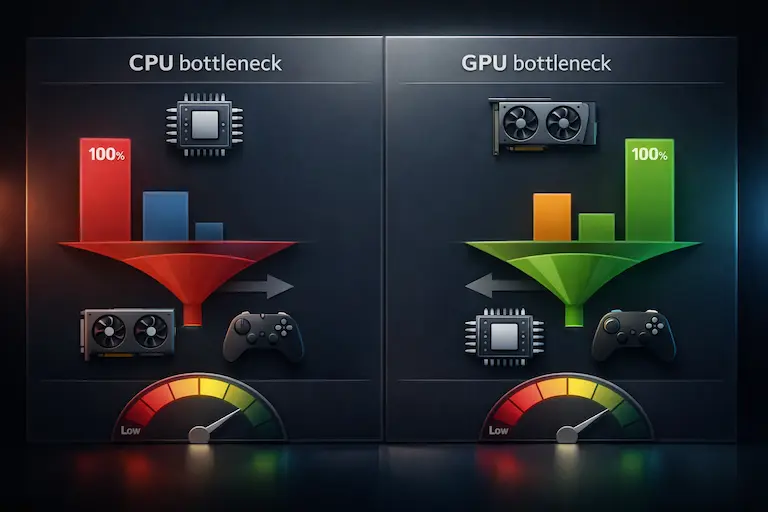
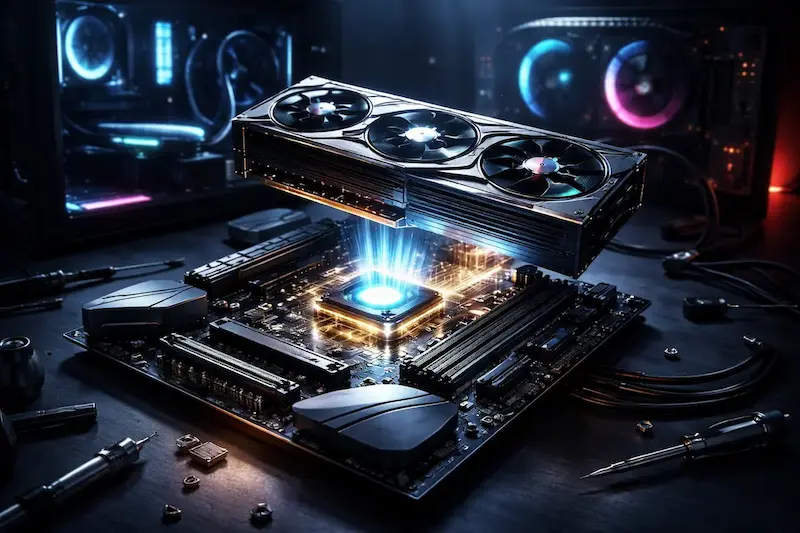
Being CPU bound is the opposite, and it's usually less ideal. This happens when your CPU can't keep up with the demands of the game engine and your GPU. You'll see your CPU usage maxed out on one or more cores while your expensive GPU sits there at 50-70% usage. It's literally waiting for the CPU to give it instructions. This is a classic sign of a CPU bottleneck. You'll see this often in games that rely on complex physics, lots of AI characters, or extremely high frame rates, like competitive shooters (CS2, Valorant) or large-scale strategy games (Civilization VI, StarCraft II). An Intel Core i3-12100F paired with an RTX 4080 would be a perfect example of a setup that would be heavily CPU bound in most titles, especially at 1080p.
How Gaming Resolution Shifts Your Bottleneck
Resolution is one of the biggest factors that determines whether you're CPU or GPU bound. It's not a static thing. The same PC can be CPU bottlenecked in a game at 1080p and completely GPU bottlenecked in the same game at 4K. Here’s why.
The CPU's job is largely resolution-independent. It handles game logic, physics, AI, and preparing 'draw calls' for the GPU. The number of draw calls doesn't change much whether you're playing at 1080p or 4K. It has to simulate the same world with the same number of objects regardless of how many pixels you're using to display it.
The GPU's job, however, is extremely resolution-dependent. Its task is to take the instructions from the CPU and actually draw the pixels on your screen. Rendering a frame at 1920x1080 (1080p) involves about 2 million pixels. Bumping that up to 2560x1440 (1440p) is about 3.7 million pixels, a 77% increase in workload. Jumping to 3840x2160 (4K) is a staggering 8.3 million pixels, four times the work of 1080p.
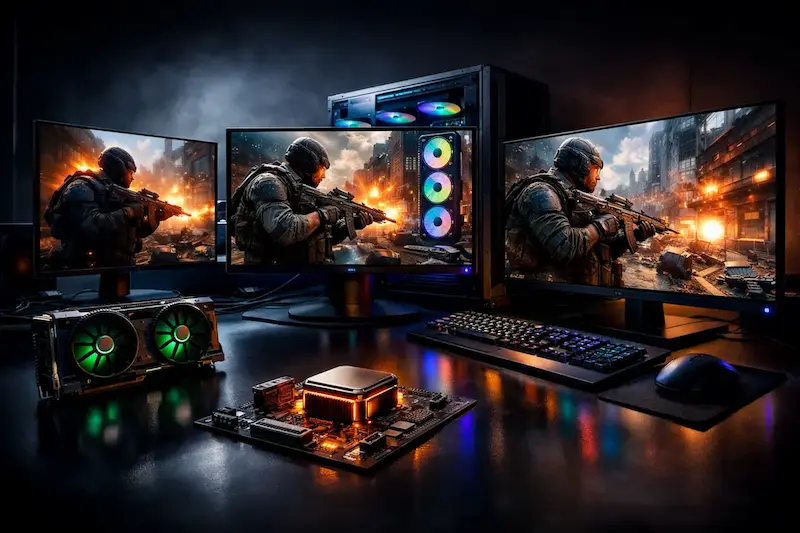
This means at 1080p, even a mid-range GPU can render frames very quickly. The pressure is on the CPU to feed it information fast enough to hit high frame rates (144fps, 240fps, etc.). This is where a CPU with strong single-core performance, like a Ryzen 5 7600X or an Intel Core i5-14600K, really shines. As you increase the resolution to 1440p and especially 4K, the GPU has to work much, much harder for each frame. The frame rate naturally drops, and the CPU has more time to prepare each frame. The bottleneck shifts away from the CPU and heavily onto the GPU. This is why you can sometimes get away with a slightly older CPU if you're a dedicated 4K gamer, but it's also why pairing a low-end GPU with a top-tier CPU for 4K gaming makes no sense at all.
Common CPU and GPU Pairing Mistakes We See All The Time
After analyzing thousands of builds through our tools and forums, we've seen some recurring bad habits. Here are the most common CPU and GPU pairing mistakes people make, so you can avoid them.
The most frequent error is the 'Overkill GPU, Underwhelming CPU' combo. This is the gamer who gets a bonus and immediately buys a top-of-the-line RTX 4090 but plugs it into a system with an old Ryzen 5 3600 or Intel i7-8700K. At 1080p, this is a disaster. The CPU will be pinned at 100% in many games, while the $1600+ GPU loafs along at 40% usage. You've paid for a Ferrari but are stuck in city traffic. You'd have gotten better performance in many titles with a balanced combo like a Ryzen 7 7800X3D and an RTX 4070 SUPER for less money overall.
The second mistake is the opposite: 'Beast CPU, Budget GPU'. This often happens when someone builds a PC for productivity but wants to do some light gaming. They'll get a Core i9-14900K for video editing but pair it with an RTX 4060. For gaming, this is wildly unbalanced. The CPU is capable of preparing frames for 300+ FPS, but the GPU can only render 70. While not as 'wasteful' in terms of raw performance as the first mistake (since the CPU is likely used for other tasks), it's a poor allocation of funds if gaming is a priority.
Another subtle mistake is ignoring the platform. We see people putting a powerful new CPU like a Ryzen 5 5600X in an old B350 motherboard with slow 2666MHz DDR4 RAM. While the CPU and GPU might be a good match on paper, the slow memory and older motherboard chipset are choking the CPU's performance, creating a hidden bottleneck. A balanced system isn't just about the two main chips. It's about the entire platform working together.
How to Spot a Bottleneck in Real-Time While Gaming
Calculators are great for planning a build, but the real proof is in the gameplay. So how can you tell what's bottlenecking you right now, in the middle of a game? You'll need a monitoring tool. Our favorite, and the one most enthusiasts use, is MSI Afterburner with the RivaTuner Statistics Server (RTSS) that comes with it. It's free and works with GPUs from any brand, not just MSI.
Once you have it installed and set up, you can display an on-screen display (OSD) with critical performance metrics. The two most important stats for diagnosing bottlenecks are GPU Usage and per-core CPU Usage.
The golden rule is this: If your GPU Usage is consistently at 97-100%, you are GPU bound. This is the good scenario. Your graphics card is the limiting factor, and you're getting every ounce of performance out of it. Your FPS is as high as that card can push it at your current settings.
If your GPU Usage is consistently well below 95%, say in the 60-80% range, and your frame rate is lower than you want, you are almost certainly CPU bound. Look at your per-core CPU usage. You might not see 'CPU Usage' at 100% overall, because many games still don't use all the cores on modern CPUs. Instead, you'll likely see one or two CPU cores pegged at 90-100% usage. That single core is the bottleneck. The rest of your CPU and your powerful GPU are waiting on it. This is a clear sign that a CPU upgrade would give you a significant FPS boost.
Watch out for fluctuations, too. In some games, you might be GPU bound while looking at a detailed landscape and then become CPU bound when a massive fight with lots of AI kicks off. Monitoring these stats in real-time is the most definitive way to understand your system's unique performance characteristics.
The Myth of the '0% Bottleneck': Why Perfect Balance is a Lie
Let's get one thing straight: a 0% bottleneck does not exist. It's a myth. It's a marketing term. In any system, at any given moment, something has to be the limiting factor. If it wasn't, your frame rate would be infinite. The goal of PC building is not to achieve a mythical zero-percent balance, but to ensure the primary bottleneck is your GPU as often as possible.
The whole idea of a 'perfectly balanced' PC is flawed because the workload is constantly changing. A game like Valorant, at 1080p low settings, is an incredibly CPU-intensive task designed to hit 500+ FPS. A system with a Ryzen 9 7950X and an RTX 4060 might be GPU-bound in that scenario. But load up Cyberpunk 2077 with path tracing at 4K on the exact same PC, and it will become massively GPU-bound, with the RTX 4060 crying for help while the CPU barely breaks a sweat.
So, if the bottleneck is always changing, what's the point of a calculator? The point is to find a sensible pairing that minimizes the *severity* of the unavoidable CPU bottleneck. It's about avoiding ridiculous mismatches. Our calculator helps you find the sweet spot, a combination where the CPU is strong enough to feed the GPU adequately across a wide range of games and resolutions. A result of 5-10% is often considered a great match, meaning the components are very well-aligned in their performance capabilities. A result of 30% or more indicates a major problem you should address before you buy.
Don't obsess over hitting a single-digit number. Instead, use the tool as a guide. If you play mostly competitive shooters at 1080p, it's okay to have a slightly stronger CPU for your GPU tier. If you're a 4K single-player enthusiast, you can lean towards a more powerful GPU. The goal is an intelligent, informed pairing, not an impossible quest for zero.
Hidden Bottlenecks: When Your RAM or SSD is the Culprit
So you've used our calculator, you have a perfectly matched CPU and GPU, but you're still getting weird stutters and performance drops. What gives? It's time to look for the hidden bottlenecks, the components that people often overlook: your RAM and your storage.
Let's start with RAM. It's not just about the amount, though having less than 16GB in 2024 is definitely asking for trouble in many new titles. RAM speed and timings are hugely important, especially for AMD Ryzen CPUs. Ryzen's performance is directly tied to the speed of its 'Infinity Fabric', which runs in sync with your RAM speed up to a certain point. Running a modern Ryzen 7000 series CPU with slow DDR5-4800 RAM is like putting cheap tires on a race car. You're leaving a ton of performance on the table. For current-gen builds, we recommend at least 32GB of DDR5 at 6000MHz with CL30 timings for a Ryzen 7000 system, and at least 32GB of DDR5-6400+ for a high-end Intel system. Another common issue is running RAM in single-channel mode (using only one stick). This halves your memory bandwidth and can cripple CPU performance, creating a massive bottleneck.
Storage is the other silent killer. If you're still running your games off a mechanical hard disk drive (HDD), you're creating a huge bottleneck. Modern games are massive and constantly stream assets from your drive. An HDD simply can't keep up with the data transfer demands, leading to long loading times, textures popping in late, and jarring stutters as the game waits for data. The move to a Solid State Drive (SSD) is one of the most impactful upgrades you can make. A basic SATA SSD is a huge step up, but a faster NVMe M.2 SSD is the standard now. For games like Starfield or Cyberpunk 2077: Phantom Liberty that heavily rely on asset streaming, a fast NVMe drive isn't just a luxury, it's practically a requirement for a smooth experience.
Bottlenecks on a Budget: Pairing for $500 to $1000 Builds
Building on a tight budget is all about making smart compromises and getting the most performance for your dollar. Bottleneck analysis is even more important here, because every component choice is critical. Let's look at some common budget ranges.
For a ~$500 build, you're aiming for solid 1080p gaming at medium settings. The focus here is on value. A great pairing we've tested is something like the AMD Ryzen 5 5500 or 5600 with a used Radeon RX 5700 XT or a new Radeon RX 6600. The CPUs have 6 cores, which is the sweet spot for budget gaming, and those GPUs offer fantastic 1080p performance for their price. The key is balance. It makes no sense to cram an Intel Core i5-13400F into this budget, as it would eat up too much of the cost, leaving you with a weak GPU like a GTX 1650, creating a huge GPU bottleneck.
Moving up to the ~$750 to $1000 range, you enter the 1080p high-refresh-rate or entry-level 1440p gaming territory. This is where modern entry-level combos shine. A fantastic pairing right now is the Intel Core i5-12400F or the Ryzen 5 7500F with a GeForce RTX 4060 or a Radeon RX 7600 XT. These CPUs provide excellent gaming performance without breaking the bank, allowing you to allocate more of your budget to the GPU. The RTX 4060 is a solid 1080p card that can even stretch to 1440p with the help of DLSS. The Ryzen 5 7500F is particularly interesting because it gets you onto the new AM5 platform, giving you a great upgrade path for your CPU in the future. In this price range, you're trying to build a system that will be predominantly GPU-bound at your target resolution, which is exactly what these pairings achieve.
High-End Bottlenecks: Balancing Your $1500 to $2000+ Rig
When you're spending serious money on a gaming PC, getting the balance right is paramount. A bad pairing in a $2000 build feels a lot worse than in a $500 one, because the wasted potential is so much greater. Here's how we approach balancing a high-end system.
In the ~$1500 sweet spot, you're typically targeting high-refresh 1440p gaming. This is the domain of CPUs like the AMD Ryzen 7 7800X3D or the Intel Core i5-14600K. The 7800X3D, with its massive 3D V-Cache, is arguably the best pure gaming CPU on the market and is our top recommendation. It's so fast in games that it can keep even the most powerful GPUs well-fed. A perfect partner for it would be a GeForce RTX 4070 SUPER or a Radeon RX 7800 XT. This combination is a 1440p monster. It's balanced in a way that in most graphically demanding titles, you'll be nicely GPU-bound, but the CPU has enough headroom to push extremely high frame rates in lighter esports titles.
Once you cross the $2000 threshold, you're in 4K gaming or extreme high-refresh 1440p territory. The CPU choice often remains the same, the Ryzen 7 7800X3D is still king, though some might opt for an Intel Core i7-14700K or i9-14900K if they have heavy productivity needs alongside gaming. The real money here goes into the GPU. This is where you'll find the GeForce RTX 4080 SUPER or the Radeon RX 7900 XTX. Pairing a 7800X3D with an RTX 4080 SUPER is a beautifully balanced 4K gaming setup. The CPU has the power to prevent hitches and stutters, and the GPU has the raw horsepower to handle the massive pixel count of a 4K display. The mistake to avoid here is thinking you need the absolute top-end CPU like a Ryzen 9 7950X3D for gaming. For most games, the 7800X3D is actually faster due to its cache configuration, and the money saved can be put towards a better GPU, which will make a much bigger difference at 4K.
The DLSS and FSR Effect: How Upscaling Changes Everything
NVIDIA's DLSS and AMD's FSR have completely changed the performance conversation. These AI upscaling technologies render your game at a lower internal resolution (say, 1080p) and then use sophisticated algorithms to intelligently upscale the image to your target resolution (like 4K). The result is a massive performance boost, often with very little perceptible loss in image quality. But how does this affect your bottleneck?
By lowering the internal rendering resolution, you are significantly reducing the workload on your GPU. Let's say you're playing on a 4K monitor with an RTX 4070 and a Ryzen 5 7600. Without upscaling, you are almost certainly GPU-bound. The RTX 4070 is working at 100% to render those 8.3 million pixels each frame. Now, you turn on DLSS 'Performance' mode. The GPU is now only rendering at 1080p internally, a much easier task. Suddenly, your frame rate shoots up. But this also means the GPU is finishing its work much faster, and it's going to ask the CPU for the next frame's data sooner. The pressure shifts back towards the CPU.
In essence, using DLSS or FSR makes your system behave as if it's running at a lower resolution, which means it's more likely to become CPU-bound. We've seen this in our own testing. A system that is 100% GPU-bound at native 4K can become CPU-bound at 4K with DLSS Performance enabled. This is especially true with Frame Generation (DLSS 3), which inserts AI-generated frames between traditionally rendered ones. This technology can almost double your FPS, but it's very demanding on the CPU to manage and sequence everything. This is a key reason why a powerful CPU is still important, even for 4K gaming. Upscaling technology can easily push your GPU's performance past the point where your CPU can keep up.
Ray Tracing's Toll: Why It's the Ultimate GPU Punisher
If upscaling is a GPU's best friend, then ray tracing (and its more intense cousin, path tracing) is its worst enemy. This rendering technique simulates the physical behavior of light, producing incredibly realistic reflections, shadows, and global illumination. It looks amazing. It also places an absolutely crushing workload on the GPU.
Traditional rendering techniques, called rasterization, use a lot of clever shortcuts and tricks to simulate light and shadow. Ray tracing doesn't. It calculates the path of individual rays of light as they bounce around a scene. This is computationally expensive on a level that's hard to overstate. When you enable ray tracing in a game like Cyberpunk 2077 or Alan Wake 2, you are shifting the performance bottleneck so heavily onto the GPU that the CPU almost becomes an afterthought.
Your GPU's specialized RT Cores (on NVIDIA cards) or Ray Accelerators (on AMD cards) are hammered at 100% utilization. The performance penalty is so severe that even a top-of-the-line GeForce RTX 4090 can be brought to its knees by path tracing at native 4K. In these scenarios, you could pair an RTX 4090 with a mid-range CPU like a Ryzen 5 7600, and you would still be 100% GPU-bound. The GPU is working so hard on the complex lighting calculations that the CPU has plenty of time to prepare the next frame's data.
This is why upscaling technologies like DLSS and FSR are almost always discussed in the same breath as ray tracing. They are the counterbalance. You enable the incredibly demanding ray tracing to get the beautiful visuals, and then you enable DLSS to claw back some of the performance you lost. It's a balancing act. If you are a gamer who absolutely loves ray-traced visuals, you should always prioritize spending your budget on the best possible GPU, specifically one with strong ray tracing performance like those from NVIDIA's 40-series. You can afford to be a bit more modest with your CPU choice, as the GPU will almost always be your bottleneck.
Game Engines and Optimization: The Wildcard in Performance
You can have a perfectly balanced PC on paper, but then you load up a new game and the performance is terrible. Sometimes, the problem isn't your hardware, it's the game itself. Game engines and the quality of their optimization are the massive wildcards that can throw any bottleneck calculation for a loop.
Some game engines are notoriously CPU-heavy. Engines used for large-scale simulation or strategy games, like the one for Cities: Skylines II, have to track thousands of individual agents and variables. This puts immense strain on the CPU, regardless of how powerful your GPU is. In contrast, engines like Unreal Engine 5, with its Nanite and Lumen technologies, are designed to be highly scalable and can put extreme loads on the GPU for graphical fidelity.
Then there's the issue of poor optimization. We've all seen it: a highly anticipated PC port comes out and it's a stuttering mess, even on high-end hardware. This is often due to 'shader compilation stutter', where the game compiles shaders on the fly as you play, causing hitches. Or it could be a simple lack of multi-core support, where the game engine piles all its work onto a single CPU core, creating a bottleneck even on a 16-core processor. In these cases, your monitoring tools might show low overall CPU and GPU usage, yet the game runs poorly. This isn't a traditional bottleneck you can fix with a hardware upgrade. It's a software problem that you have to hope the developers will patch.
Competitive esports titles like Valorant and CS2 are another great example. They are intentionally designed to be CPU-bound. The graphics are relatively simple so that they can run on a wide range of GPUs, and the game logic is optimized to achieve the highest possible frame rates. In these games, the difference between a Core i5 and a Core i9 is far more pronounced than the difference between an RTX 4060 and an RTX 4080 when you're already hitting 300+ FPS. Understanding the unique performance profile of the games you play is just as important as understanding your hardware.
Is It Time to Upgrade? Using Bottleneck Data to Decide
So, you've used our calculator or monitored your gameplay, and you've confirmed a bottleneck. Now what? The data should guide your next upgrade, helping you spend money where it will actually make a difference. Here's a simple framework for making that decision.
If your analysis shows a clear GPU bottleneck (GPU usage is at 99-100% and you want more frames), the path is straightforward: you need a more powerful graphics card. Let's say you have a Ryzen 5 5600X and an RTX 3060 Ti, and you're getting 70 FPS at 1440p but you want to push closer to 100 FPS. The 5600X is more than capable of handling higher frame rates. Upgrading to an RTX 4070 or RX 7800 XT would be a direct and effective way to achieve your performance target. Your CPU is doing its job, so spending money on a new CPU here would result in little to no FPS gain.
If you're facing a CPU bottleneck (GPU usage is low, one or two CPU cores are maxed out), then a GPU upgrade would be a waste of money. You need a faster CPU. Imagine you have an old Core i7-7700K and a newer RTX 3070. You're trying to play Warzone at 1080p and can't get a stable 144 FPS, with your GPU usage hovering around 65%. Your i7-7700K, with its 4 cores and older architecture, is holding you back. Upgrading to an RTX 4090 wouldn't fix this. The correct move would be to upgrade your CPU, motherboard, and RAM to a modern platform, like a Ryzen 7 7800X3D or a Core i5-13600K. That new CPU would be able to fully utilize your existing RTX 3070, and likely push it to 100% usage, instantly boosting your frame rate.
Use the bottleneck as your signpost. It tells you which part of your system has run out of steam first. By upgrading that specific part, you ensure your money is directly converted into the performance you're looking for.
Thermal Throttling: The Silent Performance Killer
There's a particularly sneaky type of bottleneck that won't show up on any calculator: thermal throttling. This happens when your CPU or GPU gets too hot, and to protect itself from damage, it automatically reduces its own clock speed and performance. You could have the best hardware money can buy, but if your cooling is inadequate, you'll get the performance of a much cheaper component.
CPU thermal throttling is very common, especially with high-end Intel Core i7 and i9 chips or AMD's Ryzen 9 series. People often pair these power-hungry CPUs with the inadequate stock cooler or a cheap, undersized air cooler. When you run a demanding game or application, the CPU temperature skyrockets past its thermal limit (often 95-100°C). The CPU then 'throttles', dropping its frequency from, say, 5.2GHz down to 4.0GHz. This sudden drop in speed starves your GPU of data, creating an artificial CPU bottleneck that appears as a massive stutter or frame drop in your game. The solution is simple: invest in a quality cooler. A good dual-tower air cooler like a Thermalright Phantom Spirit or a 240mm/280mm AIO liquid cooler is essential for taming modern high-end CPUs.
GPU thermal throttling is less common with modern card designs, but it can still happen, especially in cases with poor airflow. If your PC case is a 'hotbox' with no intake fans, your GPU will just recirculate its own hot air. Its temperature will climb, and eventually, the GPU's boost algorithm will lower clock speeds to compensate, costing you performance. We've seen cards lose 10-15% of their performance due to poor case airflow. Always ensure your case has a clear path for cool air to come in from the front or bottom and hot air to be exhausted out the back or top. Proper cooling isn't a luxury, it's a fundamental part of unlocking the performance you paid for.
Building a Balanced PC: Our Future-Proofing Philosophy
'Future-proofing' is a term that gets thrown around a lot, and often it's used to justify overspending. You don't need a 16-core CPU and an RTX 4090 just to play games for the next five years. Our philosophy on future-proofing is different. It's not about buying the most expensive parts, but about building a smart, balanced system with a clear upgrade path.
First, choose your platform wisely. The platform is your motherboard and RAM. When AMD launched their AM5 socket for Ryzen 7000 series CPUs, they committed to supporting it until at least 2025. This means if you build a system today with a mid-range B650 motherboard and a Ryzen 5 7600, you have a guaranteed drop-in upgrade path to future Ryzen CPUs in a few years without needing to change your motherboard or RAM. This is a powerful future-proofing strategy. You can spend less now on the CPU and allocate more to your GPU, knowing you can easily pop in a much faster CPU down the line.
Second, aim for a slight CPU overhead for your target GPU. Don't pair your components for a perfect 5% bottleneck score today. Games are becoming more CPU-intensive, with more complex worlds and physics. We've found that pairing a GPU like an RTX 4070 with a CPU that's one step ahead, like a Ryzen 7 7800X3D instead of a Ryzen 5 7600, gives you more breathing room for future titles. The CPU will be slightly underutilized in some of today's GPU-heavy games, but it will be ready for the more demanding CPU loads of tomorrow's games. This prevents you from needing a full platform upgrade the next time you want to buy a new GPU.
Finally, don't skimp on the Power Supply Unit (PSU). A cheap, low-wattage PSU will limit your future upgrade options. We recommend getting a high-quality, 80+ Gold rated PSU with a bit more wattage than you need right now. A good 850W PSU today will handle most single-GPU builds and will give you the headroom to upgrade to a more power-hungry graphics card in the future without worry. That's true, practical future-proofing.
How to Use Our Bottleneck Calculator and What The Results Mean
Alright, let's put this all into practice and walk through how to get the most out of our bottleneck calculator. It's designed to be simple, but understanding the nuances of the results is key.
First, simply select your CPU and GPU from the dropdown lists. Start typing the model name, and the list will filter. We use a massive database of over a thousand components, each with its PassMark performance score. For CPUs, we focus on the single-thread rating, as it's the most relevant metric for gaming performance. For GPUs, we use the G3D Mark score, which reflects its overall 3D rendering capability.
Once you've selected your parts, the tool will instantly calculate the bottleneck percentage at three common resolutions: 1080p, 1440p, and 4K. You'll see which component is the likely bottleneck and a percentage indicating the severity of the mismatch. Here's how to interpret that percentage:
- •0% to 10%: This is a great pairing. The components are very well-matched in terms of performance. You've built a well-balanced system, and you'll likely be GPU-bound in most situations, which is what you want.
- •10% to 20%: This is a reasonable pairing, but not perfect. There's a minor mismatch, but it's unlikely to cause severe performance issues in most games. You might consider a slightly stronger component to even things out if you're still in the planning phase.
- •20% and above: This is a significant bottleneck. A score this high indicates a major performance imbalance. You're likely leaving a ton of performance on the table, and we strongly recommend reconsidering your component choice. For example, if you see a 35% CPU bottleneck, it means your CPU is far too weak for your chosen GPU, and upgrading it would result in a huge performance uplift.
Remember, the calculator is a guide, not an absolute law. Use it to avoid major mistakes and to find a balanced combination. Always consider the types of games you play and your target resolution to make the final call.
Frequently Asked Questions
Is a 10% bottleneck bad?
No, a 10% bottleneck is not considered bad at all. In fact, a result under 10% on our calculator generally indicates a very well-balanced system. It's impossible to have a 0% bottleneck, so a small percentage signifies that your CPU and GPU are closely matched in performance, which is the ideal scenario for a gaming PC.
Which is worse, a CPU bottleneck or a GPU bottleneck?
A CPU bottleneck is generally considered worse for the gaming experience. When you're GPU-bottlenecked, you get a smooth, consistent frame rate, even if it's not as high as you want. When you're CPU-bottlenecked, you often experience jarring stutters and inconsistent frame times, which feels much worse to play. Ideally, you want to be GPU-bound, meaning your graphics card is working at 100%.
Can a power supply (PSU) cause a bottleneck?
A PSU doesn't cause a bottleneck in the traditional sense of slowing down another component. However, an underpowered or poor-quality PSU can cause system instability, random shutdowns, or crashes under load. If it can't provide stable power, both your CPU and GPU might not be able to reach their full boost clocks, indirectly hurting performance.
Does overclocking help reduce a bottleneck?
Yes, overclocking can definitely help. If you have a CPU bottleneck, overclocking your CPU can give it the extra performance needed to keep up with your GPU. Likewise, overclocking your GPU's core and memory can help squeeze out a few more frames if you're GPU-bound. It's a free way to get more performance and better balance your system, provided you have adequate cooling.
How accurate is a bottleneck calculator?
A bottleneck calculator is a very useful estimation tool for planning a build, but it's not 100% accurate for every single game. It uses generalized performance scores to predict the balance between components. The actual bottleneck can vary depending on the game engine, your specific settings, and resolution. Think of it as a strong guideline to prevent major pairing mistakes, not as an absolute final word.
Will a better monitor fix a GPU bottleneck?
No, a better monitor won't 'fix' a GPU bottleneck, but it can shift it. If you upgrade from a 1080p monitor to a 1440p or 4K monitor, you drastically increase the workload on your GPU. This can turn a CPU-bound situation into a GPU-bound one, which is often desirable. However, it won't make your GPU itself any faster.
Why is my new RTX 4090 underperforming with my old CPU?
This is a classic and severe CPU bottleneck. The RTX 4090 is the fastest gaming GPU available, capable of processing an immense amount of data. An older CPU, like an Intel i7-7700K or Ryzen 7 2700X, simply cannot prepare the game data (draw calls) fast enough to keep the 4090 busy. Your GPU is spending most of its time waiting for the CPU, leading to low GPU usage and disappointing performance.
Can I fix a bottleneck without buying new hardware?
Sometimes, yes. If you're CPU-bottlenecked at 1080p, simply increasing your monitor's resolution to 1440p or 4K (if your monitor supports it) can shift the load to the GPU. You can also increase graphics settings like texture quality, shadows, and anti-aliasing to make the GPU work harder. Lowering settings that affect the CPU, like object detail or number of NPCs, can also help.
Do I need to worry about bottlenecks for work, not just gaming?
Yes, but the nature of the bottleneck changes. In video editing, for example, a CPU with many cores (like a Ryzen 9 or Core i9) is often the most important part for rendering times, so you wouldn't want to pair it with very slow RAM or storage. For 3D modeling, a powerful GPU is key. It's important to understand the demands of your specific software to build a balanced workstation.
How does V-Sync affect my bottleneck?
V-Sync caps your frame rate to your monitor's refresh rate (e.g., 60 FPS on a 60Hz monitor). If your system is powerful enough to run a game at 100 FPS, V-Sync will force it down to 60 FPS. This can mask a bottleneck, as both your CPU and GPU may show low usage because they only have to do enough work to hit that 60 FPS cap.
What's a good CPU to pair with an RTX 4070 SUPER?
The RTX 4070 SUPER is a fantastic 1440p GPU. To get the most out of it, we'd recommend a modern mid-to-high-end CPU. The AMD Ryzen 7 7800X3D is arguably the best overall choice for pure gaming performance. Other excellent options include the Intel Core i5-14600K or the AMD Ryzen 5 7600X, both of which provide a great balance of price and performance for this GPU tier.
My calculator says I have a CPU bottleneck, but my CPU usage is low. Why?
This is a very common point of confusion. Many games still don't use all the CPU cores available in modern processors. Your overall CPU usage might only be 40%, but if you look at the per-core usage, you'll likely see one or two cores are running at 90-100%. The entire game is waiting on those few maxed-out cores, creating a bottleneck even though the chip as a whole isn't fully utilized.
Does more VRAM help with bottlenecks?
VRAM doesn't typically solve a CPU or GPU processing bottleneck, but a lack of VRAM can create its own unique performance problem. If a game's assets exceed your GPU's VRAM, the system has to constantly swap data with your much slower system RAM or SSD, causing massive stuttering. Having enough VRAM (we suggest 12GB+ for 1440p) is crucial to avoid this specific issue, but having more than you need won't increase your FPS.
Why does my bottleneck percentage change so much between 1080p, 1440p, and 4K?
The bottleneck shifts because different resolutions place different demands on your hardware. At 1080p, the GPU can render frames very quickly, often waiting for the CPU to send it instructions, which is why CPU bottlenecks are more common. At 4K, the GPU is working much harder to render millions of pixels for each frame, making it the more likely bottleneck. Our calculator models this dynamic to show how your PC's balance changes with your display.
Does the ideal bottleneck balance change depending on the games I play?
Yes, absolutely. CPU-intensive games like large-scale strategy titles or high-FPS esports games (e.g., Valorant) will expose a CPU bottleneck more easily. Graphically demanding AAA titles with high-resolution textures and ray tracing (e.g., Cyberpunk 2077) are more likely to create a GPU bottleneck. Our tool provides a general baseline, but you should consider your favorite game genres when evaluating the results.
My RAM is slow. How does that affect the CPU and GPU bottleneck calculation?
Our calculator focuses on the direct performance relationship between the CPU and GPU. However, slow or insufficient RAM can create a separate system bottleneck that limits your CPU's potential. This effectively worsens a CPU bottleneck, as the processor has to wait for data from RAM before it can process it and send it to the GPU. Upgrading RAM won't fix a core CPU/GPU mismatch, but it is crucial for overall system health.
The calculator uses single-thread scores. Is CPU core count important for bottlenecks?
Single-thread performance is a primary factor because most games rely heavily on one or two fast cores for their main processing loop. However, core count is increasingly important as modern games use additional cores for background tasks, asset streaming, and physics. A CPU with a high single-thread score but too few cores can still cause stuttering in demanding games, creating a bottleneck that our score-based calculation may not fully represent.
Can my motherboard's PCIe slot version (e.g., PCIe 3.0 vs 4.0) create a bottleneck?
Yes, although it's typically a secondary factor compared to the core CPU and GPU performance. A modern graphics card is designed for the high bandwidth of a PCIe 4.0 or 5.0 slot. While it will function in an older PCIe 3.0 slot, its maximum performance can be slightly limited, especially in games that stream large amounts of data from storage. This effect is usually small, but it can contribute to a GPU-side bottleneck in certain situations.
What is the real-world gaming impact of a moderate (e.g., 20-30%) bottleneck?
A moderate bottleneck means you are not getting the full performance you paid for from your more powerful component. With a 25% CPU bottleneck, for example, your expensive GPU is effectively idle a quarter of the time. In-game, this can manifest as lower average frame rates than benchmarks for your GPU suggest, or noticeable stuttering and frame drops in CPU-heavy scenes, such as in crowded game lobbies or cities.
Can I use this calculator to check for bottlenecks in my gaming laptop?
Yes, you can select mobile versions of CPUs and GPUs from our lists to get a strong performance estimate. It's important to remember, however, that laptop components are subject to strict power and thermal limits imposed by the manufacturer. This means their real-world performance can sometimes be lower than the benchmark data suggests, and performance can vary between different laptop models with the same core components.
How does my target frame rate (e.g., 60 FPS vs 144 FPS) influence the bottleneck?
Your target frame rate directly dictates the workload on your CPU. To achieve 144 FPS, your CPU must prepare and send 144 frames' worth of instructions to the GPU every second, a much more intensive task than preparing 60 frames. Therefore, aiming for high refresh rates makes your system far more susceptible to a CPU bottleneck, as the processor's speed becomes the primary limiting factor in hitting that high frame target.
The calculator suggested several CPU upgrades. How do I choose the best one?
Our recommendations are designed to create a better performance balance with your existing GPU. First, verify that a suggested CPU is compatible with your current motherboard's socket and chipset to avoid unexpected platform upgrade costs. After that, compare the price-to-performance ratio of the options; often, a mid-tier suggestion provides the most significant improvement for your money without being excessive.
My CPU or GPU is very old and not in the list. What should I do?
Our database includes over a thousand of the most relevant components based on benchmark data. If your part is not listed, it is likely that it's old enough that its performance falls well below modern gaming standards, or comparable data is not available. In this situation, it's safe to assume the component would be a severe bottleneck for any new hardware and a more comprehensive system upgrade would be necessary for modern gaming.
Related Tools
Free tools to analyze, compare, and optimize your PC gaming performance
FPS Calculator
Estimate your gaming frame rate based on your hardware
Use Tool →PC Upgrade Advisor
Find the best PC upgrade for your budget
Use Tool →CPU Upgrade Calculator
Compare processors and estimate upgrade value
Use Tool →GPU Upgrade Calculator
Estimate gaming performance gains from a GPU upgrade
Use Tool →Popular Game System Requirements
Check if your PC meets the requirements for these popular games
Benchmark data from PassMark and publisher specs. Calculators run locally in your browser — we never upload your hardware info.