
Guide
How to Choose the Right Hardware
Choosing the right hardware can be overwhelming, but with the right approach, you can match your needs and budget with the best components. Use this guide to make informed decisions and avoid costly mistakes.
Updated 2026-07-05
Understanding Your Hardware Needs
Selecting the right hardware starts with understanding your specific requirements. Whether you are building a gaming PC, upgrading your workstation, or setting up a home server, each scenario demands different priorities. The right choice maximizes performance, reliability, and value for your investment.
Start by listing out what you want your system to do. For example, a gamer will prioritize GPU and CPU performance, while a content creator might focus on RAM and storage speed. If you mainly browse the web and handle office tasks, a balanced budget system may be enough.
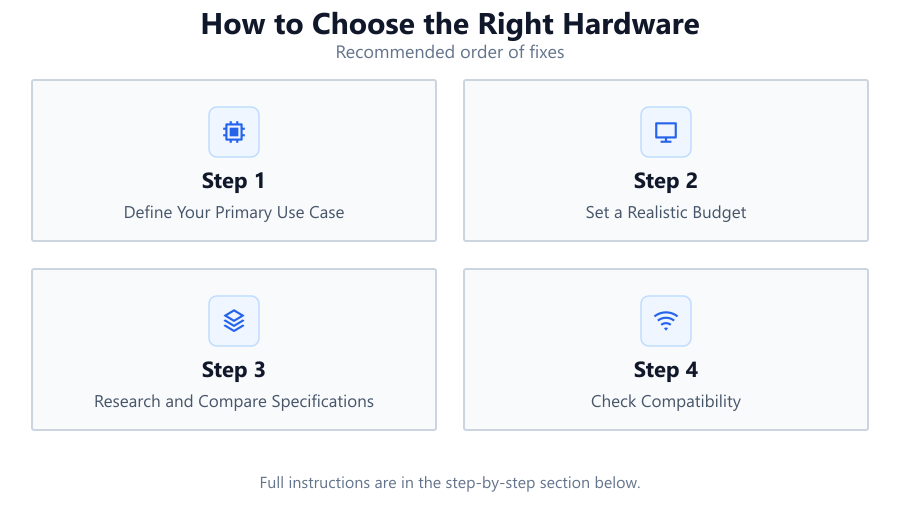
Research is key. Look up recommended specs for your main applications and consider any future needs. Remember that hardware evolves quickly. Picking components with some headroom can prolong the useful life of your system. Budget wisely and do not overspend on features you will not use.
Breaking Down Key Components and How to Compare Them
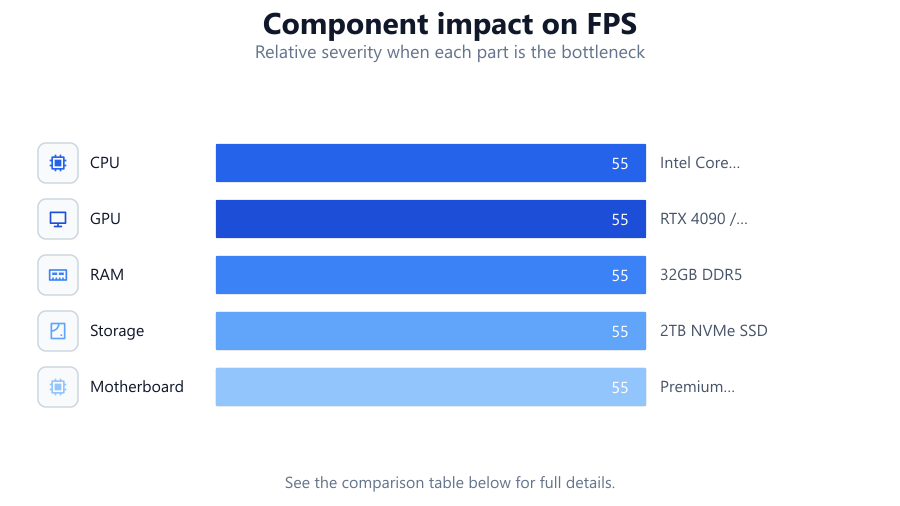
Every PC is made up of core components: CPU, GPU, RAM, storage, motherboard, and power supply. Each has a direct impact on your system's performance and capability. The key is to balance these parts according to your intended use and budget.
The CPU is the brain of your system. Look for enough cores and threads for multitasking and heavy workloads. For gaming, clock speed and single-core performance matter. For productivity, more cores usually means better multitasking.
The GPU handles graphics. Gamers and creative professionals need strong GPUs. For office work, integrated graphics may suffice. Compare benchmarks and VRAM to ensure smooth performance at your desired resolution.
RAM affects how many programs you can run at once. 16GB is a solid baseline for most users, while 32GB or more is ideal for heavy multitasking or professional apps.
Storage comes in two main types: SSDs and HDDs. SSDs are much faster, making your system feel more responsive. Consider NVMe SSDs for even faster load times. Large files, such as games or videos, benefit from spacious and fast storage. Use the Download Time Calculator to estimate how long large files will take to download to your new system.
Motherboard compatibility is crucial. Ensure your motherboard supports your chosen CPU, RAM, and has enough ports. Also, check for features like Wi-Fi, Bluetooth, and expansion slots.
Power supplies must provide enough wattage and quality for your components. Do not skimp here, as a reliable PSU protects your investment. Finally, consider cases for airflow and future upgrades. Prioritize cooling if you plan to overclock or run high-performance parts.
Step-by-step
Define Your Primary Use Case
List your most common tasks: gaming, video editing, office work, or browsing. Your main use case will guide your hardware priorities and help you allocate your budget effectively.
Set a Realistic Budget
Determine how much you are willing to spend. Allocate more funds to components that matter most for your tasks, such as GPU for gaming or CPU and RAM for creative work. Remember to include peripherals and software.
Research and Compare Specifications
Look up benchmarks and real-world reviews for CPUs, GPUs, and other components. Use comparison tables to spot differences in performance, efficiency, and features. The Download Time Calculator can help you understand the impact of storage and internet speed when transferring large files.
Check Compatibility
Ensure your chosen components are compatible. This includes CPU socket type, RAM speed and size, motherboard chipset, power supply capacity, and case size. Use online tools and manufacturer specs to verify.
Plan for Future Upgrades
Choose hardware that leaves room for growth. Select motherboards with extra RAM slots, cases with good airflow, and power supplies with a little extra wattage. This approach saves money and hassle down the line.
Read User Reviews and Expert Opinions
Look for feedback from other buyers and experts. Reviews often reveal real-world issues or advantages not covered in specs alone. Forums and YouTube channels can provide valuable insights.
Comparison
| Component | Entry-Level | High-End |
|---|---|---|
| CPU | Intel Core i3 / Ryzen 3 | Intel Core i9 / Ryzen 9 |
| GPU | Integrated Graphics / GTX 1650 | RTX 4090 / Radeon 7900 XTX |
| RAM | 8GB DDR4 | 32GB DDR5 |
| Storage | 256GB SATA SSD | 2TB NVMe SSD |
| Motherboard | Basic B-Series | Premium X-Series |
| Power Supply | 400W Bronze | 850W Gold/Platinum |
Common mistakes
Mistake
Focusing only on one component, like the GPU, and neglecting others.
Fix: Balance your budget across all components to avoid bottlenecks and maximize overall system performance.
Mistake
Ignoring compatibility between parts, such as CPU and motherboard socket types.
Fix: Double-check all component compatibility before purchasing, using manufacturer specifications and online compatibility tools.
Mistake
Underestimating the importance of a quality power supply.
Fix: Invest in a reliable, appropriately rated PSU to protect your system and ensure stable operation.
Mistake
Overlooking future upgrade potential.
Fix: Select parts that allow for easy upgrades, such as extra RAM slots and sufficient case space for new hardware.
Troubleshooting
PC does not power on after assembly.
Likely cause: Possible loose connections, faulty power supply, or incompatible components.
What to do: Check all cable connections, ensure the PSU switch is on, and verify compatibility of all parts. Test with minimal components to isolate the issue.
System is running slower than expected.
Likely cause: Potential hardware bottleneck or outdated drivers.
What to do: Check for bottlenecks using system monitoring tools. Update all drivers and consider upgrading the slowest component.
Frequent crashes or blue screens.
Likely cause: Faulty RAM, overheating, or driver conflicts.
What to do: Run memory diagnostics, monitor system temperatures, and update or reinstall drivers. Replace faulty hardware if necessary.
Large files download very slowly.
Likely cause: Limited internet speed or slow storage device.
What to do: Test your internet connection and consider upgrading to a faster SSD. Use the Download Time Calculator to estimate realistic download times based on your setup.
Recommendations
- Prioritize balanced upgrades for smooth and consistent performance.
- Use online tools and benchmarks to compare hardware options before buying.
- Allocate budget for a quality power supply and cooling system.
- Check the Download Time Calculator to estimate file transfer times on your new hardware.
- Always consider future-proofing by choosing components with upgrade paths.
Frequently asked questions
How do I know which hardware component to prioritize?
Identify your main use case. For gaming, focus on GPU and CPU. For content creation, prioritize RAM and storage. For general use, a balanced system works best.
Is it better to buy the latest hardware or go for last year's models?
Last year's models often offer better value if you do not need cutting-edge performance. Evaluate price-to-performance ratios using benchmarks and expert reviews.
How much RAM do I really need?
8GB is the minimum for light use, 16GB is recommended for most users, and 32GB or more is best for heavy multitasking or professional applications.
Do I need a dedicated graphics card for basic tasks?
No. Integrated graphics are sufficient for web browsing, office applications, and streaming. Only consider a dedicated GPU for gaming or creative workloads.
How can I estimate how long it will take to download large files on my new PC?
You can use the Download Time Calculator to quickly estimate download times based on your internet speed and storage performance.