
Guide
Why Is My FPS So Low?
Wondering why your FPS is so low in games? This guide breaks down the most common causes and step-by-step fixes so you can boost your frame rates fast.
Updated 2026-07-05
Understanding Low FPS: What It Means and Why It Happens
Low FPS, or frames per second, is a frustrating problem that affects how smooth your games look and feel. When your FPS drops below 60, you’ll notice choppy visuals, sluggish controls, and even input lag. This can make competitive games nearly unplayable and ruin immersive single-player experiences.
There are many reasons why your FPS might be lower than expected. Your hardware may not meet the game’s requirements, or background programs could be eating up system resources. Sometimes, it’s simply a matter of outdated drivers or incorrect settings. Identifying the root cause can be tricky, especially with modern games that demand more from both your CPU and GPU.
To get a clearer picture, tools like the FPS Calculator from SystemRequirements.net can estimate your expected frame rates based on your exact hardware and the game you want to play. This makes it easier to pinpoint whether your PC should be performing better or if an upgrade is necessary.
Understanding the basics of what affects FPS is the first step toward smoother gameplay. Next, we’ll dive deeper into the factors impacting your performance and how to address them.
Key Factors That Impact FPS and How to Fix Them
Your PC’s FPS is determined by a combination of hardware, software, and game-specific settings. Here are the main culprits behind low frame rates:
- Hardware Bottlenecks: If your graphics card (GPU) or processor (CPU) is underpowered for the game or is being limited by another component, you’ll see lower FPS. Memory (RAM) shortages can also play a role, especially in newer titles.
- Outdated Drivers: Graphics drivers optimize how your GPU interacts with games. Old or corrupted drivers can lead to performance drops and instability.
- Background Processes: Programs running in the background, such as web browsers, updates, or overlays, compete with your game for system resources and can lower FPS.
- Game Settings: High resolutions, ultra-quality textures, and advanced effects like ray tracing can overwhelm even powerful PCs. Poorly optimized in-game settings are a common FPS killer.
- Thermal Throttling: If your CPU or GPU overheats, it will slow down automatically to prevent damage. This results in noticeable FPS drops during long gaming sessions.
To tackle these issues, start by checking your hardware’s baseline performance with the FPS Calculator. Compare your expected and actual in-game FPS to identify potential problems. Update your drivers, close unnecessary background programs, and adjust your game’s graphics settings for a balance between visuals and smoothness. Regular cleaning of your PC and ensuring proper airflow can also prevent thermal throttling. If issues persist, it may be time to consider a hardware upgrade.
Step-by-step
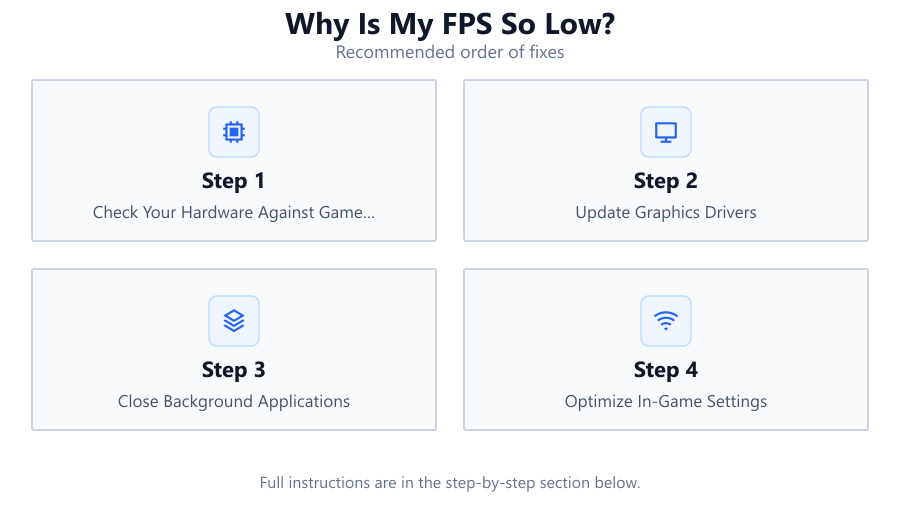
Check Your Hardware Against Game Requirements
Compare your CPU, GPU, and RAM to the game’s minimum and recommended specs. Use the FPS Calculator to estimate your expected frame rates. If your hardware falls short, you may need to lower settings or upgrade components.
Update Graphics Drivers
Visit your GPU manufacturer’s website (NVIDIA, AMD, or Intel) and download the latest drivers. Updated drivers can resolve compatibility issues and boost performance in new games.
Close Background Applications
Shut down unnecessary programs, especially resource-heavy ones like browsers, streaming software, and system updaters. This frees up CPU and memory for your game.
Optimize In-Game Settings
Lower demanding settings such as resolution, anti-aliasing, textures, and shadows. Use presets like Medium or High instead of Ultra. Enable features like V-Sync only if screen tearing is a problem.
Monitor Temperatures and Prevent Overheating
Use hardware monitoring tools to check CPU and GPU temperatures. Clean out dust, ensure fans work, and improve airflow. Overheating can cause your system to throttle performance.
Comparison
| Component | Common FPS Issue | Potential Solution |
|---|---|---|
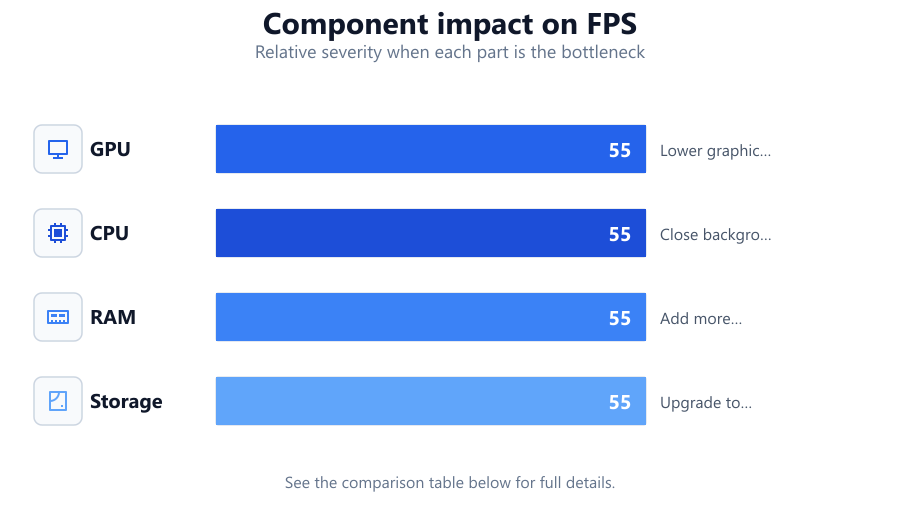
| GPU | Not powerful enough for game settings | Lower graphics settings or upgrade GPU |
| CPU | Bottlenecking during high-action scenes | Close background apps, consider CPU upgrade |
| RAM | Game stutters or crashes | Add more RAM or reduce background usage |
| Storage | Long load times, texture pop-in | Upgrade to SSD or clear disk space |
Common mistakes
Mistake
Ignoring game requirements and blaming hardware
Fix: Always check game specs and use the FPS Calculator to see if your PC matches up before playing.
Mistake
Running too many background applications
Fix: Close all unnecessary programs before launching your game to ensure maximum resources are available.
Mistake
Neglecting driver updates
Fix: Regularly update your graphics drivers through official channels to maintain peak performance.
Mistake
Using overly aggressive graphics settings
Fix: Balance visuals with performance by choosing appropriate settings for your hardware.
Troubleshooting
Sudden FPS drops after a few minutes of gameplay
Likely cause: Overheating causing thermal throttling
What to do: Clean fans and heatsinks, improve airflow, and monitor temperatures with diagnostic tools.
Consistently low FPS even on low settings
Likely cause: Underpowered or outdated hardware
What to do: Check hardware with the FPS Calculator to confirm compatibility or consider upgrading components.
Stuttering and hitching during gameplay
Likely cause: Insufficient RAM or background processes consuming resources
What to do: Add more RAM if possible and close all non-essential applications before gaming.
Recommendations
- Use the FPS Calculator to set realistic expectations before installing a new game.
- Update all drivers, especially for your GPU and chipset, at least once a month.
- Keep your system clean and well-ventilated to avoid thermal throttling.
- Consider upgrading to an SSD for faster load times and smoother asset streaming.
- Regularly review in-game settings after major updates, as patches can change performance.
Frequently asked questions
What is a good FPS for gaming?
A good FPS for most games is 60 or higher. Competitive players often aim for 120 FPS or more for smoother gameplay and faster reactions.
Can my PC run games at higher FPS if I lower the resolution?
Yes. Lowering your resolution reduces the workload on your GPU and typically results in higher FPS, though image quality will decrease.
How can I check what is causing low FPS on my PC?
Monitor your CPU, GPU, and RAM usage with tools like Task Manager or MSI Afterburner. Use the FPS Calculator to compare expected and actual performance.
Does internet speed affect FPS?
No. FPS is determined by your hardware and game settings. However, slow internet can cause lag or high ping in online games, which is a different issue.