
Guide
Troubleshooting Guide
Struggling with dropped frames, stutter, or choppy visuals? This troubleshooting guide will help you pinpoint and solve the most common issues using the Frame Rate Test tool.
Updated 2026-07-05
Understanding Frame Rate Problems
Smooth visuals depend on consistent frame delivery from your hardware and browser. When something goes wrong, you might notice lag, stutter, or erratic animation speeds. The Frame Rate Test tool provides a clear lens into your system’s real-time FPS (frames per second) and frame pacing. By monitoring live graphs and frame-time charts, you can quickly identify if your device, browser, or even specific settings are the source of performance issues.
Visual hiccups can stem from several sources. Sometimes, background apps hog resources. Other times, your GPU or CPU might be the bottleneck. Even browser extensions or outdated drivers can cause problems. This troubleshooting guide breaks down each cause and gives you actionable steps to resolve them, ensuring your experience remains smooth and responsive.
With the Frame Rate Test, you receive not just the average FPS but also 1% low and 0.1% low metrics. These numbers reveal how often your system drops below ideal performance, which is crucial for diagnosing intermittent stutters. The tool also displays system information, helping you verify if your hardware matches the demands of your content.
Pinpointing and Fixing the Root Cause
Start by running the Frame Rate Test in your browser. Observe the live FPS graph and note any dips or spikes. If the average FPS is steady but the 1% low and 0.1% low numbers are much lower, your system is experiencing inconsistent frame delivery, known as microstutter.
Check your system info within the tool. Are your CPU and GPU up to date? If not, updating drivers can resolve many issues. Next, review your browser version and disable unnecessary extensions, as these can interfere with rendering. If you see consistent low FPS, close background applications and set your device to high-performance mode.
If problems persist, compare results in different browsers. Some browsers handle animation and graphics differently, so testing in Chrome, Firefox, or Edge can isolate browser-specific issues. For advanced users, monitoring system resource usage with Task Manager or Activity Monitor during the Frame Rate Test can help spot hardware bottlenecks.
Finally, use the detailed frame-time chart to spot irregularities. Spikes here indicate frame pacing problems, often linked to driver issues or excessive background activity. Follow the steps below to systematically troubleshoot and resolve these issues.
Step-by-step
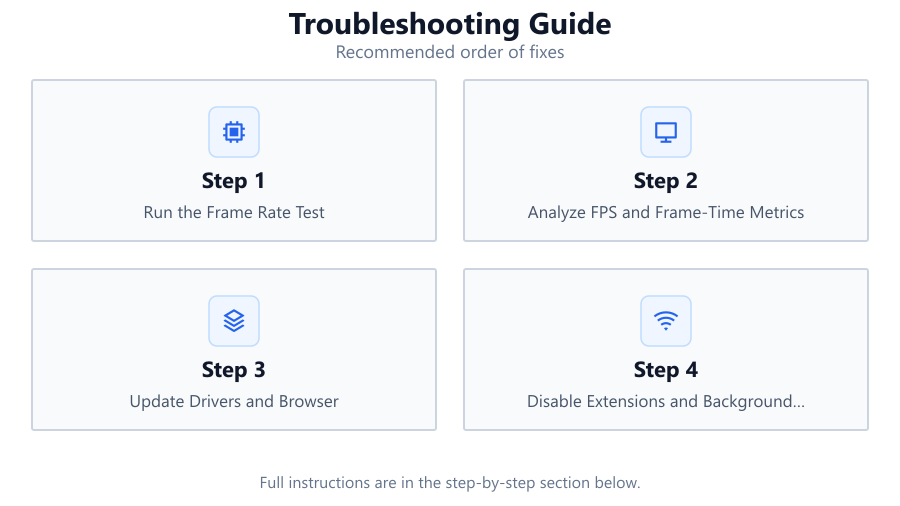
Run the Frame Rate Test
Open the Frame Rate Test tool in your browser. Let it run for at least 30 seconds to gather a representative sample of FPS and frame time data.
Analyze FPS and Frame-Time Metrics
Review the live graph and note the average FPS, 1% low, and 0.1% low metrics. Large drops in these numbers mean there is stutter or inconsistent frame delivery.
Update Drivers and Browser
Ensure your GPU and chipset drivers are current. Update your browser to the latest version to benefit from performance improvements and bug fixes.
Disable Extensions and Background Apps
Turn off browser extensions and close unnecessary background programs. These can compete for system resources and disrupt smooth animation.
Test in Different Browsers or Devices
If issues persist, try running the Frame Rate Test in another browser or on a different device. This helps determine if the problem is hardware or software related.
Comparison
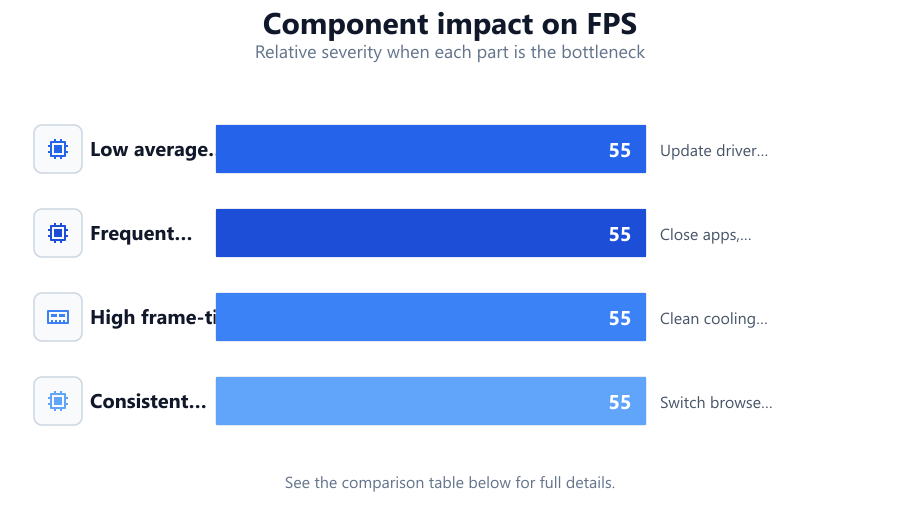
| Symptom | Likely Cause | Potential Fix |
|---|---|---|
| Low average FPS | Outdated drivers or weak hardware | Update drivers, upgrade hardware |
| Frequent FPS dips | Background processes or browser extensions | Close apps, disable extensions |
| High frame-time spikes | Resource contention or thermal throttling | Clean cooling, close tasks |
| Consistent stutter in one browser | Browser-specific rendering problem | Switch browsers, clear cache |
Common mistakes
Mistake
Ignoring 1% low and 0.1% low metrics
Fix: Always review these numbers in the Frame Rate Test to catch intermittent stutters that average FPS can hide.
Mistake
Testing with multiple tabs and background apps open
Fix: Close all unnecessary applications and tabs before running tests for accurate results.
Mistake
Not updating drivers or browser
Fix: Regularly update your GPU drivers and browser to benefit from the latest performance fixes and features.
Troubleshooting
Choppy or stuttering animation
Likely cause: Background applications consuming CPU or memory
What to do: Close unused programs and monitor resource usage with Task Manager or Activity Monitor.
Low FPS in all browsers
Likely cause: Outdated graphics drivers or insufficient hardware
What to do: Update your GPU drivers and consider upgrading your hardware if issues persist.
Smooth FPS but occasional large frame spikes
Likely cause: Thermal throttling or inconsistent power supply
What to do: Ensure your device is adequately cooled and plugged into power, not running on battery saver mode.
Recommendations
- Use the Frame Rate Test regularly after system changes to catch new issues early.
- Keep your system clean from dust and ensure adequate cooling to prevent thermal throttling.
- Prioritize updating GPU and browser software as performance optimizations are released frequently.
- Disable unnecessary startup programs to free up resources for smoother visuals.
Frequently asked questions
Why do I see different FPS in different browsers?
Browsers use different rendering engines and hardware acceleration methods. Run the Frame Rate Test in each browser to compare, and use the one with the best performance for your needs.
How can I tell if my hardware is the problem?
If the Frame Rate Test shows low FPS and stutter across all browsers and after closing other programs, your hardware may not meet the demands of the content. Check system info within the tool and compare with recommended specs.
What does 0.1% low FPS mean?
The 0.1% low FPS metric shows the lowest performance moments. A large gap between average FPS and 0.1% low points to severe stutter or rare but significant slowdowns.
Can browser extensions affect FPS?
Yes, some extensions can interfere with rendering or consume resources. Disable extensions one by one while running the Frame Rate Test to identify any that cause slowdowns.