
Guide
How to Choose the Right Hardware
Choosing the right hardware means balancing performance, comfort, and budget. This guide covers essential factors and helps you make informed decisions for your setup.
Updated 2026-07-05
Understanding Your Hardware Needs
Selecting the ideal hardware for your PC or entertainment setup can feel overwhelming with so many options on the market. Whether upgrading your monitor, building a new system, or enhancing your workspace, understanding your usage patterns is the first step in how to choose the right hardware.
Start by identifying your core activities: are you gaming, editing videos, browsing, or working professionally? Each use case demands a different approach. For example, gamers require high refresh rate monitors and powerful GPUs, while office users may prioritize ergonomics and screen clarity.
Think about your available space as well. Large ultrawide monitors or TVs provide immersive experiences but may not fit every desk. The Monitor Viewing Distance Calculator is a great tool to estimate the optimal viewing distance for your screen size and resolution, ensuring both comfort and clarity.
Budget is another key factor. Set a realistic spending range before comparing specs. Remember that the most expensive option is not always the best match for your needs.
Key Hardware Factors and Practical Tips
When learning how to choose the right hardware, focus on several core factors: performance, compatibility, ergonomics, and future-proofing.
Performance is dictated by your system's weakest link. A high-end GPU will not shine if paired with a low-resolution monitor or slow CPU. Always balance your components for your main tasks. For monitors, resolution and refresh rate directly impact visual quality and responsiveness. Use the Monitor Viewing Distance Calculator to determine if a 4K or ultrawide display is worth the investment for your setup and space.
Compatibility ensures all your hardware works together. Double-check that your graphics card supports your display’s resolution and refresh rate. Verify that your desk or mounting solution can support larger screens, especially if considering dual setups.
Ergonomics matter for long-term comfort. Adjustable stands, proper screen height, and correct viewing distance can reduce eye strain and fatigue.
Pairing your monitor selection with the right seating and desk layout maximizes comfort.
Future-proofing means selecting hardware that will remain relevant as technology advances. Invest in features like higher refresh rates, multiple input ports, or adaptive sync technologies if your budget allows. This ensures your setup lasts several upgrade cycles.
Step-by-step
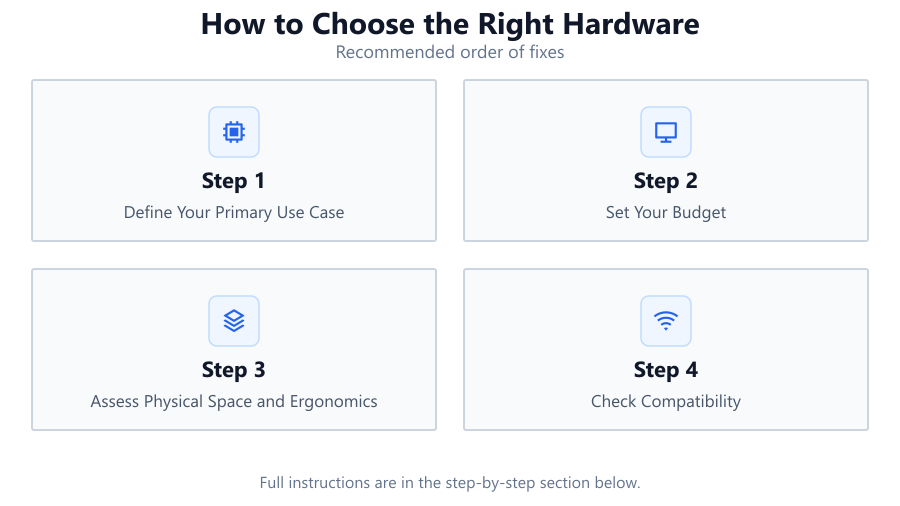
Define Your Primary Use Case
List your main activities: gaming, productivity, content creation, or casual use. This narrows down the essential hardware features you need.
Set Your Budget
Establish a maximum spend for your upgrade or build. This prevents overspending and helps filter out unsuitable options early in your search.
Assess Physical Space and Ergonomics
Measure your desk or room. Ensure your chosen hardware, especially monitors, fits comfortably. Use ergonomic stands and consider cable management.
Check Compatibility
Verify that your components will work together. For displays, confirm your GPU supports the chosen resolution and refresh rate. For peripherals, check port types and power requirements.
Use the Monitor Viewing Distance Calculator
Input your screen size and resolution into the Monitor Viewing Distance Calculator to find the optimal viewing distance. This ensures sharp visuals and reduces eye strain.
Compare Specifications and Reviews
Read user and expert reviews. Compare specs like refresh rate, panel type, response time, and connectivity to find the best fit for your needs.
Comparison
| Use Case | Recommended Monitor | Key Hardware Features |
|---|---|---|
| Gaming | 27-inch 144Hz QHD | High refresh rate, low response time, G-Sync/FreeSync |
| Office Productivity | 24-inch 1080p IPS | Ergonomic stand, flicker-free, blue light filter |
| Content Creation | 32-inch 4K IPS | Accurate color, high resolution, wide color gamut |
| Home Theater | 55-inch 4K TV | Large screen, HDR, HDMI 2.1 support |
| General Use | 27-inch 1440p VA | Balanced specs, eye care features, adjustable stand |
Common mistakes
Mistake
Ignoring screen size and desk space
Fix: Measure your available space before buying. Use the Monitor Viewing Distance Calculator to match monitor size to room layout.
Mistake
Overpaying for unnecessary features
Fix: Focus on features relevant to your main use case. Avoid expensive extras that will not benefit your workflow.
Mistake
Neglecting compatibility between components
Fix: Check all connections, supported resolutions, and required ports before purchase to avoid costly returns.
Mistake
Forgetting about ergonomics
Fix: Choose hardware with adjustable stands and consider your posture and viewing distance for long-term comfort.
Troubleshooting
Blurry or pixelated visuals
Likely cause: Sitting too close or using a low-resolution screen for its size
What to do: Use the Monitor Viewing Distance Calculator to find the ideal distance or upgrade to a higher resolution display.
Monitor does not display native resolution
Likely cause: Graphics card or cable does not support monitor specs
What to do: Check compatibility and use appropriate cables. Update GPU drivers if needed.
Eye strain after extended use
Likely cause: Improper viewing distance or poor monitor ergonomics
What to do: Adjust your seating and monitor height. Use the Monitor Viewing Distance Calculator for optimal distance and enable eye care features.
Recommendations
- Always match your hardware to your most demanding task, not just average use.
- Use the Monitor Viewing Distance Calculator to optimize comfort and image quality.
- Invest in ergonomic accessories like adjustable monitor arms and quality chairs.
- Read multiple expert and user reviews before making a final decision.
- Plan for future upgrades by choosing hardware with extra ports and headroom.
Frequently asked questions
How do I know if my monitor size is right for my desk?
Measure your available space and use the Monitor Viewing Distance Calculator to check if your desired monitor size fits comfortably and allows for optimal viewing.
What is the most important hardware feature for gaming?
For gaming, prioritize high refresh rate and low response time in your monitor, along with a powerful graphics card for smooth performance.
Is it worth investing in a 4K monitor?
A 4K monitor is worth it for content creation or home theater setups, but may be unnecessary for basic office tasks. Ensure your graphics card can handle it.
How do I reduce eye strain from my setup?
Maintain proper viewing distance using the Monitor Viewing Distance Calculator, enable blue light filters, and adjust monitor height for ergonomic viewing.