
Guide
Troubleshooting Guide
Struggling with your PC upgrade? This troubleshooting guide walks you through diagnosing, resolving, and preventing the most common hardware upgrade issues using proven techniques.
Updated 2026-07-05
Introduction to PC Upgrade Troubleshooting
Upgrading your PC is one of the most effective ways to boost performance for gaming, productivity, and everyday use. However, even the most carefully planned upgrades can sometimes result in unexpected problems. From boot failures after installing new RAM to compatibility issues with GPUs, the process can be daunting for beginners and seasoned builders alike.
A structured troubleshooting guide can help you quickly identify the root cause of issues and apply the right fixes. This guide covers the most common hardware upgrade problems, actionable troubleshooting steps, and how to leverage tools like the PC Upgrade Advisor for smarter decisions. Whether your PC is refusing to boot, running slower than expected, or throwing error messages, the following sections will help you resolve the issue efficiently.
Remember, patience and a systematic approach are key. Document each change you make and test after every step to isolate the problem. With the right knowledge, most upgrade issues can be solved at home without expensive repairs.
In-Depth Troubleshooting: Diagnosing and Fixing PC Upgrade Issues
The first step in any troubleshooting guide is to define the symptoms clearly. Is your PC failing to power on after a hardware change? Are you hearing beep codes or seeing error lights on the motherboard? Does your system crash under load or fail to recognize new components? Each symptom points to a specific area to investigate.
Begin with visual inspections: check that all cables are firmly connected, components are properly seated, and no visible damage exists. Use the PC Upgrade Advisor to analyze your configuration and receive targeted recommendations before and after making changes. This can help avoid common pitfalls and ensure that each upgrade is compatible with your existing hardware.
If you encounter errors after installing new hardware, try rolling back the change and testing with your original components. Swap out suspect parts one at a time. Refer to your motherboard and component manuals for compatibility and installation guidelines. If your system boots but underperforms, update drivers and BIOS firmware, and ensure all power connectors are attached.
Advanced troubleshooting might involve running memory diagnostics, stress-testing your GPU, or checking system logs for error codes. Do not overlook simple fixes, such as resetting CMOS or verifying your power supply’s wattage is sufficient for new components. When in doubt, consult the PC Upgrade Advisor for expert-backed upgrade paths and troubleshooting tips.
Step-by-step
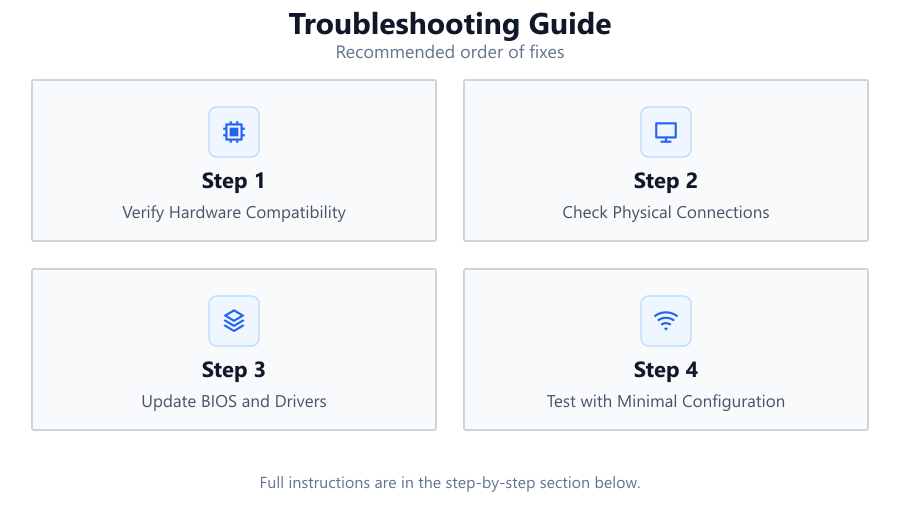
Verify Hardware Compatibility
Before installing any new component, double-check that it is compatible with your motherboard, power supply, and other hardware. Use the PC Upgrade Advisor to compare your current setup and receive compatibility guidance.
Check Physical Connections
Ensure all cables, RAM sticks, and expansion cards are fully seated in their slots. A loose connection can prevent your PC from booting or recognizing new hardware.
Update BIOS and Drivers
Outdated BIOS or drivers can cause instability or prevent new components from working. Visit your motherboard and component manufacturer’s website to download and install the latest updates.
Test with Minimal Configuration
If your PC will not boot, remove all non-essential hardware (extra drives, expansion cards) and test with just the CPU, one stick of RAM, and GPU (if needed). Add components back one at a time to isolate the issue.
Monitor System Temperatures and Power
After upgrading, monitor CPU and GPU temperatures and ensure your power supply can handle the new components. Overheating or insufficient power can cause crashes or instability.
Comparison
| Symptom | Possible Cause | Recommended Action |
|---|---|---|
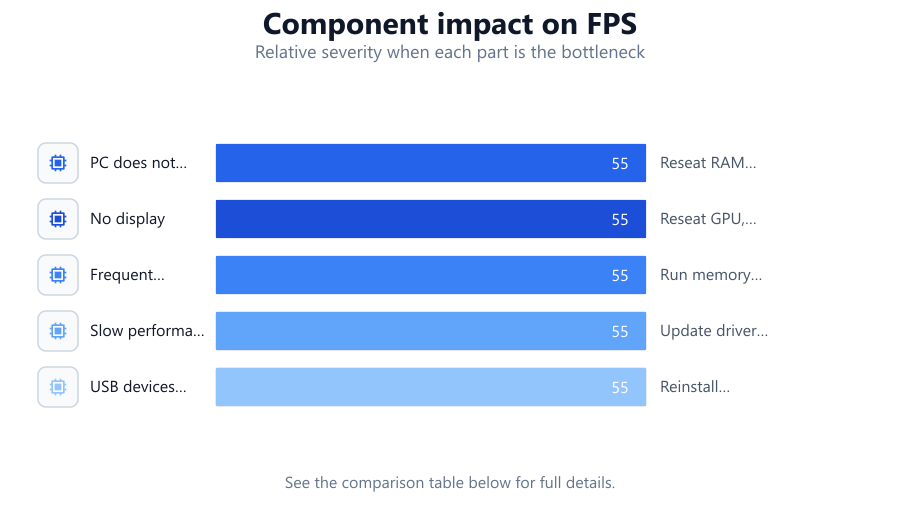
| PC does not boot | Loose RAM or power cables | Reseat RAM and check all connections |
| No display | GPU not seated or faulty | Reseat GPU, test with another card |
| Frequent crashes | Incompatible or faulty RAM | Run memory diagnostics, test each stick |
| Slow performance | Old drivers or thermal throttling | Update drivers, check cooling |
| USB devices not recognized | Motherboard driver issue | Reinstall chipset drivers |
Common mistakes
Mistake
Installing incompatible RAM or GPU
Fix: Always check motherboard and CPU compatibility before purchasing new components. Use the PC Upgrade Advisor to verify supported hardware.
Mistake
Forgetting to update BIOS before upgrading
Fix: Update your motherboard BIOS to the latest version before installing new CPUs or RAM to ensure proper support.
Mistake
Not connecting all required power cables
Fix: Double-check that all necessary power connectors are attached to the motherboard, GPU, and drives.
Mistake
Skipping driver installations
Fix: After hardware changes, install the latest drivers for your GPU, chipset, and other components to avoid compatibility issues.
Troubleshooting
PC powers on but no display
Likely cause: GPU not properly seated or faulty display cable
What to do: Reseat the GPU, try a different cable, and confirm monitor input settings.
Frequent blue screens (BSOD) after upgrade
Likely cause: Faulty or incompatible RAM, outdated drivers
What to do: Run memory diagnostics, test each RAM stick separately, and update all system drivers.
System locks up during gaming or stress tests
Likely cause: Overheating or insufficient power supply
What to do: Clean fans and heatsinks, reapply thermal paste, and ensure your PSU meets the wattage requirements of your upgraded hardware.
Recommendations
- Always research component compatibility before purchasing upgrades.
- Use the PC Upgrade Advisor to identify the most impactful upgrade for your system.
- Document each change you make during the upgrade process to make troubleshooting easier.
- Keep drivers and BIOS up to date for maximum stability and performance.
- Test your system thoroughly after each upgrade to catch and resolve issues early.
Frequently asked questions
How can I tell if my new RAM or GPU is compatible with my motherboard?
Check your motherboard’s specifications for supported RAM speeds, sizes, and GPU slot types. The PC Upgrade Advisor can also help verify compatibility before you buy.
What should I do if my PC will not boot after an upgrade?
Remove the new component and test with your original hardware. Verify all connections, update BIOS if needed, and add components back one by one to isolate the issue.
How do I fix driver conflicts after installing new hardware?
Uninstall any old drivers, then download and install the latest drivers from the manufacturer’s website. A clean install can resolve most conflicts.
Is it necessary to upgrade my power supply when adding a new GPU?
Often yes, especially if the new GPU draws more power than your current PSU can supply. Check the wattage requirements of your GPU and compare with your PSU’s output.