
Guide
Troubleshooting Guide
Struggling with slow memory or RAM errors? This troubleshooting guide walks you through diagnosing and solving common RAM speed issues using proven methods and the Test Your Memory with Our Free RAM Speed Checker tool.
Updated 2026-07-05
Understanding RAM Speed Issues
RAM speed plays a critical role in your PC's overall performance. If your system feels slow, freezes, or lags during everyday tasks or gaming, your memory could be the culprit. Common symptoms include application crashes, long boot times, and stuttering in resource-intensive programs. Identifying whether RAM speed is causing these problems is the first step toward a smoother computing experience.
Test Your Memory with Our Free RAM Speed Checker is a valuable tool that instantly measures your RAM's read and write speeds in MB/s. Comparing your results with typical benchmarks can help you pinpoint potential bottlenecks. However, understanding what impacts RAM speed and how to interpret these numbers is essential for effective troubleshooting.
This troubleshooting guide covers the most frequent causes of RAM slowdowns, offers step-by-step solutions, and explains how to use the RAM Speed Checker to verify your progress. Whether you are a beginner or an advanced user, these actionable tips can help restore your system's memory performance.
Common Causes and Solutions for Slow RAM
Several factors can impact your RAM speed, from hardware limitations to software settings. One of the most overlooked issues is incorrect memory configuration in the BIOS or UEFI, which can cause modules to run below their rated speeds. Outdated drivers, mismatched RAM sticks, and background processes also contribute to sluggishness.
Another factor is thermal throttling. If your RAM modules overheat, they may reduce their speed to prevent damage. Physical issues, such as dust in the RAM slots or poorly seated modules, can lead to intermittent errors and performance drops.
To address these problems, it is important to systematically test each potential cause. Start by running the Test Your Memory with Our Free RAM Speed Checker to establish a baseline. Next, check your system's BIOS settings for XMP or DOCP profiles, ensure your memory sticks are compatible, and update your chipset and motherboard drivers. Physical inspection and cleaning of your RAM and slots often resolve persistent issues. The following step-by-step guide will walk you through each process in detail.
Step-by-step
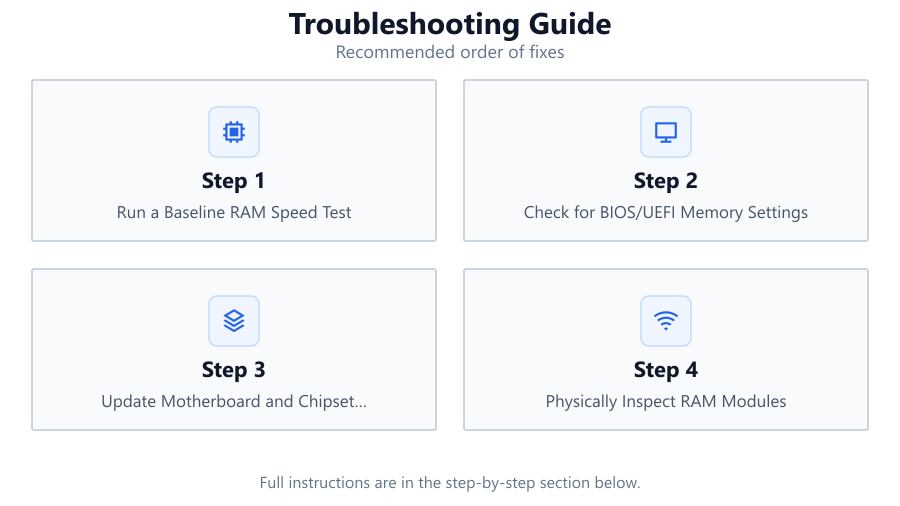
Run a Baseline RAM Speed Test
Use the Test Your Memory with Our Free RAM Speed Checker to measure your RAM's current read and write speeds. Record the results and compare them to your RAM's rated specifications or typical values for your memory type.
Check for BIOS/UEFI Memory Settings
Restart your PC and enter the BIOS or UEFI setup. Look for XMP, DOCP, or EOCP memory profiles and enable the one that matches your RAM. Save and reboot. This ensures your RAM runs at its intended speed.
Update Motherboard and Chipset Drivers
Outdated drivers can cause compatibility issues and slowdowns. Visit your motherboard manufacturer's website and download the latest BIOS and chipset drivers. Install them following the provided instructions.
Physically Inspect RAM Modules
Power down your PC and unplug it. Open the case and carefully remove the RAM sticks. Clean the contacts with a soft brush or compressed air, then reseat the modules firmly in their slots. This can fix poor connections and dust buildup.
Monitor for Thermal Throttling
Use a hardware monitoring tool to check your RAM and system temperatures. If modules are running hot, improve airflow in your case or consider adding heatsinks to your RAM. Rerun the speed test to see if performance improves.
Comparison
| RAM Type | Typical Read Speed (MB/s) | Typical Write Speed (MB/s) |
|---|---|---|
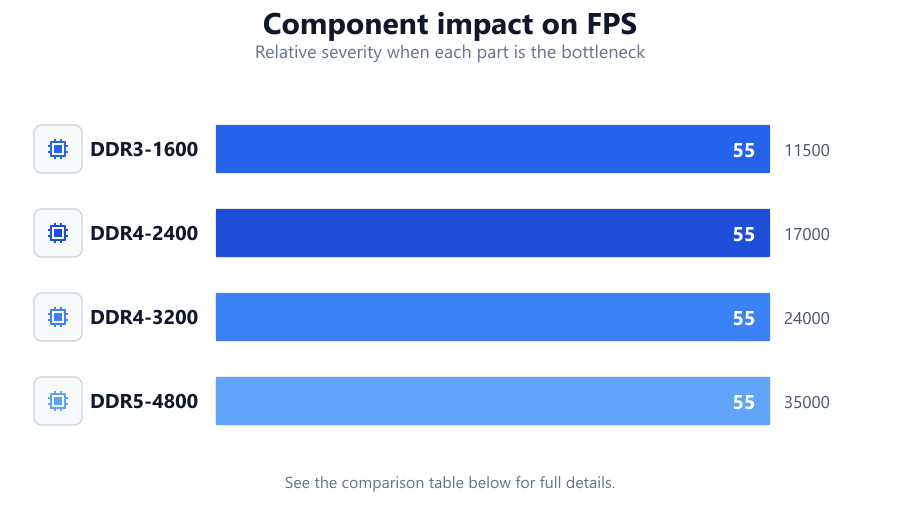
| DDR3-1600 | 12000 | 11500 |
| DDR4-2400 | 18000 | 17000 |
| DDR4-3200 | 25000 | 24000 |
| DDR5-4800 | 36000 | 35000 |
Common mistakes
Mistake
Not enabling XMP profile in BIOS
Fix: Enter BIOS and enable XMP or equivalent profile to ensure RAM operates at advertised speeds.
Mistake
Mixing RAM sticks of different speeds or brands
Fix: Use identical RAM modules for best compatibility and speed. Mismatched sticks often default to the slowest speed.
Mistake
Ignoring driver and BIOS updates
Fix: Regularly update all drivers and BIOS to maintain compatibility and optimal memory performance.
Mistake
Overlooking dust or improper seating
Fix: Physically inspect and clean RAM slots and ensure modules are fully inserted.
Troubleshooting
System frequently freezes or reboots randomly
Likely cause: Faulty or poorly seated RAM modules
What to do: Power down, reseat or replace RAM, and retest with the RAM Speed Checker.
RAM speed test shows much lower than expected results
Likely cause: XMP/DOCP profile not enabled or using mismatched RAM
What to do: Enable XMP/DOCP in BIOS and ensure all RAM sticks are identical.
Performance drops during gaming or heavy workloads
Likely cause: Thermal throttling or background processes consuming memory
What to do: Improve case airflow, monitor temperatures, and close unnecessary background applications.
PC does not boot after installing new RAM
Likely cause: Incompatible or incorrectly installed RAM modules
What to do: Check motherboard compatibility, reseat modules, and update BIOS if needed.
Recommendations
- Always use the Test Your Memory with Our Free RAM Speed Checker after making changes to verify improvements.
- Enable XMP or equivalent profiles in BIOS for optimal RAM performance.
- Keep your motherboard BIOS and chipset drivers updated to prevent compatibility issues.
- Use matched RAM modules for best stability and speed.
- Maintain clean RAM slots and ensure proper airflow to prevent overheating.
Frequently asked questions
How do I know if my RAM is running at full speed?
Use the Test Your Memory with Our Free RAM Speed Checker to measure current speeds and compare with your RAM's rated specifications. Enable XMP profiles in BIOS if speeds are lower than expected.
Can mixing different RAM sticks cause problems?
Yes, mixing RAM sticks of different speeds or brands can lead to instability and reduced overall speed. Always use identical modules for best results.
What should I do if my RAM speed is lower than advertised?
Check BIOS for XMP/DOCP settings, ensure all RAM sticks are identical, and update your motherboard BIOS. Rerun the speed test to confirm improvements.
Why does my system freeze or crash during heavy tasks?
This could be due to failing RAM, poor seating, or overheating. Physically inspect your RAM, monitor temperatures, and use the RAM Speed Checker to diagnose issues.