
Guide
Optimization Guide
Discover how to optimize your video rendering workflow for faster results. This guide covers essential strategies and how to leverage the Video Rendering Time Calculator to plan and accelerate your projects.
Updated 2026-07-05
Understanding Video Rendering Optimization
Rendering video projects can be time-consuming, especially with high resolutions, complex effects, or less-than-ideal hardware. Whether you are a professional editor or an aspiring creator, optimizing your rendering process is crucial for meeting deadlines and maintaining productivity.
This optimization guide explores the key factors affecting render speed, including hardware choices, software settings, and workflow habits. By understanding these elements, you can make informed decisions that significantly reduce render times and improve your overall editing experience.
The Video Rendering Time Calculator is a powerful tool designed to help you estimate your project’s render duration based on your system specs and project settings. With accurate time estimates, you can schedule tasks more efficiently and identify bottlenecks before they impact your workflow.
In-Depth Strategies for Faster Rendering
Effective optimization requires a combination of hardware upgrades, software tuning, and smart project management. Start by evaluating your system’s CPU, GPU, RAM, and storage. Each component plays a distinct role in the rendering pipeline. For example, a faster CPU can handle more complex effects, while a powerful GPU accelerates real-time previews and encoding.
Software settings also matter. Adjusting codec choices, bitrates, and export resolutions can dramatically change render times without sacrificing quality. Use proxy workflows for smoother editing and pre-render heavy effects when possible.
The Video Rendering Time Calculator helps you test different scenarios, predicting how changes in hardware or settings will affect your project’s render time. This allows you to optimize before you commit to long render sessions, saving both time and frustration. Combine these insights with disciplined project organization, such as cleaning up unused assets and pre-rendering complex sequences, to maximize efficiency.
Step-by-step
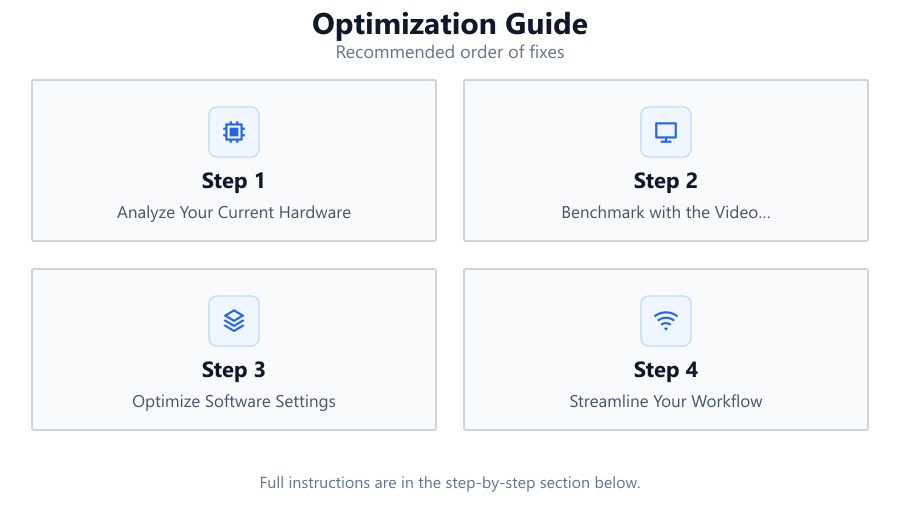
Analyze Your Current Hardware
Begin by listing your CPU, GPU, RAM, and storage device types. Use system monitoring tools to check if any component is maxing out during renders. Identifying the bottleneck helps you target upgrades or adjust settings accordingly.
Benchmark with the Video Rendering Time Calculator
Input your system specs and project details into the Video Rendering Time Calculator. Note the estimated render time and experiment with different settings, such as resolution or codec, to see how they impact the duration.
Optimize Software Settings
Adjust export settings for a balance of quality and speed. Use efficient codecs like H.264 for faster renders, lower bitrates when acceptable, and match your sequence settings to your export settings to avoid unnecessary conversions.
Streamline Your Workflow
Organize your project by removing unused clips, consolidating assets, and pre-rendering heavy effects. Using proxies for high-resolution footage can also speed up editing and reduce final render times.
Upgrade Key Hardware Components
If render times remain high, consider upgrading your CPU for complex effects or GPU for accelerated encoding. Increasing RAM can prevent slowdowns with large projects, and switching to SSDs reduces loading and caching times.
Comparison
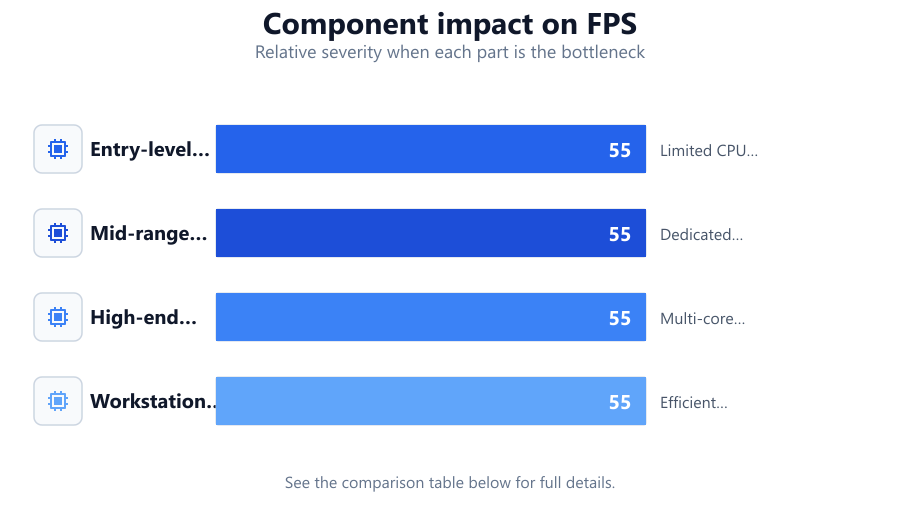
| Hardware | Render Time (4K, 10 min) | Notes |
|---|---|---|
| Entry-level laptop | 3 hours | Limited CPU and integrated graphics |
| Mid-range desktop | 1 hour | Dedicated GPU, more RAM |
| High-end workstation | 25 minutes | Multi-core CPU, powerful GPU |
| Workstation with optimized settings | 15 minutes | Efficient codecs, proxies used |
Common mistakes
Mistake
Ignoring hardware bottlenecks
Fix: Monitor system usage to identify and upgrade the slowest component.
Mistake
Exporting with unnecessary high settings
Fix: Match export settings to project needs, avoiding excessive resolutions or bitrates.
Mistake
Not using proxy files for high-res footage
Fix: Create and edit with proxies to improve responsiveness and reduce render times.
Mistake
Leaving unused effects and assets in the timeline
Fix: Clean up your project before rendering to avoid processing unnecessary elements.
Troubleshooting
Render process is extremely slow
Likely cause: CPU or GPU at maximum usage, or insufficient RAM
What to do: Upgrade the bottlenecked component or lower project settings for faster processing.
Crashes or out-of-memory errors during render
Likely cause: Insufficient RAM for large or complex projects
What to do: Increase RAM or break the project into smaller sections for separate rendering.
Final video quality is lower than expected
Likely cause: Over-optimized export settings like low bitrate or aggressive compression
What to do: Increase bitrate or select a higher-quality codec in export settings.
Recommendations
- Regularly benchmark your system using the Video Rendering Time Calculator to track performance improvements.
- Keep your editing software and GPU drivers up to date for the latest performance optimizations.
- Invest in SSDs for your project files and cache locations to reduce loading and rendering times.
- Adopt a disciplined project organization strategy to minimize unnecessary processing during renders.
Frequently asked questions
How can I estimate my video project's render time?
Use the Video Rendering Time Calculator by entering your system specs, project resolution, codec, and effects to get a realistic time estimate.
What hardware upgrade has the biggest impact on render speed?
For most video editing tasks, upgrading your CPU and GPU yields the largest improvements, especially for complex effects and high-resolution projects.
Will using proxy files speed up my final render?
Proxy files accelerate editing and previewing, but the final render depends on your export settings and original footage. However, proxies can streamline your workflow and reduce errors.
Why does my render time vary so much between projects?
Differences in resolution, codecs, effects, and complexity all affect render time. Use the Video Rendering Time Calculator to analyze how these factors impact your specific projects.