
Guide
Common Buying Mistakes
Avoid the most common buying mistakes when choosing storage for your PC or laptop. Learn what to look out for and how to use the Storage Calculator to make the right choice.
Updated 2026-07-05
Understanding the Most Common Buying Mistakes in Storage
Choosing the right storage for your PC or laptop can feel overwhelming, especially with so many options and technical jargon. Many buyers rush into their purchase or rely on outdated advice, only to discover their new drive does not fit their needs. These common buying mistakes often lead to frustration, wasted money, and even performance problems.
A major issue is underestimating how much storage you actually need. With games, media files, and software updates growing in size every year, it is easy to find yourself running out of space much sooner than expected. Another trap is focusing solely on price or brand, without considering important factors like speed, reliability, and future requirements.
To help you make an informed decision, it is crucial to understand these mistakes and learn how to avoid them. Using a tool like the Storage Calculator can simplify this process by estimating your ideal SSD or HDD size based on your real usage patterns. This guide will break down the most common pitfalls and provide actionable steps to ensure you buy the right drive the first time.
How to Avoid Storage Buying Mistakes and Shop Smart
Before you buy, take a close look at your current and future storage needs. Many users forget to account for growing file sizes, new applications, or the desire to keep more games installed. This leads to frequent upgrades, wasted money, and lost time migrating data.
Using the Storage Calculator can help you forecast your requirements accurately. Input the types and quantities of files you typically store, including games, videos, photos, and work documents. The calculator will recommend a practical drive size, factoring in both your present needs and reasonable growth. This approach prevents the common buying mistake of purchasing a drive that is too small or too large for your needs.
Another common mistake is ignoring drive speed and reliability. Not all drives are created equal. For example, an SSD offers much faster performance than a traditional HDD, but some low-cost SSDs may have lower endurance or poor warranty support. Check user reviews, endurance ratings (TBW), and manufacturer warranties before making your decision. Also, be wary of deals that seem too good to be true, as counterfeit or refurbished drives can easily be mistaken for new ones.
Finally, consider how your drive will be used. If you plan to use it for gaming or video editing, prioritize speed and reliability. For simple file storage or backups, capacity may matter more. By carefully matching your drive to your needs and verifying these details, you can confidently avoid the most common buying mistakes.
Step-by-step
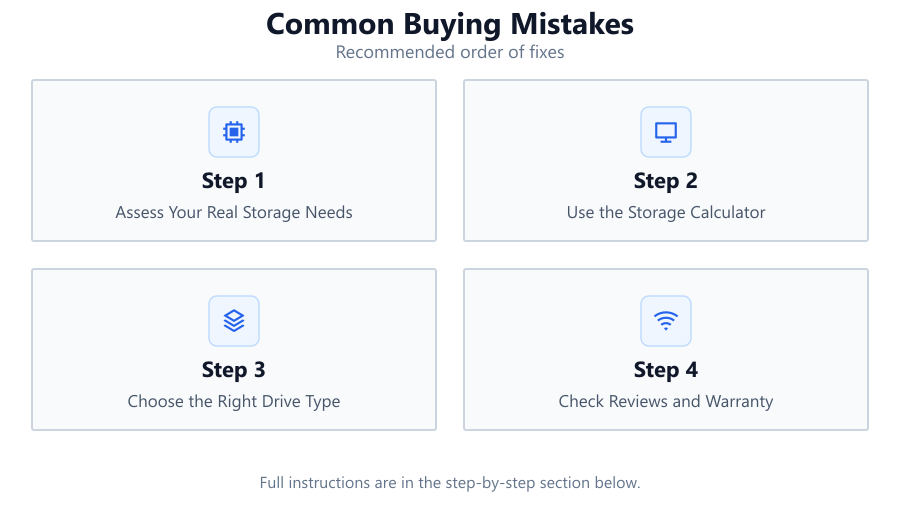
Assess Your Real Storage Needs
List the types of files you store most often, such as games, videos, photos, and documents. Consider both current files and anticipated growth over the next few years.
Use the Storage Calculator
Enter your estimated file counts and sizes into the Storage Calculator. It will recommend an optimal drive size, helping you avoid buying too little or too much storage.
Choose the Right Drive Type
Compare SSDs and HDDs based on your performance needs and budget. SSDs are faster and more reliable for most users, but HDDs offer more capacity per dollar.
Check Reviews and Warranty
Research user reviews and manufacturer warranty terms. Prioritize drives with proven reliability and solid support, especially if you store important data.
Plan for the Future
Select a drive with extra capacity for future growth. Storage needs tend to increase over time, so a small buffer can delay your next upgrade.
Comparison
| Drive Type | Typical Use Case | Common Mistake |
|---|---|---|
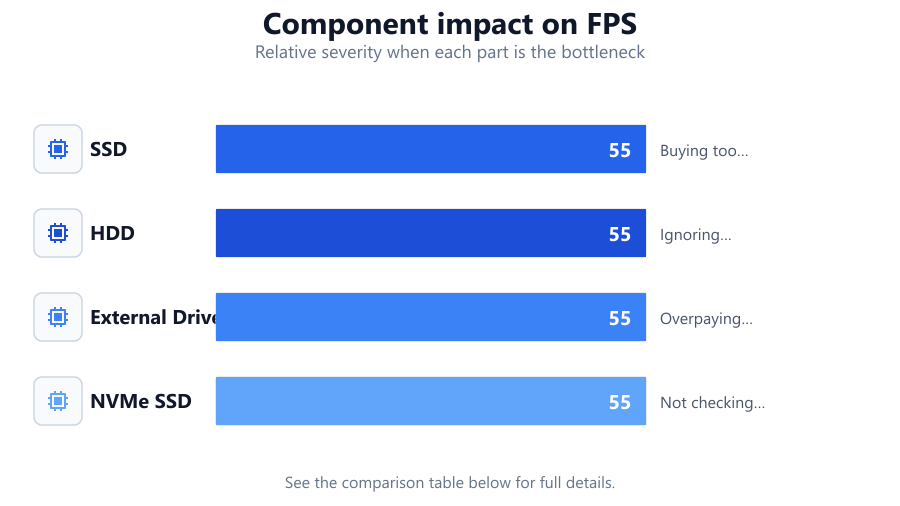
| SSD | Gaming, OS, Fast Storage | Buying too small for future needs |
| HDD | Bulk Media Storage, Backups | Ignoring speed requirements |
| External Drive | Portable File Transfer | Overpaying for brand or features |
| NVMe SSD | High-Performance Tasks | Not checking motherboard compatibility |
Common mistakes
Mistake
Underestimating required storage size
Fix: Use the Storage Calculator to accurately estimate your needs and add a buffer for future growth.
Mistake
Focusing only on price or brand
Fix: Research specifications, user reviews, and warranty support in addition to price and reputation.
Mistake
Ignoring drive speed and compatibility
Fix: Check the required interface (SATA, NVMe) and ensure your system supports the drive you choose.
Mistake
Buying from unreliable sources
Fix: Purchase from reputable retailers and verify the authenticity of your drive upon receipt.
Troubleshooting
Drive fills up quickly after installation
Likely cause: Underestimated storage needs or did not account for file growth
What to do: Recalculate your needs using the Storage Calculator and upgrade to a larger drive if necessary.
Slow performance with new drive
Likely cause: Purchased an HDD instead of an SSD for performance tasks
What to do: Upgrade to an SSD or use the HDD only for bulk storage.
Drive not recognized by PC
Likely cause: Incompatible interface or missing drivers
What to do: Check your motherboard manual and install necessary drivers. Confirm compatibility before purchase.
Frequent drive errors or failures
Likely cause: Low-quality or counterfeit drive purchased
What to do: Buy from reputable sellers, check warranty status, and use diagnostic tools to verify drive health.
Recommendations
- Always use the Storage Calculator before buying a new drive.
- Prioritize SSDs for everyday use and gaming, and HDDs for backups or media storage.
- Buy slightly more capacity than you currently need to allow for future growth.
- Double-check drive compatibility with your motherboard or laptop.
- Purchase storage only from trustworthy retailers with clear return policies.
Frequently asked questions
How do I know what size drive I need?
Use the Storage Calculator to estimate your storage needs based on your files and future growth. This helps you avoid buying a drive that is too small or too large.
What is the difference between SSD and HDD?
SSDs are much faster, quieter, and more reliable than HDDs but typically cost more per gigabyte. HDDs offer more storage for the price but are slower and less durable.
Can I upgrade my storage later if I run out of space?
Yes, most PCs and laptops allow for storage upgrades. However, it is often easier and more cost-effective to buy the right size from the start using the Storage Calculator.
Should I buy based on brand or specifications?
Specifications and reliability matter more than brand alone. Look for proven performance, good reviews, and a solid warranty before making your decision.
How can I avoid buying a fake or unreliable drive?
Always purchase from reputable retailers, check packaging and serial numbers, and verify your drive's authenticity with manufacturer tools.