
Guide
Common Buying Mistakes
Avoid costly storage blunders by understanding the most common buying mistakes when planning video storage. This guide helps you make smarter decisions before your next purchase.
Updated 2026-07-05
Why Storage Buying Decisions Matter for Video Projects
Planning the right storage for video projects is more than just picking a hard drive off the shelf. Many creators and professionals underestimate the complexity of matching video requirements with storage solutions, which leads to costly mistakes and frustrating bottlenecks.
Mistakes like underestimating file sizes, ignoring codec requirements, or failing to plan for future needs can derail even the best-planned shoots. These errors often result in lost footage, workflow interruptions, or wasted money on unnecessary upgrades. By understanding the common buying mistakes, you can make informed choices that save time and budget.
When you know how much space your video files will occupy and how your chosen codecs or resolutions impact storage, you are less likely to encounter unpleasant surprises. The Video Storage Calculator is a powerful tool that can help you accurately predict your storage needs before you commit to a purchase. Using it early in your planning process ensures that you avoid the most frequent pitfalls.
Remember, storage needs for video projects grow fast, especially as you move to higher resolutions or longer recording sessions. By preparing with the right tools and knowledge, you can keep your workflow efficient and cost-effective.
Key Buying Mistakes and How to Avoid Them
One of the most common buying mistakes is underestimating just how much data video projects generate. For instance, a single hour of 4K footage can consume hundreds of gigabytes, depending on the codec and bitrate. Relying on guesswork or outdated rules of thumb often leads to running out of space at the worst time.
Another frequent error is focusing only on the initial purchase price rather than total cost of ownership. Cheaper drives may save money upfront but can fail sooner, have slower transfer speeds, or lack support for the video codecs you rely on. Factoring in reliability, speed, and compatibility is crucial for long-term satisfaction.
Ignoring the impact of codecs and bitrates is a trap many fall into. Not all video files are created equal: a highly compressed H.265 file takes up far less space than a ProRes or RAW equivalent. Without considering how your capture settings affect storage, you might overspend or, worse, run out of space during a shoot.
To avoid these mistakes, use the Video Storage Calculator to input your resolution, codec, bitrate, and duration. This will give you a precise estimate of storage requirements, helping you choose the right drive capacity and speed for your workflow. Building in a margin for future projects or backups is another smart move. Always plan for more storage than you think you need. Finally, consider how your storage will interface with your editing system: fast connections like Thunderbolt or USB-C make a huge difference in post-production efficiency.
Step-by-step
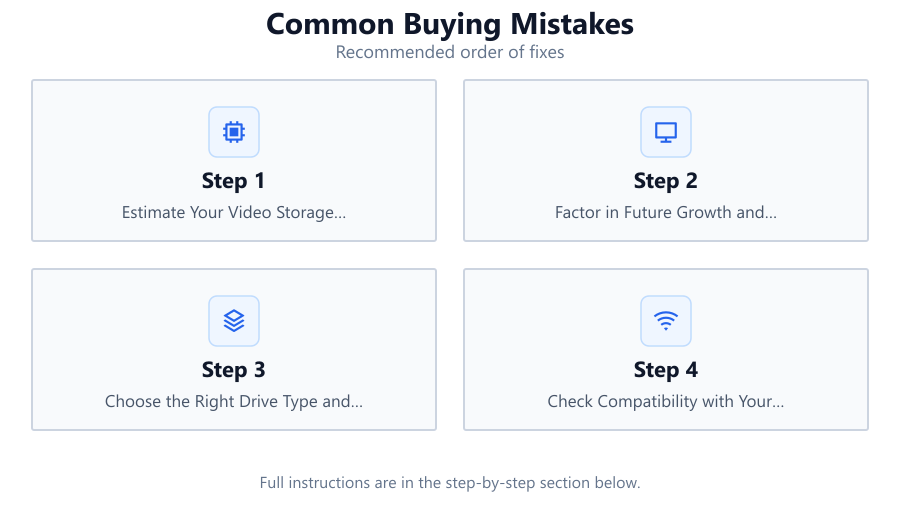
Estimate Your Video Storage Requirements Accurately
Start by gathering details about your video project: resolution, frame rate, codec, bitrate, and expected duration. Plug these into the Video Storage Calculator to get a precise estimate of required storage space. This step prevents the most common buying mistakes, such as underestimating file sizes.
Factor in Future Growth and Redundancy
Always plan for more storage than your immediate needs. Account for future projects, additional takes, and backups. Storage fills up faster than you think, especially if you upgrade cameras or switch to higher-quality codecs.
Choose the Right Drive Type and Speed
Consider not just capacity but also drive speed and reliability. SSDs offer faster performance but can be more expensive per gigabyte. HDDs are cheaper but slower. Match your drive to your editing workflow and connection needs.
Check Compatibility with Your Editing Software and Hardware
Make sure your chosen storage solution works seamlessly with your editing system, both in terms of file system format and physical connections. Incompatible drives can cause frustrating delays, data loss, or additional expenses.
Budget for Total Cost of Ownership
Factor in not only the upfront cost but also longevity, warranty, ongoing maintenance, and the cost of potential data loss. Sometimes a slightly more expensive drive saves money in the long run by avoiding failures and downtime.
Comparison
| Storage Type | Typical Use Case | Pros and Cons |
|---|---|---|
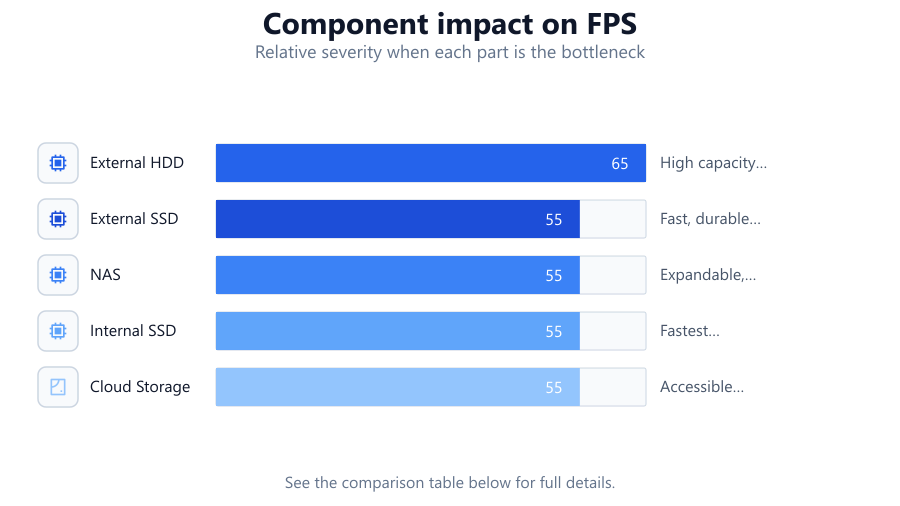
| External HDD | Archiving, backup | High capacity, slow speed, affordable, more prone to failure |
| External SSD | Editing, fast transfers | Fast, durable, expensive per GB, limited high capacities |
| NAS | Multiple users, remote access | Expandable, networked, complex setup, higher cost |
| Internal SSD | Editing workstation | Fastest speeds, requires installation, higher price |
| Cloud Storage | Offsite backup, sharing | Accessible anywhere, ongoing fees, limited by internet speed |
Common mistakes
Mistake
Underestimating storage needs for high-resolution or long-duration projects
Fix: Always use a tool like the Video Storage Calculator to input your actual project parameters before buying.
Mistake
Ignoring codec and bitrate impact on file size
Fix: Understand how different codecs and bitrates affect storage requirements and use the Video Storage Calculator to compare scenarios.
Mistake
Choosing drives based only on price
Fix: Consider reliability, speed, and compatibility in addition to cost to avoid expensive failures later.
Mistake
Not planning for backups or future growth
Fix: Purchase extra capacity and develop a backup strategy to protect your footage and accommodate new projects.
Troubleshooting
Drive fills up before project is completed
Likely cause: Initial storage estimate was too low or project scope increased
What to do: Recalculate storage with the Video Storage Calculator and upgrade to a higher-capacity drive.
Slow video editing performance
Likely cause: Drive is too slow for high-bitrate footage or editing workflow
What to do: Switch to a faster SSD or check for connection bottlenecks like USB 2.0.
Drive not recognized by editing software
Likely cause: File system incompatibility or outdated hardware interface
What to do: Reformat the drive to a compatible file system or use an appropriate adapter or enclosure.
Lost footage due to drive failure
Likely cause: No backup or use of unreliable storage
What to do: Implement a backup strategy and invest in higher-reliability drives with warranties.
Recommendations
- Always use the Video Storage Calculator before purchasing storage for any video project.
- Plan for 20-30 percent more storage than your initial estimate to accommodate unplanned footage and backups.
- Choose storage solutions that balance speed, reliability, and cost for your specific workflow.
- Regularly back up your footage to a separate device or cloud storage to prevent data loss.
- Review your storage plan before each major project or camera upgrade.
Frequently asked questions
How can I accurately estimate how much video storage I need?
Gather your project's resolution, codec, bitrate, and duration, then enter them into the Video Storage Calculator for a precise estimate.
Why is codec selection important when buying storage?
Different codecs compress video files to varying degrees, affecting storage requirements. Always factor in your codec choice when planning storage.
Should I buy an SSD or HDD for video editing?
SSDs provide faster speeds and are better for editing, while HDDs offer more capacity for archiving. Choose based on your workflow and budget.
How much extra storage should I buy for backups and future projects?
Plan for at least 20-30 percent more than your calculated needs to allow for backups, extra footage, and future expansion.
What happens if I run out of storage mid-project?
You risk losing footage or delaying work. Use the Video Storage Calculator before starting to avoid this common buying mistake.