
Guide
How to Choose the Right Hardware
Choosing the right hardware can be confusing, but with the right approach and tools like the VRAM Calculator, you can match your build to your needs with confidence.
Updated 2026-07-05
Why Hardware Selection Matters
Choosing the right hardware is the foundation of any smooth computing experience. Whether you are building a gaming PC, upgrading for professional 3D work, or assembling a machine for deep learning, matching your hardware to your needs ensures top performance and value. The wrong choices can lead to bottlenecks, wasted money, or disappointing results.
Modern applications and games demand more from your graphics card, CPU, memory, and storage. For example, games at 4K require much more VRAM than 1080p, while AI workloads need both VRAM and fast CPUs. Upgrading based on guesswork often leads to overspending or underperforming systems. This is where tools like the VRAM Calculator make a huge difference, offering tailored recommendations based on your exact use case.
Hardware evolves rapidly, so understanding the basics of what each component does and how it impacts your workflow or gameplay is essential. This guide provides a step-by-step process, with actionable advice for every type of user, ensuring you get the best value and performance for your money.
Breaking Down Hardware Choices for Every User
Every user has unique demands, whether it is high-fidelity 3D rendering, competitive gaming, or running large language models. Start by defining your primary use cases. For gamers, the most crucial decisions involve the graphics card, display resolution, and refresh rate. Professional users need to consider VRAM for large textures and datasets, storage speed for massive files, and CPU core count for multi-threaded tasks.
The VRAM Calculator, available at SystemRequirements.net, eliminates guesswork by offering personalized VRAM recommendations for gaming, content creation, and AI. Simply input your resolution and workload, and you will get a precise estimate of the VRAM you need. This prevents both under-buying and overspending.
Additionally, do not overlook system balance. The fastest GPU will be wasted if paired with a weak CPU or insufficient RAM. Storage also impacts load times and workflow efficiency. By carefully matching each component to your software requirements, you maximize performance and future-proof your investment.
Step-by-step
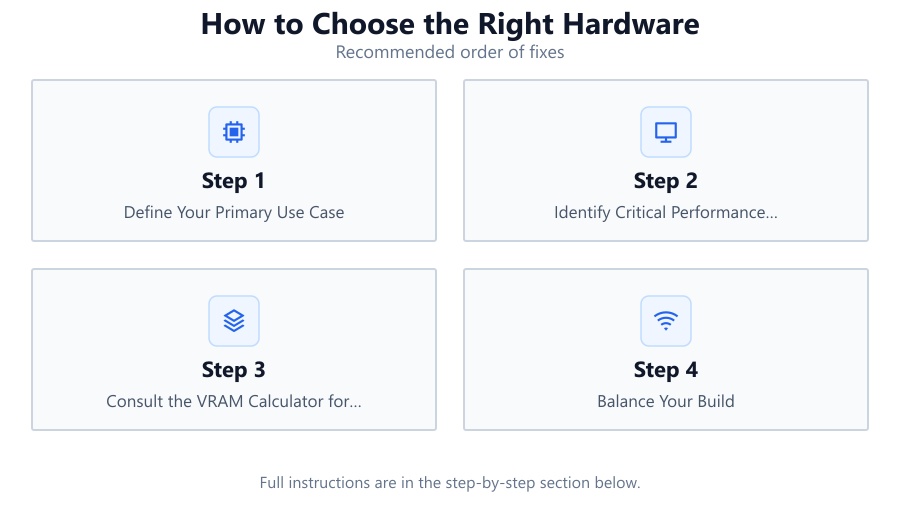
Define Your Primary Use Case
List the main tasks you need your PC to perform. Are you focused on gaming, video editing, 3D modeling, or AI workloads? This will influence every hardware decision.
Identify Critical Performance Factors
For each use case, determine which components matter most. Gamers should prioritize GPUs and VRAM, while content creators need plenty of RAM, fast storage, and multi-core CPUs.
Consult the VRAM Calculator for Recommendations
Use the VRAM Calculator to input your typical workloads, resolution, and software. This gives you a tailored estimate for how much VRAM your tasks actually require.
Balance Your Build
Ensure your CPU, GPU, RAM, and storage are well-matched. Avoid bottlenecks by selecting components that complement each other, not just the most powerful part you can afford.
Plan for Future Upgrades
Consider your future needs. Leave room for adding more RAM or storage. Opt for a power supply with headroom and a motherboard with extra slots for expansion.
Set a Realistic Budget
Determine how much you want to spend and allocate your budget by priority. Invest more in components that directly impact your workflow or gaming experience.
Comparison
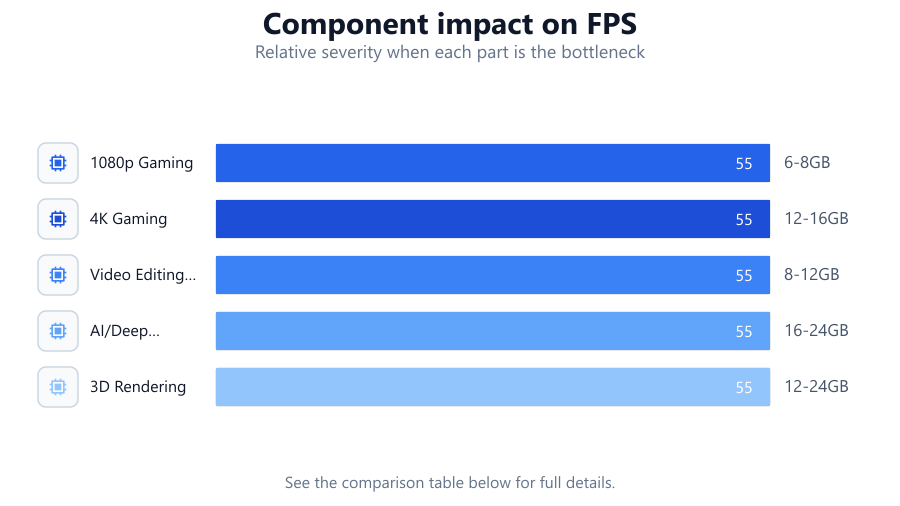
| Use Case | Key Hardware | VRAM Required (Estimate) |
|---|---|---|
| 1080p Gaming | Midrange GPU, Quad-core CPU | 6-8GB |
| 4K Gaming | High-end GPU, Fast CPU | 12-16GB |
| Video Editing (4K) | Multi-core CPU, Fast SSD | 8-12GB |
| AI/Deep Learning | Workstation GPU, 32GB+ RAM | 16-24GB |
| 3D Rendering | High VRAM GPU, Multi-core CPU | 12-24GB |
Common mistakes
Mistake
Choosing a GPU with too little VRAM for your resolution
Fix: Use the VRAM Calculator to get an accurate VRAM estimate for your resolution and workload before buying.
Mistake
Overinvesting in a single component and neglecting system balance
Fix: Balance your budget across CPU, GPU, RAM, and storage for optimal overall performance.
Mistake
Ignoring future upgrade paths
Fix: Select a motherboard and power supply that support future upgrades such as additional RAM or GPU.
Mistake
Not checking compatibility between components
Fix: Verify socket types, RAM speeds, and power supply connectors before purchasing any hardware.
Troubleshooting
Games stutter or crash at high resolutions
Likely cause: Insufficient VRAM on the graphics card
What to do: Lower the resolution or texture quality, or use the VRAM Calculator to find a GPU with adequate VRAM for your needs.
Slow video rendering or encoding times
Likely cause: CPU or RAM bottleneck
What to do: Upgrade to a multi-core CPU and increase RAM capacity for smoother editing and rendering.
System fails to boot after upgrade
Likely cause: Incompatible or improperly installed hardware
What to do: Double-check component compatibility and ensure all parts are properly connected.
Storage fills up quickly during projects
Likely cause: Insufficient SSD or HDD capacity
What to do: Plan for adequate storage based on your file sizes and upgrade to larger or additional drives as needed.
Recommendations
- Always define your primary use case before selecting components.
- Consult the VRAM Calculator for precise VRAM recommendations tailored to your workloads.
- Balance your hardware choices to avoid bottlenecks and wasted budget.
- Plan for future upgrades by choosing a motherboard and power supply with extra capacity.
- Update your BIOS and drivers after installing new hardware for optimal compatibility and stability.
Frequently asked questions
How much VRAM do I need for modern gaming?
Most modern games at 1080p require 6-8GB of VRAM, while 4K gaming often needs 12GB or more. Use the VRAM Calculator for precise recommendations based on your titles and settings.
Do I need a powerful GPU for video editing?
A strong GPU helps with real-time effects and rendering, but a fast multi-core CPU and plenty of RAM are equally important for smooth editing, especially at 4K or higher.
What components should I prioritize for AI workloads?
AI workloads demand high VRAM GPUs, lots of RAM, and a CPU with many cores. Use the VRAM Calculator to estimate your VRAM needs based on model size and data.
How can I avoid bottlenecks in my PC build?
Balance your investment across CPU, GPU, RAM, and storage. Do not overspend on one part at the expense of others, and always check compatibility.