
Guide
Troubleshooting Guide
Struggling with slow or unreliable Wi-Fi? This troubleshooting guide helps you identify, diagnose, and fix common wireless speed problems using practical steps and the Wi-Fi Speed Estimator.
Updated 2026-07-05
Understanding Wi-Fi Speed Issues
Slow Wi-Fi can turn even the fastest devices into sources of frustration. Wireless performance is influenced by a mix of router capabilities, signal strength, environmental interference, and hardware compatibility. Knowing where to start troubleshooting can save you hours of guesswork and restore your connection’s full potential.
Every Wi-Fi network is unique. Factors like the distance from your router, the presence of walls or floors, competing devices, and even the wireless standards your hardware supports will impact your actual speeds. Many users overlook these variables, leading to persistent bottlenecks or unreliable connections.
This troubleshooting guide is designed to help you systematically identify the cause of your Wi-Fi speed issues. By using tools like the Wi-Fi Speed Estimator, you can get a quick, realistic view of your current network performance and see how changes in your setup might help. Let’s explore the most common culprits behind poor Wi-Fi speeds and how you can fix them.
Diagnosing and Fixing Wi-Fi Performance Problems
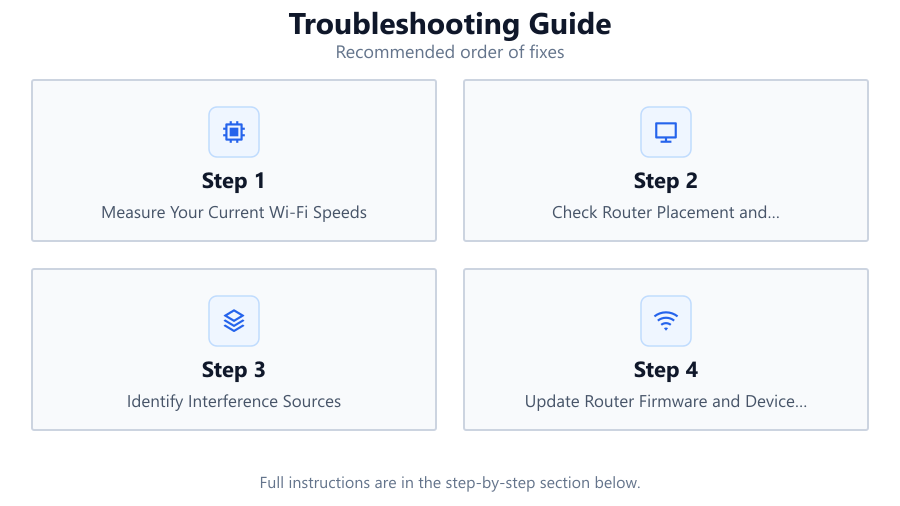
The first step in restoring your Wi-Fi speed is to pinpoint the underlying cause. Start by measuring your current speeds in different locations using the Wi-Fi Speed Estimator. This tool factors in your router’s standard, signal strength, frequency band, distance, and potential interference, giving you a realistic baseline.
Next, assess your router’s placement. Routers should be centrally located, free from obstructions, and elevated if possible. Physical barriers such as thick walls, floors, or even metal appliances can degrade your signal. If you find that certain areas of your home or office consistently have weaker speeds, consider repositioning your router or investing in Wi-Fi extenders.
Interference from neighboring networks or electronic devices is another leading cause of slow Wi-Fi. Use your router’s admin interface or third-party apps to check for channel congestion, then switch to a less crowded channel if needed. Additionally, ensure your devices and router are compatible with modern Wi-Fi standards (such as 802.11ac or Wi-Fi 6). Outdated hardware often cannot keep up with high-speed connections.
Finally, firmware updates and proper security settings can make a significant difference. Outdated firmware may cause connectivity issues, while poor security could allow unauthorized users to consume your bandwidth. By working through these steps and using the Wi-Fi Speed Estimator to validate your improvements, you can achieve consistently fast and reliable wireless performance.
Step-by-step
Measure Your Current Wi-Fi Speeds
Begin by using the Wi-Fi Speed Estimator to test your speeds in different locations. Note any significant discrepancies between rooms or floors, as these often indicate signal strength problems or interference.
Check Router Placement and Positioning
Ensure your router is in a central, elevated location and away from thick walls, metal objects, and electronic appliances. Poor placement is one of the most common causes of weak Wi-Fi signals.
Identify Interference Sources
Look for nearby devices that could interfere with your wireless signal, such as microwaves, cordless phones, or Bluetooth gadgets. Change your router’s channel or switch frequency bands (2.4GHz vs 5GHz) to minimize overlap.
Update Router Firmware and Device Drivers
Outdated firmware or drivers can cause performance drops and connectivity issues. Visit your router manufacturer’s website and update to the latest firmware. Do the same for your device’s Wi-Fi drivers.
Secure and Optimize Your Network
Ensure your Wi-Fi network is password protected (WPA2 or WPA3) to prevent unauthorized access. Limit the number of connected devices if possible, and disable unused features or guest networks.
Comparison
| Router Standard | Max Theoretical Speed | Real-World Speed Estimate |
|---|---|---|
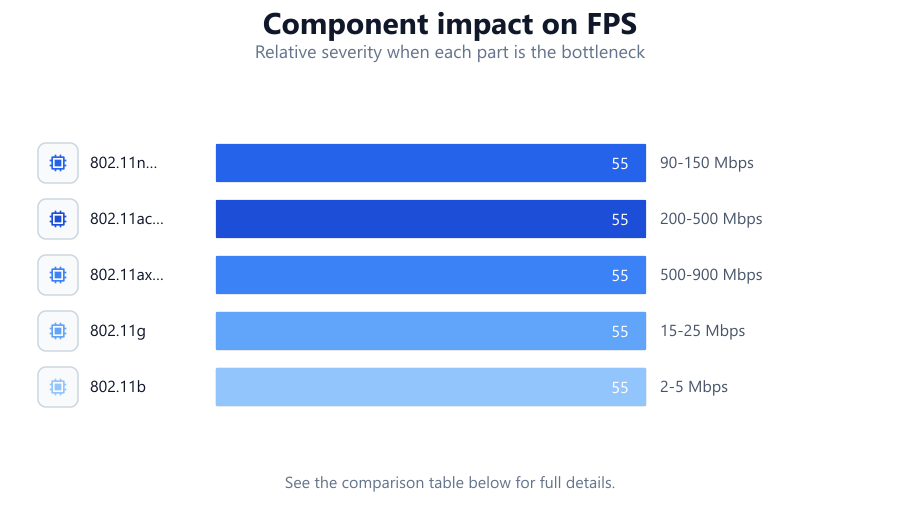
| 802.11n (Wi-Fi 4) | 600 Mbps | 90-150 Mbps |
| 802.11ac (Wi-Fi 5) | 1300 Mbps | 200-500 Mbps |
| 802.11ax (Wi-Fi 6) | 2400 Mbps | 500-900 Mbps |
| 802.11g | 54 Mbps | 15-25 Mbps |
| 802.11b | 11 Mbps | 2-5 Mbps |
Common mistakes
Mistake
Placing the router in a closed cabinet or behind furniture
Fix: Move the router to an open, central location with minimal obstructions for better signal distribution.
Mistake
Using outdated routers or devices
Fix: Upgrade to hardware that supports modern Wi-Fi standards (Wi-Fi 5 or Wi-Fi 6) for improved performance.
Mistake
Ignoring firmware updates
Fix: Regularly check for and install firmware updates on your router to ensure optimal stability and security.
Mistake
Overloading the network with too many devices
Fix: Limit the number of connected devices or use dual-band/multi-band routers to balance the load.
Troubleshooting
Wi-Fi is fast near the router but slow in other rooms
Likely cause: Signal attenuation due to distance and physical barriers
What to do: Reposition the router, use mesh Wi-Fi or extenders, and remove obstructions where possible.
Sudden drops in speed or frequent disconnects
Likely cause: Interference from other devices or overlapping channels
What to do: Change your router’s wireless channel or switch from 2.4GHz to 5GHz to reduce interference.
All devices experience slow speeds at all times
Likely cause: ISP issues, outdated router, or unauthorized users consuming bandwidth
What to do: Contact your ISP to check for outages, update router firmware, and secure your network with a strong password.
Good speed test results but slow file transfers
Likely cause: Device hardware limitations or software bottlenecks
What to do: Update device drivers, close unnecessary background apps, and ensure devices support modern Wi-Fi standards.
Recommendations
- Use the Wi-Fi Speed Estimator to get a realistic view of your current speeds and identify weak spots in your coverage.
- Upgrade your router and devices to support Wi-Fi 6 for better performance and future-proofing.
- Minimize physical barriers and interference by relocating your router and choosing optimal wireless channels.
- Schedule regular checks for firmware updates and review your network’s security settings.
- Consider a mesh Wi-Fi system if you have a large home or multiple floors.
Frequently asked questions
How do I know if my slow Wi-Fi is caused by my router or my ISP?
Test your speeds using the Wi-Fi Speed Estimator next to your router and compare with speeds over a wired connection. If both are slow, the issue is likely your ISP. If only Wi-Fi is slow, your router or environment may be the cause.
Can changing my Wi-Fi channel really improve speed?
Yes, switching to a less crowded channel can reduce interference from neighboring networks, especially on the 2.4GHz band, leading to more stable and faster speeds.
Is 5GHz always better than 2.4GHz?
5GHz offers higher speeds and less interference but has shorter range. Use 5GHz for devices close to the router and 2.4GHz for devices farther away or through multiple walls.
How often should I update my router’s firmware?
Check for firmware updates every few months. Regular updates improve security, stability, and sometimes add new features or performance improvements.
What is the best way to test real-world Wi-Fi speeds?
Use the Wi-Fi Speed Estimator to simulate and measure actual performance based on your network setup, device, and environment. This gives you a more accurate picture than generic online speed tests.