
FREE DISPLAY TEST
Backlight Bleed Test: Detect IPS Glow & Panel Bleed
Backlight bleed and IPS glow can ruin a premium monitor experience, especially in dark scenes or gaming. This browser-based tool shows fullscreen black and dark gray patterns to help you spot unwanted light leaks, glow, or uniformity issues on your display.
What Does This Tool Do?
The Backlight Bleed Test uses fullscreen black, dark gray, and medium gray patterns to reveal light leakage, IPS glow, and uniformity issues in your display. By filling your entire screen with pure black or subtle gray, the tool exposes areas where your monitor’s backlight leaks through the panel or the panel glows more than it should. This is especially useful for identifying common LCD flaws like corner bleed, edge hotspots, and panel uniformity issues. The test is designed for quick, visual evaluation and works in most modern browsers. It is not a lab-grade calibration tool, but it provides a fast way to spot visible defects.
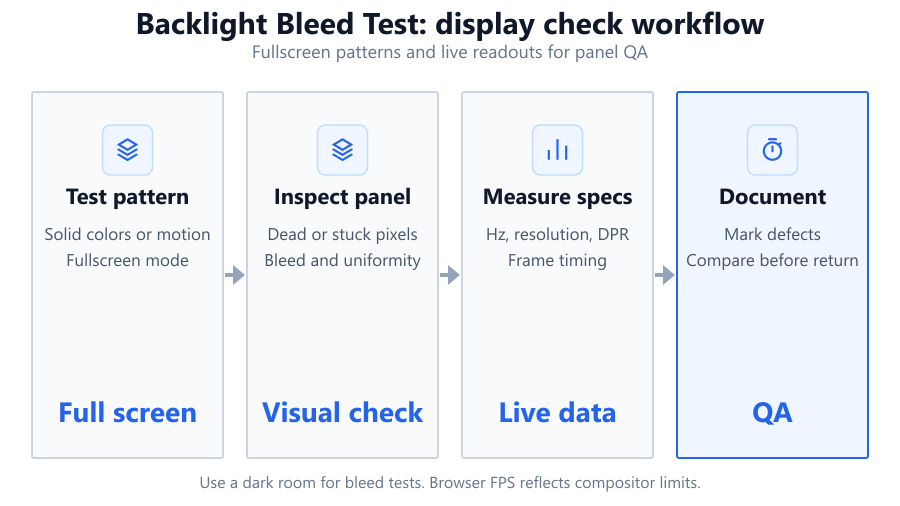
The tool also includes a grid option for checking pixel-level uniformity, and guidance to help you differentiate between IPS glow and true backlight bleed. Use it on any LCD monitor, including popular models like the Dell S2721DGF, ASUS VG279QM, or your laptop display.
How to Use This Tool
Start by setting your room lighting as dark as possible. Launch the tool and select the pure black pattern for maximum contrast detection. Make your browser window fullscreen using F11 or your OS shortcut. Examine the display from your normal viewing position. Look for any bright spots, patches, or glowing edges that stand out from the rest of the screen.
Switch to dark gray and medium gray patterns to reveal uniformity issues that might be hidden on pure black. Enable the grid overlay to check if any areas are unusually bright or dim compared to the rest. Move your head slightly to see how viewing angle affects glow, especially on IPS panels.
If you’re comparing multiple displays, use the same patterns and environment for each. For accurate results, set your monitor to its default or calibrated settings, and disable dynamic contrast or local dimming features that could mask defects.
Understanding Your Results
Backlight bleed appears as persistent bright areas along the edges or in corners, regardless of viewing angle. IPS glow usually shows as a milky, bluish, or yellowish haze that shifts when you move your head, strongest at the corners or edges of the panel. Uniformity issues appear as random patches or bands that are lighter or darker than the rest of the screen, visible on gray patterns.
A perfect display would show an even, deep black with no bright spots or colored tints. Most IPS monitors have some IPS glow, while VA panels may show less glow but more contrast shift. TN panels often have poor uniformity but minimal glow. Record your findings and compare with online reviews, such as those for the Dell U2720Q or LG 27GL850, to see if your unit matches typical performance. Note that browser-based tests are visual and not a substitute for hardware calibrators.
Common Problems This Helps Diagnose
This tool helps uncover several display flaws:
Backlight Bleed: Usually appears in the corners or along the edges, caused by imperfect sealing or pressure in the LCD stack. Common in affordable and mid-range monitors, and sometimes even in premium models like the Alienware AW3423DWF.
IPS Glow: A normal trait of IPS panels, appearing as a colored haze that shifts when viewed off-angle. Not a defect, but can be distracting for dark scene gaming or movie watching.
Uniformity Issues: Visible as brighter or darker patches, stripes, or blotches on gray screens. Can occur because of panel manufacturing variances or after physical impacts.
Panel Pressure Marks: Localized bright spots, often permanent, caused by excessive pressure from assembly or mishandling. Sometimes seen on laptops like the Lenovo ThinkPad series.
Dead or Stuck Pixels: While not the primary focus, a grid overlay can help spot bright or dark pixels missed in normal use.
The tool will not detect color accuracy, response time, or contrast ratio. For those, use dedicated calibration hardware.
Examples and Scenarios
Scenario 1: New Monitor Purchase
You just unpacked a Dell S2721DGF. Running the pure black fullscreen test, you notice a bright patch in the lower right corner. Switching to dark gray, the patch remains visible. This likely indicates moderate backlight bleed that could be grounds for an exchange if it bothers you.
Scenario 2: Comparing IPS Glow vs Bleed
Your ASUS VG279QM shows a bluish haze in the corners on black, but it shifts as you move your head. This is classic IPS glow, not backlight bleed. The panel design, not a defect, is responsible.
Scenario 3: Uniformity Check for Photo Editing
While testing your LG 27GL850, you notice several faint bands on the medium gray pattern. These are uniformity issues, which may affect photo or video work where consistent brightness matters.
Scenario 4: Laptop Display After Travel
A Lenovo ThinkPad X1 Carbon has a faint, circular bright spot on the left edge, visible on black. This is likely a pressure mark from the lid being pressed against the keyboard during travel.
Scenario 5: VA Panel User Checks for Bleed
On a Samsung Odyssey G7 (VA panel), you notice almost no glow, but some edge areas are slightly lighter than others on black. This is typical minor bleed, less distracting than on many IPS models.
Scenario 6: Gaming in a Dark Room
A Corsair XENEON monitor shows strong edge bleed during horror games in a pitch-black room. Lowering brightness helps, but the bleed remains visible. You use the tool to document the issue before requesting a warranty replacement.
Tips for Accurate Testing
Test in a dark room to maximize contrast. Turn off all room lights and cover any windows or light sources. Set your monitor to its native resolution and default color mode for baseline comparison. Disable any dynamic contrast, local dimming, or adaptive brightness features in your monitor’s OSD, as these can hide or exaggerate flaws.
Allow your monitor to warm up for 20-30 minutes before testing. Clean the screen with a microfiber cloth to remove dust that could look like defects. Use the fullscreen mode and grid overlay for the most thorough inspection. Move your head to check for angle-dependent glow (especially on IPS panels).
If you’re checking multiple displays, keep environmental conditions identical. Take photos using a camera or smartphone with manual exposure for documentation, but avoid using a flash. Note that browser-based tests cannot calibrate colors or measure luminance precisely, but they are effective for visible defect detection.
Browser vs Desktop Software
Browser-based tools like this one are convenient, fast, and require no installation. They work on Windows, macOS, and Linux, and can be run on any device with a compatible browser. However, browser tools rely on your OS’s color management and display settings, which can cause slight inaccuracies.
Unlike dedicated desktop software (such as DisplayCAL or Lagom LCD Test), browser tests cannot access hardware-level controls or perform calibration. They also cannot measure exact luminance or color values, and their fullscreen mode may be affected by browser UI or OS overlays. For professional calibration, dead pixel mapping, or factory diagnostics, use hardware calibrators like the Datacolor SpyderX or X-Rite i1Display Pro and trusted software.
Despite these limitations, browser-based pattern tests are ideal for quick checks, RMA documentation, or comparing units side by side. For most users, the visual results are enough to make warranty or return decisions.
Summary
The Backlight Bleed Test is a fast, browser-based way to expose backlight bleed, IPS glow, and uniformity problems on any LCD monitor. It uses fullscreen black and gray patterns, with grid overlays and practical guidance, to help you identify visible flaws. While not a replacement for hardware calibration or lab-grade measurement, the tool is ideal for anyone buying, unboxing, or troubleshooting a monitor, laptop, or OLED TV.
For best results, follow dark room guidelines and compare your findings with review benchmarks and user reports. If you spot serious bleed, persistent pressure marks, or distracting glow, document the issue and contact your retailer or manufacturer. Modern panels vary widely, even within the same model line. This tool helps you make informed decisions before your return window closes.
Frequently Asked Questions
What is backlight bleed and does every monitor have it?
Backlight bleed is unwanted light leaking from the edges or corners of an LCD panel, visible on dark backgrounds. It’s caused by imperfect sealing or pressure within the display assembly. Most LCD monitors have some degree of bleed, but it varies widely. Premium models like the Dell U2720Q tend to have less, while budget displays may have more. Some bleed is considered normal and within manufacturer tolerance. Severe bleed, however, can be distracting during movies or games and may qualify for a warranty replacement if it exceeds the brand’s specification.
How can I tell the difference between IPS glow and backlight bleed?
IPS glow appears as a milky, bluish, or yellowish haze at the corners of an IPS panel, strongest when viewed off angle. It changes shape and intensity as you move your head. Backlight bleed, in contrast, is a static bright patch or line along the edge or corner that doesn’t change with viewing angle. IPS glow is a panel characteristic, while bleed is a manufacturing defect. On the Backlight Bleed Test, move around: if the spot shifts, it’s likely IPS glow. If it stays put, it’s probably bleed.
Can I fix backlight bleed or IPS glow at home?
There is no reliable at-home fix for true backlight bleed or IPS glow. Applying gentle pressure to the panel may temporarily shift bleed, but risks damaging the display. Some users report minor improvements by loosening the monitor’s bezel screws, but this voids warranty and is risky. IPS glow is a function of the panel’s technology and cannot be eliminated. Your best option is to exchange the monitor if the defects are distracting, especially if you are within the return window.
Is this browser-based test as accurate as professional calibration tools?
No, browser-based tests are not as precise as professional calibration tools like the Datacolor SpyderX or X-Rite i1Display Pro. This tool is designed for visual inspection, not for measuring exact luminance or color accuracy. Browser tests rely on your OS display pipeline, which can introduce small inaccuracies. For most users, however, the visual information is sufficient to identify backlight bleed, glow, or panel uniformity issues. For color-critical work, use a hardware calibrator and software.
Why do some monitors have worse backlight bleed than others?
Backlight bleed is affected by the quality of panel assembly, materials, and manufacturing tolerances. Even within the same model, like the LG 27GL850, some units may have more bleed than others. Factors like bezel pressure, shipping impacts, and even temperature changes during transit can worsen bleed. Premium brands often have stricter quality control but are not immune. If you receive a monitor with excessive bleed, document it with photos and contact your retailer for a replacement.
Can OLED monitors or TVs have backlight bleed?
No, OLED panels like the LG C2 or Alienware AW3423DWF do not have backlight bleed because each pixel emits its own light. However, they can suffer from other issues like uniformity bands, dead pixels, or image retention. The Backlight Bleed Test tool is mainly for LCD panels, but you can use the gray patterns to check for uniformity issues on OLED screens.
Does monitor brightness affect bleed visibility?
Yes, higher brightness settings can make backlight bleed and IPS glow more visible, especially in dark rooms. Lowering the brightness can mask minor bleed, but severe bleed remains apparent regardless of settings. For fair comparisons, test displays at their default or calibrated brightness. Some users find reducing brightness enough to make bleed tolerable for daily use.
Should I test my monitor when it’s new or after it warms up?
It’s best to test your monitor after it has warmed up for 20-30 minutes. Cold LCD panels can display more uniformity issues or temporary bleed that stabilizes as they reach operating temperature. Testing right after unboxing is still valuable for RMA purposes, but for the most accurate results, allow the monitor to stabilize in your typical usage environment.
Will this test find dead or stuck pixels?
While the tool’s grid overlay can help spot dead or stuck pixels, it is not specifically designed for pixel defect detection. For thorough pixel checks, use dedicated dead pixel tests with solid RGB, white, and black backgrounds. If you see single bright or dark dots that remain in all test patterns, they are likely dead or stuck pixels. Consult your monitor’s warranty policy for coverage details.
Do laptops have more backlight bleed than desktop monitors?
Laptops often have thinner, more flexible panels that may be more susceptible to backlight bleed and pressure marks. Budget and mid-range laptops, like some Lenovo or HP Pavilion models, can show more bleed than desktop monitors. Premium laptops such as MacBook Pro or Dell XPS lines usually have better assembly, but no device is immune. Always check for bleed right after purchase, as travel and lid pressure can worsen the issue over time.
Can backlight bleed get worse over time?
Backlight bleed usually remains stable after the initial weeks of use, but it can worsen due to impacts, pressure, or warping of the panel assembly. Environmental factors like heat or humidity may also play a role. If you notice new or increased bleed after moving or adjusting your monitor, inspect the bezel and screen for physical damage. Warranty coverage varies, so document any changes with photos and contact support if needed.
Is it possible to have a perfect, bleed-free LCD monitor?
Completely bleed-free LCD panels are rare. Even premium monitors like the EIZO ColorEdge series can have minimal, almost invisible bleed. Manufacturers have tolerances for bleed levels, and some minor glow or edge light is considered normal. For critical tasks like video editing or print proofing, look for panels with high uniformity and strict quality control. For everyday use, slight bleed is often unavoidable but should not be distracting.
Why does my monitor look fine in daylight but shows bleed at night?
Ambient light masks backlight bleed and uniformity flaws during the day, making them harder to see. At night, especially in a dark room, your eyes adjust to lower light levels, and bleed or glow becomes much more obvious. That’s why it’s important to test for bleed in a completely dark environment using the tool’s black and gray patterns.
Does monitor size or resolution affect backlight bleed?
Larger monitors and high-resolution panels can make bleed more apparent simply due to the bigger surface area and more edge real estate. Ultra-wide and curved displays, like the Samsung Odyssey G9, are particularly prone to corner bleed. Resolution itself does not cause bleed, but poor panel uniformity or weak edge sealing is often more noticeable on larger screens.
Can software or firmware updates fix backlight bleed?
No, backlight bleed is a physical property of the panel’s construction and cannot be resolved through software or firmware updates. Some monitors offer settings like local dimming or dynamic contrast that can mask bleed, but they do not fix the underlying issue. If a firmware update claims to address ‘black uniformity,’ it’s likely just tweaking how the panel handles low-light content, not fixing bleed itself.
Should I return my monitor if I see backlight bleed?
If the bleed is severe or distracts you during your normal use cases, it is reasonable to request a replacement within the return or warranty window. Take clear photos using the Backlight Bleed Test tool in a dark room to document the issue. Compare your results with user forums or reviews for your specific model to judge if your unit is below average. Minor bleed is common, but large or bright patches may justify an exchange, especially on premium displays.
Related Tools
Free tools to analyze, compare, and optimize your PC gaming performance
Dead Pixel Test
Test your monitor for dead, stuck or hot pixels using fullscreen color patterns. Free online dead pixel checker.
Use Tool →Display Test
Test your monitor for dead pixels, color accuracy, gradients, response time, sharpness and display quality in one place.
Use Tool →Color Screen Test
Display fullscreen color patterns for monitor testing, photography, calibration and display diagnostics.
Use Tool →What Is My Screen Size
Find your screen resolution, viewport size, aspect ratio, device pixel ratio and display specifications instantly.
Use Tool →Popular Game System Requirements
Check if your PC meets the requirements for these popular games
Benchmark data from PassMark and publisher specs. Calculators run locally in your browser — we never upload your hardware info.