
FREE CLICK SPEED TEST
CPS Test: Clicks Per Second Speed Test
Need to measure your mouse clicking speed for gaming or hardware testing? This CPS Test lets you check your clicks per second with customizable test durations, instant stats, and detailed results. See your live CPS, per-second performance, and compare your score to others.
What Does This Tool Do?
The CPS Test measures how many times you can click your mouse in a given period. Whether you want to practice for competitive games, spot-check your mouse's responsiveness, or just challenge your friends, this test provides real-time feedback on your clicking speed. It works entirely in your browser, no downloads required, and tracks every left click you make within the set duration.
Results include your live clicks per second (CPS), your highest CPS in any single second, and your average CPS throughout the test. You'll see a bar chart for each second, percentile ranking compared to past users, and achievement badges if you hit certain milestones. Your session history is stored locally in your browser, so you can track improvement over time. The tool supports test durations from 1 up to 100 seconds, making it flexible for quick checks or longer endurance tests.
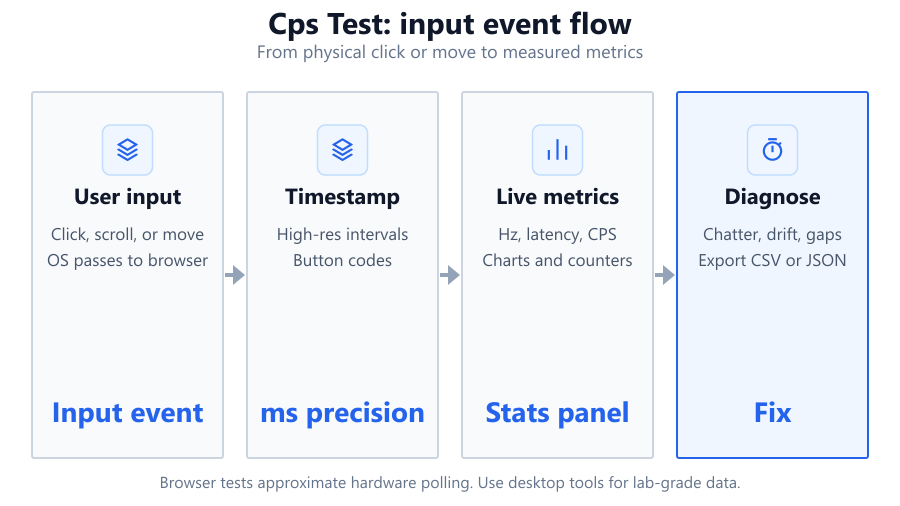
Because this CPS Test runs in your web browser, measurements are approximate. The tool listens for mouse clicks and uses browser timing functions, which depend on your system's performance and browser event polling. It’s accurate enough for practical use, but not lab-grade. Use it to compare mice, test your own clicking techniques, or spot-check for hardware issues.
How to Use This Tool
Start by choosing your test duration. You can pick from quick bursts like 1, 5, or 10 seconds, or longer runs up to 100 seconds if you want to test endurance. Click the 'Start' button, then click as fast as you can inside the designated area using your mouse's left button. The timer and live CPS counter update instantly as you click.
Watch your per-second bar chart fill up as you go. After time runs out, you’ll see a summary of your performance: your total clicks, average CPS, maximum CPS in a single second, and any badges you unlocked. The percentile ranking shows how your score compares to others. Your session results are stored in your browser, so you can review past attempts or try to beat your personal best without creating an account.
The CPS Test only counts left mouse clicks. Make sure your browser tab is active, and avoid using auto-clickers or macros if you want a fair measurement. If you’re using a gaming mouse like the Logitech G Pro X Superlight, Razer DeathAdder V3, or Corsair M65, you might notice a higher CPS compared to a standard office mouse. The tool works on Windows, Mac, and Linux, as long as you use a modern browser like Chrome, Firefox, or Edge.
Understanding Your Results
Your main score is CPS: clicks per second, calculated as total left mouse clicks divided by test duration. You’ll also see your maximum CPS, the highest rate you achieved in any single second. The per-second bar chart breaks down your performance, showing peaks and slowdowns throughout the test. Average CPS history lets you spot consistency or fatigue over longer runs.
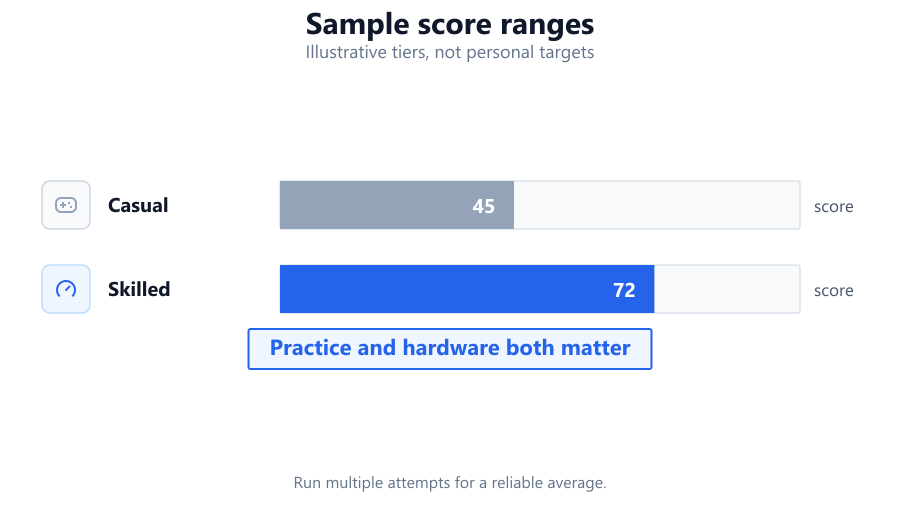
Achievement badges are awarded for hitting milestones, such as 10 CPS or holding a high average. The percentile tells you how your score compares to other users. For example, if you’re in the 80th percentile, your CPS is higher than 80 percent of people who’ve used the tool. Session history lets you track improvement across multiple attempts. All stats are stored locally, so clearing your browser cache or using Incognito mode will erase your history.
Remember, browser-based CPS tests rely on your system’s mouse polling rate, browser refresh rate, and how quickly your OS processes input events. Results are great for comparison and practice, but minor timing errors are possible. For absolute precision, dedicated desktop software or hardware testing tools provide more control.
Common Problems This Helps Diagnose
A CPS test isn’t just for fun or bragging rights. It can help diagnose several real-world hardware or software issues. If you notice your CPS is lower than expected, or your clicking speed drops mid-test, it could point to mouse debounce problems, dirty switches, or worn-out hardware. Gamers often use CPS tests to spot inconsistencies with mice like the SteelSeries Rival 3 or Logitech G305, especially after months of heavy use.
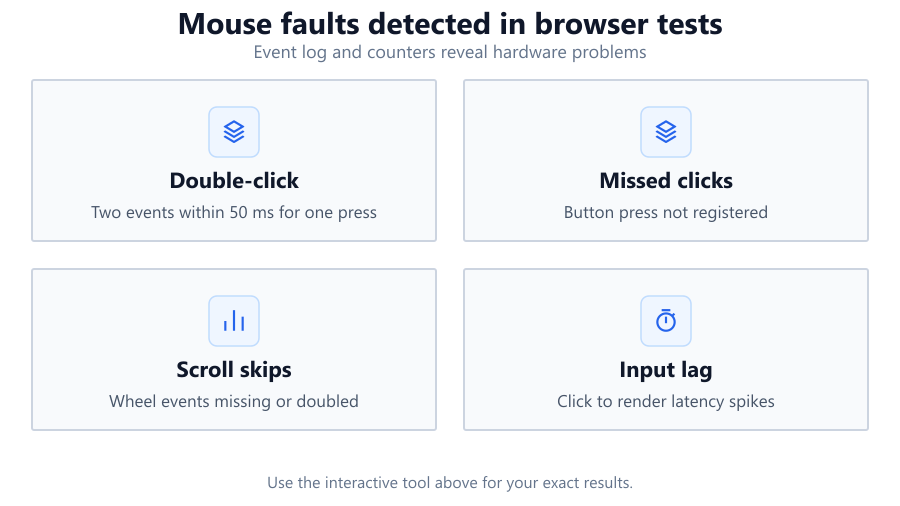
If you see skipped clicks or irregular bar chart spikes, your mouse or USB port might have connection issues. On some laptops and desktops, background processes or high CPU usage can cause browser lag and impact CPS reporting. The tool is also useful for checking if your mouse's polling rate settings are working as intended. For example, a Corsair KATAR PRO XT at 1000 Hz should feel snappier than a budget mouse at 125 Hz.
Occasionally, software like third-party mouse drivers or OS accessibility settings can interfere with input timing. The CPS Test can help reveal these problems before they affect your gaming or productivity. If you consistently get lower CPS on one system but not another, it may be time to check your mouse, drivers, or USB ports.
Examples and Scenarios
Scenario 1: Gaming Mouse Comparison You own a Logitech G Pro X Superlight and a standard Dell office mouse. Running the CPS Test for 10 seconds on each, you score 13.2 CPS on the G Pro and 8.7 CPS on the Dell. The higher-end mouse registers more clicks per second, likely due to better switches and a higher polling rate.
Scenario 2: Diagnosing Mouse Issues Your Razer DeathAdder V2 suddenly feels unresponsive in games. The CPS Test shows frequent dips and flat lines in the per-second chart, with several seconds registering zero or one click despite rapid clicking. This suggests a hardware problem, possibly switch wear or a bad USB cable.
Scenario 3: Practicing for Competitive Games You play Minecraft PvP and want to improve your jitter clicking. Running five 5-second tests, you track your average CPS and see it rise from 7.5 to 10.3 after a week of daily practice. Session history in your browser helps you visualize progress and set new goals.
Scenario 4: Testing Different Surfaces You notice inconsistent CPS scores with your Corsair M65 mouse. Testing on a hard plastic mousepad versus a soft cloth pad, your average CPS is 11.4 and 9.6 respectively. The hard pad gives a smoother click response, improving your performance.
Scenario 5: Checking Browser Performance Switching from Chrome to Firefox on the same PC, you run a 30-second CPS test and notice slightly higher average CPS in Chrome. This suggests that browser event handling can affect results, especially on older systems or with many background tabs.
Scenario 6: Endurance Testing To simulate long gaming sessions, you run a 60-second test with your Glorious Model O. The first 20 seconds you maintain 12 CPS, but by the end you drop to 8 CPS, with the bar chart showing gradual fatigue. This helps plan practice routines and hand stretches.
Tips for Accurate Testing
For the most reliable CPS results, follow a few best practices. Use a high-quality mouse with a known polling rate, like a Logitech G703 or Corsair K70 RGB mouse. Connect directly to your PC’s USB port, not a hub, to minimize signal delay. Close other browser tabs and background apps that could slow your system or interfere with input timing.
Test on a clean, consistent surface. Make sure your mouse feet and pad are free of dust or debris. Adjust your grip and clicking technique: jitter clicking, butterfly clicking, or drag clicking can yield different results. Use the same method for every test to compare scores.
Update your mouse drivers and firmware if available. On Windows, turn off mouse acceleration for predictable movement. On Mac, check system settings for input lag or acceleration. Always use the latest version of Chrome, Firefox, or Edge for best compatibility. If your browser or PC feels sluggish, restart before testing.
Remember, browser-based CPS tests are limited by JavaScript timing and event polling. Tiny delays can occur, especially on low-end systems. For absolute precision, consider dedicated programs like Bloody Mouse software or hardware test rigs, but for most users, this browser tool is more than accurate enough.
Browser vs Desktop Software
Browser-based CPS tests are fast, simple, and work on any device with a modern web browser. You don’t need to install anything, and results are generally accurate enough for gaming, practice, and troubleshooting. Features like session history, percentile stats, and achievement badges make tracking progress easy.
However, browser tests rely on the browser’s ability to detect mouse clicks, which is limited by the browser’s refresh rate and your OS’s input event handling. Fast clickers may occasionally hit the ceiling of what the browser can track, especially if your mouse supports very high polling rates. Background processes, browser extensions, or even display refresh rates (like running a Dell S2721DGF at 144 Hz vs a 60 Hz monitor) can affect measurement.
Desktop software, like CPS testers built into mouse utilities or standalone Windows apps, can access lower-level mouse data and sometimes provide higher precision. These are better for lab-grade testing or professional hardware reviews. However, they require installation and may be OS-specific. For most users, the convenience and speed of a browser-based CPS test outweigh the small loss in timing accuracy.
Summary
The CPS Test is a practical, browser-based tool for measuring your mouse clicking speed. Whether you're gaming, troubleshooting hardware, or just having fun, it offers instant feedback, detailed stats, and easy comparison to other users. Choose your test duration, click as fast as you can, and review your live CPS, per-second chart, and achievement badges.
While browser limitations mean results are approximate, the tool is accurate enough for most purposes. It helps spot mouse issues, test different hardware, and track your improvement over time. For maximum accuracy, use a high-quality mouse, close background apps, and run tests on a modern browser. If you need absolute precision, dedicated desktop software remains the gold standard, but for day-to-day use, this CPS Test is more than sufficient.
Frequently Asked Questions
How accurate is a browser-based CPS test compared to desktop software?
Browser-based CPS tests are generally accurate for everyday use, like gaming practice or basic hardware checks. They rely on your browser's ability to detect mouse clicks, which depends on system performance, polling rate, and browser event timing. Fast clicking can sometimes exceed what the browser can process, especially if you use a high-end mouse with a 1000 Hz polling rate. For lab-level accuracy or professional hardware testing, desktop software that accesses raw input data offers greater precision. For most users, the difference is small and won’t impact practical results.
Can this CPS Test detect double-clicking or debounce issues?
The tool can help spot double-clicking or debounce issues by showing irregular spikes or sudden jumps in your CPS bar chart. If you see unexpected high counts in single seconds or the test registers more clicks than you actually made, your mouse switches may be bouncing. However, the tool cannot definitively diagnose debounce problems since browser timing is not millisecond-precise. For a deep dive, use mouse utility software with debounce time adjustments or hardware-level logging.
What is a good CPS score for gaming?
A good CPS score depends on your game and clicking style. For Minecraft PvP, jitter or butterfly clicking often reaches 10-14 CPS, while casual players average 6-8. In shooters or MOBAs, consistent 5-8 CPS is common. High-end gaming mice like the Razer DeathAdder V3 or Logitech G Pro X Superlight can help you hit higher numbers. Remember, accuracy is more important than raw speed in most games. Practicing technique and grip will improve both CPS and control.
Does my mouse polling rate affect CPS results?
Yes. Mice with higher polling rates, like 1000 Hz, can report clicks more frequently, helping the CPS Test register rapid clicks more reliably. A standard office mouse at 125 Hz might miss some fast clicks or feel less responsive. Gaming mice such as the Corsair KATAR PRO XT or SteelSeries Rival 3 typically support higher polling rates, leading to more accurate CPS readings. Always check your mouse settings and drivers before testing.
Can I use this CPS Test on a Mac or Linux system?
Absolutely. The CPS Test works on any modern browser, including Chrome, Firefox, and Safari, on Windows, Mac, or Linux. Performance may vary slightly depending on system settings and browser version, but the core features remain the same. Make sure you have the latest browser updates for best compatibility and accuracy.
Why do my CPS results vary between browsers?
Each browser handles mouse events and JavaScript timing differently. Chrome, Firefox, Edge, and Safari may process input at slightly different rates, leading to variations in CPS, especially at high speeds. Extensions, background tabs, and even browser hardware acceleration can affect input timing. For consistent results, test on the same browser and system, and close other tabs before starting.
How do I increase my CPS score?
Improving CPS comes down to practice and technique. Try different clicking methods like jitter clicking, butterfly clicking, or drag clicking. Use a mouse designed for fast, repeated clicks, such as the Glorious Model O or Logitech G305. Make sure your mouse switches are clean and in good condition. Practice regularly, but avoid overstraining your hand or wrist. Consistency matters more than short bursts of speed.
Can I use auto-clickers or macros with this tool?
Technically, auto-clickers or macros can boost your CPS score, but the tool is designed for manual clicking with the left mouse button. Using automation defeats the purpose of testing your own speed or hardware performance. Some browsers may block extremely rapid, simulated clicks. For fair results and real practice, stick to manual clicking.
Why is my CPS lower on a laptop compared to my desktop?
Laptops often use touchpads or basic mice with lower polling rates and less responsive switches than gaming mice. Integrated trackpads are not designed for rapid clicking, leading to lower CPS. System performance, background processes, and power-saving modes can also affect timing. For higher scores, use an external mouse and ensure your laptop is running at high performance.
Does monitor refresh rate impact CPS results?
Monitor refresh rate itself doesn’t directly affect CPS, but higher refresh rates (like 144 Hz on a Dell S2721DGF) can make your clicks feel smoother and your test more responsive. However, the CPS Test tracks mouse events through your browser, which is more dependent on system and browser timing than display output. Still, a higher refresh monitor can help reduce perceived input lag during fast clicking.
Are CPS Test results stored online or locally?
Your session history and results are stored locally in your browser’s storage. No personal data or results are uploaded to a server. This means your history is private but will be erased if you clear your cache or use private browsing. There’s no need to create an account or log in to use the tool.
My CPS chart shows random dips or flat lines. Is this a hardware problem?
Frequent dips or sudden flat lines in your per-second CPS chart can indicate hardware issues, such as worn-out mouse switches, loose USB cables, or connection drops. It can also be caused by browser lag, system slowdown, or background processes taking CPU resources. Try testing on another USB port, closing background apps, or using a different mouse to isolate the problem. If the issue persists across hardware and browsers, your mouse may need repair or replacement.
Can I use this CPS Test on a touchscreen or mobile device?
While the CPS Test is optimized for mouse input, you can try tapping rapidly on a touchscreen. However, touchscreens handle input differently and may not register taps as quickly or reliably as a mouse. For best accuracy and consistency, use a physical mouse on a desktop or laptop.
What are achievement badges and percentiles in the CPS Test?
Achievement badges reward you for reaching certain CPS milestones or maintaining high averages over the duration of your test. Percentile ranking shows how your score stacks up against other users, like being in the top 10 percent. These features are designed to motivate improvement and give you benchmarks to aim for. Badges and percentiles are based on anonymized, aggregated results from past tests.
Does the CPS Test work with all types of mice?
The CPS Test works with any mouse that sends standard left-click events to your operating system. This includes wired and wireless models from brands like Logitech, Razer, Corsair, SteelSeries, and Dell. Specialty mice with unusual drivers or non-standard input methods may not register correctly. For the most accurate results, use a mouse with a high polling rate and well-maintained switches.
Why does my CPS drop during longer tests?
Fatigue is a common factor during longer CPS tests, like 30 or 60 seconds. Hand and finger muscles tire, leading to slower, less consistent clicking. If the per-second chart shows a steady decline, it’s likely due to endurance limits rather than hardware. Take breaks, stretch your hands, and focus on technique to maintain higher CPS over longer durations. For specific hardware issues, check for intermittent connection problems or switch wear.
Related Tools
Free tools to analyze, compare, and optimize your PC gaming performance
Right Click CPS Test
Test your right-click speed with our free CPS counter. Track live, average and maximum clicks per second.
Use Tool →Spacebar Clicker
Test your spacebar clicking speed, responsiveness and consistency with customizable test durations.
Use Tool →Keyboard Clicker
Count keyboard presses, measure key clicks per second and track typing speed with live statistics.
Use Tool →APM Test
Measure your actions per minute, accuracy and speed using interactive target-based challenges.
Use Tool →Popular Game System Requirements
Check if your PC meets the requirements for these popular games
Benchmark data from PassMark and publisher specs. Calculators run locally in your browser — we never upload your hardware info.