
Guide
Common Buying Mistakes
Avoid the most common buying mistakes when choosing GPUs for AI projects. Learn what to look for, what to avoid, and how to use the AI GPU Calculator for smarter decisions.
Updated 2026-07-05
Overview of Common Buying Mistakes in AI GPU Selection
Selecting the right GPU for AI workloads is critical to your productivity and budget. Many users, both beginners and experienced professionals, fall into similar traps when purchasing GPUs for tasks like large language models or image generation. Mismatched VRAM, overspending on unnecessary features, and overlooking compatibility are just a few pitfalls.
Understanding these common buying mistakes can save you time, money, and frustration. With so many options on the market, from consumer-grade RTX cards to professional workstation GPUs, making the right choice can feel overwhelming. The AI GPU Calculator from SystemRequirements.net is designed to help you avoid these issues by analyzing your model parameters, quantization, and prompt settings to recommend the right GPU tier.
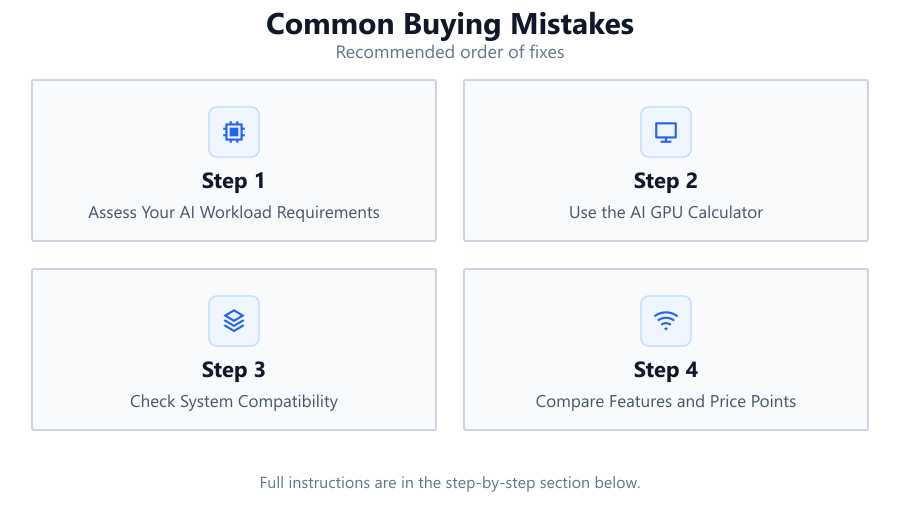
This guide will break down the most frequent errors buyers make, explain why they happen, and provide actionable advice to ensure your next GPU purchase is a success.
Deep Dive: How to Avoid Costly GPU Buying Errors
One of the most frequent mistakes is underestimating the amount of VRAM required for your specific AI workloads. Modern AI models, especially large language models and advanced image generators, often need far more VRAM than traditional gaming or workstation tasks. Relying on generic recommendations or outdated benchmarks can lead to purchasing a GPU that simply cannot handle your projects.
Another major error is overpaying for features you do not need. Many workstation GPUs offer ECC memory, advanced drivers, or enhanced support, but these are not always necessary for every user. It is important to match your GPU features to your actual workflow requirements.
Compatibility issues are also a common stumbling block. Some users purchase powerful GPUs only to find their system's power supply, cooling, or motherboard does not support the card. Always double-check physical fit, power connectors, and PCIe compatibility before buying.
The AI GPU Calculator is a vital tool to help you avoid these mistakes. By inputting your model size, quantization, and expected prompt length, you can get a tailored recommendation for the right NVIDIA RTX or workstation GPU tier. This ensures you get the best performance for your budget, without overspending or bottlenecking your workflow.
Step-by-step
Assess Your AI Workload Requirements
Start by identifying the main AI tasks you will run: language models, image generation, or other workloads. Different models require different amounts of VRAM and compute power. Gather information on model size, quantization, and how many concurrent tasks you expect to run.
Use the AI GPU Calculator
Input your workload details into the AI GPU Calculator. This tool analyzes your needs and recommends the appropriate GPU tier, helping you avoid common buying mistakes related to underestimating or overestimating requirements.
Check System Compatibility
Verify your PC's power supply, cooling capacity, and available PCIe slots. Ensure your chosen GPU will physically fit and function correctly with your current hardware.
Compare Features and Price Points
Review the differences between consumer RTX cards and workstation GPUs. Consider VRAM, CUDA cores, support, and feature sets. Avoid paying extra for features you do not need.
Plan for Future Expansion
Consider your potential future needs. Buying a GPU with a little extra VRAM or better compatibility can extend the useful life of your system and reduce the need for premature upgrades.
Comparison
| GPU Tier | Typical VRAM | Best For |
|---|---|---|
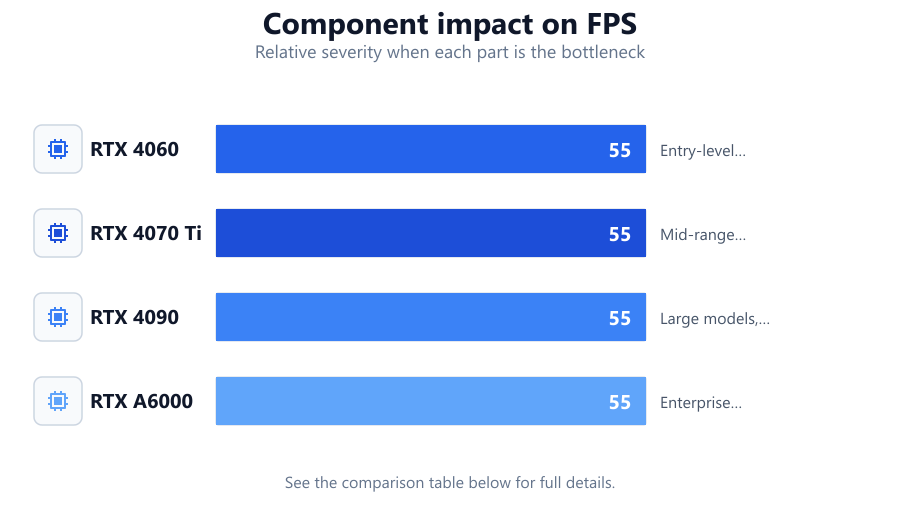
| RTX 4060 | 8GB | Entry-level AI, small models |
| RTX 4070 Ti | 12GB | Mid-range AI, moderate models |
| RTX 4090 | 24GB | Large models, heavy multitasking |
| RTX A6000 | 48GB | Enterprise workloads, massive models |
Common mistakes
Mistake
Underestimating VRAM requirements
Fix: Use the AI GPU Calculator to input your exact model size and settings for an accurate VRAM recommendation.
Mistake
Ignoring system compatibility
Fix: Always check your PC’s power supply, case size, and PCIe slots before purchasing a GPU.
Mistake
Overpaying for unnecessary features
Fix: Compare GPU options and only pay for features (like ECC memory or enhanced drivers) if your workload truly requires them.
Mistake
Relying on gaming benchmarks for AI workloads
Fix: Focus on AI-specific benchmarks and use tools like the AI GPU Calculator for workload-based guidance.
Troubleshooting
GPU runs out of memory during model inference
Likely cause: Insufficient VRAM for the model and batch size
What to do: Reduce batch size, use quantized models, or upgrade to a GPU with more VRAM as suggested by the AI GPU Calculator.
System crashes or fails to boot with new GPU
Likely cause: Power supply is inadequate or incompatible
What to do: Check your PSU wattage and connectors. Upgrade if necessary to meet the GPU's requirements.
GPU does not fit in case or blocks other components
Likely cause: Case is too small or component layout conflicts with GPU size
What to do: Measure your case and compare with GPU dimensions before purchase. Rearrange or replace hardware as needed.
Recommendations
- Always determine your workload requirements before shopping for a GPU.
- Use the AI GPU Calculator to avoid over- or under-buying.
- Double-check compatibility with your current system hardware.
- Plan for future needs without drastically over-specifying your build.
- Review AI-specific benchmarks instead of gaming benchmarks.
Frequently asked questions
How much VRAM do I need for running large language models?
VRAM requirements depend on model size, quantization, and prompt length. Use the AI GPU Calculator to get an accurate recommendation based on your specific use case.
Is it worth paying extra for workstation GPUs over consumer RTX cards?
Workstation GPUs offer features like ECC memory and enhanced drivers, but these are only necessary for certain professional workloads. For most individual AI projects, high-end RTX cards are sufficient.
Can I use a gaming GPU for AI workloads?
Yes, many gaming GPUs like the NVIDIA RTX 40 series are well-suited for AI tasks. Just ensure you have enough VRAM and system compatibility.
What happens if my GPU runs out of memory during AI tasks?
Your tasks may crash or run extremely slowly. Reduce batch size, use quantized models, or upgrade your GPU. The AI GPU Calculator can help you choose a card with sufficient VRAM.