
Guide
Optimization Guide
Unlock the full potential of your AI workloads with this comprehensive optimization guide. Learn how to choose the best GPU and fine-tune your settings for maximum efficiency.
Updated 2026-07-05
Understanding AI GPU Optimization
Optimizing your AI hardware setup is crucial for achieving fast, stable, and cost-effective model training or inference. The right GPU selection can make a dramatic difference in speed, accuracy, and your overall workflow efficiency. This optimization guide will walk you through the essential factors that impact AI performance, helping you avoid bottlenecks and get the most value from your hardware investment.
The AI GPU Calculator is an essential tool for anyone running large language models, image generators, or custom neural networks. By analyzing your model parameters, quantization, and prompt settings, it estimates the VRAM and performance level you need for your workload. This guide complements the AI GPU Calculator by providing actionable tips and strategies to ensure your hardware and software are working together optimally.
Key considerations include VRAM requirements, model architecture, quantization strategies, and balancing cost with performance. Understanding these elements will help you make informed decisions, whether you are building a new workstation or upgrading your existing setup.
Finally, we will address common mistakes and offer troubleshooting tips to resolve typical issues encountered during AI model deployment. By following this guide, you can confidently select and configure your GPU hardware for any AI task.
Advanced Optimization Strategies
Once you have a foundational understanding of GPU selection, it is time to focus on advanced strategies to maximize efficiency. Start by profiling your AI workloads to identify performance bottlenecks. Use tools such as NVIDIA Nsight or built-in PyTorch and TensorFlow profilers to measure VRAM usage, compute utilization, and data transfer rates.
Fine-tune your quantization settings to reduce memory overhead without sacrificing model accuracy. Experiment with 8-bit or even 4-bit quantization for large language models, especially when deploying on consumer GPUs. The AI GPU Calculator can suggest optimal quantization levels based on your specific model and prompt requirements.
Batch size adjustment is another critical lever. Increasing batch size can improve throughput, but only if your GPU has sufficient VRAM. Conversely, smaller batches may prevent out-of-memory errors but at the cost of slower execution. Always cross-reference your batch size with the VRAM recommendations from the AI GPU Calculator.
Do not overlook software-level optimizations. Ensure your drivers and CUDA toolkit are up to date. Leverage mixed precision training if your model and GPU support it, as this can significantly boost performance and reduce memory usage. Finally, monitor your system’s thermal and power profiles to prevent slowdowns or hardware throttling during extended workloads.
Step-by-step
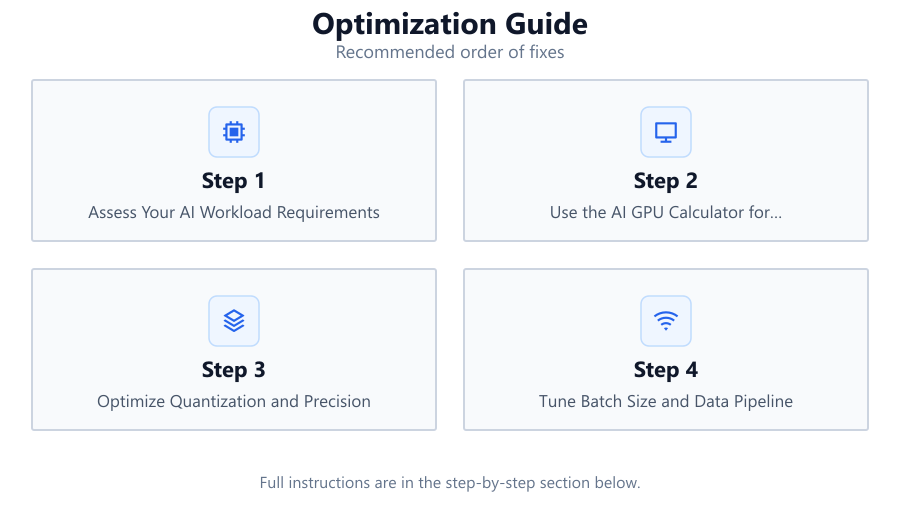
Assess Your AI Workload Requirements
List the models and tasks you plan to run, including their typical parameter sizes, training or inference needs, and expected dataset sizes. This baseline is essential for accurate GPU sizing.
Use the AI GPU Calculator for VRAM Estimation
Input your model parameters, quantization, and prompt settings into the AI GPU Calculator. Review its GPU VRAM recommendations to match your workload with the correct NVIDIA RTX or workstation GPU tier.
Optimize Quantization and Precision
Experiment with lower-bit quantization and mixed precision modes to reduce VRAM consumption and improve throughput. Test for any loss in model accuracy or stability.
Tune Batch Size and Data Pipeline
Adjust your batch size to fit within your GPU’s VRAM limits. Optimize data loading and preprocessing to avoid bottlenecks that can starve your GPU.
Monitor and Profile Performance
Use profiling tools to monitor VRAM, compute utilization, and temperature. Identify and resolve any bottlenecks or inefficiencies in your workflow.
Comparison
| GPU Tier | VRAM (GB) | Recommended Workload |
|---|---|---|
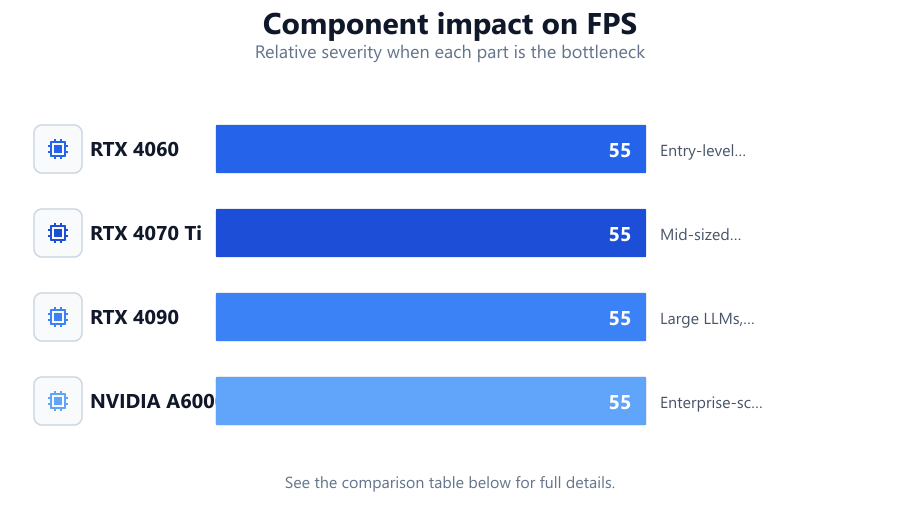
| RTX 4060 | 8 | Entry-level image generation, small LLMs |
| RTX 4070 Ti | 12 | Mid-sized language models, multi-image batches |
| RTX 4090 | 24 | Large LLMs, image generation with high batch sizes |
| NVIDIA A6000 | 48 | Enterprise-scale models, multi-user workloads |
Common mistakes
Mistake
Overestimating VRAM needs and overspending on GPUs
Fix: Use the AI GPU Calculator to accurately assess your workload and buy only the GPU tier you truly need.
Mistake
Ignoring quantization and running models at full precision unnecessarily
Fix: Apply quantization techniques and mixed precision modes to save VRAM and increase performance.
Mistake
Neglecting software and driver updates
Fix: Regularly update your GPU drivers and CUDA toolkit for maximum compatibility and efficiency.
Troubleshooting
Out-of-memory errors during model execution
Likely cause: Batch size or model size exceeds available GPU VRAM
What to do: Reduce batch size, apply quantization, or upgrade to a GPU with more VRAM as suggested by the AI GPU Calculator.
Slow inference or training times
Likely cause: Data pipeline bottlenecks or underutilized GPU
What to do: Profile your data loading and optimize preprocessing steps. Ensure your GPU is not waiting for data.
Unexpected model crashes or instability
Likely cause: Driver or CUDA toolkit incompatibility
What to do: Update your GPU drivers and CUDA toolkit to the latest versions compatible with your framework.
Recommendations
- Always benchmark your specific workloads before finalizing hardware purchases.
- Consult the AI GPU Calculator each time you change model parameters or scale up workloads.
- Adopt quantization and mixed precision training for large models to reduce hardware demands.
- Monitor system temperatures and power to maintain stable, high performance.
- Document your optimal settings for reproducibility and troubleshooting.
Frequently asked questions
How do I know which GPU tier I need for my AI project?
Use the AI GPU Calculator to input your model details and receive a tailored VRAM and GPU tier recommendation based on your workload.
What is quantization and why is it important for optimization?
Quantization reduces the precision of model weights and activations, minimizing VRAM usage and improving performance with minimal impact on accuracy.
How can I prevent out-of-memory errors on my GPU?
Monitor your batch size, model size, and quantization settings. Ensure they fit within your GPU’s VRAM limits or upgrade your hardware as needed.
Should I always choose the GPU with the highest VRAM?
Not necessarily. Match your GPU choice to your workload using the AI GPU Calculator to avoid overspending and ensure efficiency.