
Guide
How to Choose the Right Hardware
Choosing the right hardware can be the difference between a smooth computing experience and constant frustration. This guide walks you through every step to pick the best components for your needs.
Updated 2026-07-05
Understanding Your Hardware Needs
Selecting the right hardware starts with knowing what you need your system to do. Are you looking for a laptop for light web browsing and office work, or do you need a powerhouse for gaming and content creation? Your workflow directly influences the components you should prioritize.
Start by listing your primary tasks: basic productivity, streaming, coding, gaming, creative editing, or specialized applications. Each activity places different demands on your CPU, RAM, GPU, and storage. For instance, a student may only need a reliable processor and long battery life, while a video editor must prioritize a high-performance CPU, dedicated GPU, and ample SSD space.
Budget is another key factor. Define your maximum spend before shopping, and consider where you can compromise. Often, investing a bit more in a critical component like RAM or SSD can extend your device’s useful life and improve overall satisfaction.
Finally, always check compatibility between components when building or upgrading a PC. Not every CPU fits every motherboard, and not all RAM is supported by every chipset. Double-check manufacturer specifications to avoid costly mistakes.
Evaluating Core Components
The most important hardware choices revolve around your CPU, RAM, GPU, storage, and power considerations. Here’s a breakdown of each:
CPU: The processor acts as your system’s brain. For web browsing and office tasks, a modern dual-core or quad-core CPU suffices. Creative work or gaming benefits from six or more cores and higher clock speeds. Prioritize recent generations for better performance and efficiency.
RAM: Memory affects multitasking and application responsiveness. Windows 11 and macOS Ventura run best with 16GB or more for demanding users, but 8GB is adequate for basic needs. If you work with large files or run virtual machines, 32GB or higher may be necessary.
GPU: Integrated graphics are fine for productivity, streaming, and light gaming. For gaming, 3D design, or video editing, a discrete GPU is essential. Compare benchmarks for your software and resolution targets.
Storage: SSDs offer huge speed advantages over HDDs, reducing boot and load times. Aim for 512GB or more if you store lots of files, or supplement with external drives.
Battery Life: Especially for laptops, battery performance is crucial. Use the Laptop Battery Life Calculator to estimate real-world runtimes based on your usage and hardware selection. This ensures you choose a device that lasts through your workday.
Other Features: Don’t overlook Wi-Fi standards, USB/Thunderbolt ports, keyboard comfort, and display quality. These details impact daily usability, especially in laptops.
By understanding each component’s role, you can make informed choices that match your workload and future-proof your investment.
Step-by-step
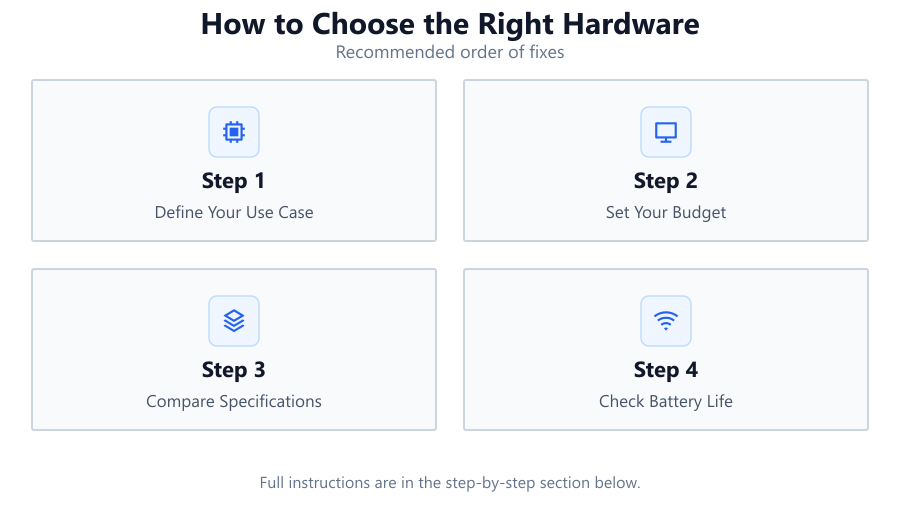
Define Your Use Case
Identify your primary activities, gaming, office work, creative tasks, or general use. This determines which components matter most and where to allocate your budget.
Set Your Budget
Decide how much you are willing to spend. Factor in the costs of peripherals, warranties, and potential future upgrades.
Compare Specifications
Look at CPU model, RAM size, GPU capability, and storage type and capacity. Use real-world benchmarks and manufacturer data to compare options.
Check Battery Life
For laptops, battery life is essential. Use the Laptop Battery Life Calculator to estimate how long a device will last for your typical workload.
Verify Compatibility
If building or upgrading, ensure all components work together. Check motherboard support, RAM compatibility, power supply requirements, and physical fit.
Read Reviews and User Feedback
Research professional reviews and community forums to spot potential issues and gauge long-term reliability.
Comparison
| Use Case | CPU Recommendation | Battery Life Expectation |
|---|---|---|
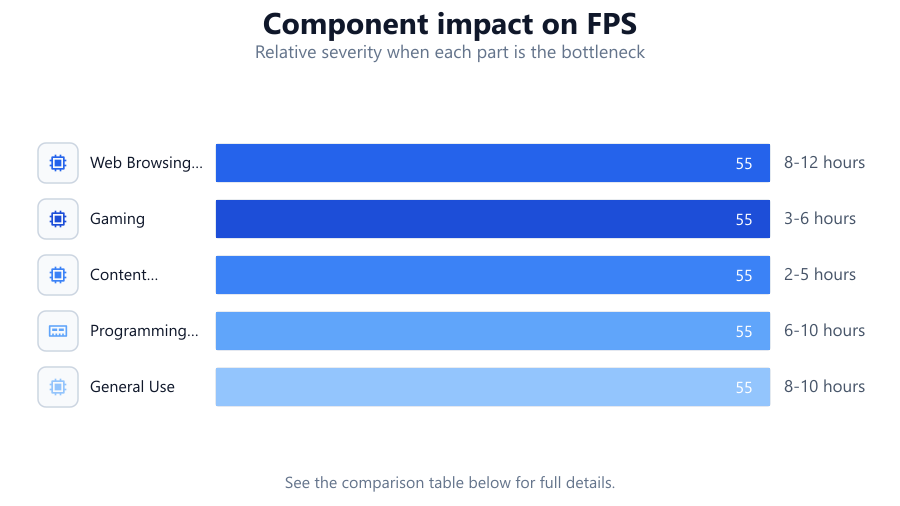
| Web Browsing & Office | Intel Core i3/AMD Ryzen 3 | 8-12 hours |
| Gaming | Intel Core i5/i7 or AMD Ryzen 5/7 with dedicated GPU | 3-6 hours |
| Content Creation | Intel Core i7/i9 or AMD Ryzen 7/9, 16GB+ RAM, SSD | 2-5 hours |
| Programming & Development | Intel Core i5 or AMD Ryzen 5, 16GB RAM | 6-10 hours |
| General Use | Any modern quad-core processor | 8-10 hours |
Common mistakes
Mistake
Focusing only on CPU or GPU while neglecting RAM and storage.
Fix: Balance your hardware selection. Ensure enough RAM and fast storage to avoid bottlenecks.
Mistake
Overlooking battery life in favor of high-end specs.
Fix: Use the Laptop Battery Life Calculator and choose a system that matches your portability needs.
Mistake
Ignoring compatibility between components.
Fix: Double-check motherboard, RAM, and power supply support for all selected parts.
Mistake
Buying based solely on brand or marketing claims.
Fix: Compare independent reviews and benchmarks to get an unbiased perspective.
Troubleshooting
System shuts down unexpectedly or has poor battery life.
Likely cause: Hardware draws more power than expected, or battery capacity is too low.
What to do: Use the Laptop Battery Life Calculator to estimate proper requirements and consider upgrading your battery or choosing a more efficient device.
Computer is slow under load.
Likely cause: Insufficient RAM or an older, slow CPU.
What to do: Upgrade RAM, switch to an SSD, or select a newer CPU that matches your workload.
Software or games fail to run properly.
Likely cause: Outdated GPU or incompatible hardware.
What to do: Check software requirements and upgrade your GPU or other components as needed.
Components do not fit or are not recognized.
Likely cause: Incompatible motherboard or BIOS.
What to do: Confirm compatibility before purchase and update BIOS if necessary.
Recommendations
- Always balance performance, battery life, and budget for your actual needs.
- Use the Laptop Battery Life Calculator to compare runtime estimates across devices.
- Prioritize SSDs and adequate RAM for the best everyday experience.
- Read user and expert reviews before finalizing your purchase.
- Plan for future needs by choosing upgradable or modular hardware where possible.
Frequently asked questions
How do I know which hardware specs matter most for my needs?
Identify your primary tasks. For gaming, focus on CPU and GPU. For office or browsing, prioritize battery life and portability. Our comparison table can help you decide.
How can I estimate my laptop's battery life before buying?
Use the Laptop Battery Life Calculator to input battery capacity and workload. It provides a clear runtime estimate for different activities.
Is it better to buy a device with more RAM or a faster CPU?
Both matter, but for multitasking and future-proofing, more RAM is often a better investment. For intensive applications, balance both based on your budget.
What should I check for component compatibility?
Ensure your CPU, motherboard, RAM, and power supply all support each other. Check manufacturer specs and online compatibility tools before buying.