
Guide
Optimization Guide
Want to get the most from your laptop battery? This optimization guide delivers proven strategies to boost your laptop’s runtime and explains how to use the Laptop Battery Life Calculator for accurate estimates.
Updated 2026-07-05
Understanding Laptop Battery Optimization
Optimizing your laptop’s battery life is essential for productivity, portability, and convenience. With modern laptops handling everything from web browsing to intensive gaming, battery drain can quickly become a frustration. An effective optimization guide helps you identify what drains your battery and how to maximize every charge.
Battery life depends on several factors: hardware efficiency, software settings, and your usage patterns. By understanding these elements, you can make informed decisions to extend runtime. The Laptop Battery Life Calculator is a powerful tool that gives you a clear, accurate estimate of how long your laptop can last on a single charge, based on your specific workloads and device specifications.
Whether you are traveling, working remotely, or just want to avoid being tethered to a power outlet, following a structured optimization guide will help you get the best performance from your device. This guide covers actionable steps, common mistakes, troubleshooting, and expert recommendations to ensure your laptop battery goes the distance.
Actionable Strategies for Maximizing Battery Life
Battery optimization is not just about tweaking a few settings. It involves a holistic approach that includes hardware, software, and behavioral adjustments. Start by calibrating your battery and monitoring usage patterns with the Laptop Battery Life Calculator. This allows you to spot inefficiencies and target your efforts where they matter most.
One of the first steps is adjusting your power settings. Use your operating system’s built-in power plans to reduce screen brightness, disable unused radios (like Bluetooth or Wi-Fi), and enable sleep or hibernate modes when idle. Next, optimize your software environment by closing unnecessary background apps, disabling startup programs, and keeping your system updated. Each of these actions can have a measurable impact on how long your battery lasts.
Hardware considerations are equally important. Upgrading to a solid-state drive (SSD), adding more RAM, or replacing an aging battery can yield significant improvements. Finally, adopting efficient habits such as unplugging peripherals, managing browser tabs, and avoiding extreme temperatures will help preserve your battery’s health over time. Use the Laptop Battery Life Calculator regularly to track progress and identify new areas for improvement.
Step-by-step
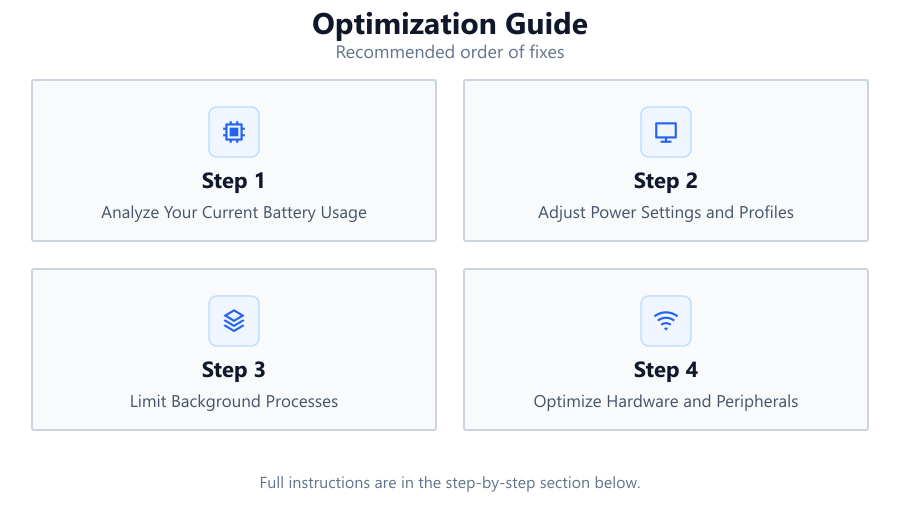
Analyze Your Current Battery Usage
Begin by monitoring how your laptop consumes power during different tasks. Use built-in battery reports or third-party software to identify which applications and hardware components draw the most energy. The Laptop Battery Life Calculator can help you compare runtimes for various workloads, giving you a clear starting point.
Adjust Power Settings and Profiles
Switch to a power-saving profile in your operating system. Lower your screen brightness, set shorter sleep timers, and disable unnecessary features like keyboard backlighting. These small changes can add up to significant battery savings over time.
Limit Background Processes
Check your task manager for applications running in the background. Close or uninstall software you do not need. Disable unnecessary startup programs to reduce background drain, especially when running on battery power.
Optimize Hardware and Peripherals
Unplug devices you are not using, such as external drives, USB dongles, or mice. Consider hardware upgrades like moving to an SSD or increasing RAM, which can reduce overall power consumption. If your battery is old or degraded, replacing it can restore lost capacity.
Maintain and Calibrate Your Battery
Regularly calibrate your battery by fully discharging and then charging it to 100 percent. Keep your laptop’s firmware and drivers up to date to ensure optimal battery management. Avoid exposing your device to extreme heat or cold, as temperature swings can degrade battery health.
Comparison
| Workload | Average Power Draw (W) | Estimated Battery Life (hrs) |
|---|---|---|
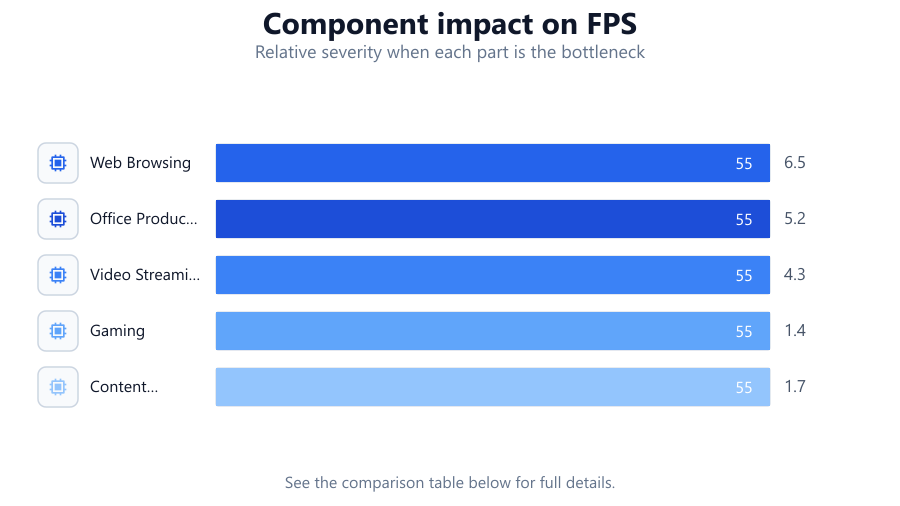
| Web Browsing | 8 | 6.5 |
| Office Productivity | 10 | 5.2 |
| Video Streaming | 12 | 4.3 |
| Gaming | 35 | 1.4 |
| Content Creation | 28 | 1.7 |
Common mistakes
Mistake
Using maximum brightness at all times
Fix: Reduce screen brightness to the lowest comfortable level, especially when on battery power.
Mistake
Leaving unused peripherals connected
Fix: Unplug external devices like USB drives or webcams when they are not needed to cut down on power drain.
Mistake
Ignoring background applications
Fix: Regularly review and close background apps to prevent unnecessary battery drain.
Mistake
Not updating system software
Fix: Keep your operating system, drivers, and firmware up to date for optimal battery management.
Troubleshooting
Battery drains rapidly even on light workloads
Likely cause: Background apps or rogue processes consuming power
What to do: Use Task Manager to identify and stop unnecessary applications. Scan for malware and update your system.
Laptop shuts down before battery reaches zero
Likely cause: Battery calibration is off or battery is degraded
What to do: Calibrate your battery by fully discharging and then charging to 100 percent. If issues persist, consider replacing the battery.
Laptop gets hot during normal use
Likely cause: Blocked vents, heavy background processes, or hardware issues
What to do: Clean vents, ensure proper airflow, and check for resource-heavy programs. Update drivers and firmware.
Battery life is shorter than manufacturer specs
Likely cause: Usage patterns, aging battery, or high power draw tasks
What to do: Review your workload using the Laptop Battery Life Calculator, adjust settings, and consider battery replacement if old.
Recommendations
- Use the Laptop Battery Life Calculator to get an accurate estimate of your expected runtime for different workloads.
- Regularly monitor and adjust your power settings based on your current usage.
- Keep your laptop clean and free from dust to prevent overheating, which can damage the battery.
- Replace aging batteries promptly to maintain optimal performance.
- Adopt energy-efficient habits, such as limiting background tasks and unplugging unnecessary peripherals.
Frequently asked questions
How accurate are battery life estimates from calculators?
Battery life calculators like the Laptop Battery Life Calculator provide highly accurate estimates by factoring in your device’s battery capacity and real-world power draw for various tasks. Actual results may vary slightly based on usage and hardware condition.
What is the best way to extend my laptop’s battery lifespan?
Maintain moderate charge levels (between 20 and 80 percent), avoid extreme temperatures, and use power-saving settings. Regularly calibrate your battery and keep your system updated for the best results.
Can hardware upgrades improve my battery life?
Yes. Upgrading to an SSD, adding more RAM, or replacing an old battery can reduce power consumption and extend your overall battery life.
How often should I use the Laptop Battery Life Calculator?
Use the Laptop Battery Life Calculator whenever you change your workload, install new software, or notice a change in battery performance. Regular use helps you track trends and optimize effectively.