
Guide
CPU vs GPU Bottleneck Explained
Wondering if your PC is held back by your CPU or GPU? This guide explains bottlenecks in simple terms and shows how to identify and fix them for smoother gaming.
Updated 2026-07-05
What Is a Bottleneck in a Gaming PC?
When building or upgrading a gaming PC, the term 'bottleneck' often comes up. A bottleneck occurs when one component, usually the CPU or GPU, limits the overall performance of your system. It does not matter how powerful your GPU is if your CPU cannot keep up, and the opposite is true as well. The slowest part sets the pace for the entire PC.
Imagine a highway where traffic suddenly slows because of a single-lane construction zone. The rest of the road could be wide open, but everyone has to wait for that one narrow section. In a PC, if your processor is too slow to deliver data to your graphics card, your GPU will sit idle, waiting for instructions. If your graphics card is not powerful enough, your CPU's speed becomes irrelevant, as the GPU cannot render frames quickly enough.
Bottlenecks are not always obvious. Sometimes, high FPS in simple games can mask underlying issues, which only become apparent in demanding titles. Understanding where the bottleneck occurs helps you make smarter upgrade choices, ensuring every dollar spent translates into real-world performance gains.
How to Identify CPU vs GPU Bottlenecks
To determine which part of your PC is causing a bottleneck, you need to observe how your system behaves during actual gameplay or intensive workloads. Typically, bottlenecks manifest as low frame rates, stuttering, or inconsistent performance, especially when one component is much newer or faster than the other.
Using tools like the PC Bottleneck Calculator makes this process much easier. This tool analyzes thousands of CPU and GPU combinations, factoring in real-world benchmarks and game requirements. By entering your hardware, you get a clear analysis of which component is holding back your framerate and how much performance improvement you can expect from an upgrade.
You can also use monitoring software to check CPU and GPU usage. If your CPU is at 100 percent while your GPU usage is low, your processor is the bottleneck. If the GPU is maxed out and the CPU is underutilized, the graphics card is your limiting factor. Understanding this distinction is essential for prioritizing upgrades and balancing your system for optimal gaming performance.
Step-by-step
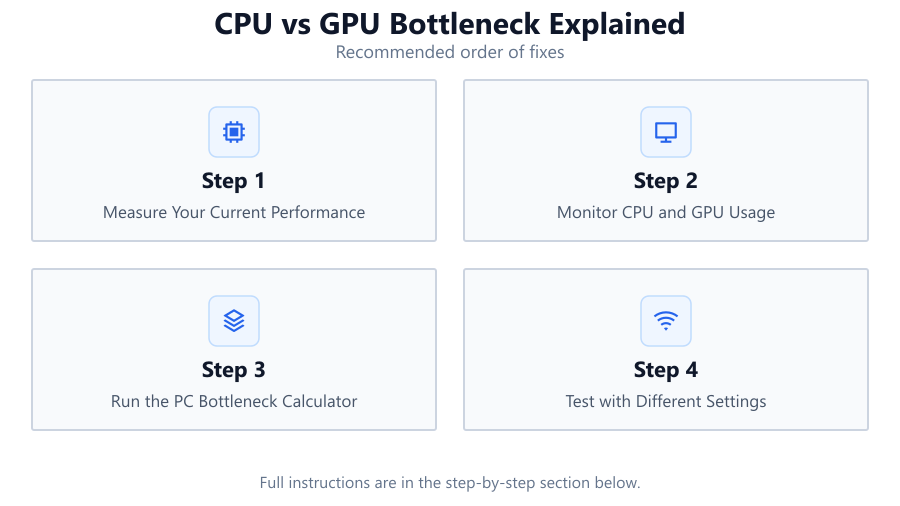
Measure Your Current Performance
Start by benchmarking your system with your favorite games or synthetic tests. Take note of the average FPS, minimum FPS, and any stuttering or frame drops. This baseline helps you spot improvements after making changes.
Monitor CPU and GPU Usage
Use tools like MSI Afterburner or HWMonitor to track CPU and GPU usage during gameplay. High CPU usage with low GPU usage points to a CPU bottleneck, while the opposite indicates a GPU bottleneck.
Run the PC Bottleneck Calculator
Visit the PC Bottleneck Calculator tool and enter your CPU and GPU models. The calculator will analyze your hardware pairing, showing which component is limiting your performance and by how much.
Test with Different Settings
Lower or raise your game’s graphics settings. If lowering settings does not improve FPS, your CPU is likely the bottleneck. If FPS increases, your GPU is the limiting factor.
Plan Upgrades Strategically
Based on your findings, prioritize upgrading the part causing the bottleneck. Use the PC Bottleneck Calculator again to simulate potential hardware upgrades before making a purchase.
Comparison
| Component | Symptoms of Bottleneck | Typical Solutions |
|---|---|---|
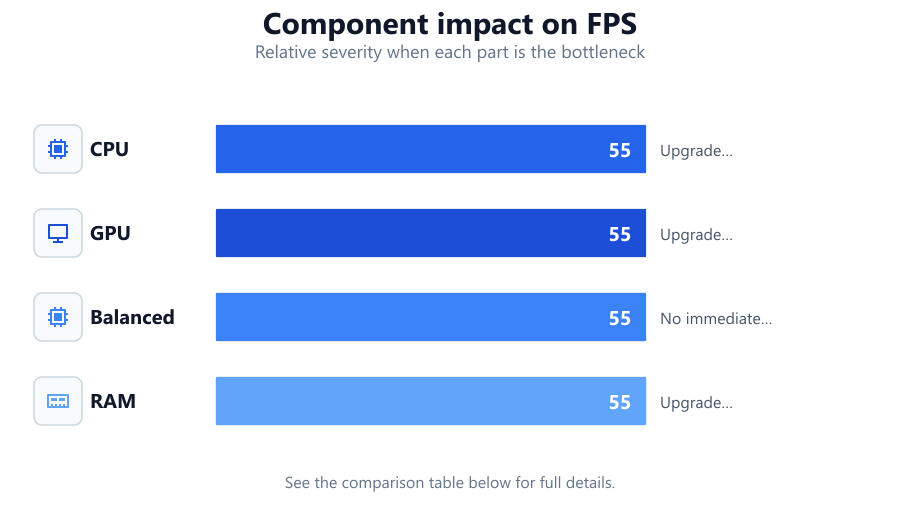
| CPU | High CPU usage, low GPU usage, low FPS on all settings | Upgrade CPU, optimize background tasks |
| GPU | High GPU usage, low CPU usage, FPS increases when settings lowered | Upgrade GPU, lower resolution or graphics settings |
| Balanced | Similar CPU and GPU usage, consistent FPS | No immediate upgrade needed |
| RAM | System stutter, high RAM usage, slow load times | Upgrade RAM, close background programs |
Common mistakes
Mistake
Upgrading only the GPU without checking CPU compatibility
Fix: Use the PC Bottleneck Calculator to ensure your CPU can keep up with the new GPU before purchasing.
Mistake
Ignoring system monitoring data while troubleshooting
Fix: Always monitor both CPU and GPU usage during gaming to identify the true bottleneck.
Mistake
Assuming more expensive parts always mean better performance
Fix: Balance your system components and use tools like the PC Bottleneck Calculator to maximize value.
Troubleshooting
Consistently low FPS even on low graphics settings
Likely cause: CPU is unable to keep up with the game’s demands
What to do: Upgrade to a faster CPU, optimize background processes, or reduce CPU-intensive game features.
High GPU usage at 99-100 percent with low FPS
Likely cause: GPU is maxed out and cannot render frames fast enough
What to do: Lower resolution or graphics settings, or upgrade to a more powerful GPU.
Sudden performance drops when multitasking
Likely cause: Insufficient RAM or background applications using resources
What to do: Upgrade RAM or close unnecessary background programs.
Recommendations
- Always check for bottlenecks before upgrading any major component.
- Use the PC Bottleneck Calculator to simulate hardware changes and avoid mismatched upgrades.
- Monitor your system’s performance regularly to catch new bottlenecks as games evolve.
- Balance your hardware investments for the best price-to-performance ratio.
Frequently asked questions
What is a CPU bottleneck?
A CPU bottleneck happens when your processor cannot process data fast enough for your GPU, limiting your overall system performance regardless of how powerful your graphics card is.
How do I know if my PC is bottlenecked by the GPU?
If your GPU runs at or near 100 percent usage during games while your CPU usage remains low, your graphics card is the bottleneck. Lowering graphics settings should increase FPS if the GPU is the limiting factor.
Can upgrading RAM fix a CPU or GPU bottleneck?
Upgrading RAM can help with stuttering or multitasking issues, but it will not solve a true CPU or GPU bottleneck. The slowest core component sets your system’s performance ceiling.
Is it bad to have a small bottleneck?
A slight bottleneck is normal and sometimes unavoidable. The goal is to minimize severe mismatches, ensuring both your CPU and GPU are used efficiently for the best gaming experience.