
Guide
How to Reduce a Bottleneck
Struggling with low FPS or stuttering in your games? This guide explains how to reduce a bottleneck and unlock your PC's full performance potential.
Updated 2026-07-05
Understanding Bottlenecks in Your PC
A bottleneck occurs when one part of your computer, such as the CPU or GPU, limits the overall system performance. The most common scenario is pairing a powerful new graphics card with an older or less capable processor, which can restrict your framerate and cause stuttering in games.
Not all bottlenecks are immediately obvious. Sometimes, you might notice high CPU usage while your GPU sits idle, or vice versa. This mismatch results in wasted potential and can make even expensive hardware underperform. Knowing how to reduce a bottleneck means identifying the weakest link in your system and taking targeted action to resolve it.
The PC Bottleneck Calculator on SystemRequirements.net is an essential tool for diagnosing bottlenecks. By analyzing thousands of hardware combinations, it pinpoints which part of your build is holding you back. With this insight, you can make smarter upgrade decisions and maximize your investment.
How to Reduce a Bottleneck: Strategies and Solutions
Reducing a bottleneck starts with accurate diagnosis. If your CPU is maxing out while your GPU remains underutilized, your processor is likely the limiting factor. Conversely, if the GPU is at 100 percent usage and the CPU is not, your graphics card is the bottleneck.
Once identified, there are several ways to address bottlenecks. You can upgrade the limiting component, adjust in-game settings, or optimize system performance through software tweaks. It is important to balance your hardware so that no single component consistently holds back the rest.
The PC Bottleneck Calculator helps you visualize these relationships. By inputting your CPU and GPU models, you receive a detailed analysis showing which upgrades or changes will yield the biggest performance gains. This data-driven approach ensures that every dollar you spend translates into real-world improvements.
Step-by-step
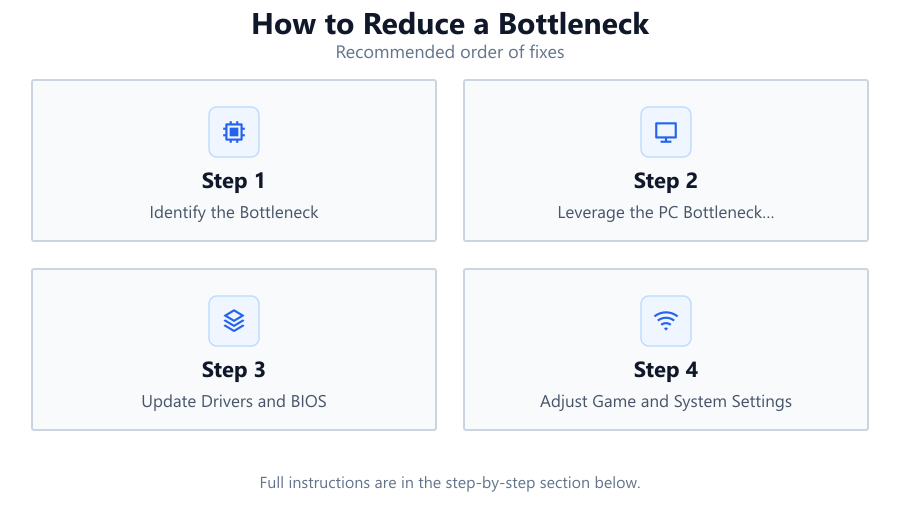
Identify the Bottleneck
Use monitoring tools such as MSI Afterburner or Windows Task Manager to observe CPU and GPU usage during gaming or stress tests. Look for one component consistently hitting 90 percent or above utilization while others remain underused.
Leverage the PC Bottleneck Calculator
Visit the PC Bottleneck Calculator on SystemRequirements.net. Enter your CPU and GPU models to receive a detailed breakdown of which part is holding back your system and how severe the bottleneck is.
Update Drivers and BIOS
Outdated drivers can cause performance issues. Ensure your GPU, chipset, and motherboard BIOS are up to date to eliminate software-caused slowdowns before considering hardware changes.
Adjust Game and System Settings
Lower CPU-intensive settings such as draw distance, physics, and AI. If the GPU is the bottleneck, reduce resolution and graphics quality. Tweak background processes in Windows for additional gains.
Upgrade the Limiting Component
If possible, replace the bottlenecked part. Upgrading the CPU or GPU to match the other component's capabilities can eliminate performance restrictions and improve framerates across all applications.
Optimize Cooling and Power
Overheating or power limitations can throttle performance. Ensure your system is well-cooled and that the power supply meets the demands of your hardware.
Comparison
| Component Pair | Bottleneck Cause | Recommended Fix |
|---|---|---|
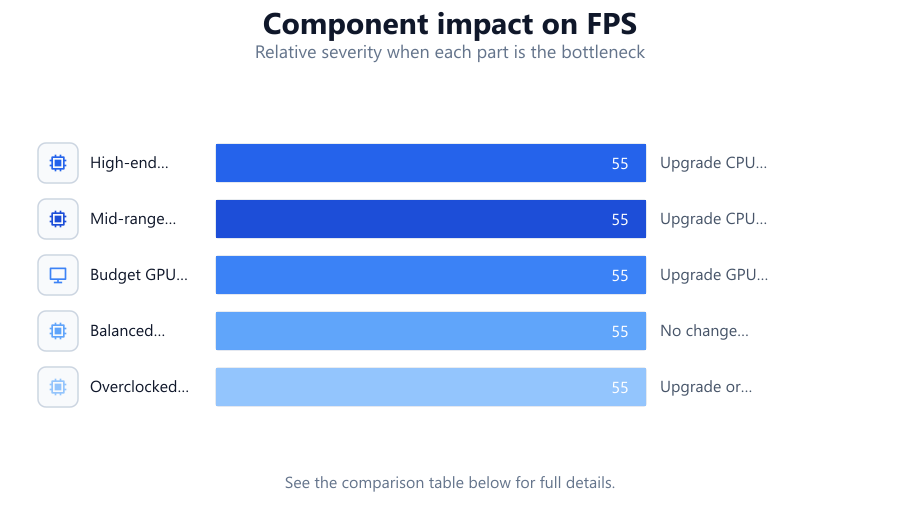
| High-end GPU + Budget CPU | CPU bottleneck | Upgrade CPU or lower CPU-heavy settings |
| Mid-range GPU + Old CPU | CPU bottleneck | Upgrade CPU or adjust background tasks |
| Budget GPU + High-end CPU | GPU bottleneck | Upgrade GPU or lower graphics settings |
| Balanced CPU + GPU | Minimal bottleneck | No change needed |
| Overclocked CPU + Stock GPU | GPU bottleneck | Upgrade or overclock GPU |
Common mistakes
Mistake
Upgrading only the GPU without considering CPU limitations
Fix: Check both CPU and GPU performance before upgrading to ensure balanced hardware.
Mistake
Ignoring RAM speed and capacity
Fix: Ensure you have adequate and fast enough RAM to support both CPU and GPU performance.
Mistake
Failing to optimize in-game settings
Fix: Adjust settings that target the bottlenecked component, such as reducing shadows for CPU or resolution for GPU.
Mistake
Not monitoring system temperatures
Fix: Use hardware monitoring tools to check for thermal throttling and improve cooling if needed.
Troubleshooting
Low framerate despite high-end GPU
Likely cause: CPU is bottlenecking performance
What to do: Lower CPU-intensive settings, close background apps, or upgrade the CPU.
Stutter or input lag during games
Likely cause: RAM or storage bottleneck
What to do: Upgrade to faster RAM or use an SSD for game installations.
GPU usage rarely exceeds 60 percent
Likely cause: CPU bottleneck or software limitation
What to do: Update drivers, check for background processes, or upgrade CPU.
Frequent crashes or shutdowns under load
Likely cause: Power supply or thermal issues
What to do: Check PSU capacity and improve cooling solutions.
Recommendations
- Use the PC Bottleneck Calculator before making any upgrades for data-driven decisions.
- Monitor both CPU and GPU usage during real-world workloads to spot bottlenecks.
- Balance your hardware purchases rather than focusing on a single high-end component.
- Keep drivers and system BIOS updated to maintain optimal compatibility and performance.
- Consider overclocking carefully to squeeze extra performance from existing hardware.
Frequently asked questions
What is a PC bottleneck?
A bottleneck occurs when one component, such as the CPU or GPU, limits the performance of the entire system, causing lower framerates or slower application speeds.
How do I know if my PC has a bottleneck?
Monitor CPU and GPU usage during demanding tasks. If one is constantly maxed out while the other is underutilized, you have a bottleneck.
Will upgrading RAM reduce a bottleneck?
It can help if RAM is the limiting factor, but most bottlenecks are caused by CPU or GPU mismatches. Check your system's RAM usage to be sure.
Is it better to upgrade CPU or GPU to fix a bottleneck?
Upgrade the component that is limiting performance. Use a tool like the PC Bottleneck Calculator to identify which part needs improvement.
Can software optimizations reduce bottlenecks?
Yes, optimizing game settings and background processes can help reduce the impact of a bottleneck, especially if hardware upgrades are not possible.