
Guide
Common Problems This Test Finds
Wondering what issues your monitor may have? This guide explains the most common problems the Color Screen Test can detect, from dead pixels to color accuracy flaws.
Updated 2026-07-05
What Does the Color Screen Test Reveal?
The Color Screen Test is a simple yet powerful diagnostic tool for anyone working with digital displays. By showing fullscreen solid colors, it exposes subtle issues that are hard to spot during regular use. Whether you use your monitor for gaming, creative work, or just everyday browsing, running a color screen test can reveal hidden flaws that might affect your experience.
Common problems this test finds include dead pixels, stuck pixels, color uniformity errors, and inaccurate color reproduction. These issues can impact everything from image editing to watching videos. Display problems are not always obvious, especially if they only appear on certain backgrounds or colors. That is why running a tool like the Color Screen Test is crucial before making critical adjustments or purchasing a new monitor.
This guide breaks down each type of problem, how the Color Screen Test helps detect them, and what you can do if you spot something unusual. By understanding what to look for, you can make better decisions about calibration, repairs, or upgrades.
Detailed Look: Problems the Color Screen Test Uncovers
Dead pixels are one of the most common and easily identified issues. These appear as tiny black or colored dots that do not change, no matter what is displayed on the screen. The Color Screen Test makes these stand out by filling the entire screen with a solid color, helping you spot even a single problematic pixel.
Stuck pixels are similar but may show up as bright red, green, or blue spots. Unlike dead pixels, stuck pixels can sometimes be fixed by cycling through colors rapidly or applying gentle pressure. The test’s ability to switch between many color values helps you determine if a pixel is truly dead or just stuck.
Color uniformity problems occur when different parts of the screen display the same color with different intensity or hue. This is especially problematic for photographers, designers, or anyone needing accurate color representation. With Color Screen Test, you can move through various shades and see if any areas look patchy, yellowed, or tinted.
Banding and gradient issues are another set of problems. Instead of smooth color transitions, you may see lines or “bands” across color gradients. This can indicate poor panel quality or calibration issues. The test’s custom color picker lets you check for banding using subtle gradient backgrounds.
Backlight bleed and clouding are visible when solid dark colors are displayed. Bright patches along the screen’s edges or corners suggest uneven backlight distribution. The Color Screen Test’s black and dark grey screens make these issues clear, so you can document them for warranty claims or repairs.
Step-by-step
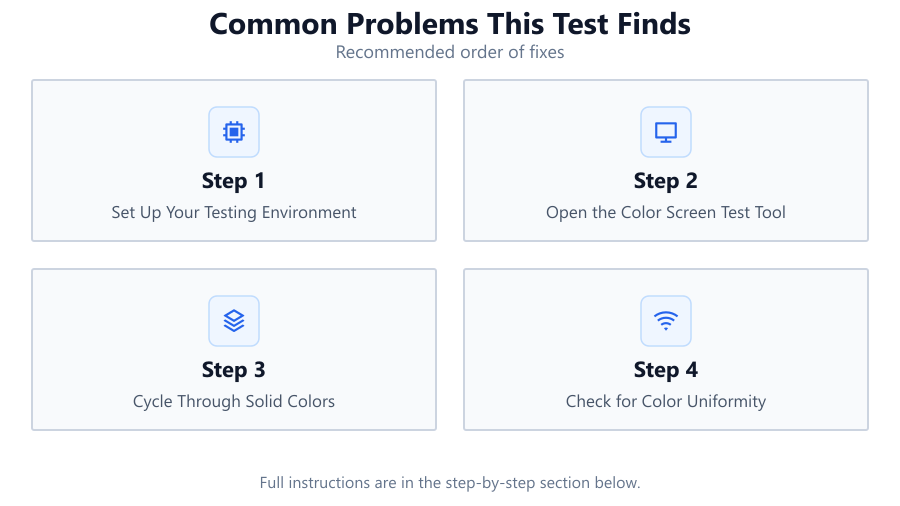
Set Up Your Testing Environment
Make sure your room is dimly lit to avoid reflections. Clean your screen gently to remove dust or smudges that could be mistaken for display flaws.
Open the Color Screen Test Tool
Launch the Color Screen Test in your browser. Choose fullscreen mode and familiarize yourself with the color cycling and custom color options.
Cycle Through Solid Colors
Switch between the default color presets. Watch carefully for dead or stuck pixels, which will be visible as tiny dots that do not change color.
Check for Color Uniformity
Focus on how each color fills the screen. Look for areas that appear darker, lighter, or tinted compared to the rest of the display. This can reveal uniformity issues.
Test for Banding and Backlight Bleed
Use dark colors and gradients to inspect for banding, clouding, or glowing edges. Move your viewpoint to spot changes in brightness or color across the screen.
Comparison
| Problem Type | How It Appears | How Color Screen Test Helps |
|---|---|---|
| Dead Pixel | Tiny black dot, never changes | Solid color backgrounds make dead pixels stand out |
| Stuck Pixel | Bright red, green, or blue dot | Switching colors can help identify and sometimes fix |
| Color Uniformity | Patches of uneven color or brightness | Cycling colors exposes variations across the screen |
| Backlight Bleed | Bright edges or corners on dark screens | Black and dark grey tests highlight bleed areas |
Common mistakes
Mistake
Testing in a bright room
Fix: Dim the lights or test at night to avoid reflections and ambient glare.
Mistake
Confusing dust or smudges for screen defects
Fix: Always clean your screen before running the Color Screen Test.
Mistake
Ignoring minor uniformity issues
Fix: Even small uniformity errors can impact color work. Document and monitor for changes over time.
Troubleshooting
A colored dot appears in the same spot on every color
Likely cause: Likely a dead or stuck pixel
What to do: Try running a pixel-fixing tool. If it remains, the pixel is probably dead and may require panel replacement.
Screen shows yellow or pink tints in certain areas
Likely cause: Panel color uniformity issue
What to do: Try calibrating your display. If the issue persists, it may be a manufacturing defect.
Bright corners or edge glow on dark screens
Likely cause: Backlight bleed or clouding
What to do: Check monitor mounting and position. If severe, consider warranty service or replacement.
Recommendations
- Run Color Screen Test whenever you buy a new monitor or suspect display problems.
- Document any issues you find with photos for warranty or support claims.
- Repeat the test periodically to catch new problems early.
- If you do color-sensitive work, combine this test with a calibration tool.
Frequently asked questions
What is the fastest way to check for dead pixels?
Using the Color Screen Test, display solid red, green, blue, black, and white screens. Dead pixels will appear as dots that never change color.
Can stuck pixels be fixed using Color Screen Test?
Sometimes, repeatedly cycling colors or using a dedicated pixel-fixing app can revive stuck pixels. The Color Screen Test helps identify and monitor them.
How do I know if my screen has backlight bleed?
Display a solid black or dark grey background with the Color Screen Test. Bright patches or glowing edges indicate backlight bleed.
Is color uniformity important for gaming?
While less critical than for photo editing, poor color uniformity can affect image quality and immersion in games, making the Color Screen Test useful for gamers too.