
Guide
Troubleshooting Guide
Struggling with display issues like color banding, dead pixels, or inaccurate hues? This troubleshooting guide walks you through diagnosing and fixing common monitor problems using the Color Screen Test tool.
Updated 2026-07-05
Monitor Issues: An Overview and How Color Screen Test Helps
Modern monitors are complex devices that can suffer from a range of issues, from subtle color inaccuracies to obvious dead pixels or distracting backlight bleed. Identifying and solving these problems is crucial for anyone who depends on accurate visuals, whether for gaming, design, or daily tasks.
The Color Screen Test tool provides a simple and effective method for diagnosing common monitor problems. By displaying solid color screens and cycling through a wide array of shades, this tool makes it easy to spot irregularities that are often invisible during normal use. You can also use custom RGB and HEX values for advanced testing scenarios, which is especially useful for color-critical work such as photo editing.
Common display issues include dead or stuck pixels, color banding, uniformity problems, and backlight bleed. Each of these can impact your experience, but with the right approach and the proper tools, most problems can be identified quickly. This troubleshooting guide will show you how to use Color Screen Test effectively, interpret your findings, and take action to restore your monitor to optimal performance.
Diagnosing and Fixing Monitor Problems: Step-by-Step
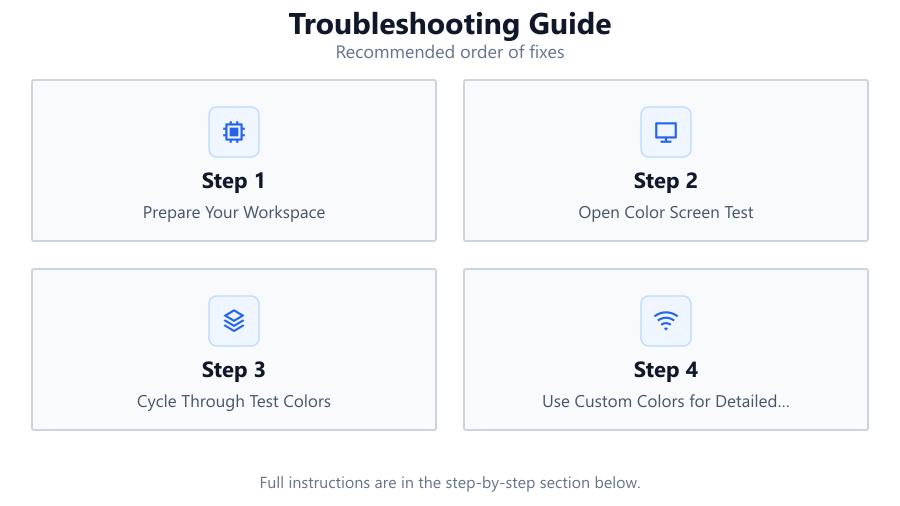
Let’s dig deeper into the practical steps for using Color Screen Test as your primary diagnostic tool. Start by preparing your workspace: ensure your monitor is clean, set to native resolution, and running at its recommended refresh rate. Dim the room lighting to highlight subtle issues.
Once you launch Color Screen Test, cycle through the predefined colors. Look for any anomalies: a dead pixel will stand out as a black spot on all colors, while a stuck pixel might only appear on certain colors. Uniformity issues will manifest as patches that look brighter, dimmer, or tinted differently from the rest of the screen. Backlight bleed typically appears as glowing edges or corners, especially on dark backgrounds.
Custom color selection is invaluable for advanced troubleshooting. Use pure red, green, and blue screens to reveal stuck pixels of specific colors. Shades of gray can expose banding or gradient issues. You can even test with real-world color samples by entering exact RGB or HEX codes.
After identifying a problem, investigate further using the steps in this guide. Some issues are fixable at home, while others may require professional repair or even a warranty claim. This guide provides practical solutions for each scenario to help you get the most out of your display.
Step-by-step
Prepare Your Workspace
Turn off unnecessary lights and close curtains to reduce ambient reflections. Clean your monitor with a microfiber cloth. Set your display to its native resolution and refresh rate for accurate testing.
Open Color Screen Test
Launch the Color Screen Test tool in your browser. Familiarize yourself with the interface, including the color cycling and custom color input features.
Cycle Through Test Colors
Use the predefined solid color screens to systematically check your monitor. Pay close attention to each color for irregularities such as dead, stuck, or hot pixels, and uniformity issues.
Use Custom Colors for Detailed Checks
Enter specific RGB or HEX values to test for subtle issues, like color banding or gradient smoothness. This is especially useful for designers and photographers needing precise calibration.
Document and Interpret Findings
Take note of any issues you spot, including their location and appearance. Compare your findings to the troubleshooting and common mistakes sections below to determine the best course of action.
Comparison
| Issue | Symptoms | Potential Fix |
|---|---|---|
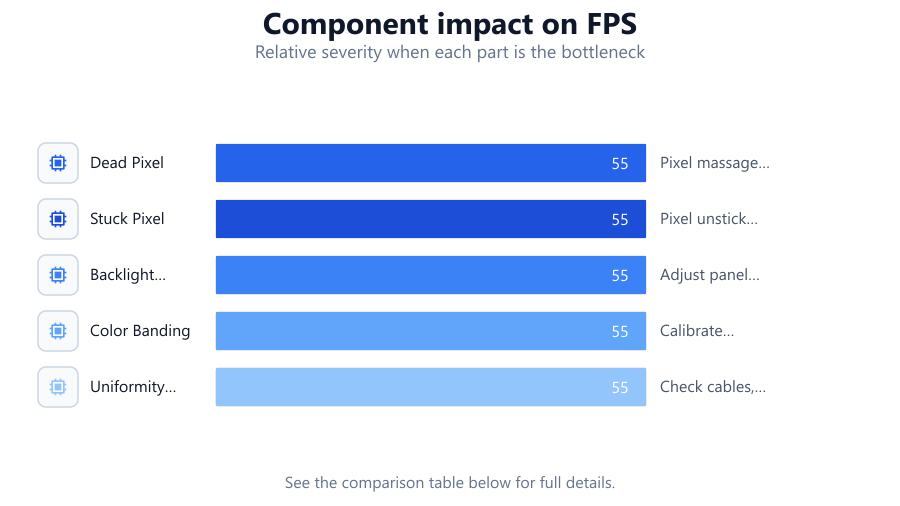
| Dead Pixel | Black dot visible on all colors | Pixel massage, warranty claim |
| Stuck Pixel | Bright dot visible on one or more colors | Pixel unsticking software, gentle pressure |
| Backlight Bleed | Bright edges or corners, especially on dark screens | Adjust panel position, reduce brightness |
| Color Banding | Visible stripes in gradients | Calibrate monitor, adjust color depth |
| Uniformity Issue | Patches of inconsistent brightness or tint | Check cables, warranty claim |
Common mistakes
Mistake
Testing in a brightly lit room
Fix: Dim room lights and block external light sources to enhance visibility of subtle screen issues.
Mistake
Not using full-screen mode during testing
Fix: Always use the fullscreen option in Color Screen Test to eliminate distractions and maximize testing accuracy.
Mistake
Ignoring calibration before testing
Fix: Set your monitor to its factory default or calibrated profile to ensure accurate results during troubleshooting.
Mistake
Skipping custom color tests
Fix: Use the custom RGB and HEX features in Color Screen Test to reveal issues that standard colors might miss.
Troubleshooting
Black or colored dots that do not change
Likely cause: These are likely dead or stuck pixels.
What to do: Try gently massaging the area with a soft cloth or use pixel fixing software. If persistent, consider a warranty claim.
Bright edges or corners, especially on dark screens
Likely cause: This is backlight bleed, common in some panel types.
What to do: Reduce monitor brightness, reposition the display, or check for a loose panel. Severe cases may require manufacturer support.
Visible stripes or steps in gradients
Likely cause: Color banding caused by incorrect color settings or low color depth.
What to do: Recalibrate your monitor and check your graphics card settings for color depth options.
Recommendations
- Test your monitor with Color Screen Test regularly, especially after moving or adjusting your setup.
- If you find a persistent pixel issue, do not apply excessive pressure. Try software fixes first.
- For critical visual work, calibrate your monitor using a hardware calibrator after troubleshooting.
- Document any recurring issues and check your monitor's warranty coverage.
- Always use the fullscreen mode in Color Screen Test for the most accurate results.
Frequently asked questions
What is the best way to spot a dead pixel?
Display solid white, black, red, green, and blue screens in Color Screen Test. A dead pixel will appear as a constant black or colored dot regardless of the color displayed.
Can stuck pixels be fixed at home?
Yes, sometimes. Try gently massaging the affected area with a soft cloth or running a pixel-fixing animation. If the pixel remains stuck, it may require professional repair.
Why do I see glowing around the edges of my monitor?
This is known as backlight bleed. It is common in some LCD panels, especially IPS types. Minor bleed can be minimized by lowering brightness or adjusting the monitor position.
How often should I test my monitor for issues?
Test your monitor whenever you notice visual anomalies, after moving the display, or before starting color-critical work such as photo editing.