
Guide
How to Choose the Right Hardware
Choosing the right hardware ensures your PC runs smoothly and efficiently. Learn exactly what to look for, avoid bottlenecks, and build a system that meets your needs.
Updated 2026-07-05
Why Choosing the Right Hardware Matters
Building or upgrading a PC is an investment. The hardware you select determines how well your system performs, how long it will stay relevant, and how much you will enjoy your daily tasks or gaming sessions. Making the wrong choices can lead to poor performance, wasted money, and a frustrating user experience.
Every component, from the CPU to the storage drive, plays a critical role. A balanced system avoids bottlenecks, where one part holds back the potential of the others. This guide will walk you through the key decisions and provide actionable advice, so you end up with a PC that is tailored to your needs and budget.
With thousands of options available, it is easy to get overwhelmed. Tools like CPU Comparison help you directly compare processors, check benchmarks, and see which CPUs fit your use case. By the end of this guide, you will know exactly how to choose the right hardware, whether you are building from scratch or upgrading an existing system.
Understanding Each Component: What to Prioritize
The CPU is the brain of your computer, but every part matters. Start by defining your main use case. Gamers, content creators, office users, and server builders all have different priorities.
For most users, the CPU and GPU are the most important components. Gamers should focus on a strong GPU paired with a capable CPU, avoiding mismatches that limit game performance. Content creators, such as video editors, benefit from CPUs with higher core counts and fast storage. For everyday use, a balanced budget between CPU, RAM, and SSD ensures a smooth experience.
Motherboard compatibility is critical. Always check chipset, socket type, and RAM support before buying. A high-end CPU in a low-end motherboard can cause throttling or limit upgrade options.
Memory (RAM) impacts multitasking and overall responsiveness. For modern systems, 16GB is the minimum for comfortable usage. Storage type also matters: SSDs offer dramatically faster load times compared to traditional hard drives. Power supplies and cooling solutions should not be overlooked, since inadequate power or poor cooling can cause instability or even hardware damage.
Using a tool like CPU Comparison lets you see how different CPUs stack up, compare performance, and find recommendations that fit your budget and requirements. This removes guesswork and helps you build a system that performs well today and stays relevant for years.
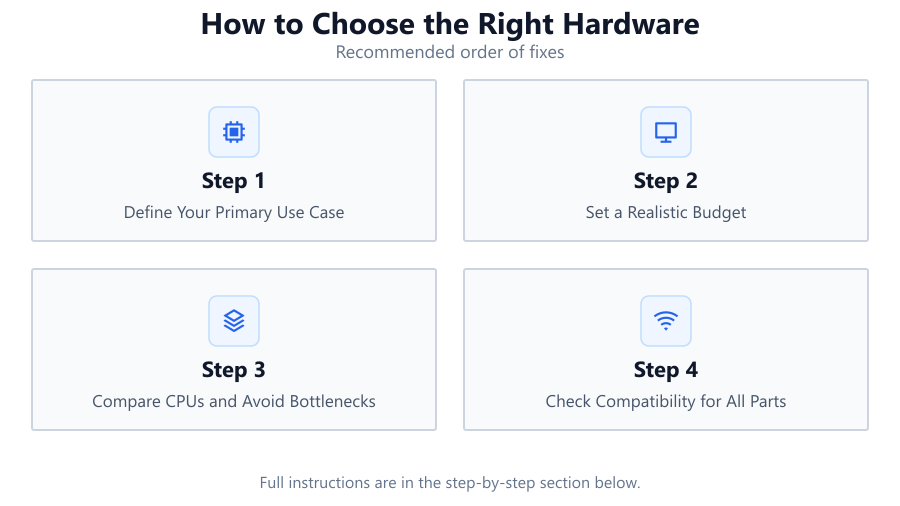
Step-by-step
Define Your Primary Use Case
Start by identifying what you will use your PC for most: gaming, content creation, office work, streaming, or a mix. Your main tasks determine which components should be prioritized, such as CPU for productivity or GPU for gaming.
Set a Realistic Budget
Decide how much you are willing to spend on your entire build. Allocate more budget to components that matter most for your use case, but do not neglect essentials like the power supply or storage.
Compare CPUs and Avoid Bottlenecks
Use CPU Comparison to evaluate different processors, check benchmarks, and ensure your CPU matches your GPU and intended workload. Avoid pairing a high-end GPU with an entry-level CPU or vice versa.
Check Compatibility for All Parts
Verify that your motherboard supports your CPU, RAM, and storage devices. Double-check socket types, RAM speed and capacity, and expansion slots before purchasing.
Plan for Future Upgrades
Choose components that allow for easy upgrades down the line. Opt for motherboards with extra RAM slots and power supplies with headroom for future GPUs, so your system can grow with your needs.
Comparison
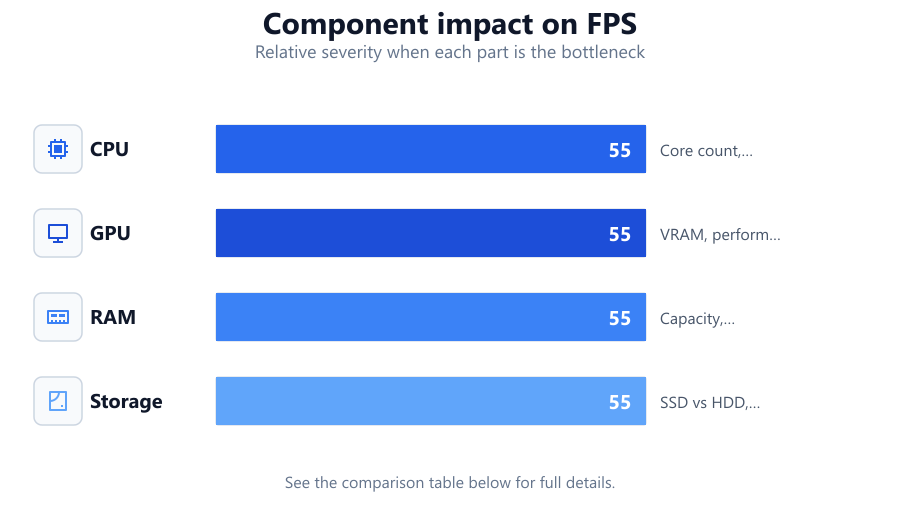
| Component | Best For | Key Consideration |
|---|---|---|
| CPU | Gaming, Productivity | Core count, clock speed, benchmarks |
| GPU | Gaming, Rendering | VRAM, performance tier, compatibility |
| RAM | Multitasking | Capacity, speed, number of sticks |
| Storage | OS, Games, Files | SSD vs HDD, capacity, interface |
Common mistakes
Mistake
Focusing only on one component, like GPU, and neglecting the rest
Fix: Balance your budget across CPU, RAM, storage, and other essentials for a smoother experience
Mistake
Ignoring compatibility between motherboard, CPU, and RAM
Fix: Double-check socket type, chipset, and supported memory before buying
Mistake
Buying the cheapest power supply available
Fix: Invest in a reliable, efficient power supply to ensure system stability and protect your hardware
Troubleshooting
System does not boot after assembly
Likely cause: RAM or CPU not properly seated, or incompatible motherboard
What to do: Reseat components and verify compatibility with motherboard documentation
Frequent crashes or freezes during use
Likely cause: Insufficient power supply or overheating due to inadequate cooling
What to do: Upgrade your PSU or improve cooling with better fans or heatsinks
Sluggish performance despite recent upgrade
Likely cause: Component bottleneck, such as pairing a fast GPU with a slow CPU
What to do: Use CPU Comparison to identify mismatched components and rebalance your system
Recommendations
- Use CPU Comparison to directly contrast processors and avoid mismatches
- Aim for at least 16GB of RAM for modern systems, especially for gaming or multitasking
- Invest in an SSD for your operating system to dramatically improve boot and load times
- Check power supply reviews and wattage calculators to ensure reliable performance
- Plan your build with future upgrades in mind, such as extra RAM slots or PCIe expansion
Frequently asked questions
How important is the CPU when choosing PC hardware?
The CPU is one of the most critical components, affecting overall system speed and responsiveness. Use tools like CPU Comparison to evaluate different models and ensure your CPU is not a bottleneck.
Should I spend more on CPU or GPU for gaming?
For most games, the GPU has a larger impact on performance, but pairing it with a capable CPU is essential. CPU Comparison can help you find the right balance for your budget.
How much RAM do I need in 2026?
16GB is the recommended minimum for gaming and multitasking. Content creators or heavy users may benefit from 32GB or more.
What is the risk of a bottleneck, and how do I avoid it?
A bottleneck occurs when one component limits the performance of others. Use CPU Comparison and check benchmark data to match your CPU, GPU, and RAM for balanced performance.