
Guide
Common Problems This Test Finds
Wondering what issues a display test can uncover? This guide explains the most common problems this test finds, helping you spot and solve screen defects quickly.
Updated 2026-07-05
What Does Display Test Look For?
Display Test is a browser-based suite designed to evaluate your monitor’s performance with precision. It offers a range of visual tests that target the most frequent and disruptive display issues people encounter. Whether you are a gamer, designer, or everyday user, understanding these common problems this test finds can save you time and frustration.
One of the main goals of Display Test is to help users identify dead or stuck pixels, which are tiny dots on the screen that do not display colors correctly. These flaws can be distracting, especially on high-resolution panels. The tool also highlights backlight bleed, where light escapes around the edges of an LCD, causing uneven brightness.
Display Test checks for color accuracy and uniformity, which are critical for professionals who rely on true-to-life visuals. It also evaluates contrast, sharpness, and motion reproduction, ensuring your monitor handles fast-moving scenes without blurring or ghosting. This comprehensive approach means you can catch subtle defects that might go unnoticed during everyday use.
Another strength of Display Test is its ability to run directly in your browser, removing the need for extra software. By systematically checking your display, you gain insight into both major faults and minor imperfections, knowledge that can help you make informed decisions about calibration, repairs, or upgrades.
How Display Test Detects Screen Issues
Display Test uses a series of targeted screens to reveal specific types of display problems. Solid color tests are excellent for spotting dead pixels, stuck pixels, and patches of backlight bleed. By filling the entire screen with a single color, even the smallest defect stands out.
Color gradient tests help you identify banding and color uniformity problems. These issues are especially important for photographers, video editors, and anyone who needs accurate color reproduction. Gradients should appear smooth, not stepped or blotchy.
The sharpness and contrast tests are designed to reveal blurry text, poor edge definition, and low contrast ratios. These problems can make reading or editing images difficult and are often caused by poor panel quality or incorrect settings.
Uniformity tests display large areas of gray or white to expose zones that are brighter or darker than the rest. This highlights panel inconsistencies and backlight leakage, which can be particularly obvious on cheaper or aging displays.
Motion tests check for motion blur, ghosting, and response time problems. By moving shapes or patterns across the screen, Display Test lets you see if your monitor can keep up with fast action without leaving trails or smears.
By running Display Test regularly, you can catch problems early. This is especially useful before buying or selling a used monitor, after transport, or when troubleshooting visual artifacts. The test’s immediate feedback helps you diagnose whether an issue is due to the display itself or related to cables, settings, or graphics hardware.
Step-by-step
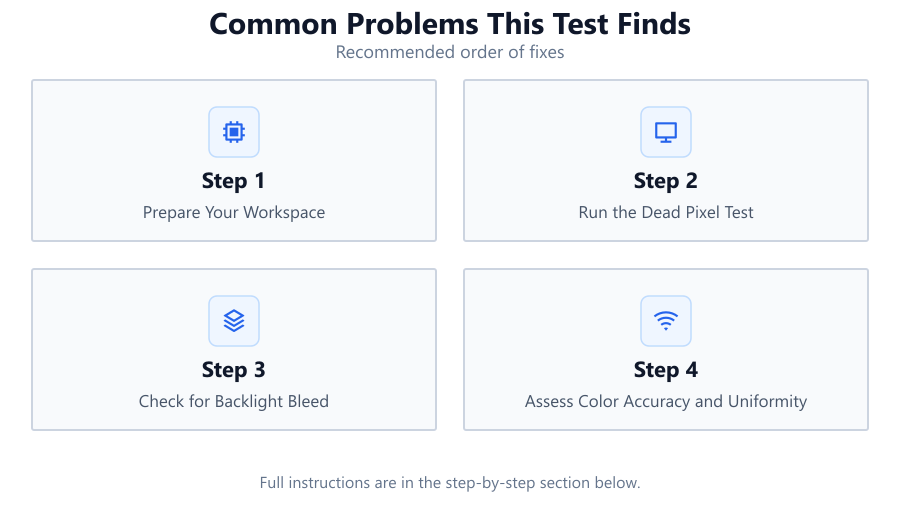
Prepare Your Workspace
Before starting Display Test, clean your monitor and adjust the room lighting. Remove glare and dust for the most accurate results.
Run the Dead Pixel Test
Use the solid color screens in Display Test to look for dead or stuck pixels. Cycle through primary colors and black and white backgrounds.
Check for Backlight Bleed
Turn off the lights and display a black screen. Look for uneven brightness or glowing edges, which indicate backlight bleed.
Assess Color Accuracy and Uniformity
Display gradients and color blocks. Watch for color shifts, banding, or inconsistent tones across the screen.
Test for Motion Blur
Run the motion patterns in Display Test. Watch for trailing images or smeared shapes, which suggest slow response times.
Comparison
| Problem Detected | Typical Cause | Impact |
|---|---|---|
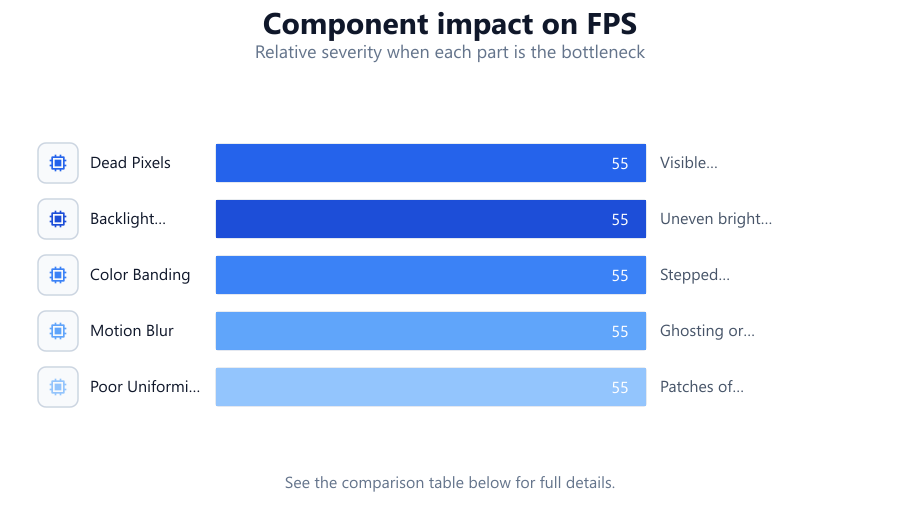
| Dead Pixels | Manufacturing defect or physical damage | Visible dots, distracting in daily use |
| Backlight Bleed | Poor assembly or panel flex | Uneven brightness, especially in dark scenes |
| Color Banding | Limited color depth or bad calibration | Stepped gradients, inaccurate visuals |
| Motion Blur | Slow panel response time | Ghosting or loss of detail in fast scenes |
| Poor Uniformity | Panel inconsistencies | Patches of different brightness or color |
Common mistakes
Mistake
Testing with dirty or reflective screens
Fix: Clean your display and control room lighting before running Display Test for true results.
Mistake
Ignoring subtle color or uniformity issues
Fix: Carefully examine gradients and solid colors for small shifts in tone or brightness.
Mistake
Using Display Test on an unsupported browser
Fix: Always run Display Test on a modern browser with hardware acceleration enabled for best accuracy.
Mistake
Skipping motion tests on gaming monitors
Fix: Always check for motion blur and ghosting if you use your monitor for gaming or fast video playback.
Troubleshooting
Faint glowing at screen edges during dark scenes
Likely cause: Backlight bleed from panel assembly or pressure
What to do: Reduce panel pressure, adjust mounting, or request warranty service if severe.
Random colored dots that do not change
Likely cause: Dead or stuck pixels
What to do: Try gently massaging the area or running pixel-fixing software. If persistent, check warranty.
Blurry or smeared images during movement
Likely cause: Slow response time or incorrect overdrive settings
What to do: Adjust monitor overdrive setting, ensure refresh rate is set to maximum supported value.
Colors look uneven across the screen
Likely cause: Panel uniformity issues or poor calibration
What to do: Calibrate your monitor, and if the issue persists, consider professional repair or replacement.
Recommendations
- Run Display Test on every new monitor out of the box to catch defects while under warranty.
- Repeat the test periodically, especially after moving or cleaning your display.
- Use Display Test before buying or selling used monitors to ensure quality.
- Pair Display Test with calibration tools for even better color and image accuracy.
- Document any issues with screenshots or photos to support warranty claims.
Frequently asked questions
What are the most common problems this test finds?
Display Test most often reveals dead pixels, backlight bleed, color banding, poor uniformity, and motion blur.
Can Display Test fix problems or just detect them?
Display Test is designed to detect and diagnose issues, not repair them. Some stuck pixels may be fixed with special routines, but hardware defects usually require professional service.
Why do I see more issues during Display Test than in regular use?
Display Test uses extreme patterns and colors to make subtle problems visible, which may not be obvious during normal activities.
Is Display Test safe to run on any monitor?
Yes, Display Test is browser-based and does not harm your screen. It simply displays test patterns to help you spot issues.