
Guide
Troubleshooting Guide
Struggling with screen problems like dead pixels or poor color accuracy? This troubleshooting guide will help you pinpoint and resolve common display issues using Display Test.
Updated 2026-07-05
Understanding Display Issues and How Display Test Helps
Monitors and displays are essential for PC users, but even the best screens can develop problems over time. Common issues include dead pixels, inaccurate colors, uneven brightness, and motion blur. Identifying these problems early helps you maintain your display’s performance and prevents eye strain or frustration during daily use.
Diagnosing display issues can be tricky without the right tools. This is where Display Test comes in. It is a browser-based suite designed to make the process simple and effective. With no installation required, you can instantly run a series of visual tests, solid colors, gradients, sharpness, contrast, uniformity, and motion smear, directly from your browser. This suite provides clear visual feedback, allowing you to spot flaws and take action before minor issues become major headaches.
With the right troubleshooting guide and Display Test, you can confidently evaluate your monitor’s health, knowing exactly what to look for and how to interpret what you see. Whether you are a gamer, designer, or everyday user, regular display testing can help you catch problems early, plan repairs or replacements, and ensure your viewing experience is always optimal.
Step-by-Step Troubleshooting with Display Test
The key to effective troubleshooting is a structured approach. Start by identifying the specific symptoms your monitor is showing, then use Display Test’s targeted tools to isolate the cause. For example, solid color screens make dead or stuck pixels easy to spot, while gradient tests can reveal color banding or uniformity issues. Contrast and sharpness tests help you check for blurring or faded text, which may result from settings or hardware faults.
As you work through each test, take notes on anything unusual. Compare results with other devices if possible to rule out software or cable problems. If you notice persistent issues, this troubleshooting guide will outline actionable steps for fixing or mitigating them.
Remember, some problems may be minor and easily fixed with a settings adjustment, while others could indicate deeper hardware faults. By using Display Test regularly, you gain a baseline understanding of your monitor’s performance and can track changes over time, making it easier to spot trends and act quickly.
Step-by-step
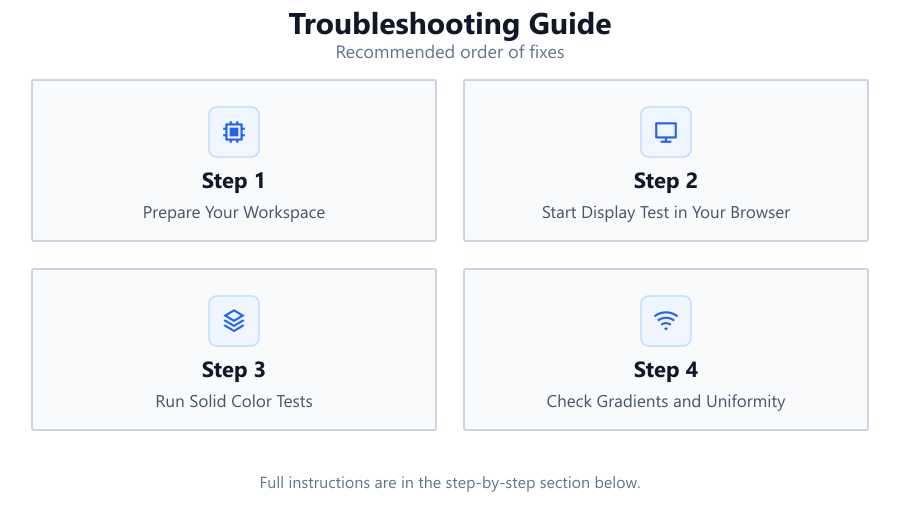
Prepare Your Workspace
Ensure your monitor is clean and free of dust. Set the brightness to a comfortable level and make sure ambient lighting is consistent to avoid misinterpreting test results.
Start Display Test in Your Browser
Open the Display Test tool in your preferred browser. No installation is needed, making it ideal for quick checks or troubleshooting on multiple devices.
Run Solid Color Tests
Cycle through solid colors (red, green, blue, black, white) to spot dead, stuck, or hot pixels. Look closely at the entire screen and take note of any anomalies.
Check Gradients and Uniformity
Use gradient and uniformity tests to detect color banding, uneven brightness, or backlight bleed. Compare the left and right, as well as the top and bottom of the screen for consistency.
Evaluate Sharpness, Contrast, and Motion
Test text sharpness and contrast to ensure clarity. Run the motion smear test to check for ghosting or blur, which can affect gaming or fast-paced video playback.
Comparison
| Test Type | What It Detects | When to Use |
|---|---|---|
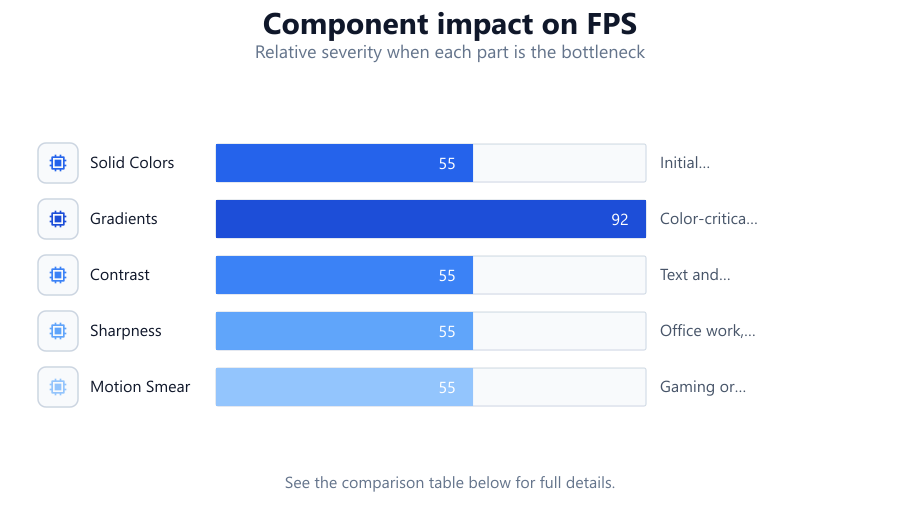
| Solid Colors | Dead or stuck pixels | Initial screen inspection |
| Gradients | Color banding and uniformity | Color-critical tasks |
| Contrast | Faded colors, poor blacks | Text and media clarity |
| Sharpness | Blurry text, soft edges | Office work, reading |
| Motion Smear | Ghosting, blur | Gaming or video playback |
Common mistakes
Mistake
Testing display in poor ambient lighting
Fix: Always test in consistent, moderate lighting to avoid misreading color or brightness issues.
Mistake
Ignoring cable and connection problems
Fix: Check cables and try different ports before assuming the monitor is faulty.
Mistake
Not updating graphics drivers
Fix: Update to the latest drivers, as outdated software can cause color and sharpness problems.
Troubleshooting
Random colored or black dots on screen
Likely cause: Dead, stuck, or hot pixels
What to do: Run the solid color test on Display Test to confirm. Gently massage the area or use pixel-fixing software. If persistent, contact the manufacturer.
Colors appear washed out or inaccurate
Likely cause: Incorrect color profile or outdated drivers
What to do: Use Display Test’s color and contrast tools. Calibrate your monitor and update graphics drivers.
Blurry text or images
Likely cause: Incorrect resolution or faulty sharpness settings
What to do: Ensure your display is set to its native resolution. Use Display Test’s sharpness tool to verify clarity.
Recommendations
- Test your display monthly using Display Test to catch issues early.
- Always check cables and connections before concluding hardware failure.
- Document any recurring issues with screenshots or notes for warranty support.
- Calibrate your monitor after troubleshooting to maintain color accuracy.
Frequently asked questions
Can Display Test fix dead pixels?
Display Test helps you identify dead or stuck pixels, but physical pixel repair is not guaranteed. Some stuck pixels can be revived using pixel-fixing software or gentle screen massage.
Is Display Test safe for all monitors?
Yes, Display Test runs in your browser and does not modify hardware or software settings. It is safe for all LCD, LED, and OLED screens.
How often should I run display tests?
For best results, run Display Test monthly or whenever you notice visual anomalies. Frequent testing helps catch problems early.
Do I need special equipment to use Display Test?
No extra equipment is required. All you need is a browser and internet connection. For advanced color calibration, a hardware colorimeter may be helpful.