
Guide
Common Buying Mistakes
Avoid the most common buying mistakes when choosing a gaming monitor. Get actionable advice and use our Gaming Monitor Calculator to make the right decision.
Updated 2026-07-05
Why Gaming Monitor Mistakes Are So Common
Choosing a gaming monitor is not as simple as picking the biggest screen or the highest refresh rate. Many buyers focus on flashy specs or marketing terms without understanding how these features actually impact gaming performance or enjoyment. As a result, the most common buying mistakes happen when users do not match their monitor to their graphics card, gaming preferences, or physical setup.
For example, a monitor with a 360Hz refresh rate sounds impressive, but if your GPU cannot deliver enough frames per second, you will not benefit from that speed. Similarly, opting for 4K resolution on a small 24-inch screen may not deliver the visual upgrade you expect and could even strain your hardware unnecessarily.
The Gaming Monitor Calculator was built to help buyers avoid these pitfalls. By analyzing your GPU, favorite genres, and physical space, this tool recommends the ideal combination of resolution, refresh rate, panel type, and screen size. This takes the guesswork out of upgrading your display and ensures your money is well spent.
Top Mistakes and How to Avoid Them
To make a smart buying decision, you need to look past the advertising and focus on what truly matters for your setup. Here are some of the most common buying mistakes and how to avoid them:
- Overestimating Your Graphics Card: Many users buy high-resolution or high-refresh monitors without checking if their GPU can handle the load. This leads to poor performance and wasted money.
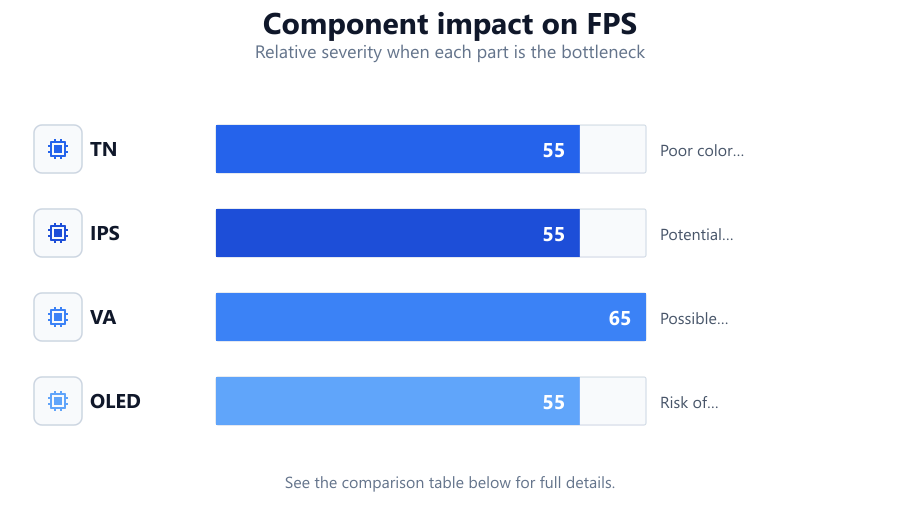
- Ignoring Panel Type: Not all panels are equal. TN panels are fast but have poor viewing angles and color accuracy. IPS panels offer better colors but can suffer from motion blur. VA panels are great for contrast but may have ghosting. Choosing the wrong panel for your usage can ruin your experience.
- Buying the Wrong Size: A massive monitor might seem appealing, but if your desk is too small, it can cause neck strain or force you to sit too close, reducing immersion and comfort.
- Neglecting Connectivity: Not all monitors support the same ports or standards. Buying a display without the right inputs for your PC or console means you might need adapters or miss out on features like high refresh rates.
- Falling for Marketing Hype: Many brands advertise features like HDR or RGB lighting. These are not always important for gaming and can distract from more meaningful specs.
Using the Gaming Monitor Calculator helps you cut through the noise. By entering your GPU and preferences, you get tailored recommendations that can save you money and frustration.
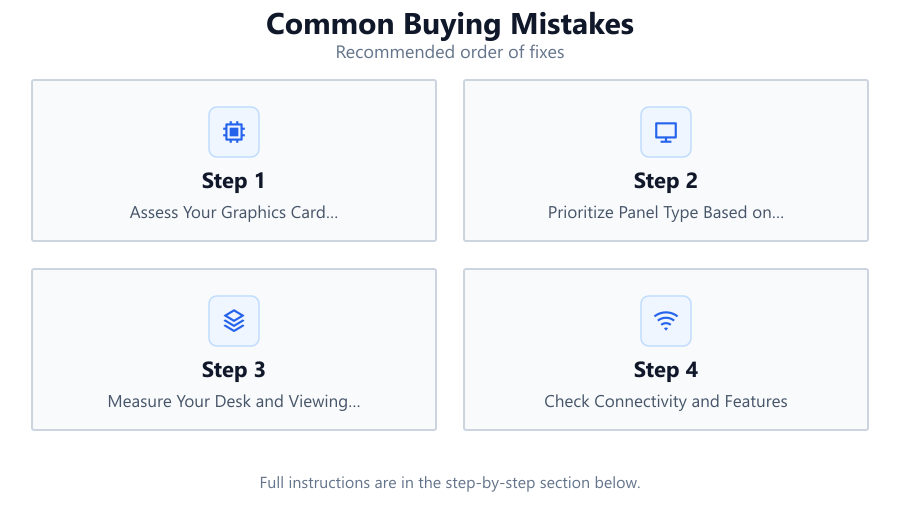
Step-by-step
Assess Your Graphics Card Capabilities
Check your GPU's performance in your favorite games. Use online benchmarks to determine the maximum frame rates and resolutions your card can handle comfortably. This prevents overbuying a monitor your system cannot fully use.
Prioritize Panel Type Based on Use Case
Decide what matters most: speed, color accuracy, or contrast. TN panels are best for competitive gamers who want the lowest input lag. IPS panels provide vibrant colors and wide viewing angles, ideal for single-player or creative work. VA panels are suited for dark room gaming thanks to their deep blacks.
Measure Your Desk and Viewing Distance
Before choosing a monitor size, measure your available desk space and where you will sit. As a rule, 24 to 27 inches suits most desks and typical viewing distances. Larger screens require more distance for comfortable viewing.
Check Connectivity and Features
Ensure the monitor has the right ports for your PC, console, or laptop. For high refresh rates or resolutions, you may need DisplayPort or HDMI 2.1. Also, check for features like adjustable stands, VESA mounts, and built-in speakers if needed.
Use the Gaming Monitor Calculator for Tailored Advice
Input your GPU model, preferred games, and room details into the Gaming Monitor Calculator. Let the tool analyze your setup and recommend the best resolution, refresh rate, panel type, and size for your needs. This step eliminates guesswork and reduces the risk of costly mistakes.
Comparison
| Panel Type | Strengths | Weaknesses |
|---|---|---|
| TN | Lowest input lag, fast refresh rates | Poor color accuracy, narrow viewing angles |
| IPS | Vivid colors, wide viewing angles | Potential motion blur, usually pricier |
| VA | High contrast, deep blacks | Possible ghosting, slower response times |
| OLED | Perfect blacks, fast response | Risk of burn-in, premium cost |
Common mistakes
Mistake
Buying a high refresh rate monitor with a low-end GPU
Fix: Check your GPU's real-world game performance. Only purchase high refresh rate monitors if your graphics card can deliver high frame rates.
Mistake
Ignoring ergonomics and desk space
Fix: Measure your desk and seating position. Choose a monitor size that fits your space and promotes comfortable viewing.
Mistake
Choosing the wrong panel type for gaming needs
Fix: Research panel types. Use the Gaming Monitor Calculator to match your preferred genres to the best panel for your needs.
Mistake
Overlooking required connectivity options
Fix: Ensure the monitor supports your system's outputs and desired features like high refresh rate or adaptive sync.
Troubleshooting
Games feel choppy despite high refresh monitor
Likely cause: GPU cannot deliver enough frames per second for the monitor's refresh rate
What to do: Lower game settings or choose a monitor with a refresh rate that matches your GPU's capabilities
Colors look washed out or viewing angles are poor
Likely cause: Monitor uses a TN panel with limited color reproduction
What to do: Consider an IPS or VA panel for better color and viewing angles
Monitor does not display at advertised refresh rate
Likely cause: Incorrect cable or port used (e.g., HDMI 1.4 instead of DisplayPort or HDMI 2.1)
What to do: Use the correct cable and port that supports your monitor's maximum refresh rate
Screen size feels overwhelming or causes neck strain
Likely cause: Monitor is too large for desk or viewing distance
What to do: Measure desk space and adjust monitor size accordingly
Recommendations
- Always check your GPU's performance before choosing a monitor.
- Match panel type to your gaming and content preferences.
- Measure your workspace to ensure comfortable viewing and fit.
- Verify that your monitor has the required ports and features.
- Use the Gaming Monitor Calculator for personalized recommendations.
Frequently asked questions
Why is it a mistake to buy a 4K monitor with a budget GPU?
A budget GPU may struggle to deliver smooth frame rates at 4K, resulting in poor performance. Match your monitor resolution to your GPU's capabilities for the best experience.
What panel type is best for competitive gaming?
TN panels offer the lowest input lag and fastest refresh rates, making them popular for competitive gamers. However, IPS panels are catching up in speed and offer better color.
Can I use an HDMI cable for high refresh rates?
Not all HDMI cables and ports support high refresh rates or resolutions. For 144Hz and above at 1080p or higher, use DisplayPort or HDMI 2.1.
How does the Gaming Monitor Calculator help avoid mistakes?
The Gaming Monitor Calculator analyzes your GPU, gaming habits, and space to recommend the optimal monitor specs, removing guesswork and minimizing buying mistakes.
Is bigger always better when it comes to gaming monitors?
No. A monitor that is too large for your desk or viewing distance can cause discomfort and reduce gaming enjoyment. Choose a size that fits your space and preferences.