
Guide
How to Choose the Right Hardware
Choosing the right hardware ensures you get the best gaming experience for your budget and needs. This guide walks you through every step and key decision.
Updated 2026-07-05
Understanding the Basics of Hardware Selection
Selecting the right PC hardware is more important than ever as games become more demanding and diverse. Your hardware choices directly impact your gaming performance, frame rates, and overall enjoyment. From the central processing unit (CPU) and graphics processing unit (GPU) to your monitor, every component plays a unique role.
A balanced system means matching each component to avoid bottlenecks. For example, pairing a high-end GPU with an outdated monitor limits your visual experience, while an advanced monitor connected to an entry-level PC may waste its potential. The Gaming Monitor Calculator helps you analyze your setup and recommends the best monitor specs for your needs, making the process much easier.
Cost, compatibility, and your personal gaming goals all play a part in choosing hardware. Whether you prioritize fast-paced esports, cinematic single-player adventures, or immersive simulation games, your hardware should be tailored accordingly.
This guide will break down the essential hardware components, explain their roles, and show you how to use tools like the Gaming Monitor Calculator to make smart, future-proof choices.
Key Components and How They Affect Your Gaming Experience
CPU: The brain of your PC, the CPU handles game logic, physics, and background tasks. For most games, a modern quad-core or hexa-core processor is recommended. If you stream or multitask, consider higher core counts.
GPU: The graphics card is the most critical component for gaming visuals and frame rates. Resolution, refresh rate, and game settings all influence which GPU is right for you. Pair your GPU with a monitor that matches its capabilities to avoid wasting performance.
RAM: Sufficient memory ensures smooth gameplay and fast load times. For modern gaming, 16GB is a solid baseline. Some demanding titles or multitasking scenarios may benefit from 32GB.
Storage: SSDs dramatically reduce load times compared to traditional hard drives. NVMe SSDs offer even faster performance, especially for open-world games with large assets.
Monitor: Your display determines how you see your games. Key specs include resolution (1080p, 1440p, 4K), refresh rate (60Hz, 144Hz, 240Hz), panel type (IPS, TN, VA), and screen size. The Gaming Monitor Calculator analyzes your GPU and preferences to recommend the ideal monitor for your setup.
Motherboard, power supply, and case also matter, but prioritize your budget on the components above for gaming. Compatibility is key, always check socket types, RAM speed support, and physical dimensions before buying.
Step-by-step
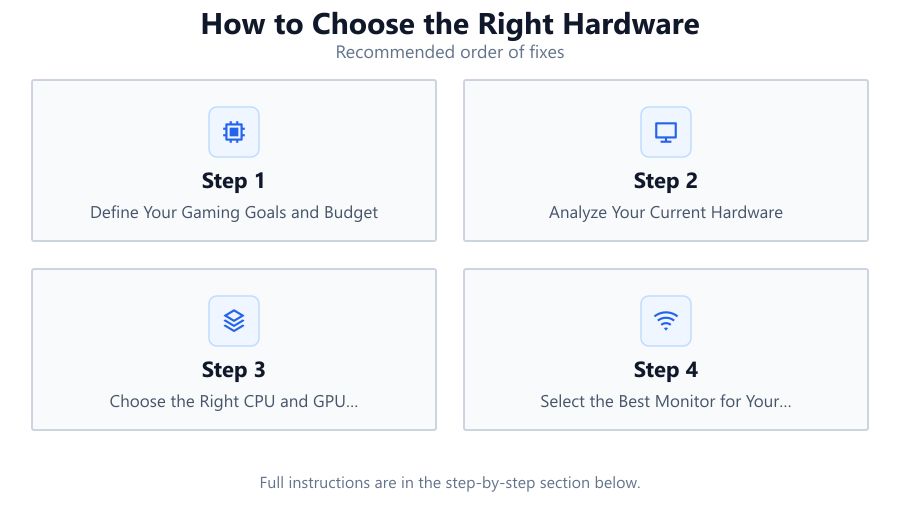
Define Your Gaming Goals and Budget
Start by identifying the types of games you play, your target resolution and frame rate, and your total budget. Are you focused on competitive FPS titles, immersive RPGs, or creative content as well? Your goals will shape every hardware decision.
Analyze Your Current Hardware
Take inventory of your existing components. Use tools like the Gaming Monitor Calculator to see if your GPU matches your current or planned monitor. This step helps you decide what needs upgrading versus what can be reused.
Choose the Right CPU and GPU Combination
Balance your CPU and GPU to avoid bottlenecks. For gaming, prioritize a strong GPU, but do not neglect the CPU, especially for newer titles or multitasking. Check game benchmarks and compatibility with your planned monitor.
Select the Best Monitor for Your Setup
Monitor choice is crucial. Use the Gaming Monitor Calculator to input your GPU and gaming preferences. Get recommendations on resolution, refresh rate, panel type, and screen size that match your hardware and maximize your experience.
Future-Proof Your System
Plan for the next few years by choosing components with headroom for upcoming games. Opt for a quality power supply, ample RAM, and a motherboard that allows for upgrades. This helps you avoid frequent, costly upgrades.
Comparison
| Component | Entry Level | High-End | Future-Proof |
|---|---|---|---|
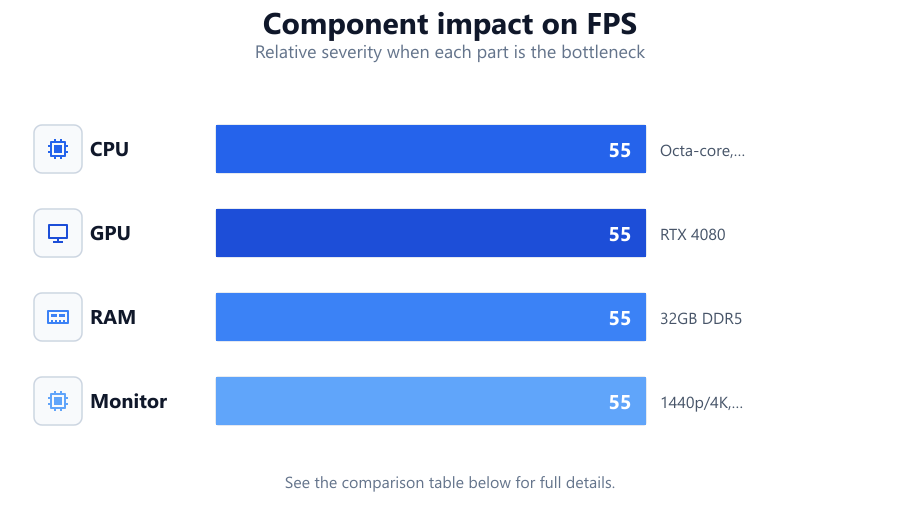
| CPU | Quad-core, 3.5GHz | Octa-core, 4.5GHz+ | Socket supports next-gen chips |
| GPU | GTX 1650 | RTX 4080 | PCIe 5.0, 12GB+ VRAM |
| RAM | 8GB DDR4 | 32GB DDR5 | Expandable to 64GB |
| Monitor | 1080p, 60Hz, TN | 1440p/4K, 240Hz, IPS | HDMI 2.1, VRR support |
Common mistakes
Mistake
Pairing a powerful GPU with a low refresh rate or low resolution monitor.
Fix: Use the Gaming Monitor Calculator to ensure your monitor matches your GPU's potential.
Mistake
Underestimating the importance of CPU in modern games.
Fix: Check the recommended CPU specs for your favorite games and balance your budget accordingly.
Mistake
Ignoring compatibility between components, such as motherboard sockets or RAM speed.
Fix: Research each part and verify compatibility before purchasing.
Mistake
Choosing a small power supply that cannot handle future upgrades.
Fix: Select a quality PSU with extra wattage for future components.
Troubleshooting
Games stutter or have inconsistent frame rates.
Likely cause: CPU or GPU bottleneck, or RAM is insufficient.
What to do: Upgrade your bottlenecked component or add more RAM.
Monitor shows 'no signal' after upgrading GPU.
Likely cause: Wrong input selection or unsupported resolution/refresh rate.
What to do: Check cable connections and set compatible monitor settings via another display if needed.
PC shuts down under load or during gaming.
Likely cause: Insufficient or failing power supply.
What to do: Upgrade to a higher wattage, reputable PSU.
Visual tearing or stuttering on screen.
Likely cause: Mismatch between GPU output and monitor refresh rate.
What to do: Enable adaptive sync features or use the Gaming Monitor Calculator to find compatible hardware.
Recommendations
- Use the Gaming Monitor Calculator before buying a new display to ensure it matches your GPU and gaming goals.
- Balance your budget between CPU, GPU, and monitor rather than overspending on a single component.
- Prioritize a fast SSD for your operating system and favorite games for much faster load times.
- Invest in a quality power supply and cooling to extend the life of your hardware.
- Leave room for upgrades by choosing a motherboard and case that support future components.
Frequently asked questions
How do I know if my GPU is bottlenecking my system?
Monitor your GPU and CPU usage during gameplay. If your GPU is consistently at 100 percent while the CPU is low, your graphics card is the bottleneck. Use the Gaming Monitor Calculator for tailored advice.
Is it worth upgrading my monitor if I already have a decent one?
If your current monitor cannot display the frame rates or resolutions your GPU is capable of, upgrading can greatly enhance your gaming experience. The Gaming Monitor Calculator can help you determine if an upgrade is beneficial.
How much RAM do I need for gaming in 2026?
16GB is the minimum for most games, but 32GB is recommended for newer titles, multitasking, or future-proofing.
What is the most important hardware upgrade for gaming?
The GPU has the biggest impact on gaming, but it must be balanced with a capable CPU and a monitor that matches its output.