
Guide
How to Choose the Right Hardware
Choosing the right hardware can be overwhelming, but with a clear process and the right tools like our GPU Upgrade Calculator, you can upgrade your PC confidently for real-world performance gains.
Updated 2026-07-05
Understanding the Hardware Selection Process
Building or upgrading a PC is more than just picking the latest parts. The right hardware must fit your needs, budget, and existing components. Whether you are gaming, editing videos, or improving everyday performance, picking compatible and balanced parts ensures stable performance and value.
Start by identifying your main use cases. A gaming rig will have different priorities compared to a workstation for professional workloads. This step helps narrow down which components matter most for your workflow or favorite games.
Compatibility is crucial. Your choices for CPU, GPU, RAM, and storage must work together seamlessly. Check socket types, power requirements, and physical dimensions to avoid costly mistakes. Using tools like the GPU Upgrade Calculator can simplify the process of comparing upgrade options, especially for graphics cards.
Prioritizing Components and Assessing Real-World Performance
Not all upgrades deliver the same impact. For gamers, the GPU is often the most important, while content creators may need more RAM or a faster CPU. Assess your current system's bottlenecks using monitoring tools or benchmark results.
The GPU Upgrade Calculator is invaluable here. By comparing your current graphics card with potential upgrades, you can see projected FPS gains, power usage, and cost-per-frame value. This data-driven approach prevents overspending on minimal improvements.
Factor in future-proofing, but avoid chasing specs you will not need. Instead, aim for a balanced build. A powerful GPU paired with a weak CPU or insufficient RAM will not deliver peak performance. Also, consider your power supply's capacity and your case's airflow to support new components.
Step-by-step
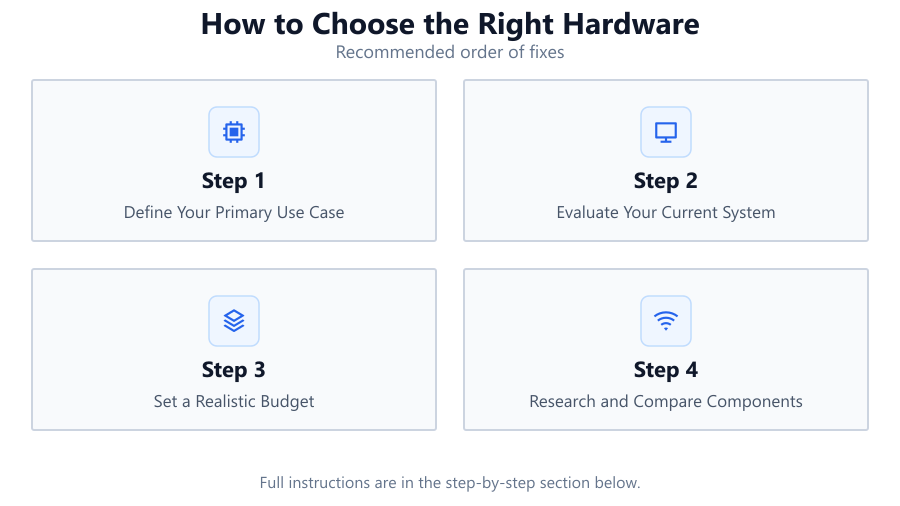
Define Your Primary Use Case
List your top priorities, such as gaming, streaming, content creation, or productivity. This will guide which components to upgrade and what performance metrics matter most.
Evaluate Your Current System
Use system monitoring tools to identify bottlenecks. Note your CPU model, GPU, RAM amount, storage type, and power supply specifications.
Set a Realistic Budget
Determine how much you are willing to spend. Factor in not just the cost of the hardware, but also potential upgrades like a PSU or cooling.
Research and Compare Components
Consult trusted benchmarks and user reviews. Use the GPU Upgrade Calculator to compare your current GPU to potential upgrades, focusing on FPS gains, efficiency, and value.
Check Compatibility and Future-Proofing
Ensure your chosen parts fit your motherboard, case, and power supply. Consider how long the upgrade will meet your needs without significant performance loss.
Plan the Upgrade Process
Create a step-by-step plan for installation. Back up your data, gather necessary tools, and update drivers after upgrading to avoid compatibility issues.
Comparison
| Component | Performance Impact | Upgrade Considerations |
|---|---|---|
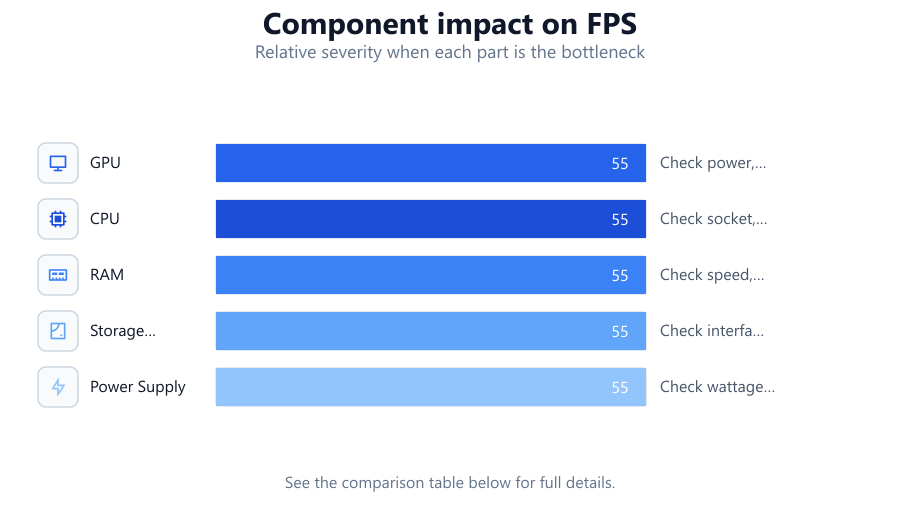
| GPU | High for gaming and rendering | Check power, size, and compatibility. Use GPU Upgrade Calculator. |
| CPU | High for productivity and multitasking | Check socket, BIOS, and cooling requirements. |
| RAM | Moderate for multitasking and some games | Check speed, type, and motherboard slots. |
| Storage (SSD/HDD) | Faster load times and responsiveness | Check interface (SATA/NVMe) and capacity. |
| Power Supply | Stability and upgrade headroom | Check wattage, efficiency, and connectors. |
Common mistakes
Mistake
Upgrading the GPU without checking power supply capacity
Fix: Always verify your PSU has enough wattage and the right connectors for your new graphics card.
Mistake
Ignoring motherboard compatibility
Fix: Check socket type, RAM support, and physical space before buying new components.
Mistake
Focusing only on one component
Fix: Balance your upgrades. Pair high-end GPUs with capable CPUs and sufficient RAM for best results.
Mistake
Neglecting cooling requirements
Fix: Ensure your case and cooling solution can handle any increase in heat from more powerful hardware.
Troubleshooting
PC does not boot after hardware upgrade
Likely cause: Loose connections or incompatible components
What to do: Double-check all power and data connections. Verify all parts are compatible with your motherboard and PSU.
Poor performance after upgrade
Likely cause: Driver conflicts or outdated BIOS
What to do: Update all drivers and your motherboard's BIOS. Reinstall GPU drivers if necessary.
System shuts down under load
Likely cause: Insufficient power supply or overheating
What to do: Ensure your PSU meets the wattage requirements and check your cooling system for dust or blockages.
New GPU not detected
Likely cause: Incorrect installation or lack of additional power
What to do: Reseat the GPU, ensure PCIe power cables are connected, and check BIOS settings.
Recommendations
- Use the GPU Upgrade Calculator to make data-driven decisions before purchasing.
- Balance your upgrades across CPU, GPU, and RAM for optimal system performance.
- Regularly update drivers and system BIOS to ensure compatibility with new hardware.
- Check trusted benchmarks and reviews to validate the real-world performance of your chosen components.
- Consider future-proofing, but avoid overspending on features you will not use in the near term.
Frequently asked questions
How do I know which component will give me the biggest performance boost?
Identify your system's bottleneck using monitoring tools. For most gamers, the GPU is key, while for multitasking or productivity, CPU and RAM may matter more. Use the GPU Upgrade Calculator to compare potential gains.
Is it worth upgrading just one component or should I upgrade multiple parts?
It depends on your system's weakest link. Sometimes a single upgrade, like a GPU, can make a big difference, but pairing it with a capable CPU and enough RAM prevents bottlenecks.
What should I check before buying a new graphics card?
Confirm your power supply can handle the new card, your case has enough space, and your motherboard supports the required interface. Use the GPU Upgrade Calculator to project performance and value.
How can I make sure my upgrades are compatible with my current setup?
Check your motherboard's specifications for CPU socket, supported RAM, and expansion slots. Verify power and cooling requirements. Consult your case's maximum supported GPU length.