
Guide
Common Buying Mistakes
Avoid common buying mistakes when building a PC or server for large language models. Learn how to estimate the right GPU VRAM and make smarter choices.
Updated 2026-07-05
Understanding Common Buying Mistakes for LLM Hardware
Buying hardware for running large language models is more complex than most realize. The rapid evolution of AI models like Llama, GPT, and Mistral means that what worked last year may not be sufficient today. Too many buyers jump in based on brand reputation, flashy specs, or hearsay, only to discover performance bottlenecks or wasted resources.
A key mistake is misunderstanding how GPU VRAM requirements are calculated. People often assume that more VRAM is always better, but overspending on unused capacity or buying an underpowered card can both be costly errors. The LLM VRAM Calculator helps demystify this process by allowing users to input model size, quantization, and context length, instantly revealing real VRAM needs. This makes it easier to match your hardware to your workload, and avoid common pitfalls.
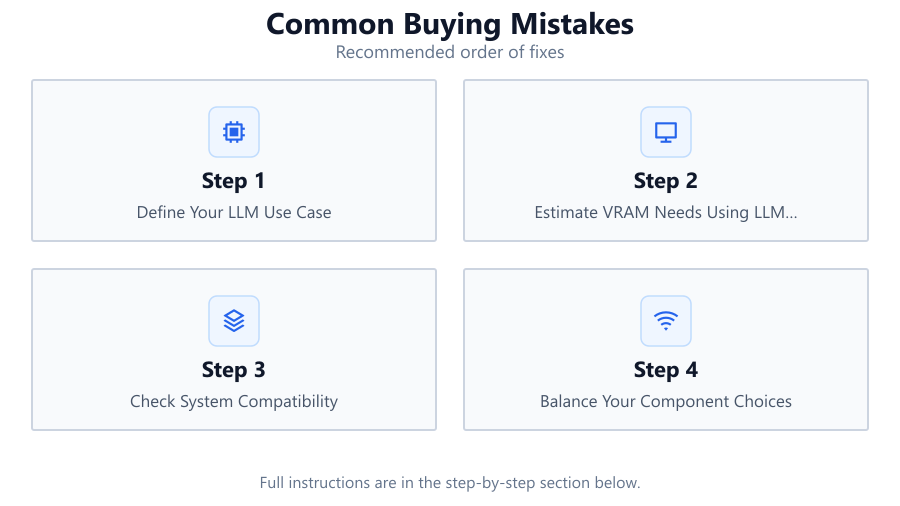
Additionally, buyers may overlook the impact of related system components such as CPU, RAM, or storage, focusing only on GPU. This tunnel vision can lead to unbalanced builds that bottleneck performance elsewhere. A holistic approach, guided by accurate VRAM calculations and a clear understanding of your specific use case, is essential for an efficient and cost-effective system.
In-Depth: The Most Frequent Mistakes (and How to Avoid Them)
One of the most prevalent mistakes is underestimating the memory footprint of your chosen LLM model. Many users look at the base model size and forget to factor in context length, quantization effects, and the overhead required for smooth operation. The LLM VRAM Calculator is designed specifically to address this gap, showing how each parameter impacts total GPU memory usage.
Another error is focusing exclusively on GPU specs without considering compatibility or power requirements. For example, purchasing a cutting-edge graphics card that your motherboard, PSU, or case cannot support is a recipe for frustration and extra expense. Always check your system’s overall capabilities and ensure you have adequate cooling, power, and physical space for your chosen hardware.
Budget allocation is another area where mistakes are common. Some buyers overspend on top-tier GPUs but neglect system RAM or storage speed, both of which are critical for efficient LLM inference. Remember that a balanced system, guided by real workload analysis, delivers consistently better results than one skewed by hype.
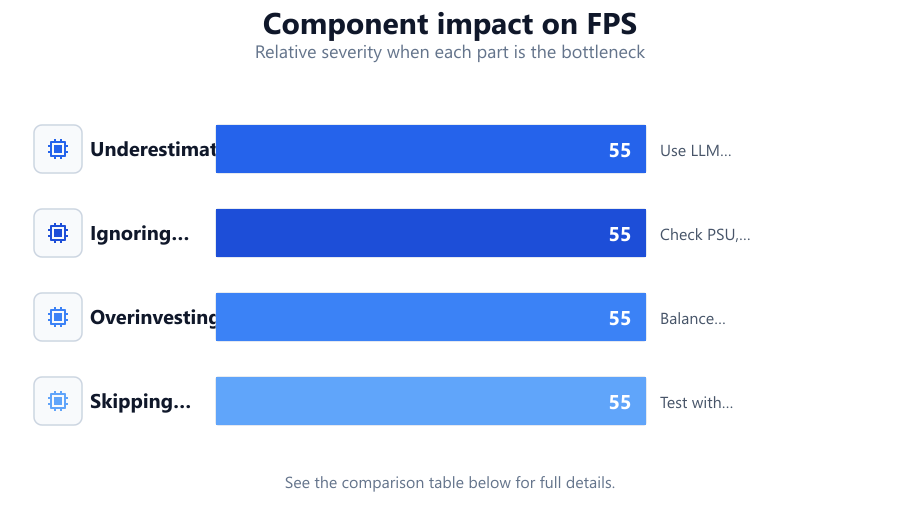
Lastly, skipping proper benchmarking and testing is a frequent oversight. Even if your build looks perfect on paper, real-world workloads may reveal performance limitations. Use synthetic benchmarks and actual LLM tasks to validate your hardware choices before committing to large investments.
Step-by-step
Define Your LLM Use Case
Start by identifying the specific language model and workload you plan to run. Different models and use cases have dramatically different hardware requirements. Will you be running inference, training, or both? Are you prioritizing speed, efficiency, or cost?
Estimate VRAM Needs Using LLM VRAM Calculator
Input your model size, quantization level, and context length into the LLM VRAM Calculator. This tool provides an accurate estimate of GPU VRAM required, helping you avoid both overbuying and bottlenecks.
Check System Compatibility
Ensure that your chosen GPU will fit in your case, is supported by your motherboard, and that your power supply can handle the load. Consider PCIe slot availability, physical dimensions, and airflow.
Balance Your Component Choices
Allocate your budget across GPU, CPU, RAM, and storage. Do not overspend on one component at the expense of others. Make sure system RAM and storage speed are sufficient for your LLM workloads.
Test and Benchmark Before Committing
Before making large purchases, run benchmarks or small-scale tests with borrowed or rented hardware if possible. Validate that your projected performance matches reality for your specific LLM tasks.
Comparison
| Mistake | Consequence | Solution |
|---|---|---|
| Underestimating VRAM needs | Model fails to run or crashes | Use LLM VRAM Calculator for accurate planning |
| Ignoring power and size | GPU does not fit or causes instability | Check PSU, case, and motherboard specs |
| Overinvesting in GPU only | Overall system bottlenecked by RAM or CPU | Balance spending across all components |
| Skipping benchmarks | Real-world performance lower than expected | Test with actual LLM workloads before buying |
Common mistakes
Mistake
Assuming more VRAM is always better
Fix: Use the LLM VRAM Calculator to determine the optimal VRAM for your specific needs, avoiding unnecessary expense.
Mistake
Neglecting system compatibility
Fix: Verify that your GPU choice matches your motherboard, power supply, and case requirements before purchasing.
Mistake
Focusing only on GPU specs
Fix: Ensure that CPU, RAM, and storage are also sufficient to avoid system bottlenecks.
Mistake
Not considering future model updates
Fix: Allow some headroom in your VRAM calculations to accommodate new models or larger context lengths.
Troubleshooting
LLM model fails to load or crashes unexpectedly
Likely cause: Insufficient GPU VRAM for the selected model and context length
What to do: Recalculate VRAM requirements with the LLM VRAM Calculator and upgrade GPU if needed
System becomes unstable during heavy inference
Likely cause: Power supply cannot handle GPU power draw
What to do: Upgrade to a higher wattage, quality PSU that meets or exceeds GPU requirements
Slow performance despite having a high-end GPU
Likely cause: Insufficient system RAM or slow storage bottlenecking data flow
What to do: Increase RAM to recommended levels and use fast NVMe storage for LLM datasets
Recommendations
- Always use the LLM VRAM Calculator before buying a GPU for AI workloads.
- Balance your budget across GPU, CPU, RAM, and storage for best results.
- Allow some VRAM headroom to handle future model updates or higher context lengths.
- Test and benchmark your system with real LLM workloads before scaling up investments.
- Check manufacturer and community compatibility lists to avoid hardware conflicts.
Frequently asked questions
How much VRAM do I need for running Llama or GPT models?
It depends on model size, quantization, and context length. Use the LLM VRAM Calculator for an accurate estimate based on your specific workload.
What happens if I buy a GPU with too little VRAM?
Your model may fail to load, crash, or run extremely slowly. Always check VRAM requirements with the LLM VRAM Calculator before purchasing.
Is it better to overspend on GPU or upgrade other parts?
A balanced system is best. Overspending on GPU while neglecting RAM, CPU, or storage can create performance bottlenecks.
How do I future-proof my build for upcoming LLM models?
Allow extra headroom in your VRAM calculations and monitor model trends. The LLM VRAM Calculator can help you plan for expanded context lengths or larger models.