
Guide
How to Choose the Right Hardware
Choosing the right hardware is essential for running large language models efficiently. This guide explains everything you need to know before you buy.
Updated 2026-07-05
Understanding Your Hardware Needs
Selecting the right hardware for running large language models is more complex than traditional PC builds. With AI workloads, especially LLMs like Llama, GPT, or Mistral, the hardware demand, particularly GPU VRAM, can be much higher than for gaming or general productivity.
The most critical component is your GPU, since LLMs rely heavily on VRAM for model loading and inference. However, CPU, RAM, and storage can also influence performance and experience. Before shopping, clarify your main use cases: are you running chatbots, experimenting with fine-tuning, or deploying models for multiple users? Each scenario requires a different hardware balance.
A key pitfall is underestimating your VRAM needs. Standard consumer GPUs may fall short for larger models. That's why tools like the LLM VRAM Calculator are invaluable, they let you estimate VRAM requirements based on model size, quantization, and context length, helping you avoid expensive mistakes.
Key Components Explained
GPU: For LLMs, VRAM is king. Models like GPT-3 13B or Llama 70B can require 24GB or more of VRAM, especially at higher precisions. Consider GPUs like the NVIDIA RTX 4090, RTX 6000 Ada, or A100 for demanding workloads. If your needs are modest, even a 12GB card may suffice for smaller models or quantized variants.
CPU: While not as critical as the GPU, the CPU handles data preprocessing, orchestration, and can bottleneck multi-user or multi-threaded workloads. Aim for a modern multi-core processor, Ryzen 7000, Intel 13th Gen, or Xeon/EPYC for servers.
RAM: LLM workloads can be memory intensive, especially if you host multiple models or sessions. 32GB is a safe minimum, but 64GB or more is recommended for research or production.
Storage: SSDs offer faster load times for models and datasets. NVMe drives are preferred, especially if you swap models or process large datasets regularly.
Network: If your models serve remote users or you use distributed inference, solid networking (at least gigabit ethernet) is essential. Hardware compatibility and power supply stability also matter, especially for high-wattage GPUs.
Before purchasing, use the LLM VRAM Calculator to simulate your needs. Adjust model size, quantization, and context length to see how your choices affect VRAM requirements. This ensures your investment matches your actual workloads and future proofs your setup.
Step-by-step
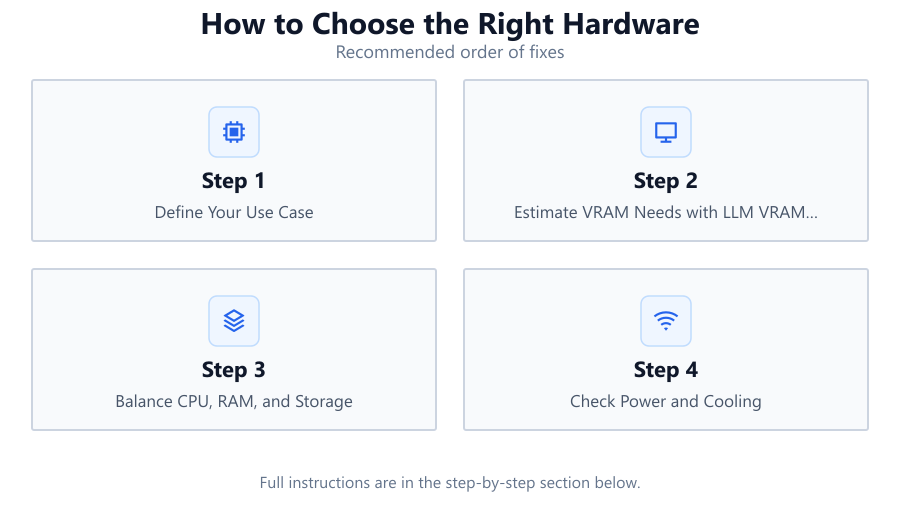
Define Your Use Case
Clarify whether you will use LLMs for experimentation, production, fine-tuning, or multi-user inference. Different scenarios have different hardware requirements.
Estimate VRAM Needs with LLM VRAM Calculator
Input your expected model size, quantization, and context length into the LLM VRAM Calculator. This reveals the minimum GPU VRAM you need and prevents costly over or under-spec purchases.
Balance CPU, RAM, and Storage
Select a CPU, RAM, and storage configuration that complements your GPU. For most users, a modern multi-core CPU, 32GB+ RAM, and NVMe SSD offer smooth operation.
Check Power and Cooling
Ensure your power supply can handle the GPU’s requirements and that your case has adequate airflow, especially for high-TDP cards.
Plan for Scalability
Consider future needs. If you might run larger models or serve more users, invest in hardware with headroom, or choose components that are easy to upgrade.
Verify Compatibility and Support
Check that your motherboard, PSU, and OS support your chosen GPU and other components. Look for vendor driver support for AI workloads.
Comparison
| GPU Model | VRAM | Suitable For |
|---|---|---|
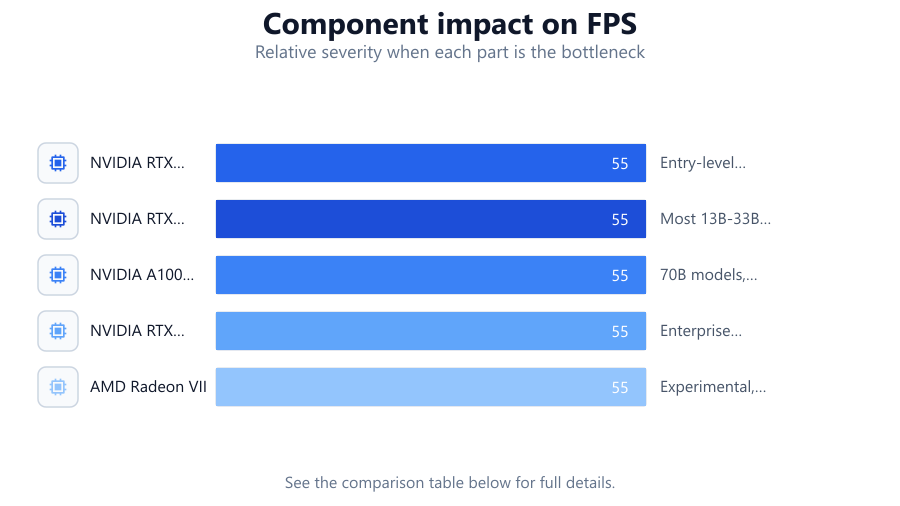
| NVIDIA RTX 3060 | 12GB | Entry-level LLMs, 7B models, quantized |
| NVIDIA RTX 4090 | 24GB | Most 13B-33B models, research, multi-user |
| NVIDIA A100 40GB | 40GB | 70B models, production, multi-instance |
| NVIDIA RTX 6000 Ada | 48GB | Enterprise inference, large models |
| AMD Radeon VII | 16GB | Experimental, open-source LLMs |
Common mistakes
Mistake
Underestimating VRAM requirements
Fix: Always use the LLM VRAM Calculator to match your model and context size to the required VRAM.
Mistake
Over-investing in CPU at the expense of GPU
Fix: Allocate your budget to GPU first, then balance other components as needed.
Mistake
Neglecting power and cooling needs
Fix: Ensure your PSU and cooling solution can handle the GPU’s demands, especially with high-end cards.
Mistake
Choosing consumer GPUs for 70B+ models
Fix: Opt for workstation or data center GPUs if you need to run very large models reliably.
Troubleshooting
Model fails to load or crashes
Likely cause: Insufficient GPU VRAM for the selected model and context size
What to do: Use the LLM VRAM Calculator to check your requirements, and reduce model size or upgrade your GPU.
Slow inference speeds
Likely cause: CPU or RAM bottleneck, or running on PCIe 3.0 slots
What to do: Upgrade CPU or RAM, or use PCIe 4.0/5.0 compatible hardware for the GPU.
System shuts down under load
Likely cause: Insufficient power supply or inadequate cooling
What to do: Upgrade your PSU to a higher wattage and improve case airflow or GPU cooling.
Recommendations
- Use the LLM VRAM Calculator before buying any hardware to avoid overspending or under-provisioning.
- Prioritize GPU VRAM for LLM workloads, and choose CPUs and RAM that support your usage scenario.
- Invest in a high-quality power supply and efficient cooling, especially for high-end GPUs.
- If you plan to scale up, select components with upgrade paths and strong vendor support.
Frequently asked questions
Why is GPU VRAM so important for LLMs?
LLMs require large amounts of VRAM to load models and process data in real time. Insufficient VRAM leads to crashes or poor performance.
Can I run LLMs on consumer GPUs?
Yes, but only smaller models or those with quantization. Larger models need workstation or data center GPUs with more VRAM.
How do I know how much VRAM I need?
Use the LLM VRAM Calculator to estimate VRAM needs based on model size, quantization, and context length.
Is RAM or CPU more important than GPU for LLMs?
GPU VRAM is the top priority. However, enough RAM and a capable CPU ensure smooth data handling and prevent bottlenecks.