
Guide
Optimization Guide
Unlock the full potential of your monitor, laptop, or phone by following this optimization guide. Learn how to use the PPI Calculator to achieve superior display clarity and accurate pixel density.
Updated 2026-07-05
Understanding Display Optimization and PPI
Display optimization is the process of fine-tuning your monitor, laptop, or phone to achieve the best possible clarity and sharpness. This involves adjusting settings based on your device's true pixel density, which is measured as pixels per inch (PPI). Accurate PPI ensures that text, images, and videos appear crisp, reducing eye strain and providing a better user experience.
The PPI Calculator is an essential tool for determining your screen's actual pixel density. By entering your device's screen size and resolution, you can compare screens accurately and make informed decisions about scaling, font size, and other display settings.
Optimizing your display is especially important if you use your device for design, gaming, or professional work where visual detail matters. Understanding PPI helps you avoid common pitfalls, such as blurry graphics or poorly scaled interfaces.
Once you have your PPI value, you can apply this information to adjust operating system settings, application preferences, and even hardware choices. This optimization guide will walk you through every step needed to maximize your display's potential.
How to Optimize Your Screen Using the PPI Calculator
To get the most out of your display, you need to go beyond basic settings and leverage the power of precise pixel density measurements. The PPI Calculator provides the exact value needed to align your screen settings for optimal clarity.
Start by gathering your monitor's or device's diagonal size (in inches) and native resolution (in pixels). Input these values into the PPI Calculator to receive your screen's actual PPI. This number is the foundation for all further optimization steps.
With your PPI known, you can set your operating system's scaling factor to match your display's capabilities. For example, Windows and macOS allow you to adjust scaling so that text and UI elements are neither too large nor too small. Designers and gamers can use PPI data to ensure assets are displayed at true-to-life sizes, maintaining accuracy for editing or competitive play.
Advanced users may even use PPI results to compare multiple monitors or devices, ensuring consistency across a multi-display setup. The PPI Calculator is also helpful when purchasing new hardware: by comparing PPI values, you can choose a device that matches your preferences for sharpness and readability.
Throughout this optimization guide, we will cover step-by-step procedures, highlight common mistakes, and provide troubleshooting advice to ensure your screens always look their best.
Step-by-step
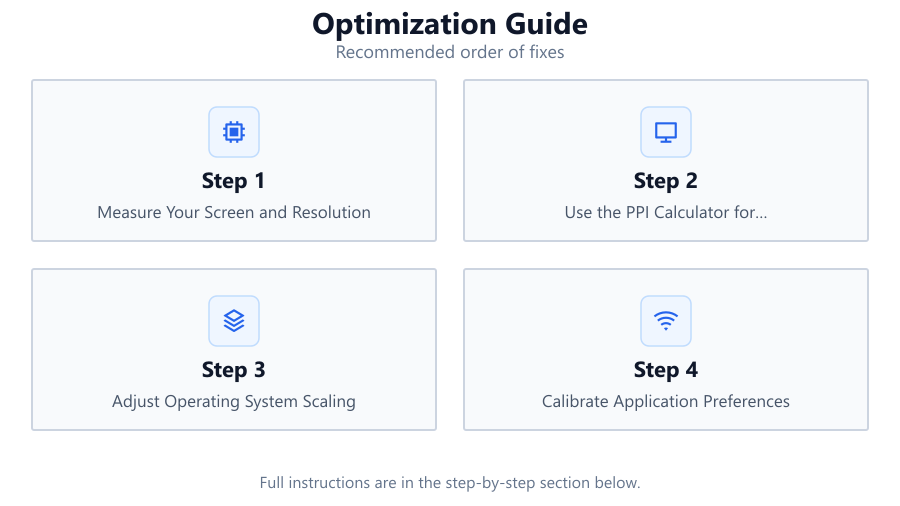
Measure Your Screen and Resolution
Find your device's diagonal screen size (in inches) and its native resolution (width and height in pixels). These values are typically found in your device's specifications or settings menu.
Use the PPI Calculator for Accurate Pixel Density
Go to the PPI Calculator and enter your screen size and resolution. The tool will instantly provide your screen's PPI, which you will use for further optimization.
Adjust Operating System Scaling
Based on your calculated PPI, set your OS scaling to ensure text and images are crisp and properly sized. On Windows, go to Display Settings. On macOS, use the Display Preferences.
Calibrate Application Preferences
Many apps allow you to adjust scaling or zoom based on your needs. Use your PPI value as a guide to set interface elements and preview sizes for optimal clarity.
Compare and Match Multiple Displays
If you use more than one monitor, use the PPI Calculator for each display. Adjust settings so that all screens show content at consistent sizes, reducing confusion and improving workflow.
Test and Refine Your Setup
Open various applications and documents to ensure everything appears sharp and readable. Make minor adjustments to scaling or font sizes as needed until you reach your preferred display quality.
Comparison
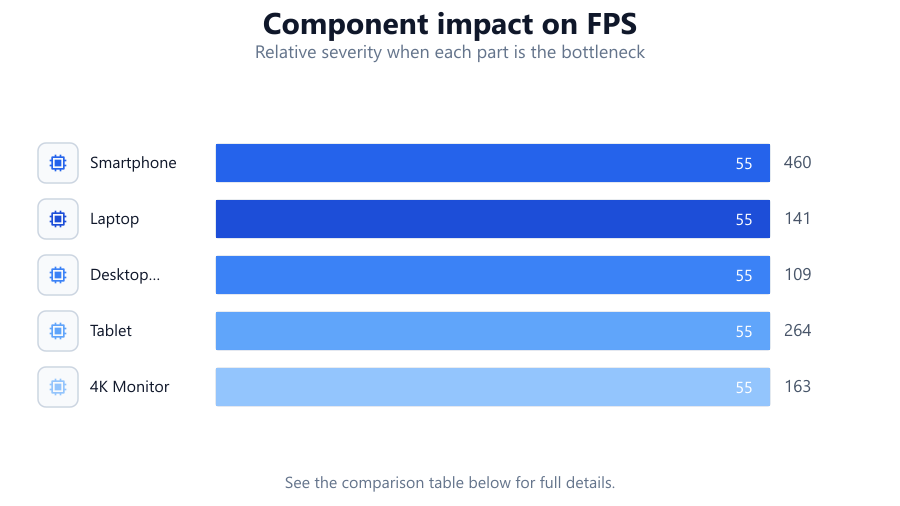
| Device Type | Screen Size (inches) | Typical PPI |
|---|---|---|
| Smartphone | 6.1 | 460 |
| Laptop | 15.6 | 141 |
| Desktop Monitor | 27 | 109 |
| Tablet | 10.5 | 264 |
| 4K Monitor | 27 | 163 |
Common mistakes
Mistake
Using incorrect screen size or resolution values
Fix: Always verify your device's specifications before entering data into the PPI Calculator.
Mistake
Ignoring PPI differences between multiple monitors
Fix: Calculate PPI for each display and adjust scaling to match, ensuring a consistent experience.
Mistake
Setting OS scaling without considering true PPI
Fix: Base your scaling decisions on the PPI value provided by the PPI Calculator, not just what looks right at a glance.
Mistake
Overlooking application-specific scaling options
Fix: Check individual app settings for scaling or zoom preferences and adjust them according to your calculated PPI.
Troubleshooting
Text appears blurry or too small
Likely cause: Incorrect scaling or PPI value applied
What to do: Recalculate your PPI using the PPI Calculator and adjust your scaling settings accordingly.
UI elements are inconsistent across multiple monitors
Likely cause: Mismatch in PPI or scaling settings between displays
What to do: Use the PPI Calculator on each monitor and align scaling factors for consistency.
Images look pixelated or stretched
Likely cause: Wrong resolution or scaling setting for the display
What to do: Set your monitor to its native resolution and adjust scaling based on your PPI calculation.
Recommendations
- Always use the PPI Calculator before changing scaling settings.
- Double-check your screen size and resolution for accurate results.
- Update your graphics drivers to support the best display quality.
- Regularly review your display settings after OS or hardware updates.
- When buying new hardware, compare PPI values to ensure consistent clarity.
Frequently asked questions
What is PPI and why does it matter?
PPI stands for pixels per inch. It measures how many pixels are present in each inch of your screen. A higher PPI means sharper, clearer images and text. Accurate PPI ensures your display settings match your device's capabilities.
How do I find my screen size and resolution?
Screen size is the diagonal measurement, usually in inches. Resolution is the width and height in pixels. You can find both in your device's specifications or the display settings menu.
Can I use the PPI Calculator for any device?
Yes, the PPI Calculator works for monitors, laptops, phones, tablets, and even TVs. Enter the correct screen size and resolution to get accurate results for any display.
How often should I recalculate my PPI?
You only need to recalculate your PPI when switching displays, changing resolution, or purchasing a new device. It is good practice to check PPI when updating your setup.