24-inch 1080p Monitor
PPI = sqrt(1920² + 1080²) ÷ 24 = sqrt(3,686,400 + 1,166,400) ÷ 24 = sqrt(4,852,800) ÷ 24 ≈ 2,202.91 ÷ 24 ≈ 91.8 PPI
- Resolution
- 1920x1080, Size: 24 inches

FREE PPI CALCULATOR
Need to know the exact pixels per inch (PPI) for your monitor, laptop, or phone? Enter your screen size and resolution to see the true pixel density and compare screens accurately.
Enter resolution and size, then calculate
This PPI calculator measures the pixel density of any display. Enter your screen’s diagonal size in inches and its native resolution, and the tool outputs the precise pixels per inch. This lets you compare monitors, laptops, tablets, or smartphones by how sharp their images will look.
PPI (pixels per inch) is crucial for understanding display clarity. Higher numbers mean crisper text, finer details, and less visible pixel structure at normal viewing distances. The calculator works for any device that lists a screen size and resolution, from a 15.6-inch gaming laptop to a 6.7-inch smartphone.
To get your display’s PPI, enter two numbers: the physical diagonal size in inches (not centimeters), and the native resolution (width and height in pixels). Most manufacturers list these specs on product pages or manuals. For example, a typical 27-inch monitor might be 2560x1440 pixels.
Once you enter the values, the calculator instantly shows the PPI. You can use this for any screen: desktop monitors, MacBook Pros, Steam Deck, Samsung Galaxy phones. If you’re unsure of the physical size, measure the screen diagonally (just the display, not the bezels) with a tape measure.
The calculator uses the standard PPI formula:
PPI = sqrt(width² + height²) / diagonal size (in inches)
For example, a 1920x1080 screen with a 24-inch diagonal:
This method accounts for both horizontal and vertical resolution. It calculates the pixel density as it appears physically on the screen, so you get an apples-to-apples comparison between all display types.
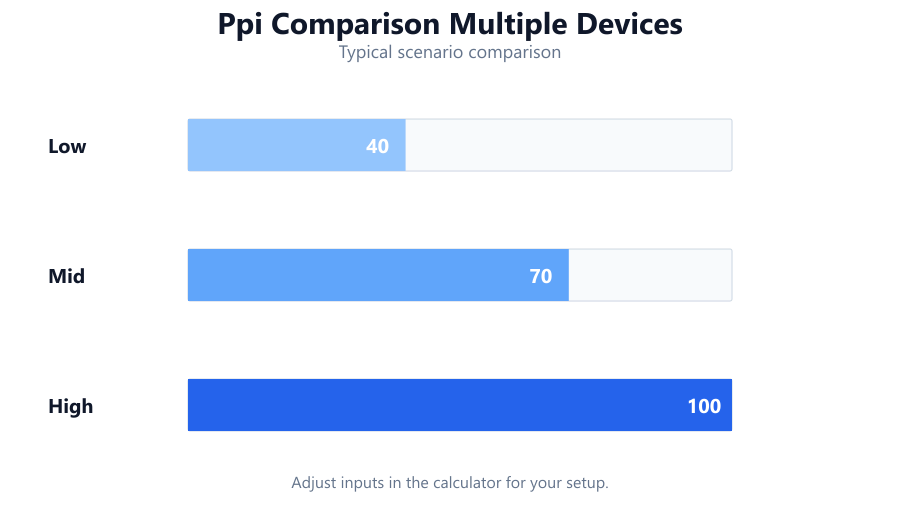
What do your PPI results mean in real use? A higher PPI number means denser pixels and sharper details. For example, most modern smartphones exceed 400 PPI, making pixels invisible to the naked eye at normal viewing distances. Desktop monitors typically range from 90 PPI (1080p, 24 inch) to 163 PPI (4K, 27 inch).
If your result is below 100 PPI, you’ll notice jagged text and less crisp images, especially on large monitors. Between 110 and 140 PPI is typical for high-end laptops and professional displays. Above 200 PPI, images and fonts look extremely sharp, even up close. However, higher PPI also means UI elements and text may appear smaller unless you use scaling settings.
PPI = sqrt(1920² + 1080²) ÷ 24 = sqrt(3,686,400 + 1,166,400) ÷ 24 = sqrt(4,852,800) ÷ 24 ≈ 2,202.91 ÷ 24 ≈ 91.8 PPI
PPI = sqrt(2560² + 1440²) ÷ 27 = sqrt(6,553,600 + 2,073,600) ÷ 27 = sqrt(8,627,200) ÷ 27 ≈ 2,937.57 ÷ 27 ≈ 108.8 PPI
PPI = sqrt(3456² + 2234²) ÷ 16.2 = sqrt(11,943,936 + 4,990,756) ÷ 16.2 = sqrt(16,934,692) ÷ 16.2 ≈ 4,114.0 ÷ 16.2 ≈ 254 PPI
PPI = sqrt(1280² + 800²) ÷ 7.4 = sqrt(1,638,400 + 640,000) ÷ 7.4 = sqrt(2,278,400) ÷ 7.4 ≈ 1,509.43 ÷ 7.4 ≈ 204 PPI
PPI = sqrt(3120² + 1440²) ÷ 6.8 = sqrt(9,734,400 + 2,073,600) ÷ 6.8 = sqrt(11,808,000) ÷ 6.8 ≈ 3,437.6 ÷ 6.8 ≈ 505.5 PPI
PPI = sqrt(3840² + 2160²) ÷ 32 = sqrt(14,745,600 + 4,665,600) ÷ 32 = sqrt(19,411,200) ÷ 32 ≈ 4,405 ÷ 32 ≈ 137.7 PPI
Choosing a monitor for photo or video editing: Check if the PPI is high enough to avoid visible pixels in detailed images. For example, a 27-inch 4K display offers over 160 PPI, which is ideal for retouching.
Comparing laptop displays: Many gaming laptops use 15.6-inch screens at 1080p or 1440p. Enter specs to see which model gives sharper visuals.
Smartphone buyers: See if a new phone has higher pixel density than your current one. This helps compare sharpness between models like the iPhone 15 Pro and Galaxy S24.
Retro gaming or emulation builds: Some prefer lower PPI for a more authentic CRT look, while others want maximum sharpness.
UI scaling and accessibility: High PPI displays require software scaling for readable text. This calculator helps determine if scaling will be necessary.
Always use the native resolution. Calculating PPI with a non-native (scaled) resolution gives misleading results because the screen’s pixel grid does not change.
Don’t measure the bezel. Screen size is the actual display area, not the full device or housing.
Beware manufacturer rounding. Some brands round diagonal sizes (e.g., a '15.6-inch' might be 15.58 inches). For the most accurate results, measure the screen yourself if possible.
PPI is not the only factor in sharpness. Subpixel arrangements (like RGB stripe vs. Pentile OLED) affect perceived clarity. Use the calculator as a starting point, not the final word.
The PPI calculator gives a fast, accurate way to compare pixel density on any display, from 4K monitors to OLED smartphones. Just enter the diagonal size in inches and the native resolution, and you get a clear number to compare sharpness across devices. High PPI means crisper images, but may require scaling for comfortable text. Always double-check screen size and resolution for the best results.
A PPI calculator tells you the pixel density (pixels per inch) of a display by combining its screen size (in inches) and resolution (in pixels). This number helps you compare sharpness between monitors, laptops, tablets, or smartphones. If you want to know how crisp text and images will look, or if a display is good for photo editing or gaming, checking its PPI is essential.
To calculate PPI, you need the screen’s native resolution (width and height in pixels) and the diagonal size in inches. Enter these into the calculator. The formula is: PPI = sqrt(width² + height²) divided by diagonal size. For example, a 2560x1440 display at 27 inches is about 108.8 PPI.
For desktop monitors, 90-110 PPI is standard for 1080p, while 140-160 PPI is typical for 4K. Laptops often range from 110 to 220 PPI, with premium ultrabooks and MacBooks hitting higher numbers. For most users, anything above 110 PPI looks sharp for daily work. If you do design or high-res photo editing, aim for 140 PPI or more.
Higher PPI usually means sharper images and text, but there are limits. Above about 220 PPI, most people can't see individual pixels at normal viewing distances. Other factors, like color accuracy, contrast, and subpixel layout, also affect image quality. Excessively high PPI may make text and icons too small unless you use scaling.
Yes, you can calculate PPI for any display that lists its diagonal size and native resolution, including TVs and projectors. For projectors, use the projected image size rather than the device’s physical size. Keep in mind that very large screens at low resolutions will yield low PPI.
TVs are much larger than phones, so the same number of pixels is spread over a bigger area. For example, a 55-inch 4K TV has a PPI of about 80, while a 6.7-inch 1440p smartphone can exceed 500 PPI. Phones need higher pixel density because you hold them closer to your eyes.
PPI (pixels per inch) refers to the pixel density of a digital screen. DPI (dots per inch) is a printing term for the density of ink dots on paper. Some people use the terms interchangeably for screens, but PPI is technically correct when talking about monitors, laptops, and phones.
Most monitors and laptops list the resolution and diagonal size on the product label, manual, or manufacturer’s website. You can also check display settings in Windows, macOS, or Linux. For screen size, measure diagonally from one corner of the active area to the opposite corner, excluding bezels.
No, PPI is based on the physical pixel grid and display size, not software scaling. Windows or macOS scaling just enlarges UI elements; it doesn’t change the actual pixel density. Always use the display’s native resolution for accurate PPI.
On high PPI monitors, each UI element uses fewer physical pixels, making text and icons appear smaller. Operating systems use scaling settings (like 150% or 200%) to make things readable. Without scaling, a 27-inch 4K monitor at 163 PPI displays text and windows much smaller than a 1080p monitor.
Yes, the PPI calculator works for both OLED and LCD screens. However, perceived sharpness may differ due to subpixel layouts (like Pentile OLED, which uses fewer subpixels per pixel). The PPI number gives a physical density, but viewing experience can vary by panel type.
Not always. Higher PPI gives sharper game graphics, but it also means your GPU must render more pixels at higher resolutions. For example, running games at 4K on a 27-inch 163 PPI monitor requires an RTX 4070 or better for high frame rates. Balance sharpness and performance for your use case.
The shape (curved, flat, ultrawide) doesn’t affect PPI calculation. It’s still based on the pixel resolution and diagonal size. However, ultrawides often have lower vertical pixel counts, so their PPI may be lower than a 16:9 display of the same diagonal. Always enter the actual resolution and screen size.
Absolutely. Enter the tablet’s or console’s screen size in inches and its resolution. For example, the Steam Deck OLED’s 7.4-inch, 1280x800 display calculates to about 204 PPI. This helps compare sharpness with devices like the Nintendo Switch or iPad Mini.
Apple popularized the 'Retina' term to mean any display where pixels are not visible at typical viewing distances. For phones, this is usually around 300-400 PPI; for laptops, 220 PPI or higher. However, your eyesight and how close you sit matter. The PPI calculator helps identify when you’ve crossed that threshold.
Monitors are much larger and are typically viewed from farther away than phones. A 27-inch 1440p monitor (about 108 PPI) may seem less sharp compared to a 6.5-inch 1080p phone (about 339 PPI), but at normal viewing distances both can look very clear. PPI needs always depend on both size and usage distance.
Free tools to analyze, compare, and optimize your PC gaming performance
Check if your PC meets the requirements for these popular games
Benchmark data from PassMark and publisher specs. Calculators run locally in your browser — we never upload your hardware info.