
Guide
How to Choose the Right Hardware
Choosing the right hardware is crucial for a powerful, reliable PC. This guide walks you through every step, from setting goals to avoiding common pitfalls.
Updated 2026-07-05
Why Choosing the Right Hardware Matters
Selecting the right PC hardware is the foundation of a fast, stable, and efficient system. Whether you are building your first computer or upgrading an older one, each component choice affects performance, compatibility, and futureproofing. The wrong choices can lead to bottlenecks, wasted money, and constant troubleshooting.
Hardware is not just about raw speed. Your needs, budget, and the applications you run all influence what makes sense for your build. Gamers, creators, and professionals all have different requirements. Power consumption, upgradability, and even noise should factor into your decisions.
This guide provides a clear, actionable process to help you choose hardware that matches your goals and avoids the most common mistakes. We will also highlight how tools like the PSU Efficiency Calculator can ensure your choices are both powerful and energy efficient.
Understanding Hardware Choices: Component by Component
Every PC is a sum of its parts. Let us break down the main hardware categories and what to consider for each.
CPU: The processor is the brain of your system. Choose based on your software workload, whether gaming, content creation, or multitasking. Look at core count, clock speed, and compatibility with your motherboard.
GPU: For gaming or GPU-heavy tasks, your graphics card is key. Consider VRAM, power consumption, and cooling needs. Make sure your case and PSU can support your selected card.
Motherboard: This determines compatibility for your CPU, RAM, and expansion slots. Features like VRM quality, connectivity (USB, M.2, Wi-Fi), and future upgradability matter.
RAM: Memory capacity and speed affect multitasking and application performance. 16GB is a baseline for most users, but 32GB or more is ideal for creators or heavy multitaskers.
Storage: SSDs deliver fast load times, while HDDs offer high capacity at low cost. NVMe drives provide the best performance for OS and apps.
Power Supply: Your PSU must deliver enough power for your components and operate efficiently. Using the PSU Efficiency Calculator helps you check actual power draw, ensuring you do not overspend or risk system instability.
Case and Cooling: Good airflow and adequate cooling keep components safe and quiet. Match case size to your hardware and ensure room for future upgrades.
Peripherals: Monitors, keyboards, and mice should fit your workflow. Do not neglect ergonomics and screen quality.
Step-by-step
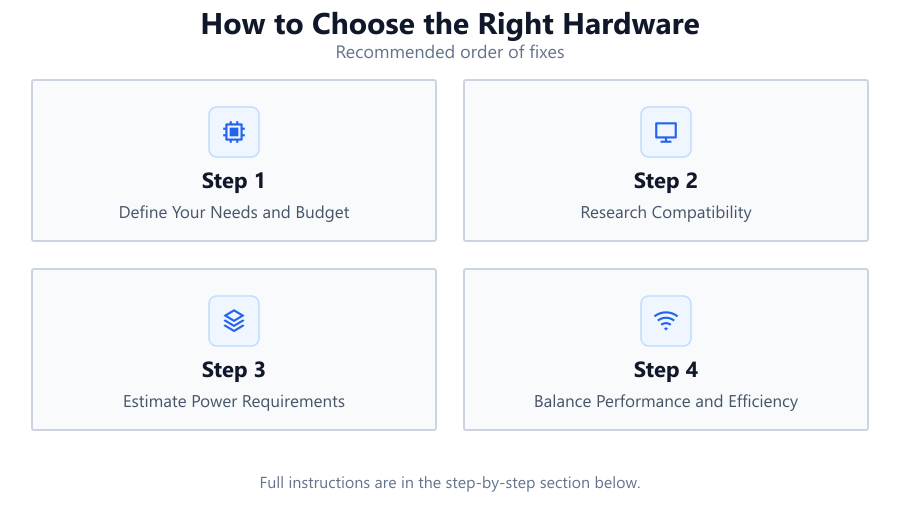
Define Your Needs and Budget
Identify what tasks your PC must handle: gaming, office work, content creation, or workstation use. Set a realistic budget, balancing performance and cost. Prioritize core components first.
Research Compatibility
Ensure your CPU, motherboard, RAM, and GPU are compatible. Check socket types, RAM speeds, and GPU slot requirements. Use manufacturer QVL (Qualified Vendor Lists) and community forums for up-to-date info.
Estimate Power Requirements
Calculate your system's total wattage using online tools and add a safety margin. Use the PSU Efficiency Calculator to check real-world power draw and efficiency, preventing underpowered or wasteful PSU choices.
Balance Performance and Efficiency
Select hardware that delivers the performance you need without excessive heat or power use. Mid-range CPUs and GPUs often offer the best value for most users. SSDs boost responsiveness and save energy.
Plan for Upgrades and Futureproofing
Choose a motherboard and case that allow for future upgrades. Select a PSU with enough headroom and high efficiency, confirmed with the PSU Efficiency Calculator, to support additional drives or a stronger GPU down the road.
Comparison
| Component | Budget Option | High-End Option |
|---|---|---|
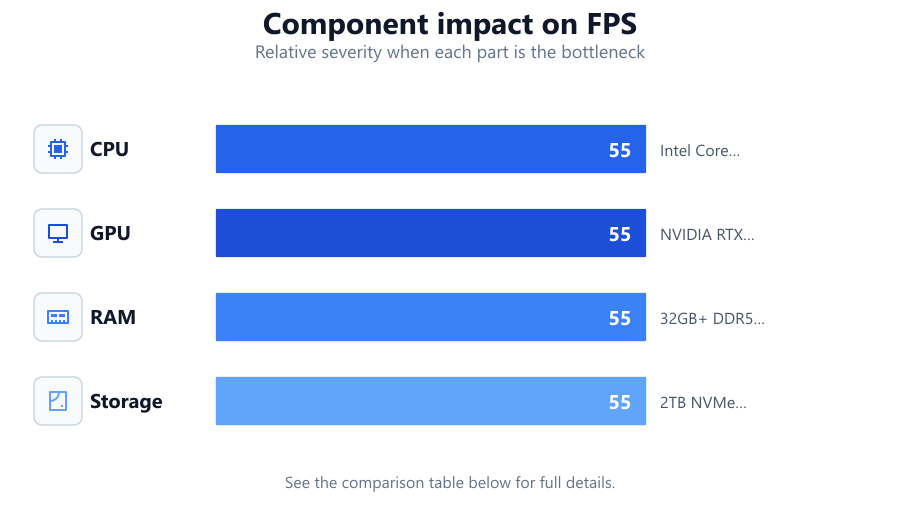
| CPU | Intel Core i3/Ryzen 3 | Intel Core i9/Ryzen 9 |
| GPU | NVIDIA GTX 1650/AMD RX 6500 XT | NVIDIA RTX 4090/AMD RX 7900 XTX |
| RAM | 16GB DDR4 3200MHz | 32GB+ DDR5 6000MHz |
| Storage | 500GB SATA SSD | 2TB NVMe PCIe 4.0 SSD |
Common mistakes
Mistake
Buying the most expensive parts without considering needs
Fix: Match hardware to your actual use case and budget, not just maximum specs.
Mistake
Ignoring PSU quality and efficiency
Fix: Use the PSU Efficiency Calculator to choose a reliable, efficient power supply that meets your system’s requirements.
Mistake
Overlooking component compatibility
Fix: Double-check all hardware specs, socket types, and size constraints before purchase.
Mistake
Focusing only on CPU and GPU
Fix: Balance your investment across RAM, storage, and cooling to avoid bottlenecks elsewhere.
Troubleshooting
PC fails to boot after assembly
Likely cause: Incompatible or improperly seated components
What to do: Recheck compatibility, reseat RAM and GPU, and ensure all power connectors are secure.
System shuts down during heavy load
Likely cause: PSU is underpowered or inefficient
What to do: Use the PSU Efficiency Calculator to verify your PSU’s adequacy, and upgrade if necessary.
Unexpectedly slow performance
Likely cause: Insufficient RAM or slow storage
What to do: Upgrade to faster or larger capacity RAM and install an SSD for your OS and main apps.
Loud or hot system
Likely cause: Poor airflow or inadequate cooling
What to do: Rearrange cables, add case fans, or upgrade the CPU cooler.
Recommendations
- Always plan your build from the ground up, considering both current and future needs.
- Use tools like the PSU Efficiency Calculator to ensure your power supply is neither overkill nor a bottleneck.
- Balance your budget across all components to avoid bottlenecks.
- Stick to reputable brands with strong support and warranties.
- Read current user reviews and benchmarks for real-world performance insights.
Frequently asked questions
How do I know if my hardware components are compatible?
Check CPU socket type, RAM type and speed, GPU slot, and PSU connectors. Use manufacturer compatibility lists and online PC part picker tools.
How much power supply wattage do I really need?
Estimate your system’s power draw and use the PSU Efficiency Calculator to confirm you have enough wattage plus a safety margin, ideally 10 to 20 percent above your peak load.
Is it worth getting a higher efficiency PSU?
Yes, higher efficiency PSUs waste less energy, run cooler, and are more reliable. The PSU Efficiency Calculator can show how much electricity you save over time.
Should I futureproof my build?
Aim for a balance. Choose components that meet your needs now but allow for upgrades, such as extra RAM slots or a higher wattage PSU.