
Guide
How to Choose the Right Hardware
Choosing the right hardware ensures your PC delivers the speed, visuals, and reliability you need. This guide breaks down every component so you can buy with confidence.
Updated 2026-07-05
Why Hardware Choice Matters
Selecting the right hardware is the foundation of a fast, responsive, and future-proof PC. Whether you are building from scratch or upgrading, your choices directly impact gaming performance, content creation, and daily workflows. Each part, from the CPU to the monitor, plays a unique role in how smoothly your system runs.
With so many options and technical specs, it is easy to feel overwhelmed. But understanding your priorities and matching components to your real needs will save money and frustration. The right hardware ensures compatibility, maximizes value, and allows for smooth upgrades later.
For gamers, refresh rate and frame times are crucial. The Refresh Rate Calculator helps you compare monitors by showing exactly how long each frame is displayed, making it easier to choose a display that suits your GPU and games. For creative professionals, CPU cores, RAM, and storage speed are often more important. This guide will walk you through the process, step by step, to help you choose the right hardware for any use case.
Component Breakdown and Decision Factors
Start by identifying your primary use: gaming, productivity, or mixed use. Gaming PCs prioritize graphics cards, high refresh rate monitors, and fast storage. Productivity setups may need more CPU cores, extra RAM, or color-accurate displays.
CPU: The processor acts as the brain of your system. For gaming, look for higher clock speeds and at least 6-8 cores. For video editing or heavy multitasking, consider 8 or more cores and support for fast memory.
GPU: The graphics card determines how well your PC handles games, 3D rendering, or GPU-accelerated workloads. Match your GPU to your monitor's resolution and refresh rate to avoid bottlenecks. Use the Refresh Rate Calculator to see if your graphics card can reliably push enough frames for your display.
RAM: 16GB is the sweet spot for most users, but 32GB may be needed for heavy multitasking or creative work. Faster RAM can benefit some workloads, but capacity is usually more important.
Storage: SSDs are a must for fast boot times and loading. NVMe SSDs offer even higher speeds compared to SATA SSDs. For games and media, consider adding a high-capacity HDD for bulk storage.
Motherboard: Choose a motherboard that supports your CPU, RAM, and expansion needs. Look for enough PCIe slots, USB ports, and future upgrade paths.
Monitor: Your monitor affects not just visuals but also how responsive your system feels. Higher refresh rates (120Hz, 144Hz, or more) are ideal for gaming. The Refresh Rate Calculator helps translate Hz into actual frame times, so you can see the real impact on smoothness.
Power Supply & Cooling: Do not overlook quality power supplies or adequate cooling. Reliable power and stable temperatures ensure longevity and performance.
Finally, balance your budget. Spend more on components that impact your main tasks, and avoid overspending on marketing features that do not benefit your workflow.
Step-by-step
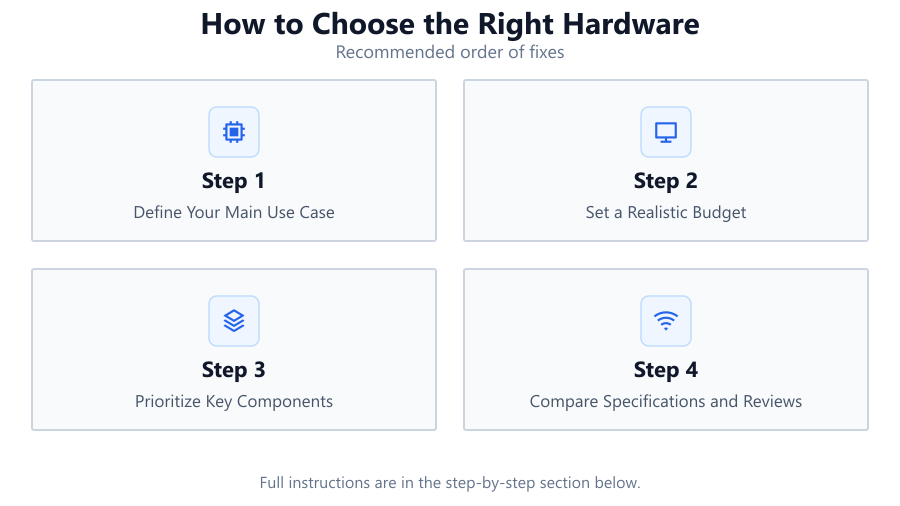
Define Your Main Use Case
Decide if your PC is for gaming, productivity, content creation, or general use. This shapes every hardware choice that follows and prevents wasted money on unnecessary features.
Set a Realistic Budget
Determine how much you can spend on your entire build or upgrade. Allocate more funds to the components that matter most for your tasks, such as GPU for gaming or CPU for editing.
Prioritize Key Components
Identify which parts are most critical for your needs. For gaming, focus on GPU and monitor. For workstation tasks, prioritize CPU, RAM, and storage. Always ensure compatibility across chosen parts.
Compare Specifications and Reviews
Research each component. Look beyond marketing claims and check real-world benchmarks, user reviews, and compatibility lists. Use tools like the Refresh Rate Calculator to compare monitors and ensure your system can deliver the performance you expect.
Plan for Future Upgrades
Select a motherboard, power supply, and case that allow future component upgrades. Leave room in your budget for RAM or storage expansion, and make sure your PSU can handle more powerful hardware later on.
Comparison
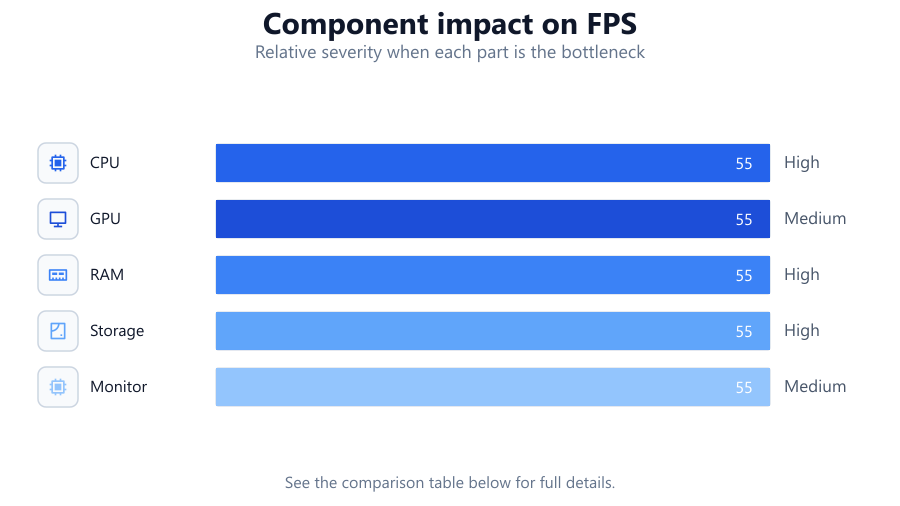
| Component | Gaming Priority | Productivity Priority |
|---|---|---|
| CPU | Medium | High |
| GPU | High | Medium |
| RAM | Medium | High |
| Storage | Medium | High |
| Monitor | High | Medium |
Common mistakes
Mistake
Focusing only on one component (like GPU) and neglecting others.
Fix: Balance your budget across CPU, RAM, storage, and monitor to avoid bottlenecks and wasted potential.
Mistake
Buying incompatible parts (wrong socket, RAM type, or PSU wattage).
Fix: Double-check all compatibility details before purchasing. Use online PC part checkers or the manufacturer's website.
Mistake
Ignoring monitor refresh rate when pairing with GPU.
Fix: Use the Refresh Rate Calculator to confirm your GPU can consistently drive your monitor's refresh rate for smooth gameplay.
Mistake
Underestimating the importance of power supply quality.
Fix: Choose a reputable PSU with enough wattage and the right connectors for your components. Avoid low-quality brands.
Troubleshooting
PC will not boot after new hardware installation.
Likely cause: Possible incompatible or improperly seated components.
What to do: Double-check all connections, ensure RAM and GPU are fully seated, and verify part compatibility.
Games stutter or frame rates are lower than expected.
Likely cause: GPU is not powerful enough for the monitor's resolution or refresh rate.
What to do: Lower in-game settings, double-check GPU specifications, and use the Refresh Rate Calculator to assess frame time needs.
Frequent crashes or blue screens under load.
Likely cause: Insufficient power supply or overheating components.
What to do: Check PSU wattage, improve case airflow, and ensure all cooling solutions are working properly.
Recommendations
- Use the Refresh Rate Calculator to match your GPU and monitor for optimal smoothness.
- Choose a motherboard that offers room for future upgrades in RAM, storage, and expansion cards.
- Prioritize an SSD for your operating system and main applications to ensure fast boot and load times.
- Invest in a reliable power supply and adequate cooling to prevent hardware failures.
Frequently asked questions
How do I know if my hardware choices are compatible?
Check manufacturer websites for CPU, motherboard, and RAM compatibility. Use online build planners and always verify socket, chipset, and power requirements before buying.
How important is monitor refresh rate for gaming?
Higher refresh rates provide smoother visuals. Use the Refresh Rate Calculator to see how different rates affect frame time and ensure your GPU can keep up.
Should I get more RAM or a faster GPU for gaming?
Most modern games benefit more from a better GPU. However, ensure you have at least 16GB of RAM for smooth multitasking and gaming performance.
What is the best way to future-proof my PC?
Choose a motherboard with extra RAM slots, invest in a high-quality PSU, and select a case that supports larger GPUs and more drives. Leave room in your budget for future upgrades.