
Guide
Common Problems This Test Finds
Wondering why your display feels sluggish or games look choppy? This guide highlights the common problems the Refresh Rate Test uncovers so you can fix them for a smoother experience.
Updated 2026-07-05
What Does the Refresh Rate Test Detect?
The Refresh Rate Test is a powerful, browser-based tool designed to expose issues that prevent your monitor from running at its optimal refresh rate. Whether you are gaming, editing video, or simply want a smoother desktop, ensuring your display operates at the correct frequency is critical for visual clarity and responsiveness.
Many users assume their monitors are running at the advertised 60Hz, 120Hz, 144Hz, or even higher. However, a surprising number of systems default to lower rates, either due to software settings, hardware limitations, or cable problems. The Refresh Rate Test instantly measures your real refresh rate, highlighting differences between claimed specs and actual output.
It also shows dropped frames, frame pacing irregularities, and stutter that can degrade your experience. By providing motion demos and real-time stats, the test makes it easy to spot issues that are not always visible in static images or simple system dialogs. This guide will break down the most frequent problems the test uncovers and offer practical solutions for each.
Key Issues Exposed by the Refresh Rate Test
One of the main reasons to use the Refresh Rate Test is to verify that your monitor and graphics card are communicating correctly. Common problems include refresh rates being capped lower than advertised, failure to engage variable refresh rate (VRR) features, and dropped or duplicated frames that cause visible judder.
Another frequent issue is cable or port limitations. For example, using HDMI 1.4 can cap your refresh rate at 60Hz even if your monitor and GPU support higher rates. The test helps you catch these mismatches before they impact your workflow or game performance.
The tool also identifies software misconfigurations, such as Windows or macOS defaulting to 60Hz after an update, or graphics drivers reverting to safe settings. Sometimes, background apps or system resource contention can cause inconsistent frame delivery, which the Refresh Rate Test makes visible through its stability and frame drop metrics.
By running this test, you can quickly diagnose whether the problem is hardware, software, or configuration related, and take action to optimize your setup for smooth, tear-free visuals.
Step-by-step
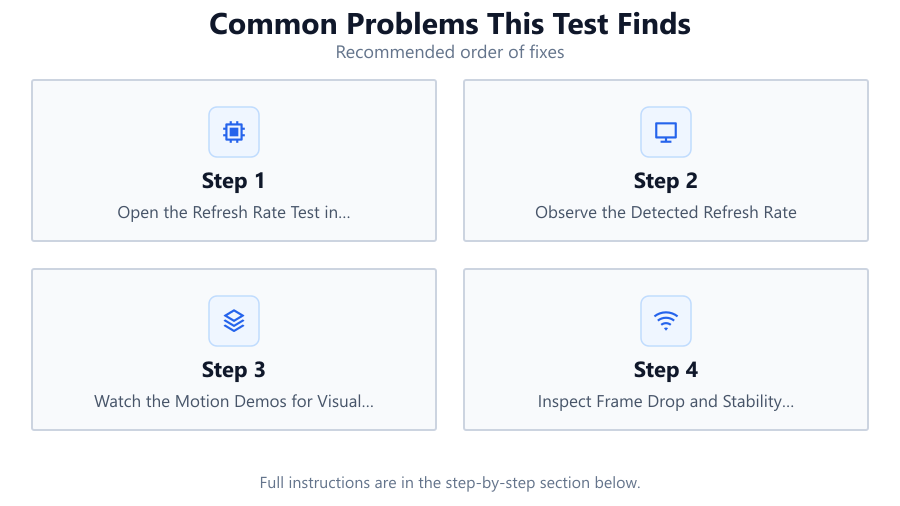
Open the Refresh Rate Test in Your Browser
Visit the Refresh Rate Test tool at SystemRequirements.net and allow it to access your display information. It works instantly in most browsers without installation.
Observe the Detected Refresh Rate
Check the measured refresh rate displayed by the tool. Compare this value to your monitor's advertised maximum (such as 60Hz, 120Hz, 144Hz, or higher).
Watch the Motion Demos for Visual Artifacts
Pay close attention to the motion demo section. Look for stutter, judder, or tearing, which can indicate frame delivery problems even if the Hz value seems correct.
Inspect Frame Drop and Stability Metrics
Review the stats for dropped or duplicated frames and refresh rate fluctuations. Consistent numbers mean your system is delivering frames smoothly, while spikes indicate problems.
Adjust System and Monitor Settings as Needed
If you spot issues, update your graphics drivers, check your display cable and port type, and verify settings in your operating system's display panel. Rerun the test until results match your monitor's specs.
Comparison
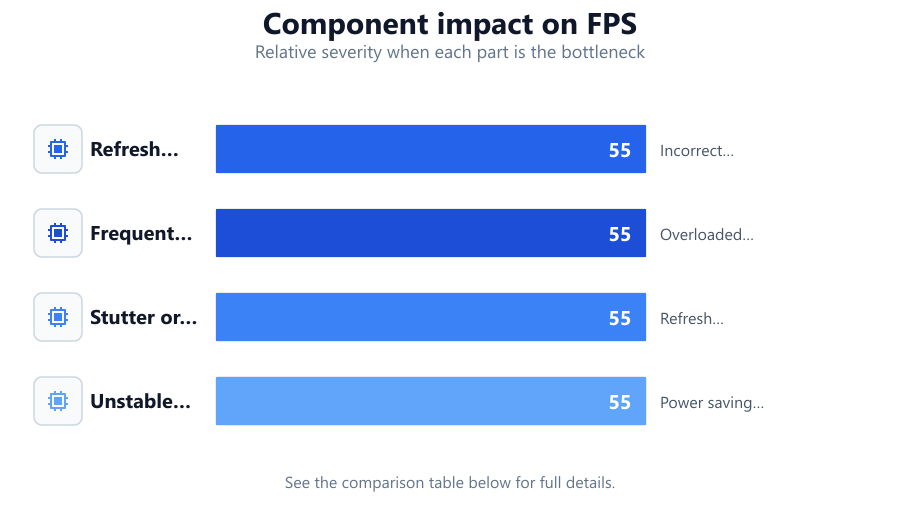
| Problem | How It Appears in Test | Common Causes |
|---|---|---|
| Refresh rate lower than advertised | Measured Hz value is below monitor spec | Incorrect OS settings, cable limits, outdated drivers |
| Frequent frame drops | High dropped frame count in stats | Overloaded system, background apps, driver bugs |
| Stutter or judder in motion | Choppy motion demo playback | Refresh rate mismatch, VRR not enabled |
| Unstable refresh rate | Hz value fluctuates during test | Power saving modes, resource contention |
Common mistakes
Mistake
Assuming your monitor is always running at its maximum refresh rate
Fix: Always verify with a tool like the Refresh Rate Test and check OS display settings after connecting a new monitor.
Mistake
Using the wrong cable or port for high refresh rates
Fix: Confirm you are using DisplayPort or HDMI versions that support your monitor's maximum Hz. Refer to your monitor and GPU specs.
Mistake
Ignoring frame drop and stability stats in the test results
Fix: Review all metrics provided by the Refresh Rate Test, not just the Hz value, to catch hidden issues.
Troubleshooting
The test shows 60Hz even though your monitor is 144Hz
Likely cause: Operating system is set to 60Hz or cable does not support higher rates
What to do: Change the refresh rate in Windows or macOS display settings and switch to a certified high-speed cable or DisplayPort.
Motion demo is choppy despite correct Hz value
Likely cause: Background processes or GPU resource contention
What to do: Close unnecessary apps, update graphics drivers, and check for thermal throttling or hardware limitations.
Refresh rate fluctuates or drops during the test
Likely cause: Power saving features or unstable system performance
What to do: Disable variable refresh rate or power-saving settings in your GPU and monitor menu. Ensure your system is not under heavy load.
Recommendations
- Always verify your monitor's operational refresh rate after driver or OS updates using the Refresh Rate Test.
- Use high-quality, certified cables and the correct port types to unlock higher refresh rates.
- Keep your graphics drivers up to date to maintain compatibility and performance.
- Routinely check for dropped frames or instability with the Refresh Rate Test, especially if you notice stutter or tearing in games or videos.
Frequently asked questions
Why does my monitor report a lower refresh rate than advertised?
This often happens due to default operating system settings, using a cable or port that does not support higher rates, or outdated drivers. Run the Refresh Rate Test, then check your display settings and hardware connections.
Can browser-based refresh rate tests like this accurately detect issues?
Yes. While not as precise as hardware instruments, the Refresh Rate Test is accurate for identifying most common problems with refresh rates, frame drops, and stability on modern systems.
What should I do if I see dropped frames in the test?
Close background applications, update your graphics drivers, and ensure your system is not under heavy load. Persistent issues may indicate hardware or cable problems.
How often should I run the Refresh Rate Test?
Run the test after changing cables, updating drivers, installing a new monitor, or if you notice visual problems like stutter or tearing. Regular checks help ensure optimal performance.