
Guide
How to Choose the Right Hardware
Choosing the right hardware can be overwhelming, but this guide breaks down the process step by step. Learn what to look for, compare options, and make smarter buying decisions.
Updated 2026-07-05
Understanding Your Hardware Needs
Knowing how to choose the right hardware starts with understanding your unique requirements. Are you building a gaming PC, upgrading a workstation, or setting up a home server? Each use case demands different priorities for CPU, RAM, storage, and graphics performance.
First, outline your main tasks. For gaming, prioritize a powerful GPU and fast SSD. For content creation, focus on CPU cores, RAM capacity, and high-speed storage. Office use or media streaming can often use more affordable options, but storage reliability and efficiency still matter.
Budget is another major consideration. Set a realistic limit and allocate funds based on the most critical components for your use case. Remember, bottlenecks can occur if one part is much slower than the rest. For example, pairing a high-end CPU with a slow SATA SSD can limit real-world performance. The SSD Speed Calculator tool is especially helpful here: it lets you compare transfer speeds between NVMe and SATA drives, helping you spot potential bottlenecks before you buy.
Evaluating Core Components
Once you know your needs, break down the main hardware categories:
CPU: The central processor determines how quickly your system can execute tasks. Look for recent-generation CPUs with enough cores and threads for your workload. For gaming, clock speed and single-core performance are key. For multitasking, more cores are better.
GPU: For gaming, 3D rendering, or video editing, the graphics card is critical. Compare VRAM, clock speed, and power requirements. Make sure your power supply can support your chosen GPU.
RAM: Memory is essential for smooth multitasking. 16GB is the sweet spot for most users, while creators or professionals may benefit from 32GB or more.
Storage: SSDs offer fast performance for boot and load times. NVMe drives are much faster than SATA SSDs. Use the SSD Speed Calculator to estimate real-world transfer speeds and decide if the extra investment in NVMe is justified for your workflow.
Motherboard: Ensure compatibility with your CPU, RAM, and storage. Check for enough PCIe slots, USB ports, and future upgrade support.
Power Supply: Choose a reliable unit with headroom for future upgrades. Check wattage and efficiency ratings.
Peripherals: Monitors, keyboards, and mice impact your day-to-day experience. Prioritize according to your primary tasks.
Step-by-step
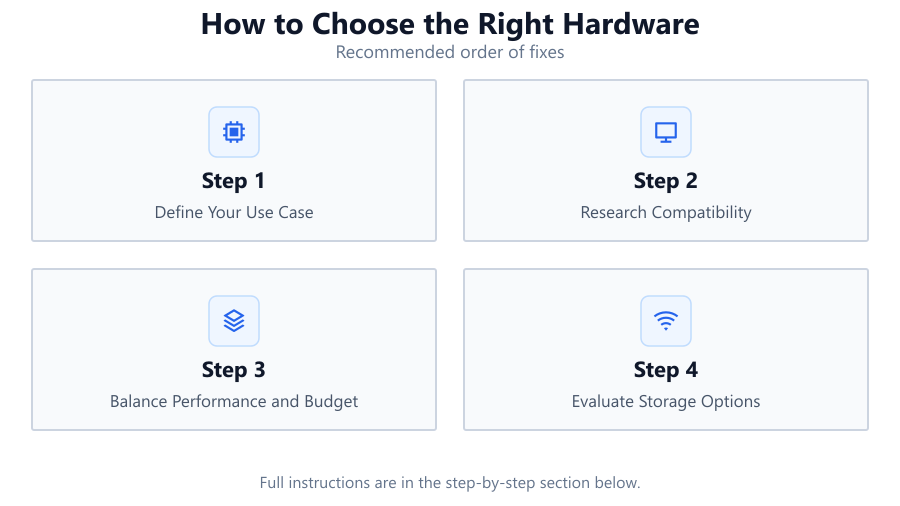
Define Your Use Case
List your main activities: gaming, editing, office work, or server tasks. This will determine which components need the most attention and budget.
Research Compatibility
Check that your chosen CPU, motherboard, RAM, and storage are all compatible. Use manufacturer websites and online PC part pickers to avoid mismatches.
Balance Performance and Budget
Allocate more of your budget to components that impact your main tasks the most. Avoid overspending on less critical parts.
Evaluate Storage Options
Decide between NVMe and SATA SSDs based on your speed needs. Use the SSD Speed Calculator to compare real-world transfer times for your typical files.
Plan for Future Upgrades
Select a motherboard and power supply that allow for upgrades. Leave spare RAM slots and consider extra storage bays for expansion.
Comparison
| Component | Entry Level | High Performance |
|---|---|---|
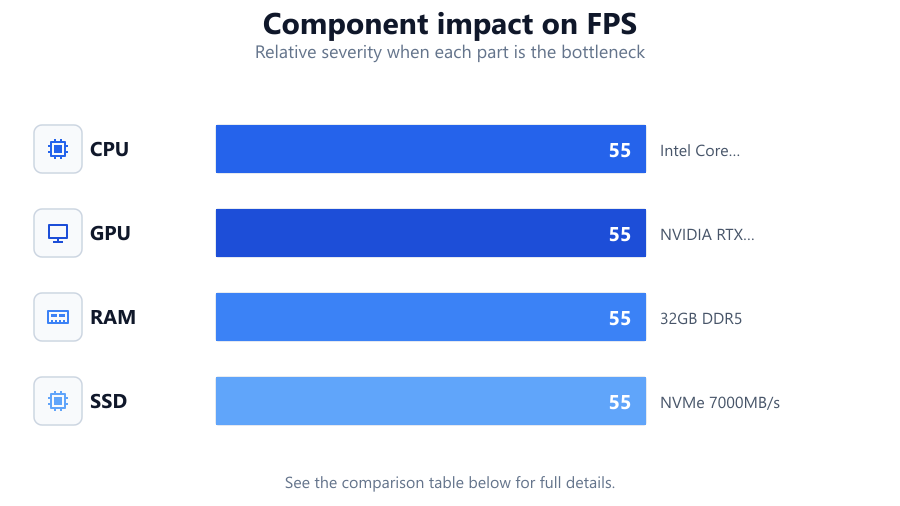
| CPU | Intel Core i3 / AMD Ryzen 3 | Intel Core i7/i9 / AMD Ryzen 7/9 |
| GPU | NVIDIA GTX 1650 / AMD RX 6400 | NVIDIA RTX 4070 / AMD RX 7900 XT |
| RAM | 8GB DDR4 | 32GB DDR5 |
| SSD | SATA 500MB/s | NVMe 7000MB/s |
Common mistakes
Mistake
Focusing only on one component
Fix: Balance your build: ensure your CPU, GPU, and storage are all appropriate for your needs to avoid bottlenecks.
Mistake
Ignoring storage speed differences
Fix: Compare NVMe and SATA SSDs using tools like the SSD Speed Calculator to understand real-world speed impacts.
Mistake
Overlooking power supply quality
Fix: Choose a reputable PSU with enough wattage and efficiency for your system, including future upgrades.
Troubleshooting
Slow file transfers
Likely cause: Using a SATA SSD instead of NVMe for large data moves
What to do: Use the SSD Speed Calculator to estimate transfer times and consider upgrading to NVMe where needed.
System instability or crashes
Likely cause: Incompatible RAM or insufficient power supply
What to do: Check part compatibility and ensure your PSU meets system requirements with some margin.
Poor gaming performance
Likely cause: GPU is underpowered for your monitor resolution or settings
What to do: Upgrade to a more capable GPU and check that your CPU is not bottlenecking performance.
Recommendations
- Always research and compare hardware before buying. Prioritize compatibility and balance across components.
- Use the SSD Speed Calculator to evaluate storage options and avoid speed bottlenecks.
- Allocate your budget according to your primary use case, not just brand names or marketing.
- Plan for future upgrades by leaving room in your build for more RAM or storage.
Frequently asked questions
How do I know if my hardware choices are balanced?
Check for bottlenecks by comparing component specs. Use tools like the SSD Speed Calculator to ensure storage keeps up with your CPU and RAM.
Is NVMe always better than SATA SSD?
NVMe is faster, but for basic office or web tasks, SATA may be sufficient. Use the SSD Speed Calculator to see if NVMe's speed justifies the extra cost for your needs.
How much RAM do I really need?
16GB is ideal for most users, while heavy multitaskers or professionals may need 32GB or more, depending on workload.
What is the most important component to upgrade first?
It depends on your main tasks. For gaming, upgrade the GPU first. For content creation, focus on CPU and RAM. For faster boot and file transfers, upgrade to an SSD.