
Guide
Optimization Guide
Unlock the full potential of your SSD with our comprehensive optimization guide. Learn actionable strategies to improve file transfer speeds, diagnose bottlenecks, and make informed hardware decisions using the SSD Speed Calculator.
Updated 2026-07-05
Understanding SSD Optimization
Solid State Drives have transformed PC storage with their blazing speeds and reliability. However, many users do not realize their SSDs are not always performing at peak potential. File transfer times can be held back by configuration issues, outdated firmware, or even mismatched hardware. This optimization guide will help you identify these common roadblocks and show you how to overcome them.
Effective SSD optimization involves more than just plugging in new hardware. It requires you to understand real-world performance, align your system settings, and select the right components for your needs. Using the SSD Speed Calculator, you can instantly estimate file transfer times and see how your drive compares to other NVMe and SATA options. This knowledge is key to spotting bottlenecks and planning upgrades.
By following the steps in this guide, you will learn to measure your SSD's current speed, interpret the results, and apply changes that deliver tangible performance gains. Whether you are moving large video files or running demanding applications, SSD optimization can save you time and improve your workflow.
Advanced Strategies for Real-World Performance
Once you have a grasp of SSD basics, it is time to dive into advanced optimization techniques that deliver real-world results. Many users focus on sequential read and write speeds, but random IO performance, interface bottlenecks, and drive health are equally important factors. The SSD Speed Calculator provides realistic transfer estimates by factoring in these complexities, helping you pinpoint where your setup may be falling short.
One essential optimization strategy is ensuring your SSD is connected using the fastest available interface. For example, NVMe drives connected via PCIe 4.0 offer significantly higher bandwidth than older SATA models. However, if your motherboard does not support these standards, your drive will only operate at the speed of the slowest link in the chain.
Another key area is keeping your SSD firmware up to date. Manufacturers regularly release updates that improve performance, fix bugs, and enhance compatibility. You should also monitor drive health using SMART diagnostics and avoid filling your SSD to capacity, as performance can drop when space runs low. Finally, aligning your file system and enabling features like TRIM will help maintain peak speeds for the long haul.
The SSD Speed Calculator is invaluable for testing the impact of these changes. By inputting your drive's specifications and workload, you can see how optimizations affect real transfer times and compare options before making a purchase.
Step-by-step
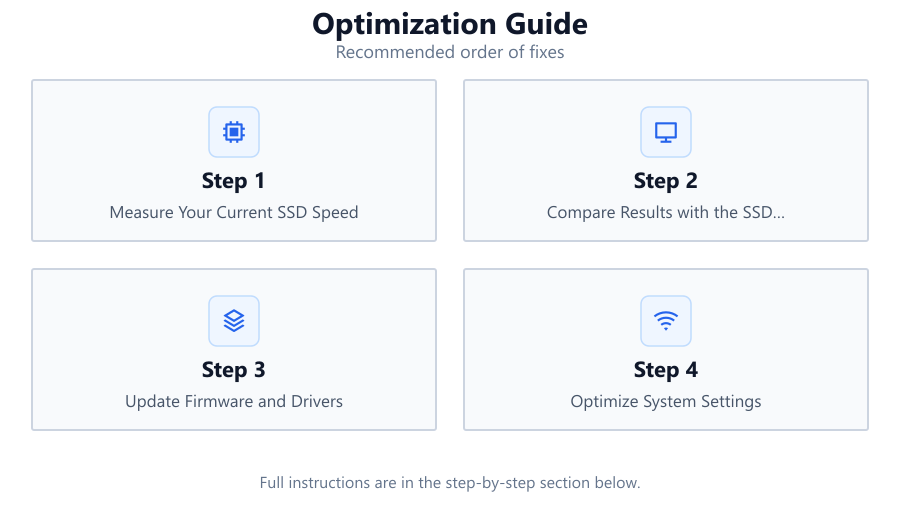
Measure Your Current SSD Speed
Begin by benchmarking your SSD using trusted tools. Record both sequential and random speeds. These numbers will be your baseline for further optimization.
Compare Results with the SSD Speed Calculator
Input your measured speeds into the SSD Speed Calculator. This will show how your drive performs in real-world scenarios and how it stacks up against NVMe and SATA standards.
Update Firmware and Drivers
Check your SSD manufacturer's website for the latest firmware updates. Install updated chipset and storage drivers for your motherboard to ensure maximum compatibility and speed.
Optimize System Settings
Enable AHCI mode in your BIOS if you have a SATA SSD. Make sure TRIM is enabled in your operating system. Disable unnecessary background tasks that may be slowing down file transfers.
Monitor and Maintain SSD Health
Regularly check your SSD's SMART status. Avoid filling the drive past 80 percent capacity. Schedule periodic performance checks with the SSD Speed Calculator to track ongoing performance.
Comparison
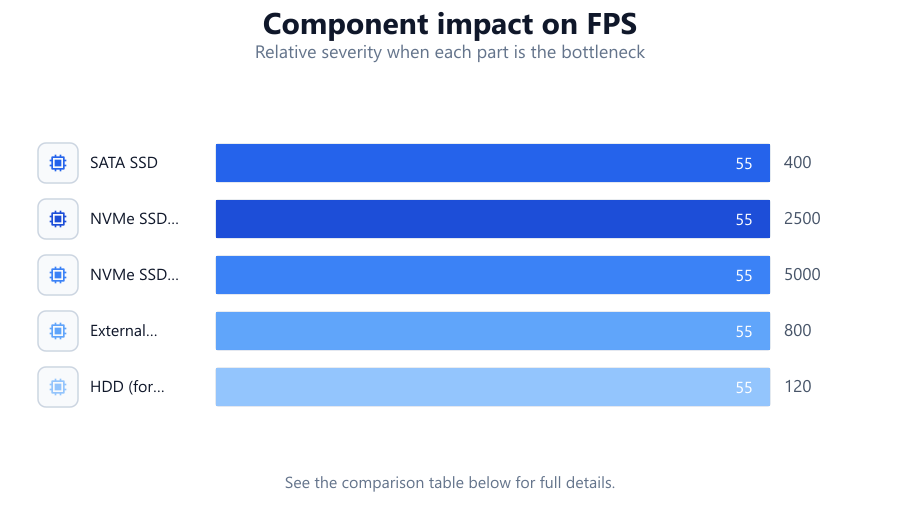
| Drive Type | Max Speed (MB/s) | Typical Real-World Speed (MB/s) |
|---|---|---|
| SATA SSD | 550 | 400 |
| NVMe SSD (PCIe 3.0) | 3500 | 2500 |
| NVMe SSD (PCIe 4.0) | 7000 | 5000 |
| External USB SSD | 1050 | 800 |
| HDD (for comparison) | 200 | 120 |
Common mistakes
Mistake
Using outdated firmware
Fix: Check for and install the latest firmware updates from your SSD manufacturer to improve performance and compatibility.
Mistake
Connecting NVMe SSD to the wrong slot
Fix: Install your NVMe SSD in a PCIe slot that matches the drive's capabilities, such as a PCIe 4.0 slot for PCIe 4.0 drives.
Mistake
Neglecting TRIM and system optimizations
Fix: Ensure TRIM is enabled in the operating system and optimize background processes to reduce unnecessary SSD wear.
Mistake
Filling SSD to near capacity
Fix: Keep at least 20 percent of your SSD free to maintain high transfer speeds and prolong drive life.
Troubleshooting
File transfers are slower than expected
Likely cause: SATA mode is not set to AHCI or drivers are outdated
What to do: Enable AHCI in BIOS and update storage drivers.
SSD speeds drop after heavy use
Likely cause: Drive is almost full or TRIM is not enabled
What to do: Free up space and ensure TRIM is active in your operating system.
System does not recognize full NVMe speed
Likely cause: NVMe SSD is installed in a lower-bandwidth slot
What to do: Move the SSD to a motherboard slot supporting full PCIe bandwidth.
Recommendations
- Regularly benchmark your SSD and compare with the SSD Speed Calculator to identify slowdowns early.
- Always use the fastest available interface supported by both your SSD and motherboard.
- Update firmware and drivers as part of routine maintenance.
- Avoid filling your SSD to capacity to keep speeds consistent.
- Use SMART monitoring tools to track drive health and longevity.
Frequently asked questions
How can the SSD Speed Calculator help me optimize my storage?
The SSD Speed Calculator lets you estimate file transfer times using your actual drive speeds, helping you identify bottlenecks and compare upgrade options before buying new hardware.
What is the difference between NVMe and SATA SSD speeds?
NVMe SSDs use the PCIe interface, offering much higher transfer rates than SATA SSDs. Real-world speeds can be several times faster, especially with PCIe 4.0 models.
Why do SSDs slow down as they fill up?
SSDs need free space to efficiently manage data. When near full, write operations become less efficient, causing slower speeds and higher wear.
Should I defragment my SSD?
No, defragmentation is not necessary for SSDs and may actually reduce their lifespan. Use TRIM and keep the drive updated for optimal performance.