
Guide
How to Choose the Right Hardware
Choosing the right hardware is essential for fast and efficient video exporting. Use this guide to identify your needs and make smart, future-proof hardware choices.
Updated 2026-07-05
Understanding Your Hardware Needs for Video Exporting
If you work with video editing or rendering, knowing how to choose the right hardware can save you hours on every project. The right combination of CPU, GPU, RAM, and storage directly impacts how quickly you can export or render your videos. With so many options on the market, making a smart choice requires understanding how each hardware component contributes to the video export process.
Different video codecs, resolutions, and project complexities put varying loads on your system. For example, exporting a 4K video with multiple effects is far more demanding than rendering a simple 1080p clip. Matching your hardware to your typical project workload ensures you avoid bottlenecks that slow down your workflow.
Before you buy, take stock of your current needs and predict how they might change as your projects grow. Are you working with short social videos or feature-length productions? Do you use advanced effects or stick to basic cuts? By defining your use case, you can better prioritize which hardware upgrades will give you the best performance boost.
Key Hardware Components for Faster Video Exports
CPU (processor) is the heart of video encoding and rendering. More cores and higher clock speeds mean faster processing, especially for software that is well-optimized for multi-threading. For video editors, choosing a CPU with at least 6 to 8 cores is ideal, but heavy users may benefit from 12 or more cores. Look for recent generations from Intel or AMD for improved efficiency and features.
The GPU (graphics card) accelerates rendering and encoding in many modern editing suites, especially with effects, color grading, or high-resolution footage. NVIDIA and AMD both offer GPUs with hardware video encoders (NVENC, VCE/VCN) that offload work from the CPU. If your software supports GPU acceleration, investing in a mid-range or high-end GPU can drastically reduce export times.
RAM (memory) ensures smooth playback and prevents slowdowns when handling large files or complex timelines. For HD projects, 16GB is the minimum, while 32GB or more is recommended for 4K workflows or heavy multitasking. Fast RAM helps, but capacity is usually more important than speed for video editing.
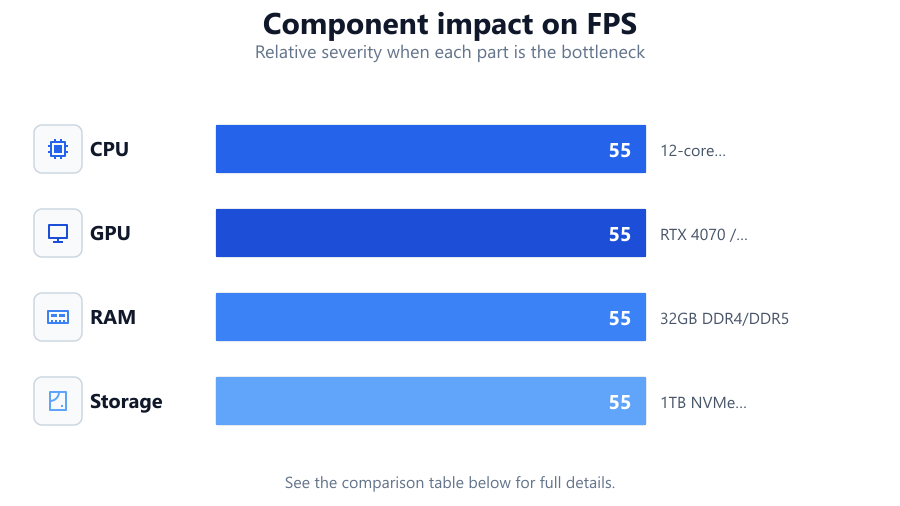
Storage type and speed also matter. SSDs (especially NVMe models) provide much faster read and write speeds than traditional hard drives, which translates to quicker project loading, smoother scrubbing, and faster exports. Consider a setup with a dedicated SSD for your current project files and a larger HDD or external storage for archival.
Finally, do not overlook your power supply, cooling, and case airflow. Efficient cooling prevents thermal throttling during long exports, while a stable power supply protects your investment. Make sure your system can handle upgrades as your needs grow.
Step-by-step
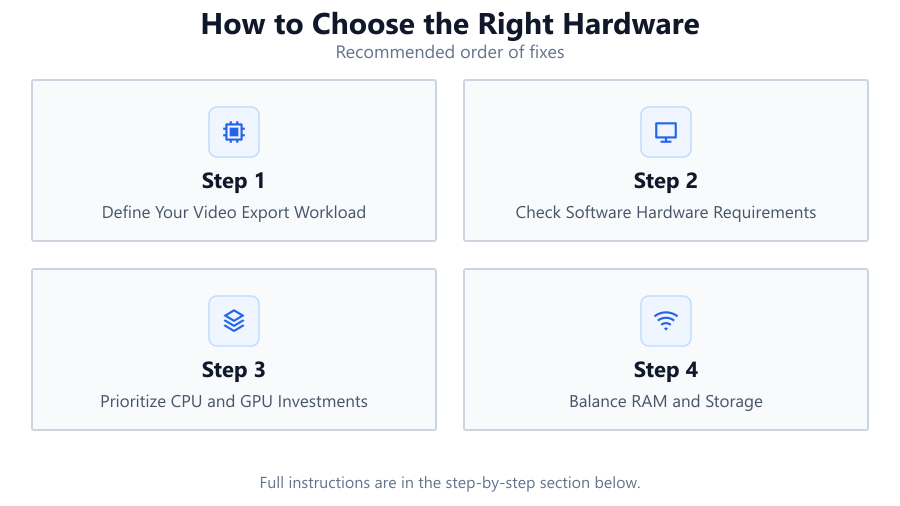
Define Your Video Export Workload
List your typical project resolutions, durations, codecs, and effects complexity. This helps you identify which hardware components will be stressed most often during exports.
Check Software Hardware Requirements
Review the recommended specs for your editing and rendering software. Some programs benefit more from CPU upgrades, while others leverage GPU acceleration for much faster exports.
Prioritize CPU and GPU Investments
Allocate most of your budget to the CPU and GPU, as these have the greatest impact on export and render times. Use the Video Export Time Calculator to simulate different hardware scenarios.
Balance RAM and Storage
Ensure you have enough RAM to handle your largest projects without swapping to disk, and use fast SSDs for current work. This combination avoids slowdowns and keeps your workflow smooth.
Plan for Future Upgrades
Select a motherboard and power supply that support additional RAM, storage, or newer GPUs. This allows you to extend your system’s lifespan and adapt to changing project needs.
Comparison
| Component | Entry Level | Professional | Enthusiast |
|---|---|---|---|
| CPU | 6-core Ryzen 5 / i5 | 12-core Ryzen 9 / i9 | 16-core Threadripper / Xeon |
| GPU | GTX 1660 / RX 6600 | RTX 4070 / RX 7900 XT | RTX 4090 / Pro GPUs |
| RAM | 16GB DDR4 | 32GB DDR4/DDR5 | 64GB+ DDR5 ECC |
| Storage | 500GB SATA SSD | 1TB NVMe SSD + 2TB HDD | 2TB NVMe SSD + NAS |
Common mistakes
Mistake
Choosing hardware based only on gaming benchmarks
Fix: Look for video export and content creation benchmarks, which better reflect real-world editing and rendering performance.
Mistake
Ignoring software compatibility with GPUs
Fix: Verify that your editing software supports hardware acceleration for your chosen GPU brand and model.
Mistake
Underestimating RAM requirements for large projects
Fix: Plan for extra RAM, especially if you work with 4K or higher resolutions, multiple layers, or heavy effects.
Mistake
Using slow hard drives for active projects
Fix: Always use SSDs or NVMe drives for your working files to prevent bottlenecks during exports.
Troubleshooting
Video exports are much slower than expected
Likely cause: CPU or GPU is not being fully utilized, or system is bottlenecked by storage speed
What to do: Check hardware usage in Task Manager or Activity Monitor. Upgrade your storage to SSD or NVMe, and ensure software is configured for hardware acceleration.
System crashes or freezes during export
Likely cause: Insufficient RAM or overheating due to poor cooling
What to do: Add more RAM if possible, and clean or upgrade your cooling system to maintain safe operating temperatures.
Exported video quality is lower than expected
Likely cause: Incorrect export settings or outdated drivers affecting hardware encoding
What to do: Double-check export settings and update your GPU and chipset drivers to the latest versions.
Export times vary wildly between projects
Likely cause: Project complexity, different codecs, or inconsistent hardware acceleration
What to do: Use the Video Export Time Calculator to estimate times based on project parameters, and standardize your workflow where possible.
Recommendations
- Match your hardware investment to your primary project type and typical output resolutions.
- Use the Video Export Time Calculator to estimate export times before upgrading, so you know where your current system falls short.
- Invest in quality cooling and a reliable power supply to avoid unexpected slowdowns or hardware failures.
- Regularly update your editing software and drivers for optimal hardware compatibility and performance.
- Consider future needs such as 4K, 6K, or 8K projects when selecting your CPU, GPU, and RAM capacities.
Frequently asked questions
How do I know which component is slowing down my video exports?
Monitor CPU, GPU, RAM, and storage usage during exports. The component that consistently runs at 100 percent is likely your bottleneck.
Does a faster GPU always mean faster exports?
Only if your editing software supports GPU acceleration for exporting. Otherwise, the CPU may remain the main factor.
How much RAM do I really need for 4K video editing?
For 4K projects, 32GB is recommended for smooth editing and exporting. More RAM is beneficial for complex timelines or multitasking.
Can the Video Export Time Calculator help with hardware upgrades?
Yes, the Video Export Time Calculator lets you simulate how different hardware setups affect export times, helping you prioritize upgrades.