
Guide
Optimization Guide
Unlock faster video exports and rendering with this actionable optimization guide. Learn how to get the most from your hardware, software, and the Video Export Time Calculator.
Updated 2026-07-05
Understanding Video Export Optimization
Exporting video projects efficiently is crucial for content creators, video editors, and post-production professionals. Every minute spent waiting on a render can impact deadlines, team productivity, and creative flexibility. This optimization guide is designed to help you minimize export times by making informed choices in your workflow.
Optimizing video exports involves several factors: hardware performance, software settings, codec selection, and project complexity. While some aspects are hardware-bound, many optimizations can be achieved through smart configuration and planning. Before you start your next project, learn how to leverage your resources and the Video Export Time Calculator to predict export durations and identify bottlenecks.
Whether you are working on a short YouTube clip or a feature-length documentary, understanding the key variables affecting export speed can save you hours per project. By mastering these variables, you will ensure smoother delivery and more time for creative refinements.
Factors Affecting Export Times and Advanced Optimization
Export time is determined by a combination of input resolution, output codec, timeline complexity, and, most importantly, your system's hardware. Let's break these down:
CPU and GPU: Modern editing software often uses both CPU and GPU for rendering. Multi-core CPUs and powerful GPUs can drastically cut export times, especially when paired with hardware-accelerated codecs. Insufficient RAM or slow storage can also bottleneck performance.
Project Settings: Higher output resolutions (4K, 8K) and advanced effects (color grading, denoising) require more processing power. Simplifying your timeline, using proxy files, or pre-rendering complex sequences can lead to significant time savings.
Codec Choices: Different codecs (H.264, H.265, ProRes) have varying demands. For example, H.265 offers better compression but is computationally heavier. The Video Export Time Calculator can help you compare the impact of these choices before committing to a render.
Software Optimization: Keeping your editing software and GPU drivers up to date ensures you benefit from the latest performance improvements. Some programs also allow you to tune export settings for optimal speed, such as prioritizing hardware encoding or disabling unnecessary post-processing.
By understanding these variables, you can use the Video Export Time Calculator to model different scenarios, balance quality and speed, and make data-driven decisions that streamline your workflow.
Step-by-step
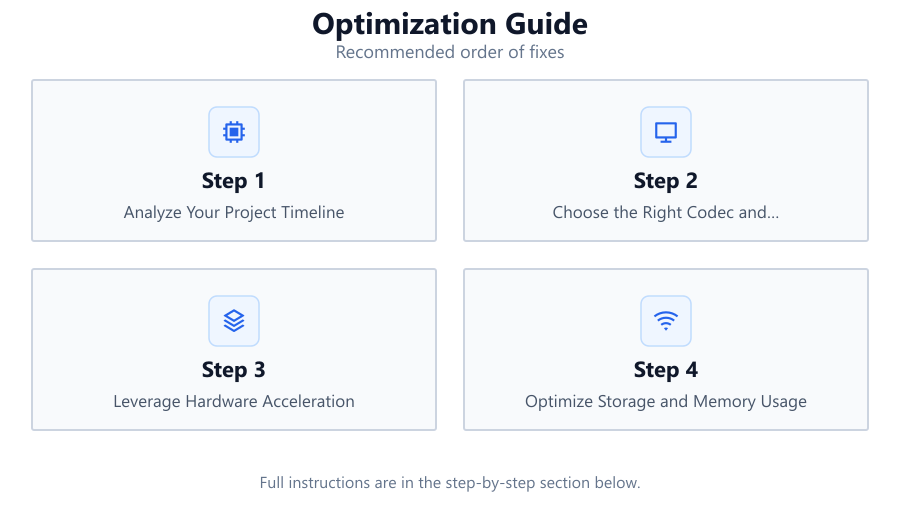
Analyze Your Project Timeline
Start by reviewing your timeline for unnecessary effects, nested sequences, or redundant layers. Simplifying your project reduces the computational load and shortens export times.
Choose the Right Codec and Resolution
Select codecs and output resolutions that match your delivery needs. Use the Video Export Time Calculator to estimate how different settings affect render durations before exporting.
Leverage Hardware Acceleration
Enable hardware encoding in your software settings if available. Ensure your GPU is supported and updated to maximize export performance.
Optimize Storage and Memory Usage
Store source files and project files on fast SSDs. Close unnecessary background applications to free up RAM and system resources during export.
Test and Iterate Using the Video Export Time Calculator
Before committing to a full export, run short test renders. Use the Video Export Time Calculator to model changes and optimize your workflow iteratively.
Comparison
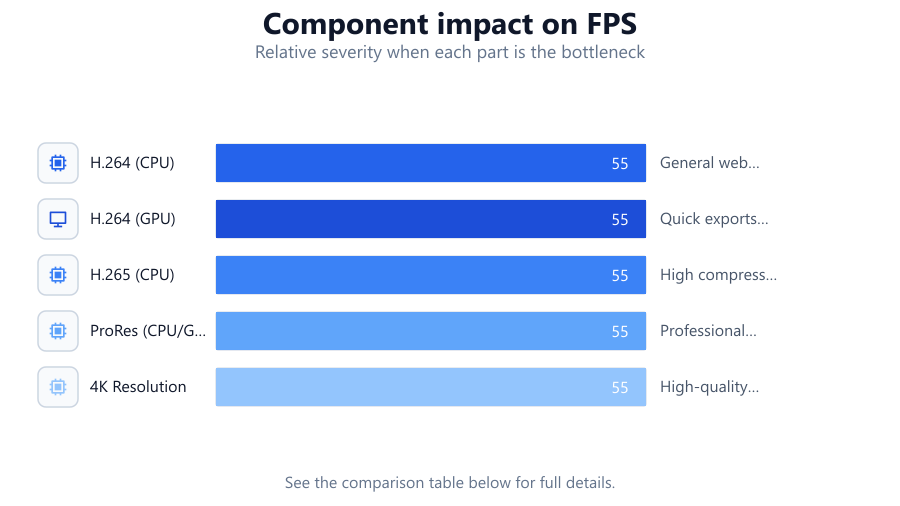
| Export Setting | Typical Speed Impact | Best Use Case |
|---|---|---|
| H.264 (CPU) | Moderate | General web delivery |
| H.264 (GPU) | Fastest | Quick exports, supported GPUs |
| H.265 (CPU) | Slow | High compression, archival |
| ProRes (CPU/GPU) | Moderate-Fast | Professional editing workflows |
| 4K Resolution | Slower | High-quality output |
| 1080p Resolution | Faster | Web and social content |
Common mistakes
Mistake
Ignoring hardware encoding options
Fix: Check your editing software's export settings and enable GPU or hardware encoding for faster renders.
Mistake
Using unnecessarily high resolutions or bitrates
Fix: Match output settings to your actual delivery requirements to avoid wasting time and resources.
Mistake
Not previewing export times
Fix: Always use the Video Export Time Calculator to estimate durations and adjust settings before final export.
Troubleshooting
Export takes much longer than estimated
Likely cause: Background processes or outdated drivers slowing down hardware acceleration
What to do: Close other applications and update drivers, then re-export.
Export fails or crashes partway through
Likely cause: Insufficient RAM or disk space
What to do: Free up system memory and ensure adequate storage before exporting.
Rendered video shows visual glitches or errors
Likely cause: Corrupted source files or incompatible export settings
What to do: Check source footage integrity and use recommended export profiles.
Recommendations
- Regularly update your editing software and GPU drivers for optimal performance.
- Use SSDs for project files and cache to minimize I/O bottlenecks during export.
- Plan project settings with the Video Export Time Calculator before starting large projects.
- Batch process exports during off-hours to maximize productivity and minimize wait times.
- Monitor system temperatures to prevent thermal throttling during prolonged exports.
Frequently asked questions
How can I accurately predict video export times?
Use the Video Export Time Calculator, inputting your project's length, resolution, codec, and hardware specs for a reliable estimate.
Does upgrading my GPU always reduce export times?
Not always. The benefit depends on software support for GPU acceleration and the codecs used. Check your software's hardware compatibility.
Which export settings offer the best balance between speed and quality?
For most workflows, GPU-accelerated H.264 at 1080p provides fast exports and good quality. Use the calculator to test other combinations.
Why does my export time vary between projects?
Timeline complexity, effects, resolution, and codec all impact export speed. Use the Video Export Time Calculator to compare scenarios.