
Guide
Common Buying Mistakes
Avoiding common buying mistakes is the key to selecting the right GPU for AI video generation. This guide reveals pitfalls to dodge and smarter strategies for your next purchase.
Updated 2026-07-05
Understanding Common Buying Mistakes in AI Video GPU Selection
When it comes to AI video generation, choosing the correct GPU is crucial. Many creators and professionals make avoidable errors that can lead to wasted money, underpowered systems, or workflows that grind to a halt. The rapid pace of AI and GPU advancements makes it easy to get lost in marketing hype or to overlook the technical requirements of your specific project.
A common misconception is that the most expensive or latest graphics card is always the best choice. In reality, the optimal GPU depends on your use case, target resolution, model complexity, and video duration. Overestimating your needs can drain your budget, while underestimating can severely bottleneck your workflow. The AI Video Generation GPU Calculator helps demystify this process by providing tailored recommendations based on your project's parameters.
Another mistake is ignoring VRAM requirements. Many buyers focus solely on raw GPU power, forgetting that insufficient VRAM can cause crashes or force you to compromise on video quality. Compatibility with your existing hardware, power supply, and cooling solutions is also often overlooked, leading to unexpected delays and expenses during setup. By understanding these common buying mistakes, you can make a more informed, cost-effective decision for your next AI video generation project.
Deep Dive: How to Avoid Costly Errors and Optimize Your Purchase
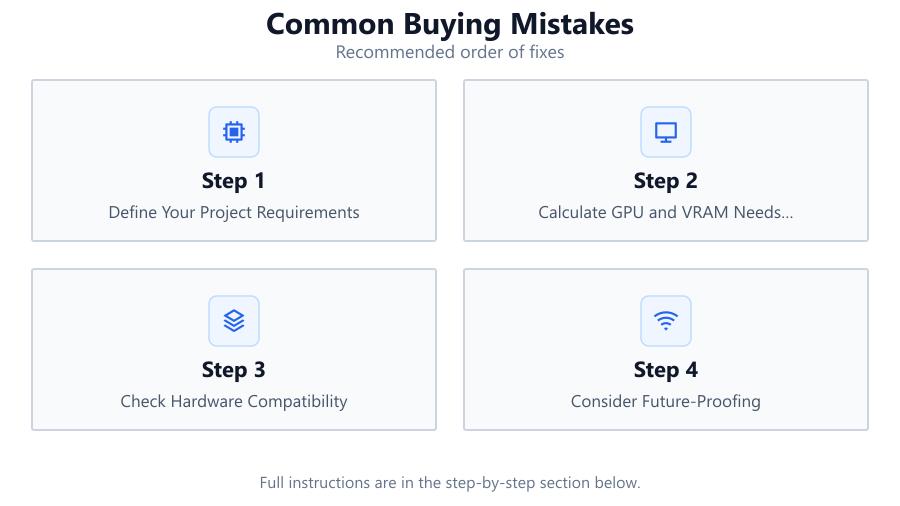
To sidestep common buying mistakes, you need to approach your GPU purchase methodically. Begin by clearly defining your project requirements: What is your target video resolution? What is the expected duration of your AI-generated videos? Are you using lightweight models or pushing the limits with complex neural networks? These factors directly influence the GPU power and VRAM you will need.
Using the AI Video Generation GPU Calculator can save you from guesswork. By inputting your actual project specs, you receive a precise recommendation that accounts for both GPU compute performance and VRAM demands. This eliminates the risk of overbuying or ending up with an underpowered card.
Another critical aspect is future-proofing. While you should avoid buying more GPU than you need today, consider your likely needs for the next 1-2 years. AI video tools evolve quickly, and an investment in a slightly more capable card can save you from early obsolescence. Check for compatibility with your system's motherboard, PSU, and case. Also, research the reliability and support history of the specific GPU model you are considering. Not all cards are created equal, even within the same product line. By taking these steps, you will avoid the most frequent pitfalls encountered by AI video creators.
Step-by-step
Define Your Project Requirements
List your target video resolution, expected duration, and the complexity of the AI models you plan to use. This information is fundamental for determining GPU needs.
Calculate GPU and VRAM Needs Using a Dedicated Tool
Leverage the AI Video Generation GPU Calculator to estimate the precise GPU power and VRAM required for your workload, reducing guesswork and overspending.
Check Hardware Compatibility
Ensure your chosen GPU will fit in your case, is compatible with your motherboard, and that your PSU provides sufficient power and connectors.
Consider Future-Proofing
Think beyond your immediate project. Select a GPU that will handle more demanding tasks or longer videos as AI tools evolve.
Research Model Reliability and Support
Look into the manufacturer’s track record for driver updates, customer support, and known issues with the specific GPU model you are considering.
Comparison
| Mistake | Impact | Prevention |
|---|---|---|
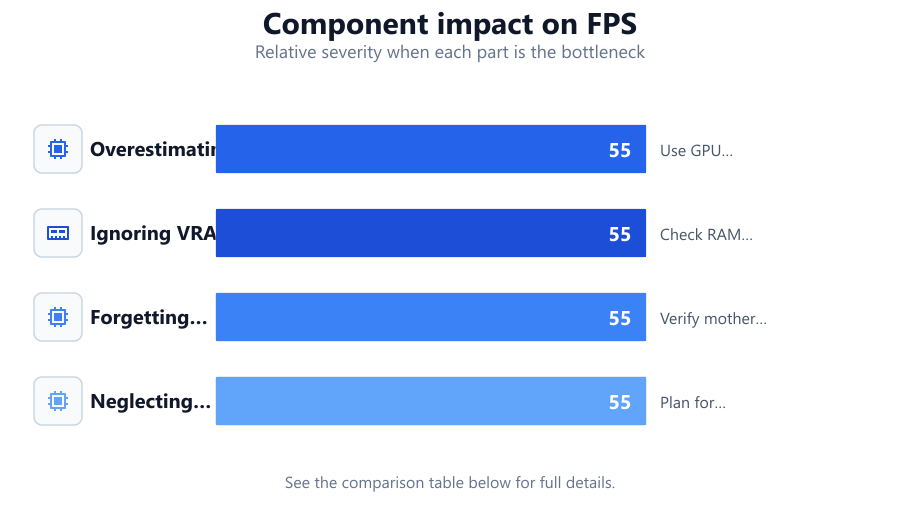
| Overestimating Needs | Wasted budget on unnecessary performance | Use GPU calculators and match to project |
| Ignoring VRAM | Crashes or forced lower quality | Check RAM requirements for target resolution |
| Forgetting Compatibility | Installation issues or extra costs | Verify motherboard, PSU, and case support |
| Neglecting Future Needs | Early obsolescence | Plan for moderate growth in project demands |
Common mistakes
Mistake
Focusing Only on Core Count or GPU Model Number
Fix: Balance core count with VRAM, memory bandwidth, and actual workload demands. Use the AI Video Generation GPU Calculator for an informed choice.
Mistake
Not Checking System Compatibility
Fix: Before purchase, confirm that your motherboard, PSU, and case can accommodate the GPU’s power draw and physical size.
Mistake
Buying Based on Price Alone
Fix: Evaluate GPUs based on performance per dollar for your specific AI video tasks, not just overall cost or brand reputation.
Troubleshooting
Frequent crashes or errors during video generation
Likely cause: Insufficient VRAM for the chosen resolution or model size
What to do: Reduce project resolution or upgrade to a card with more VRAM as recommended by the AI Video Generation GPU Calculator.
System fails to boot after GPU installation
Likely cause: Incompatible power supply or insufficient wattage
What to do: Check GPU power requirements and ensure your PSU meets or exceeds them. Replace PSU if needed.
Poor performance despite having a high-end GPU
Likely cause: CPU or storage bottleneck, or misconfigured software
What to do: Ensure balanced hardware configuration, update drivers, and optimize AI software settings.
Recommendations
- Always define your project’s technical needs before shopping for a GPU.
- Use the AI Video Generation GPU Calculator to receive tailored hardware recommendations.
- Double-check compatibility between your chosen GPU and your existing hardware.
- Factor in potential future workload increases to avoid premature upgrades.
- Read reviews and support histories of specific GPU models before purchase.
Frequently asked questions
How do I know if my GPU has enough VRAM for AI video generation?
Use the AI Video Generation GPU Calculator to match your project’s resolution and duration to the appropriate VRAM requirement.
Is it better to buy the newest GPU model available?
Not always. The best GPU depends on your workload, budget, and compatibility. Use dedicated tools to determine what you actually need.
What happens if my GPU is underpowered for my project?
You may experience crashes, long render times, or be forced to lower your video quality. Upgrading to a recommended GPU is the best fix.
Can I use multiple GPUs for AI video generation?
Some AI video tools support multi-GPU setups, but ensure your software and hardware are compatible before investing in more than one card.