
Guide
Optimization Guide
This optimization guide will teach you how to maximize efficiency and results in AI video generation projects. Learn expert tips for selecting the right GPU, managing VRAM, and configuring your workflow for smooth, high-quality output.
Updated 2026-07-05
Understanding AI Video Generation Optimization
AI-driven video generation is resource intensive, requiring careful planning to achieve the best results without overspending on hardware. Optimizing your workflow involves selecting the right GPU, tuning model parameters, and balancing resolution, frame rate, and video duration.
Choosing the correct hardware can mean the difference between a smooth creative process and frustrating bottlenecks. The AI Video Generation GPU Calculator helps demystify these requirements by factoring in your project's unique needs, such as target resolution, video duration, and the complexity of the AI model.
Project optimization is not just about hardware. Efficient data pipelines, proper VRAM allocation, and understanding software limitations are just as important. This guide will walk you through each step so you can produce high-quality AI videos with minimal trial and error.
Advanced Strategies for Maximizing Output
Once you have a baseline understanding of your hardware needs, you can dig deeper into fine-tuning your workflow. Start by profiling your current setup: monitor GPU usage, VRAM occupancy, and generation times. Use this data to identify bottlenecks and areas for improvement.
Batch processing and chunked rendering can help manage VRAM efficiently, especially for long or high-resolution videos. Adjust model settings to match your available resources. For example, reducing batch size or using half-precision floating point can lower VRAM usage without a major quality loss.
Do not overlook software updates and driver optimizations. New versions of AI frameworks often include performance improvements. Regularly check for updates to both your video generation software and GPU drivers. Finally, use the AI Video Generation GPU Calculator before every major project to ensure your hardware recommendations are up to date with the latest models and best practices.
Step-by-step
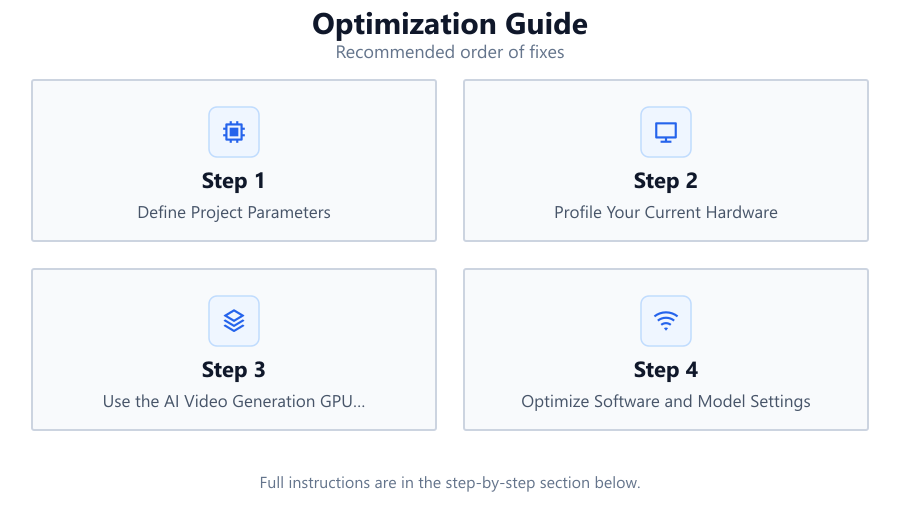
Define Project Parameters
Clearly outline the target resolution, frame rate, video duration, and desired quality. These factors have the largest impact on GPU and VRAM requirements.
Profile Your Current Hardware
Monitor GPU load and VRAM usage using tools like NVIDIA-smi or GPU-Z during test renders. This establishes a baseline for optimization.
Use the AI Video Generation GPU Calculator
Input your project's specs into the AI Video Generation GPU Calculator. Use its tailored recommendations to guide hardware upgrades or workflow adjustments.
Optimize Software and Model Settings
Reduce batch size, use mixed precision, or select lighter models if resources are tight. Balance these changes against your quality goals.
Implement Efficient Data Pipelines
Use fast storage, pre-fetching, and parallel data loading to prevent bottlenecks outside the GPU. This ensures you maximize hardware utilization.
Comparison
| GPU Model | VRAM (GB) | Best For |
|---|---|---|
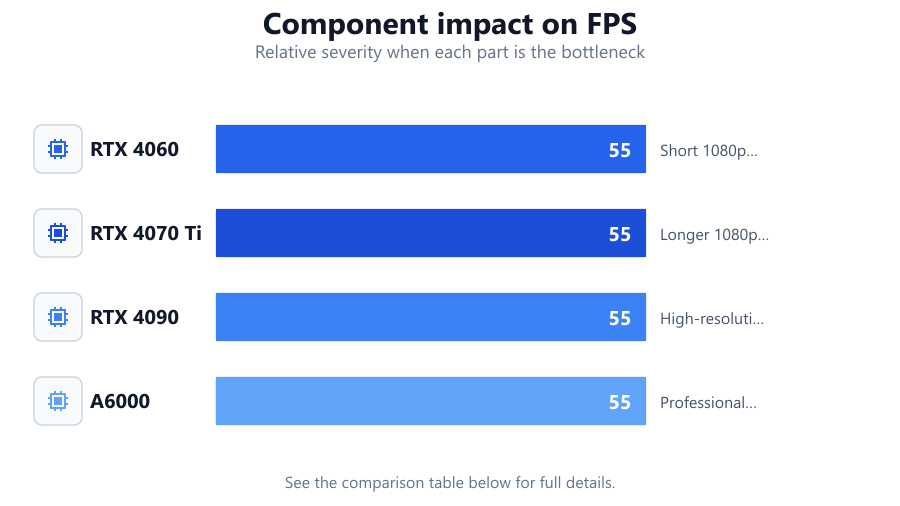
| RTX 4060 | 8 | Short 1080p videos, basic models |
| RTX 4070 Ti | 12 | Longer 1080p or short 4K, moderate complexity |
| RTX 4090 | 24 | High-resolution, complex models, multi-video |
| A6000 | 48 | Professional workloads, long 4K, research |
Common mistakes
Mistake
Underestimating VRAM needs for longer or higher-resolution videos
Fix: Always calculate VRAM requirements using the AI Video Generation GPU Calculator before starting large projects.
Mistake
Overlooking software and driver updates
Fix: Regularly update your AI frameworks and GPU drivers to benefit from performance improvements and bug fixes.
Mistake
Ignoring data pipeline speed
Fix: Upgrade to NVMe SSDs and use parallel data loading to keep the GPU fed with data.
Mistake
Choosing a GPU based only on core count, not VRAM
Fix: Prioritize VRAM for AI video generation, as insufficient VRAM causes crashes and slowdowns.
Troubleshooting
Out of memory errors during video generation
Likely cause: Insufficient VRAM for the chosen resolution or model complexity
What to do: Lower batch size, reduce resolution, or upgrade to a GPU with more VRAM.
Slow rendering times despite high-end GPU
Likely cause: Data pipeline bottlenecks or underutilized hardware
What to do: Optimize storage speed, use data pre-fetching, and check for CPU bottlenecks.
Random crashes or failed video outputs
Likely cause: Driver incompatibility or outdated software
What to do: Update GPU drivers and AI video generation software to the latest stable versions.
Poor video quality at expected settings
Likely cause: Overly aggressive optimization or unsupported model parameters
What to do: Gradually increase model complexity and batch size until you reach the desired quality.
Recommendations
- Always use the AI Video Generation GPU Calculator before beginning new projects.
- Profile your renders and adjust batch size and model complexity to avoid memory errors.
- Invest in GPUs with ample VRAM rather than just higher core counts.
- Keep all software and drivers up to date for best performance and stability.
- Utilize fast storage and optimized data loading to keep your GPU fully utilized.
Frequently asked questions
How do I know if my GPU is strong enough for AI video generation?
Use the AI Video Generation GPU Calculator to input your project parameters and receive a tailored hardware recommendation. Monitor your GPU's VRAM and usage during test runs to ensure you have enough headroom.
What is the most important hardware spec for AI video generation?
VRAM is usually the limiting factor for AI video generation. Insufficient VRAM can cause crashes or poor performance, so prioritize GPUs with more memory.
Can I optimize my workflow without upgrading hardware?
Yes. Reduce batch size, lower resolution, use lighter models, and optimize data pipelines to maximize performance on your current hardware.
Why does the tool recommend a more powerful GPU than I expected?
AI video generation scales dramatically with resolution, duration, and model complexity. The AI Video Generation GPU Calculator considers these factors to prevent bottlenecks and ensure smooth output.