
Guide
Troubleshooting Guide
Having trouble figuring out your screen’s true size or why your display looks off? This troubleshooting guide gives you clear steps to quickly identify and fix screen size and resolution problems.
Updated 2026-07-05
Understanding Screen Size and Display Issues
Screen size and display settings can directly affect your productivity, gaming experience, and even eye comfort. Whether you are using a desktop monitor, laptop, or external display, knowing your actual screen size and resolution is essential for optimal performance. Incorrect settings can lead to blurry images, unused screen areas, or distorted aspect ratios.
Many users struggle with display issues such as black bars, mismatched resolutions, or incorrect scaling. These problems can be caused by outdated drivers, improper configuration, or simply not knowing the real capabilities of your monitor. Tools like What Is My Screen Size help by instantly analyzing your monitor’s current settings, pixel ratio, and viewport, making troubleshooting much more efficient.
When screen size or resolution is misreported, it can affect not just visual clarity but also how applications scale and display content. This troubleshooting guide will walk you through identifying the root cause of your screen issues and provide step-by-step solutions, whether you are dealing with a new monitor setup or a persistent display problem.
Step-by-Step Troubleshooting for Screen Size Problems
Start by examining your symptoms: is your display blurry, are there black bars, or does content look stretched? Pinpointing the precise issue will help you resolve it faster. Most display problems fall into three categories: hardware compatibility, software configuration, or user misconfiguration.
Begin with the basics. Confirm that your monitor cable is securely attached and not damaged. Use What Is My Screen Size to immediately check the detected resolution, aspect ratio, and usable screen area. If the reported size does not match your monitor’s specs, there may be a configuration or hardware problem.
Next, review your operating system’s display settings. On Windows, right-click the desktop and select Display Settings. On macOS, go to System Settings then Displays. Ensure the resolution matches your monitor’s native recommendation. If it does not, adjust it manually and observe any changes. Outdated graphics drivers can also trigger display problems, so check for updates using your GPU manufacturer’s tools (such as NVIDIA GeForce Experience or AMD Radeon Software).
Advanced troubleshooting may involve checking your monitor’s built-in menu for scaling or aspect ratio settings, testing with different cables or ports, or even resetting display preferences. By methodically following these steps, you can narrow down and fix most screen size or resolution issues without needing professional help.
Step-by-step
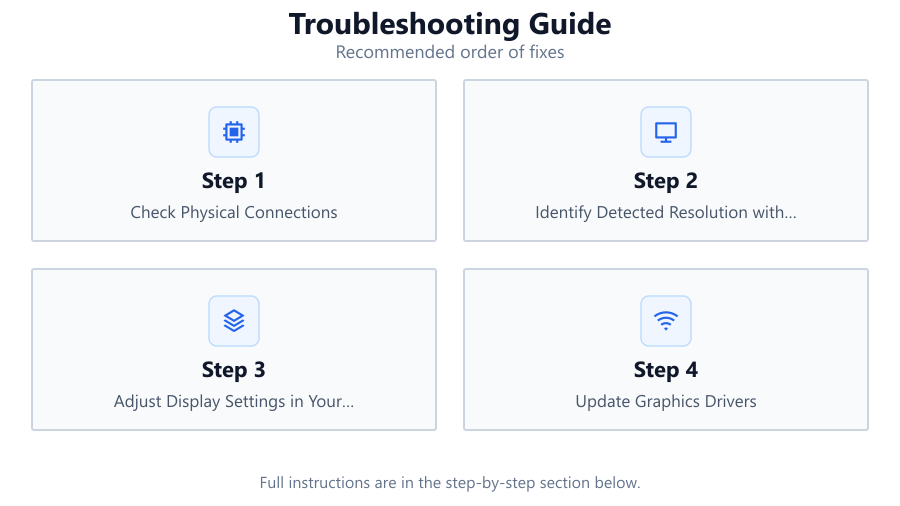
Check Physical Connections
Ensure all cables connecting your monitor to your computer are firmly attached. Try reseating or replacing the cables to rule out physical faults that may cause display issues.
Identify Detected Resolution with What Is My Screen Size
Open What Is My Screen Size in your browser. Compare the detected resolution and aspect ratio to your monitor’s specifications. If there is a mismatch, proceed to adjust your system settings.
Adjust Display Settings in Your Operating System
Access your system’s display settings. Set the display resolution to the recommended or native value for your monitor. Apply changes and observe if the issue improves.
Update Graphics Drivers
Outdated or corrupt graphics drivers can cause display anomalies. Use your GPU’s official software to check for and install the latest drivers.
Inspect Monitor On-Screen Menu
Use your monitor’s physical buttons to access its on-screen menu. Look for scaling, aspect ratio, or reset options. Restore default settings if necessary and test for resolution improvements.
Test with Alternate Cables or Ports
If problems persist, try using a different HDMI, DisplayPort, or VGA cable. Connect to another port on your GPU or monitor to rule out hardware faults.
Comparison
| Issue | Possible Cause | Recommended Tool or Step |
|---|---|---|
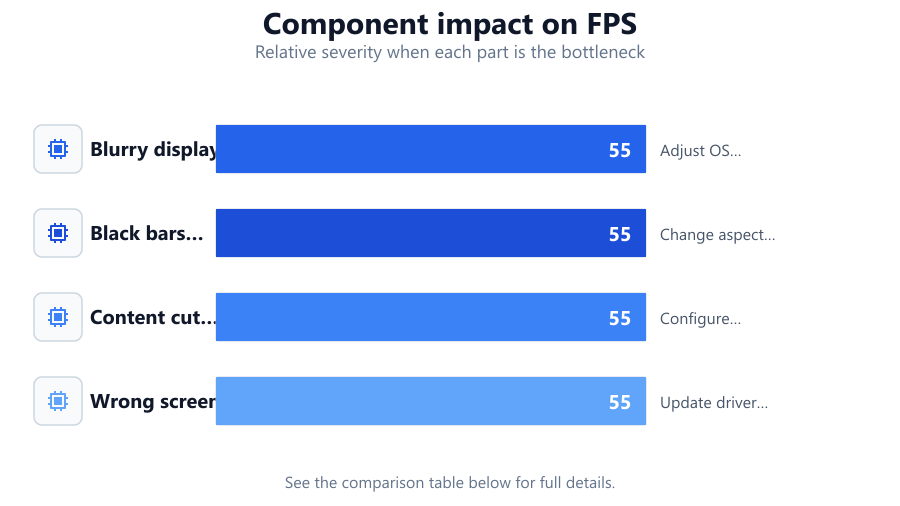
| Blurry display | Incorrect resolution or scaling | Adjust OS display settings, use What Is My Screen Size |
| Black bars on screen | Aspect ratio mismatch | Change aspect ratio in monitor menu or OS settings |
| Content cut off | Overscan or underscan | Configure scaling or overscan options in graphics driver |
| Wrong screen size detected | Outdated drivers or faulty cable | Update drivers, check cables, verify with What Is My Screen Size |
Common mistakes
Mistake
Not verifying the detected resolution against monitor specs
Fix: Always compare What Is My Screen Size’s results with your monitor’s official specifications.
Mistake
Ignoring graphics driver updates
Fix: Regularly check for and install the latest GPU drivers to prevent compatibility issues.
Mistake
Overlooking monitor’s built-in settings
Fix: Use the monitor’s on-screen menu to ensure scaling and aspect ratio are set to default or native.
Troubleshooting
Display appears blurry or fuzzy
Likely cause: Resolution is set lower than the monitor's native resolution
What to do: Set the operating system’s display resolution to match the monitor’s native value. Confirm using What Is My Screen Size.
Black bars appear on sides or top/bottom
Likely cause: Aspect ratio mismatch between display settings and monitor
What to do: Adjust aspect ratio in your display settings or monitor menu to match the native aspect ratio.
Screen area is cut off or not fully used
Likely cause: Overscan or underscan settings in GPU driver or monitor
What to do: Disable overscan in your graphics driver software and reset monitor scaling options.
Recommendations
- Always use What Is My Screen Size to verify your display’s true resolution and aspect ratio before making changes.
- Keep your graphics drivers up to date for best compatibility and performance.
- Use the monitor’s on-screen menu to check for scaling or aspect ratio settings that may affect display output.
- Try different cables and ports if you suspect hardware faults, as these can cause misreported screen size or resolution issues.
Frequently asked questions
How do I know if my monitor is displaying the correct resolution?
You can use What Is My Screen Size to instantly check your monitor’s detected resolution and compare it to the manufacturer’s specifications.
Why does my screen have black bars even after setting the correct resolution?
Black bars usually indicate an aspect ratio mismatch. Adjust the aspect ratio in your display or monitor settings to match your screen’s native format.
What should I do if my display looks blurry?
Blurriness is often caused by using a non-native resolution. Set your operating system’s display resolution to the native value recommended for your monitor and confirm using What Is My Screen Size.
Can faulty cables cause screen size or resolution problems?
Yes, damaged or incompatible cables can lead to incorrect signal transmission, causing misreported resolutions or display issues. Always test with a known good cable.