
Guide
Common Buying Mistakes
Avoid the most common buying mistakes when upgrading your CPU. Get expert tips to maximize performance and avoid wasting money on the wrong upgrade.
Updated 2026-07-05
Understanding Common Buying Mistakes When Upgrading Your CPU
Upgrading your CPU can be one of the most impactful ways to boost your PC’s performance, but it’s also an area where buyers often make costly mistakes. Common buying mistakes include choosing the wrong socket, underestimating compatibility requirements, or overpaying for a CPU that doesn’t suit your needs. Before spending your hard-earned money, it’s crucial to understand what can go wrong and how to avoid these pitfalls.
Many users assume that any newer CPU will automatically fit into their existing system, but the reality is far more complex. Factors like motherboard compatibility, BIOS versions, power supply requirements, and cooling solutions all play a role. Missing any one of these elements can turn a straightforward upgrade into a frustrating experience.
Another frequent error is overestimating the performance gains from an upgrade. Not all CPU upgrades deliver the same level of improvement, especially if other system components are bottlenecks. That’s where tools like the CPU Upgrade Calculator come in handy, allowing you to compare your current processor to your target upgrade and estimate realistic results for your specific use case.
A Deep Dive Into CPU Upgrade Mistakes and How to Avoid Them
Let’s take a closer look at the most common buying mistakes in the CPU upgrade process. First, buyers often neglect to check chipset compatibility. Even if a new CPU shares the same socket as your motherboard, the chipset may not support it, or you may need a BIOS update. This mistake can lead to wasted purchases and unnecessary returns.
Another issue is failing to consider the power and thermal requirements of the new processor. Powerful CPUs may demand more power than your current PSU can deliver, and higher TDPs (Thermal Design Power) require more robust cooling solutions. Ignoring these factors can result in system instability, overheating, or even hardware failure.
Budget allocation is another area where users go wrong. It’s easy to overspend on a high-end CPU when a more affordable model would suffice for your workload. The best approach is to balance your CPU upgrade with your usage needs and the capabilities of your other components. For example, upgrading to a top-tier CPU while keeping an outdated graphics card or slow storage won’t deliver the best results. Using the CPU Upgrade Calculator can help you visualize the real-world gains before you commit to a purchase.
Step-by-step
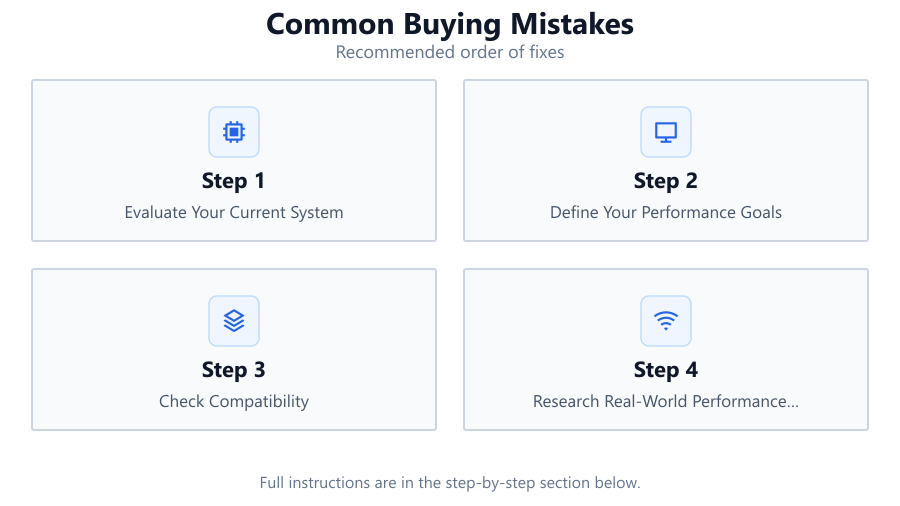
Evaluate Your Current System
Before buying a new CPU, thoroughly assess your current hardware. Identify your motherboard model, chipset, socket type, power supply, and cooling solution. This information is essential for compatibility checks and avoiding costly errors.
Define Your Performance Goals
Are you looking for better gaming performance, faster video editing, or just a more responsive PC? Clearly outline your objectives so you can choose a CPU that matches your needs, rather than overpaying for unnecessary performance.
Check Compatibility
Consult your motherboard’s documentation to ensure it supports your target CPU model. Look up BIOS update requirements and verify that your power supply and cooling solution can handle the new processor.
Research Real-World Performance Gains
Use the CPU Upgrade Calculator to compare your current CPU and your intended upgrade. This tool provides data-driven estimates of real-world performance improvements, helping you set realistic expectations.
Balance Your Budget
Allocate your upgrade budget wisely. Don’t spend all your resources on the CPU alone if your system has other bottlenecks like RAM, storage, or GPU. Consider upgrading multiple components if it will yield better overall performance.
Comparison
| Mistake | Consequence | How to Avoid |
|---|---|---|
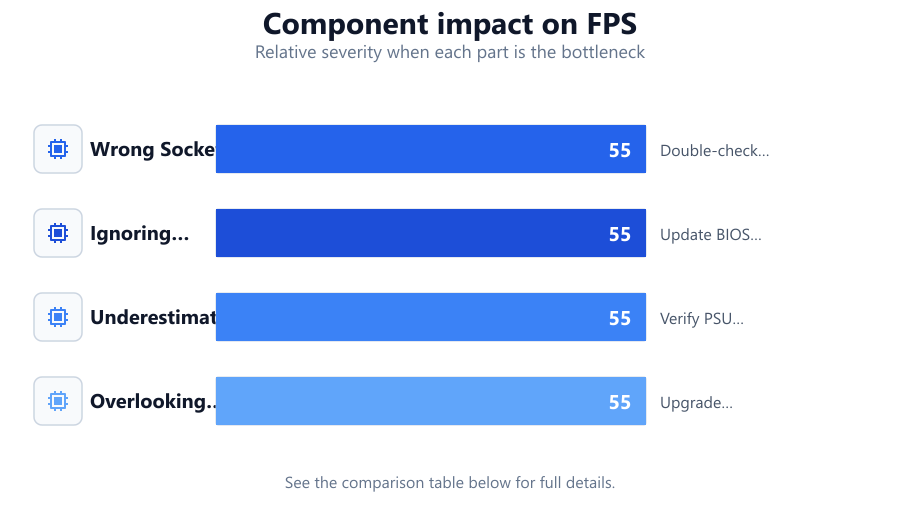
| Wrong Socket Type | CPU will not fit or work | Double-check motherboard socket before purchase |
| Ignoring BIOS Updates | System won’t boot with new CPU | Update BIOS prior to upgrade |
| Underestimating Power Needs | System crashes or fails to start | Verify PSU wattage and connectors |
| Overlooking Cooling Requirements | Overheating or thermal throttling | Upgrade cooler if needed |
Common mistakes
Mistake
Buying a CPU without checking motherboard compatibility
Fix: Research your motherboard model and supported CPUs before purchasing. Use manufacturer compatibility lists and update BIOS if required.
Mistake
Focusing only on core count or clock speed
Fix: Consider workload requirements and architectural improvements. Use tools like the CPU Upgrade Calculator to compare overall performance.
Mistake
Neglecting power supply and thermal requirements
Fix: Check your PSU’s wattage and connectors. Make sure your cooling solution is adequate for the new processor’s TDP.
Troubleshooting
PC does not boot after CPU upgrade
Likely cause: Incompatible CPU or outdated BIOS
What to do: Check CPU support list and update motherboard BIOS to the latest version before installing the new CPU.
System restarts or crashes under load
Likely cause: Insufficient power supply or inadequate cooling
What to do: Upgrade to a higher wattage PSU and ensure your CPU cooler can handle the processor’s thermal load.
No performance improvement after upgrade
Likely cause: Other components are bottlenecking the system
What to do: Evaluate GPU, RAM, and storage speed. Upgrade these components if they are limiting overall performance.
Recommendations
- Always check CPU and motherboard compatibility before making a purchase.
- Update your BIOS prior to installing a new processor.
- Use the CPU Upgrade Calculator to estimate real-world performance improvements.
- Balance your upgrade budget across all key components to avoid bottlenecks.
- Research power and cooling requirements for your new CPU.
Frequently asked questions
How do I know if my motherboard supports a new CPU?
Check your motherboard’s official CPU compatibility list on the manufacturer’s website. Make sure your board has the correct socket and chipset for the new processor.
Is a BIOS update necessary for every CPU upgrade?
Not always, but many newer CPUs require a BIOS update for full compatibility. Always check the CPU support list and update your BIOS before installing a new processor.
How much of a performance boost can I expect from a CPU upgrade?
Performance gains depend on your starting point and the new CPU’s capabilities. Use the CPU Upgrade Calculator to estimate specific improvements for your use case.
What should I do if my PC does not boot after installing a new CPU?
First, confirm compatibility and that the BIOS is up to date. Reseat the CPU and check power connections. If problems persist, consult your motherboard manual or support.