
Guide
Optimization Guide
Ready to optimize your PC performance? This in-depth optimization guide shows you how to get the biggest benefits from your CPU upgrade, with step-by-step advice and practical tips.
Updated 2026-07-05
Why Optimization Matters When Upgrading Your CPU
Upgrading your CPU is one of the most impactful ways to improve your computer’s speed and responsiveness. However, simply swapping out your processor does not always guarantee maximum performance gains. Many users overlook essential optimization steps, leading to underwhelming results or even system instability.
A well-planned CPU upgrade, guided by optimization best practices, ensures you get the most value for your investment. This optimization guide will help you avoid common pitfalls, streamline your upgrade process, and achieve the performance boost you expect. Whether you are a gamer, a content creator, or a power user, understanding the optimization process is key to a successful upgrade.
By following this guide, you will learn how to assess your current hardware, select the right CPU for your needs, and fine-tune your system after installation. We will also highlight how the CPU Upgrade Calculator can help you make data-driven decisions before spending any money.
Essential Steps for Optimizing Your CPU Upgrade
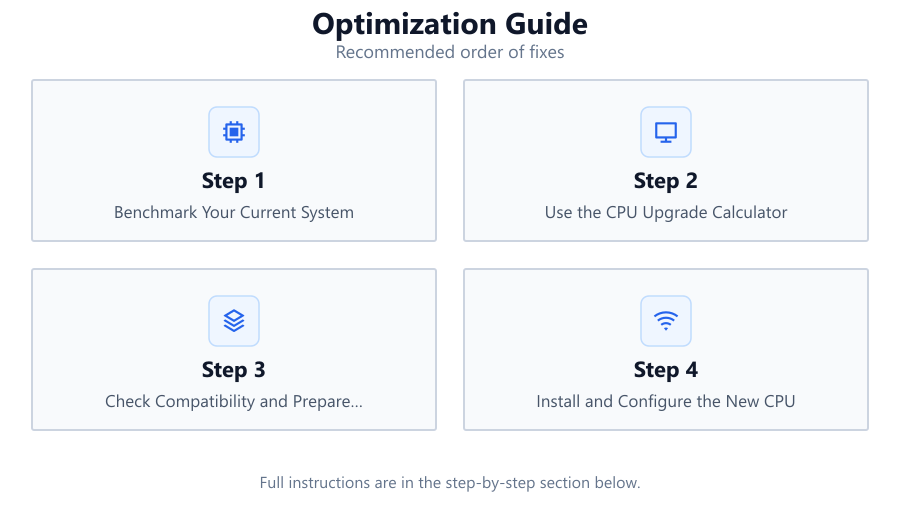
Before upgrading your CPU, it is crucial to evaluate your entire system. A new processor may be bottlenecked by other components, such as memory or storage. Start by benchmarking your current setup and identifying the tasks or applications that feel sluggish.
The CPU Upgrade Calculator is an invaluable tool for estimating real-world performance gains. By comparing your existing processor with potential upgrades, you can see projected improvements for gaming, creative workloads, and everyday use. This data-driven approach helps you target the right upgrade and avoid overspending on unnecessary features.
After choosing your new CPU, prepare your system for installation. Update your motherboard BIOS, back up important data, and gather the required tools. Once the CPU is installed, optimize your BIOS settings to enable features like XMP or Precision Boost. Reinstall or update your chipset drivers to ensure full compatibility.
Finally, stress-test your system and monitor temperatures. Optimizing cooling and power delivery can further enhance stability and performance. For advanced users, consider fine-tuning voltage and clock settings to extract even more from your new CPU.
Step-by-step
Benchmark Your Current System
Use benchmarking tools to measure your current CPU performance. Identify which applications or games are limited by processor speed and record baseline results for later comparison.
Use the CPU Upgrade Calculator
Visit the CPU Upgrade Calculator to compare your current CPU with potential upgrades. Analyze the projected performance increase for your typical workloads and filter out upgrades that would not deliver a significant boost.
Check Compatibility and Prepare Hardware
Verify that your motherboard supports the new CPU. Update the BIOS if necessary and ensure you have compatible memory and cooling. Back up important files before making any hardware changes.
Install and Configure the New CPU
Carefully install the new processor, applying fresh thermal paste. Double-check all connections and boot into BIOS to verify detection. Enable relevant settings such as XMP for RAM or enhanced power management features.
Optimize and Monitor After Installation
Update chipset drivers and run stress tests to check for stability. Use monitoring software to track CPU temperatures and performance. Make adjustments to cooling or power settings as needed for optimal results.
Comparison
| CPU Model | Projected Performance Gain (%) | Recommended Use Case |
|---|---|---|
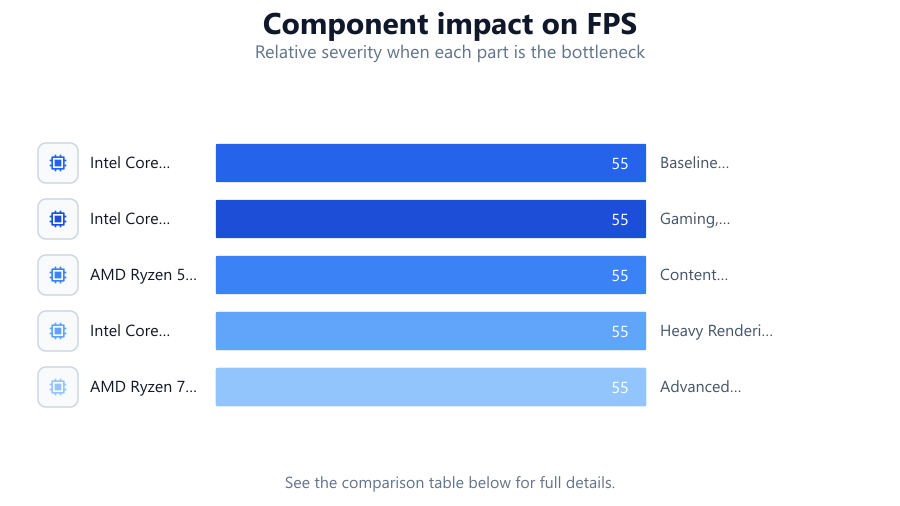
| Intel Core i5-10400 | 0 | Baseline (Current) |
| Intel Core i7-11700K | 35 | Gaming, Streaming |
| AMD Ryzen 5 5600X | 28 | Content Creation, Multitasking |
| Intel Core i9-12900K | 65 | Heavy Rendering, High FPS Gaming |
| AMD Ryzen 7 5800X3D | 60 | Advanced Gaming, Simulation |
Common mistakes
Mistake
Ignoring motherboard compatibility
Fix: Always check your motherboard socket and chipset support before purchasing a new CPU.
Mistake
Overlooking BIOS updates
Fix: Update your BIOS to the latest version to ensure compatibility with new processors.
Mistake
Neglecting system cooling
Fix: Upgrade your CPU cooler if necessary and ensure proper airflow to prevent overheating.
Mistake
Failing to update drivers
Fix: Install the latest chipset and device drivers after upgrading your CPU to avoid issues.
Troubleshooting
PC does not boot after CPU upgrade
Likely cause: Motherboard BIOS lacks support for the new CPU
What to do: Reinstall the old CPU and update the BIOS to the latest version before retrying the upgrade.
System crashes or freezes under load
Likely cause: Insufficient cooling or power delivery
What to do: Ensure your CPU cooler and power supply can handle the new processor’s requirements.
Lower than expected performance
Likely cause: Old drivers or incorrect BIOS settings
What to do: Download and install the latest chipset drivers. Enable performance features like XMP or Precision Boost.
Recommendations
- Use the CPU Upgrade Calculator to evaluate real-world performance gains before buying new hardware.
- Update all relevant firmware and drivers before and after installing your new CPU.
- Benchmark your system before and after the upgrade to confirm improvements.
- Consider your entire system configuration, including memory and cooling, for best results.
- Monitor temperatures and system stability regularly following an upgrade.
Frequently asked questions
Will upgrading my CPU always improve performance?
Upgrading your CPU can improve performance, but results depend on your workloads and overall system balance. Use the CPU Upgrade Calculator to estimate real-world gains specific to your situation.
How do I know if my motherboard supports a new CPU?
Check your motherboard’s official CPU support list on the manufacturer’s website. Updating your BIOS may also be required for newer processors.
Do I need to reinstall Windows after a CPU upgrade?
Usually, you do not need to reinstall Windows, especially if you stay within the same platform. However, updating drivers and running a system check is recommended.
What should I do if my PC does not boot after installing a new CPU?
Double-check all connections, ensure the CPU is properly seated, and verify BIOS compatibility. If the problem persists, reinstall the old CPU and update your BIOS.