
Guide
How to Choose the Right Hardware
Struggling with how to choose the right hardware for your PC upgrade? This guide walks you through every step, helping you make confident, future-proof choices.
Updated 2026-07-05
Understanding the Hardware Landscape
Choosing the right hardware can seem overwhelming, especially with new products and technologies launching every year. Whether you want to boost gaming performance, improve productivity, or just keep your PC running smoothly, selecting the right components is critical for both performance and value.
The process starts with understanding your specific needs. Are you a gamer, a creative professional, or a general user? Each use case demands different priorities. For example, gamers and video editors usually benefit from powerful CPUs and GPUs, while everyday office users may prioritize reliability and quiet operation over raw power.
Compatibility is also essential. Even the most advanced CPU will not help if your motherboard and RAM cannot support it. Tools like the CPU Upgrade Calculator make this process easier by comparing your current setup to potential upgrades, highlighting bottlenecks, and estimating real-world performance differences.
Taking time to evaluate your current hardware, set a realistic budget, and plan for future needs will help you avoid costly mistakes. This guide breaks down the entire process, so you can approach your next upgrade with confidence.
Key Factors in Hardware Selection
Performance is often the top concern for upgraders, but it is not the only one. You need to balance speed, longevity, compatibility, and cost. Start by identifying your system's weakest link. If your CPU is holding back your GPU, or your RAM is maxed out, these are clear priorities for your next upgrade.
Use the CPU Upgrade Calculator to compare your existing processor against the latest options. This tool provides performance benchmarks tailored to your workload, whether you game, render video, or multitask heavily. Keep in mind that upgrading just one component can sometimes create new bottlenecks elsewhere, so consider your system holistically.
Another crucial factor is future-proofing. Investing in modern standards, such as DDR5 RAM or PCIe 5.0 support, can extend the lifespan of your system. However, not every feature is worth the premium. Evaluate the price-to-performance ratio and avoid chasing specs that will not benefit your actual usage.
Do not forget about power supply capacity, cooling requirements, and case compatibility. A new CPU or GPU may require more power or a larger cooler. Always check these details before making a purchase. Lastly, take advantage of user reviews and community benchmarks to get a real sense of how hardware performs outside of marketing claims.
Step-by-step
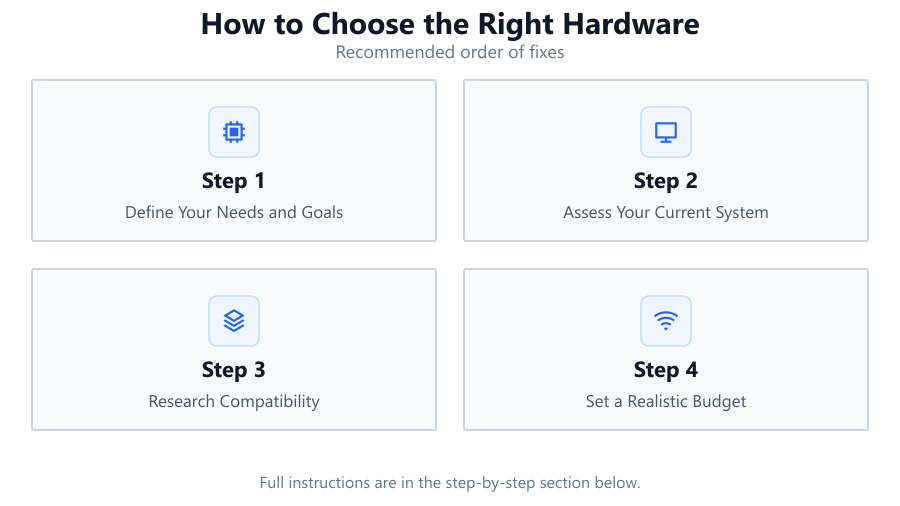
Define Your Needs and Goals
Start by listing your primary use cases. Are you focused on gaming, content creation, streaming, or general productivity? Knowing your goals helps prioritize which components to upgrade and how much to spend.
Assess Your Current System
Identify your PC's current specifications. Take note of your CPU, GPU, RAM, storage, and power supply. Use monitoring tools to check for bottlenecks and determine which components are limiting your performance.
Research Compatibility
Before buying anything, ensure new hardware is compatible with your motherboard, RAM, and power supply. Check socket types, chipset support, and physical dimensions. The CPU Upgrade Calculator can help flag compatibility issues.
Set a Realistic Budget
Determine how much you are willing to spend. Factor in not just the main component but any required accessories, such as a new cooler or power supply. Stick to your budget for the best value.
Use the CPU Upgrade Calculator
Leverage the CPU Upgrade Calculator to compare your current and target CPUs. Review estimated performance gains to ensure the upgrade is worthwhile for your needs.
Plan for the Future
Consider how your needs may change over the next few years. Opt for hardware that offers room to grow, such as boards with extra RAM slots or support for the latest standards.
Comparison
| Component | Key Considerations | Upgrade Impact |
|---|---|---|
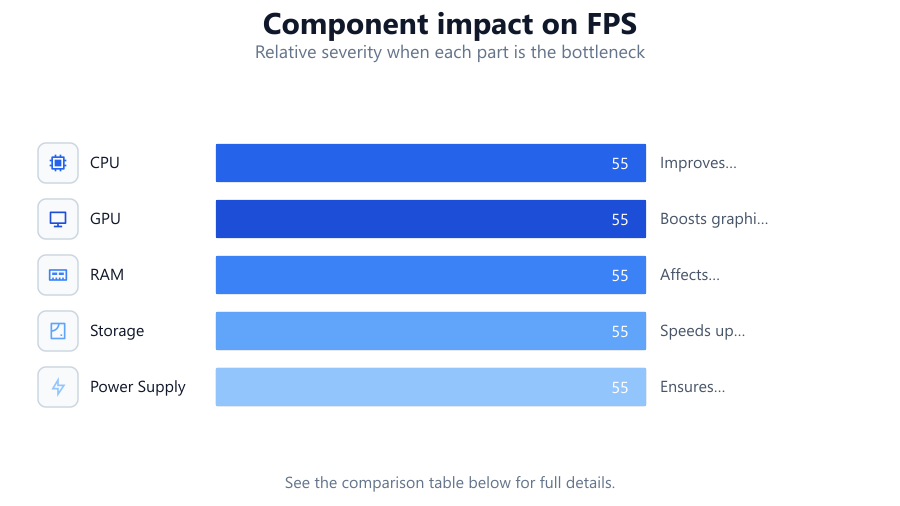
| CPU | Socket type, core count, workload optimization | Improves gaming, multitasking, content creation |
| GPU | PCIe slot, VRAM, power requirements | Boosts graphics, rendering, gaming FPS |
| RAM | Type (DDR4/DDR5), speed, capacity | Affects multitasking, load times, stability |
| Storage | SSD vs HDD, interface (SATA/NVMe) | Speeds up boot times, file transfers, loading |
| Power Supply | Wattage, efficiency, connectors | Ensures system stability and headroom for upgrades |
Common mistakes
Mistake
Ignoring Compatibility
Fix: Always verify that your new hardware matches your motherboard, RAM, and power supply requirements.
Mistake
Overlooking Bottlenecks
Fix: Use tools like the CPU Upgrade Calculator and system monitors to identify and address performance bottlenecks before upgrading.
Mistake
Chasing the Latest Specs Unnecessarily
Fix: Focus on real-world performance improvements rather than just the newest technology. Prioritize upgrades that will benefit your specific use case.
Mistake
Underestimating Power and Cooling Needs
Fix: Check your power supply’s wattage and cooling capabilities to ensure they can handle new, more demanding components.
Troubleshooting
PC does not boot after upgrade
Likely cause: Incompatible hardware, incorrect installation, or insufficient power supply
What to do: Double-check compatibility, reseat components, and verify power supply wattage.
System crashes or freezes during intensive tasks
Likely cause: Overheating or inadequate cooling
What to do: Ensure proper thermal paste application, upgrade your CPU cooler, and improve case airflow.
No performance improvement after upgrade
Likely cause: Other components may be bottlenecking your system
What to do: Use the CPU Upgrade Calculator to identify remaining bottlenecks and consider upgrading those parts.
New hardware not recognized by system
Likely cause: Outdated BIOS or firmware
What to do: Update your motherboard BIOS to the latest version before installing new hardware.
Recommendations
- Always start with a clear understanding of your needs and workload.
- Leverage the CPU Upgrade Calculator to avoid guesswork and maximize your upgrade’s impact.
- Balance performance gains with future-proofing, but avoid overpaying for features you won't use.
- Check compatibility and power requirements before buying any new component.
- Read user reviews and independent benchmarks for real-world performance insights.
Frequently asked questions
How do I know which component to upgrade first?
Identify your system’s bottleneck using performance monitoring tools and the CPU Upgrade Calculator. Upgrade the component that most limits your workload or games.
Will upgrading my CPU improve gaming performance?
If your current CPU is limiting your frame rates or causing stutters, a CPU upgrade can significantly improve gaming performance. Use the CPU Upgrade Calculator to estimate the gains.
What if my new hardware is not compatible?
Incompatibility issues can prevent your system from booting or performing optimally. Always verify socket types, RAM support, and power requirements before purchasing.
Is it better to upgrade one part at a time or the whole system?
Upgrading one component at a time is cost-effective if you know your bottleneck. However, if your system is very outdated, a full platform upgrade may offer better value and longevity.