
Guide
How to Choose the Right Hardware
Confused about building or upgrading your gaming PC? Discover how to choose the right hardware for your needs and budget, and get expert tips to avoid costly mistakes.
Updated 2026-07-05
Understanding Your Needs and Budget
Before buying any hardware, it's essential to determine your goals and set a realistic budget. Consider what games or applications you plan to run, your preferred resolution and frame rates, and any future-proofing requirements. Identifying your use case, such as competitive esports, AAA gaming, or content creation, will guide your choices for CPU, GPU, RAM, and storage.
Think about your budget as a holistic ecosystem: don't overspend on one component at the expense of another. For example, pairing a high-end GPU with a low-tier CPU can cause bottlenecks and waste your investment. Instead, strive for balance across your system.
Research current and upcoming hardware releases. New product launches can shift price-to-performance ratios quickly, so staying informed helps you make a smarter purchase. Keep in mind that your electricity costs will also vary depending on your hardware choices. Using the Gaming PC Electricity Calculator can help you estimate these ongoing expenses before you commit.
Key Hardware Components: What Matters Most
When learning how to choose the right hardware, focus on components that most impact your experience: CPU, GPU, RAM, storage, motherboard, power supply, and cooling.
The GPU (graphics card) is the heart of any gaming PC. Choose a card that matches your gaming resolution and performance targets. For example, 1440p or 4K gaming requires a stronger GPU than 1080p. The CPU handles game logic, streaming, and multitasking. Select a modern processor with enough cores and threads to avoid bottlenecking your GPU.
RAM affects multitasking and load times. Aim for at least 16GB for modern gaming, though 32GB is ideal for future-proofing or heavy multitasking. Storage speed also plays a major role: NVMe SSDs offer fast load times and smooth system performance. Don’t overlook the motherboard, as it determines compatibility, upgrade paths, and connectivity. Double-check form factor, chipset, and available expansion slots.
Your power supply should be efficient, reliable, and rated for your system’s maximum power draw. Use the Gaming PC Electricity Calculator to estimate your power needs and potential electricity costs. High-quality cooling keeps your hardware running smoothly, especially if you plan to overclock or live in a warm environment.
Step-by-step
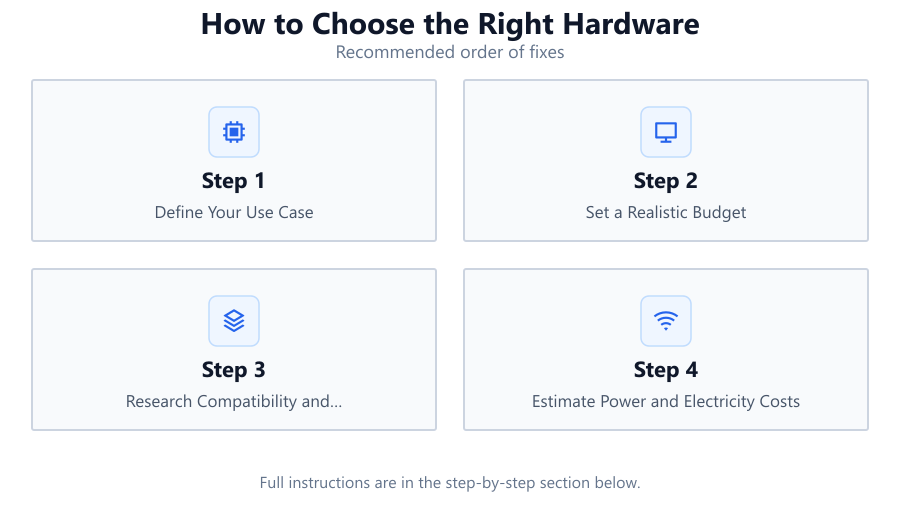
Define Your Use Case
Decide whether you need a PC for competitive gaming, casual play, streaming, or content creation. This impacts which components to prioritize, such as GPU for gaming or CPU for multitasking.
Set a Realistic Budget
Factor in all components, including case, cooling, and peripherals. Allocate more budget to parts that most impact your experience, but avoid neglecting essentials like power supply and storage.
Research Compatibility and Future-Proofing
Ensure that your chosen CPU, motherboard, and RAM are compatible. Consider upgrade paths, such as additional RAM slots or PCIe lanes, to keep your system relevant longer.
Estimate Power and Electricity Costs
Use the Gaming PC Electricity Calculator to determine your system’s power requirements and running costs. This step helps you choose an adequate power supply and understand long-term expenses.
Check Reviews and Benchmarks
Look for reputable reviews and user benchmarks for each component. Compare real-world performance, reliability, and thermal characteristics to make sure your choices align with your expectations.
Comparison
| Component | Entry-Level | High-End |
|---|---|---|
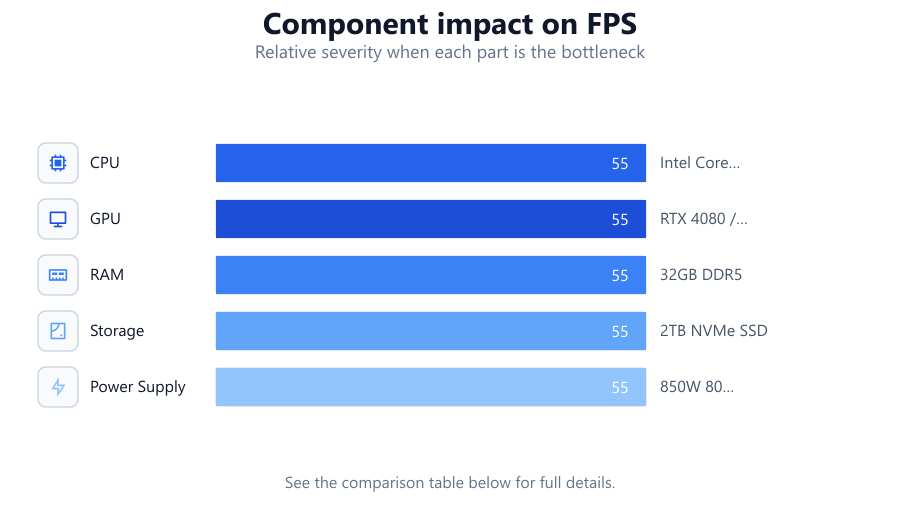
| CPU | Intel Core i3 / Ryzen 3 | Intel Core i7/i9 / Ryzen 7/9 |
| GPU | NVIDIA GTX 1650 / RX 6500 XT | RTX 4080 / RX 7900 XTX |
| RAM | 16GB DDR4 | 32GB DDR5 |
| Storage | 500GB SATA SSD | 2TB NVMe SSD |
| Power Supply | 500W 80 Plus Bronze | 850W 80 Plus Gold |
Common mistakes
Mistake
Ignoring component bottlenecks.
Fix: Balance CPU and GPU performance to prevent one from limiting the other.
Mistake
Underestimating power requirements.
Fix: Use the Gaming PC Electricity Calculator to find the right PSU wattage and efficiency.
Mistake
Overlooking future upgrade options.
Fix: Choose a motherboard and case with expansion slots and support for newer standards.
Mistake
Buying incompatible parts.
Fix: Always double-check socket types, RAM compatibility, and physical dimensions before purchase.
Troubleshooting
PC won't power on after assembly.
Likely cause: Loose cables, insufficient power supply, or incompatible components.
What to do: Check all connections, verify PSU wattage, and consult your motherboard manual for compatibility.
Frequent crashes or blue screens during gaming.
Likely cause: Insufficient cooling, faulty RAM, or unstable overclock.
What to do: Monitor temperatures, test RAM with diagnostic tools, and revert any overclock settings.
Poor gaming performance despite high-end hardware.
Likely cause: Driver issues, background processes, or bottlenecked component.
What to do: Update all drivers, close unnecessary applications, and use monitoring tools to identify bottlenecks.
High electricity bills after upgrading hardware.
Likely cause: Power-hungry components running for long periods.
What to do: Use the Gaming PC Electricity Calculator to estimate costs and consider adjusting gaming habits or hardware settings.
Recommendations
- Balance your hardware choices to match your most demanding use case.
- Always check compatibility between CPU, motherboard, and RAM before buying.
- Prioritize reliable power supply and effective cooling to protect your investment.
- Estimate your electricity usage with the Gaming PC Electricity Calculator to avoid surprises.
- Read multiple reviews and user feedback before finalizing your build.
Frequently asked questions
What is the most important component for gaming performance?
The GPU is usually the most critical component for gaming. However, a balanced system with a capable CPU and enough RAM is essential for smooth gameplay.
How much RAM do I need for gaming?
16GB is considered the minimum for modern gaming. For multitasking or future-proofing, 32GB is recommended.
How can I estimate my PC's electricity usage?
You can use the Gaming PC Electricity Calculator to enter your components, gaming hours, and electricity rates to estimate your PC's power consumption and running costs.
Should I upgrade my GPU or CPU first?
If your current GPU struggles with your desired resolution or settings, upgrade it first. If your CPU frequently maxes out or bottlenecks your GPU, prioritize a CPU upgrade.