
Guide
Common Buying Mistakes
Avoid the most frequent PC component buying errors with this comprehensive guide. Learn how to sidestep costly mistakes and make smarter choices.
Updated 2026-07-05
Understanding Common Buying Mistakes in PC Building
Building a PC can be both exciting and daunting, especially when it comes to selecting the right parts. One of the most overlooked areas is the power supply unit, or PSU. Many builders underestimate the importance of choosing a PSU that matches their system’s real power needs, which can lead to instability, poor performance, or even hardware failure.
Common buying mistakes often stem from guessing wattage, relying on outdated advice, or falling for marketing hype. Users sometimes pick the cheapest PSU available, or one that seems to have enough wattage based on rough estimates. Unfortunately, this approach can risk the safety and longevity of your entire system.
The impact of these mistakes is not limited to the PSU itself. An inadequate or unreliable power supply can cause crashes, unexpected shutdowns, and even permanent damage to expensive components like GPUs and CPUs. Understanding these pitfalls is the first step in making informed choices for a stable, high-performance system.
Avoiding Costly Errors: How to Make Informed Decisions
To avoid common buying mistakes, it is crucial to examine each component's power requirements and match them with a reputable PSU that provides both the correct wattage and high efficiency. Many users overlook the need for future upgrades or additional hardware, leading to a PSU that is too weak for their system’s evolving needs.
Another frequent error is ignoring the importance of PSU quality and certification. Not all wattages are created equal: a low-quality unit may not deliver its rated power, especially under heavy loads. This can result in system instability and even void warranties on other hardware. Using a PSU Calculator is recommended to ensure you select a unit with the correct headroom for your specific build, including any planned upgrades or peripherals.
Lastly, consider the actual connectors and physical size of your PSU. Some high-wattage units may not fit in compact cases, or may not offer enough connectors for all your devices. By double-checking specifications and using tools like the PSU Calculator, you can prevent these oversights and build a more reliable PC.
Step-by-step
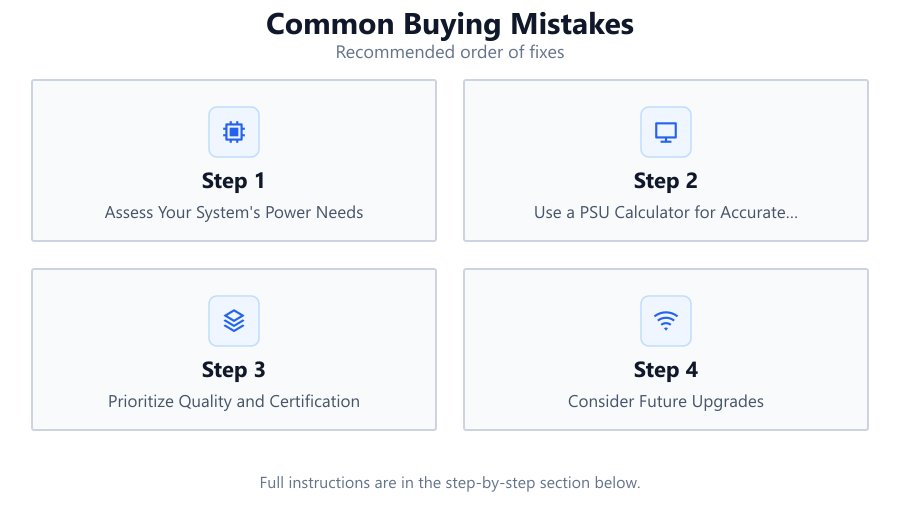
Assess Your System's Power Needs
List all components in your build, including CPU, GPU, storage devices, and peripherals. Use manufacturer specifications to find typical and peak power draws.
Use a PSU Calculator for Accurate Estimates
Leverage the PSU Calculator to input your components and get a precise wattage recommendation. This avoids under- or overestimating your system's requirements.
Prioritize Quality and Certification
Look for PSUs with recognized certifications like 80 PLUS Bronze, Silver, Gold, or Platinum. Quality units from reputable brands are more reliable and efficient.
Consider Future Upgrades
Plan for possible upgrades such as an additional GPU, more storage, or higher wattage CPU. Select a PSU with enough headroom to accommodate these changes.
Double-Check Physical Compatibility
Ensure the PSU will fit in your case and has all necessary connectors for your components. Check dimensions and connector types before buying.
Comparison
| Mistake | Impact | Prevention |
|---|---|---|
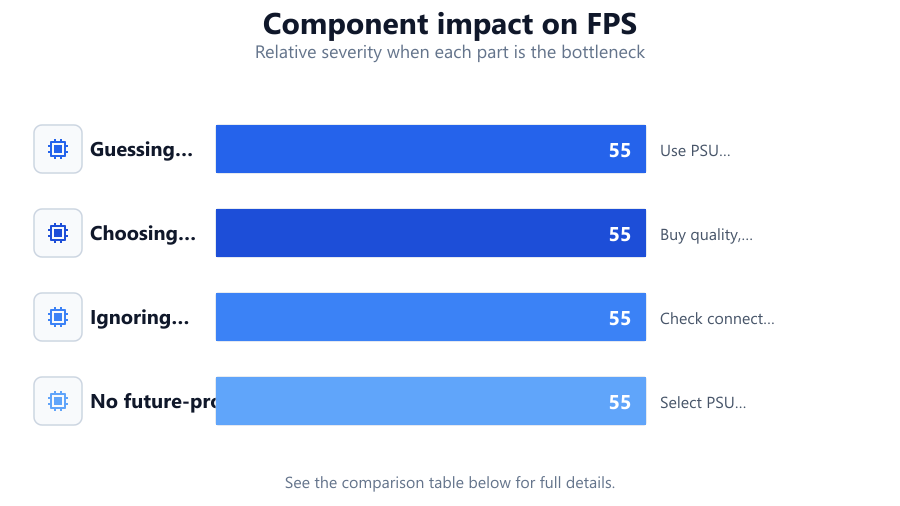
| Guessing wattage | System instability, crashes | Use PSU Calculator for precise estimates |
| Choosing cheapest PSU | Risk of failure, damaged hardware | Buy quality, certified units |
| Ignoring connectors | Incompatibility with components | Check connector requirements |
| No future-proofing | Inadequate for upgrades | Select PSU with extra headroom |
Common mistakes
Mistake
Guessing required wattage without calculation
Fix: Always use a PSU Calculator to accurately determine your system’s needs.
Mistake
Choosing the lowest-priced PSU regardless of quality
Fix: Invest in a reputable, certified PSU to protect your components and ensure stability.
Mistake
Overlooking connector and physical fit requirements
Fix: Review your case dimensions and connector needs before purchasing.
Mistake
Failing to consider future upgrades
Fix: Select a PSU with sufficient headroom for additional hardware or component upgrades.
Troubleshooting
Frequent system crashes or random shutdowns
Likely cause: PSU is underpowered or of poor quality
What to do: Replace with a PSU that meets or exceeds your system's calculated wattage and is from a reputable brand.
Components not powering on or intermittent failures
Likely cause: Insufficient connectors or incompatible PSU size
What to do: Verify connector compatibility and physical PSU dimensions before installing.
Loud fan noise or overheating PSU
Likely cause: PSU is operating above its rated capacity
What to do: Upgrade to a higher wattage PSU with better cooling and efficiency ratings.
Recommendations
- Use the PSU Calculator to determine your system’s exact power needs.
- Choose a PSU with at least an 80 PLUS Bronze certification or higher.
- Allow for 20-30 percent headroom above your calculated wattage for future upgrades.
- Double-check PSU dimensions and connector types against your case and components.
- Read user reviews and seek reputable brands known for reliability.
Frequently asked questions
Why is using a PSU Calculator better than guessing wattage?
A PSU Calculator provides precise wattage recommendations based on your exact components, reducing the risk of underpowering or overspending on your power supply.
What risks come with buying a cheap, uncertified PSU?
Cheap, uncertified PSUs may fail to deliver their rated power, leading to system instability, component damage, and even fire hazards in extreme cases.
How much extra wattage should I add for upgrades?
It is recommended to add 20-30 percent headroom above your system’s current wattage to accommodate future hardware upgrades safely.
Can a PSU be too powerful for my system?
While a higher wattage PSU will not harm your system, it may be less efficient at low loads. Choose a PSU with appropriate wattage and good efficiency ratings.