
Guide
Optimization Guide
Struggling to pick the right PSU for your PC build? This optimization guide explains how to get the perfect wattage, maximize efficiency, and avoid costly errors using the PSU Calculator.
Updated 2026-07-05
What is an Optimization Guide for PC Power Supplies?
A PC power supply is the foundation of every stable and efficient computer build. Choosing the right PSU is crucial for system longevity, performance, and safety. This optimization guide takes the guesswork out of selecting and configuring your PSU, ensuring you get the most reliable and efficient power for your components.
With rapidly evolving hardware demands, the importance of matching your PSU to your specific build cannot be overstated. Overestimating wattage leads to wasted energy and higher costs. Underestimating can cause instability, crashes, or even hardware damage. Our PSU Calculator is designed to analyze your system's needs and recommend the optimal power supply so you do not have to rely on rough estimates or outdated advice.
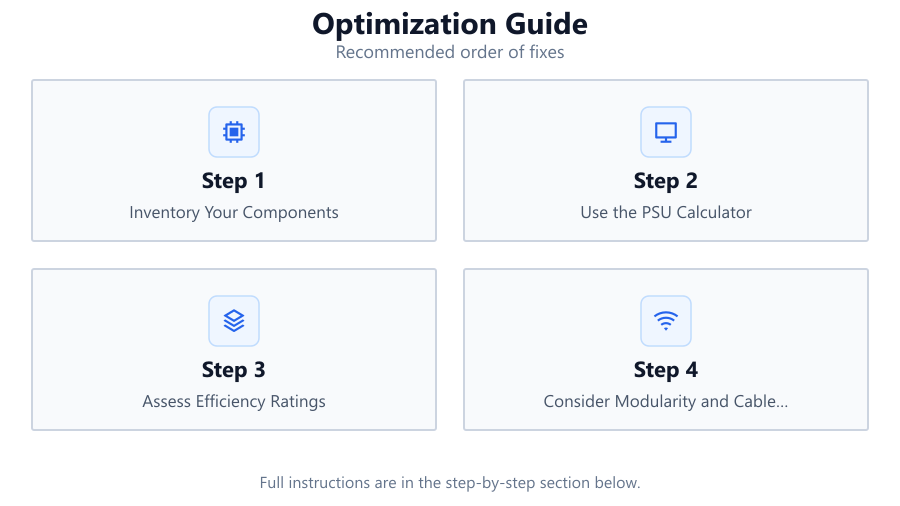
By following this optimization guide, you will learn how to assess your system requirements, understand efficiency ratings, and make informed choices about modularity, connectivity, and future upgrades. Whether you are a first-time builder or an experienced enthusiast, these strategies will help you avoid pitfalls and get the best performance from your PC.
In-Depth: How to Optimize Your PSU Selection and Configuration
The right optimization guide goes beyond just picking a wattage number. It covers the nuanced decisions that can impact your system's stability, energy efficiency, and total cost of ownership. Start by listing all your components, including CPU, GPU, storage devices, cooling systems, and peripherals. Use the PSU Calculator to input these details and generate an accurate wattage recommendation.
Pay close attention to efficiency ratings such as 80 Plus Bronze, Gold, or Platinum. Higher certifications mean less power wasted as heat and potentially lower electricity bills. Assess your cable management needs, modular PSUs offer flexibility and a cleaner build, which can also improve airflow and cooling. Do not forget to allow headroom for future upgrades, but avoid excessive oversizing, as this can reduce efficiency at lower loads.
Proper optimization also involves checking for high-quality components and protections like overvoltage, undervoltage, and short circuit safeguards. This ensures your investment is protected against electrical anomalies. Finally, always verify the PSU's compatibility with your case and regional power standards. Following this process, reinforced by data from the PSU Calculator, guarantees a reliable and efficient power supply setup.
Step-by-step
Inventory Your Components
List every major component in your PC build, including CPU, GPU, motherboard, RAM, storage, cooling, and peripherals. Document their power requirements.
Use the PSU Calculator
Input your component list into the PSU Calculator to determine the precise wattage your system needs. This avoids over- or undersizing your PSU.
Assess Efficiency Ratings
Choose a PSU with a high efficiency certification, such as 80 Plus Gold or higher, to reduce energy waste and heat production.
Consider Modularity and Cable Management
Select modular or semi-modular PSUs for easier cable routing and improved airflow. This also helps with future upgrades and maintenance.
Plan for Future Upgrades
Allow for some headroom in your PSU selection to accommodate future component upgrades, but do not excessively oversize, as it can lower efficiency.
Verify Compatibility and Protections
Ensure your PSU fits your case and has essential safety features like OVP, UVP, SCP, and OTP to protect your components.
Comparison
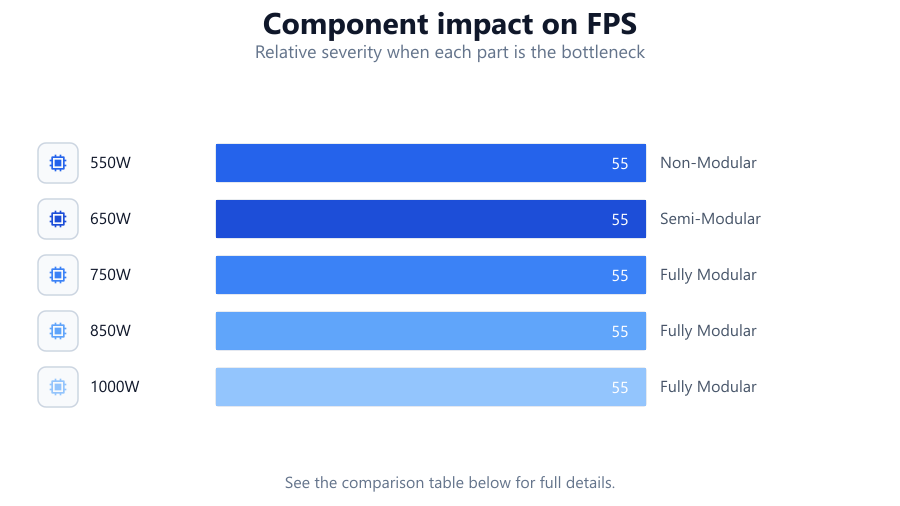
| Wattage | Efficiency Rating | Modularity |
|---|---|---|
| 550W | 80 Plus Bronze | Non-Modular |
| 650W | 80 Plus Gold | Semi-Modular |
| 750W | 80 Plus Platinum | Fully Modular |
| 850W | 80 Plus Gold | Fully Modular |
| 1000W | 80 Plus Platinum | Fully Modular |
Common mistakes
Mistake
Overestimating PSU wattage requirements
Fix: Use the PSU Calculator for precise recommendations and avoid unnecessary oversizing.
Mistake
Ignoring efficiency ratings
Fix: Select a PSU with at least an 80 Plus Gold rating for better performance and lower energy bills.
Mistake
Not accounting for future upgrades
Fix: Choose a PSU with some headroom for new components, but avoid choosing excessively high wattage.
Mistake
Neglecting cable management
Fix: Opt for modular or semi-modular PSUs to simplify cable routing and improve case airflow.
Troubleshooting
PC randomly shuts down under load
Likely cause: Insufficient PSU wattage or failing unit
What to do: Check system power requirements with the PSU Calculator and upgrade to a higher wattage, quality PSU if needed.
Excessive heat from PSU
Likely cause: Low efficiency rating or overloaded PSU
What to do: Replace with a higher-efficiency PSU rated for your system's needs.
Unstable voltage readings in BIOS or monitoring tools
Likely cause: Poor quality PSU or lack of protective features
What to do: Choose a reputable PSU brand with built-in voltage protections.
Recommendations
- Always use the PSU Calculator to determine accurate power needs before purchasing.
- Prioritize efficiency ratings and safety features in your PSU selection.
- Opt for modularity to simplify cable management and airflow.
- Plan for future upgrades, but avoid excessive oversizing.
- Regularly monitor system stability and PSU health using hardware monitoring tools.
Frequently asked questions
Why is PSU optimization important?
Optimizing your PSU ensures system stability, maximizes energy efficiency, and prevents hardware damage from power fluctuations or insufficient wattage.
How do I know what wattage PSU I need?
Use the PSU Calculator by entering your system components to receive an accurate wattage recommendation tailored to your build.
What is the difference between modular and non-modular PSUs?
Modular PSUs let you attach only the cables you need, improving cable management and airflow. Non-modular PSUs have all cables permanently attached.
Should I buy a PSU with much more wattage than needed?
Some headroom is good for upgrades, but excessive oversizing wastes energy and reduces efficiency. The PSU Calculator helps you find the optimal balance.